
To optimize first-person shooter games on the Nintendo Switch for maximum frame stability, you must adjust both internal system configurations and individual game graphic toggles, while mitigating thermal throttling through hardware management. Because the Switch relies on the aging NVIDIA Tegra X1 architecture, squeezing consistent performance out of demanding titles like Overwatch 2, Apex Legends, or Metroid Prime Remastered requires disabling resource-heavy post-processing effects, utilizing high-speed internal storage or V3-rated MicroSD cards to eliminate asset streaming stutter, and ensuring your dock configuration outputs native RGB full range to minimize input lag.
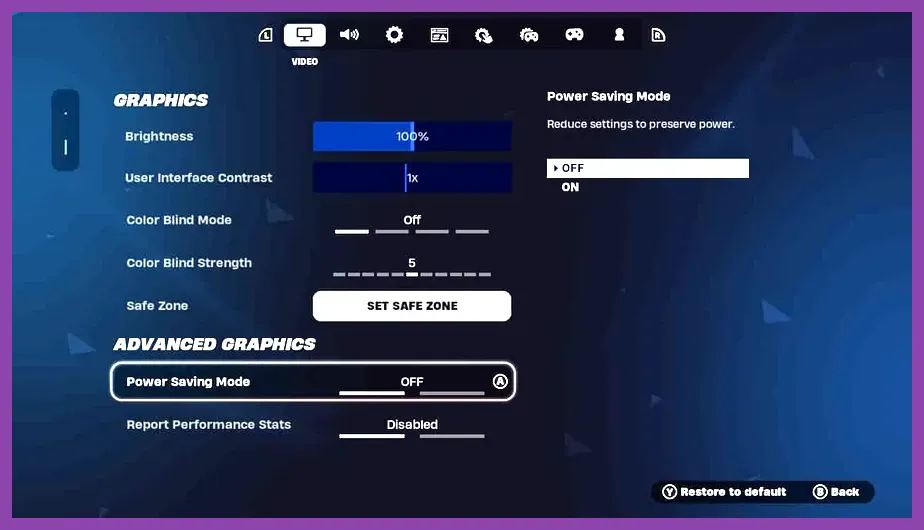
Adjusting System Settings for Input Latency Reduction
Before launching any first-person shooter, optimizing your Nintendo Switch system settings directly impacts responsiveness. Navigate to your System Settings and adjust the TV Output settings. If you play in docked mode, change the RGB Range from Automatic to Full. This ensures your monitor or TV accurately processes color signals without internal upscaling lag, which mimics the benefits seen when configuring titles like Squad Busters for optimal input fidelity. Furthermore, disable "Connect to TV" features if your display suffers from CEC handshaking delays.
Next, turn off background data downloads and cloud save syncing while gaming. The Tegra X1 chip dedicates precious CPU cycles to handling network background tasks. By disabling automatic software updates through the official Nintendo Switch portal, you prevent sudden frame drops caused by background processes interrupting active asset rendering in fast-paced multiplayer lobbies.
Storage Optimization and Asset Streaming Management
Storage read speeds dictate how quickly textures and map geometry load during rapid movement in titles such as Doom (2016) or Crysis Remastered. Running games off a slow, fragmented MicroSD card causes severe hitching when spinning around quickly. Always install your competitive shooters directly onto the Nintendo Switch system memory if space permits, or invest in an A2-rated MicroSD card with read speeds up to 100MB/s. Similar to managing performance in S.T.A.L.K.E.R. 2, minimizing disk read latency is critical for maintaining fluid frame delivery.
If you experience persistent stuttering during heavy firefights, completely power down your console rather than leaving it in Sleep Mode. Clearing the system cache by holding the power button and restarting flushes temporary memory leaks that accumulate over hours of suspended gameplay sessions, mirroring optimization techniques used in Stardew Valley max FPS guides.
In-Game Graphical Tweaks for Competitive Shooters
Most modern ports on the Switch include advanced video settings that should be immediately toggled to prioritize performance over visual fidelity. When playing titles featuring dynamic resolution scaling (DRS), lock your target frame rate to 60 FPS where available, even if it forces the resolution to drop during chaotic scenes. For detailed system specifications and minimum hardware requirements of demanding handheld ports, check out resources like Stardew Valley system requirements to understand how the hardware scales.
Execute the following in-game adjustments across virtually all Switch FPS titles:
- Motion Blur: Disable completely. Motion blur masks low frame rates but introduces visual noise that obscures enemy players at a distance.
- Vertical Sync (V-Sync): Disable if the game menu permits, though many console ports lock this on to prevent screen tearing; if forced, learn to account for the minor input delay.
- Shadow Quality: Lower to Medium or Low. Dynamic shadow calculations heavily tax the Maxwell-based GPU architecture.
- Field of View (FoV): Reduce slightly from maximum if the game offers a slider. A narrower FoV reduces the number of rendered polygons on screen simultaneously, directly boosting frame rates.
- Ambient Occlusion: Turn off to relieve pressure on pixel fill rates during intense explosions.
Mitigating Thermal Throttling in Handheld Mode
The Nintendo Switch dynamically throttles its CPU and GPU clock speeds when internal temperatures rise, turning a stable 30 FPS experience into a choppy 18 FPS slide show. This is particularly noticeable during long handheld sessions or when playing docked in a poorly ventilated entertainment center. To maintain peak performance, remove protective plastic grip cases that trap heat against the plastic chassis. For advanced players seeking optimal peripheral setups similar to State of Survival emulator configurations, utilizing an external cooling stand or playing in an air-conditioned room prevents thermal throttling entirely.
Additionally, clean out the top exhaust vent periodically using compressed air. Dust accumulation restricts airflow across the internal heatsink, forcing the tiny internal fan to ramp up prematurely and trigger downclocking protocols. Keeping your hardware cool guarantees that the Tegra X1 maintains its maximum boosted clock speed of 768 MHz in docked mode or 384 MHz in handheld mode.
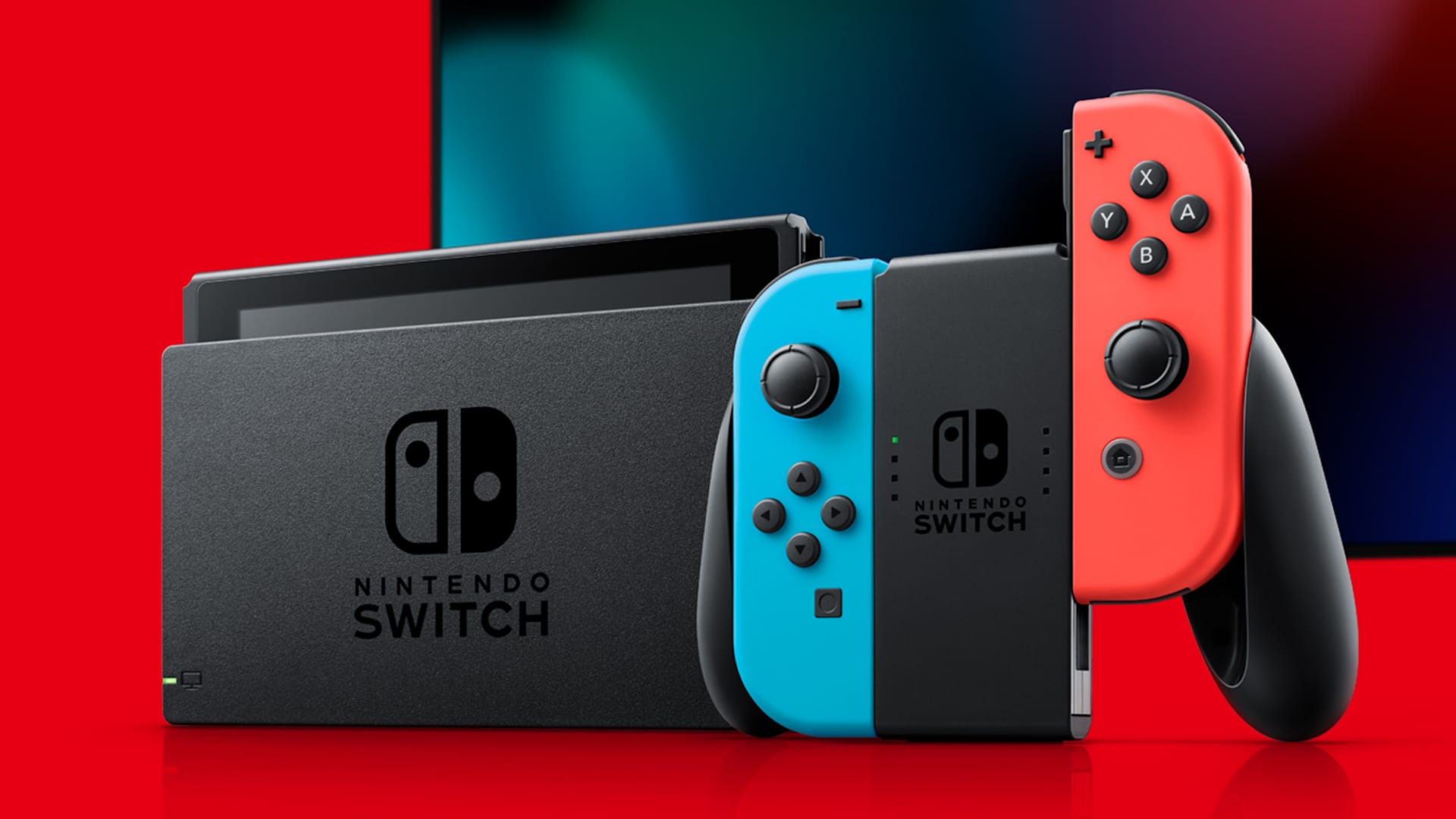
Controller Calibration and Deadzone Tuning
A high frame rate is useless if your inputs feel sluggish or inaccurate due to hardware drift or poor deadzone settings. Calibrate your Joy-Cons or Pro Controller regularly through the system settings menu. In competitive FPS titles, reducing stick deadzones allows for micro-adjustments when tracking targets, though you must balance this against native stick drift. For players transitioning from PC setups, understanding controller curves is as crucial as mastering mechanics in Street Fighter 6.
Finally, consider upgrading to a wired controller option or using a Pro Controller connected via USB cable with "Pro Controller Wired Communication" enabled in system settings. This completely eliminates Bluetooth polling latency, ensuring every trigger pull and aim adjustment registers instantly on screen.