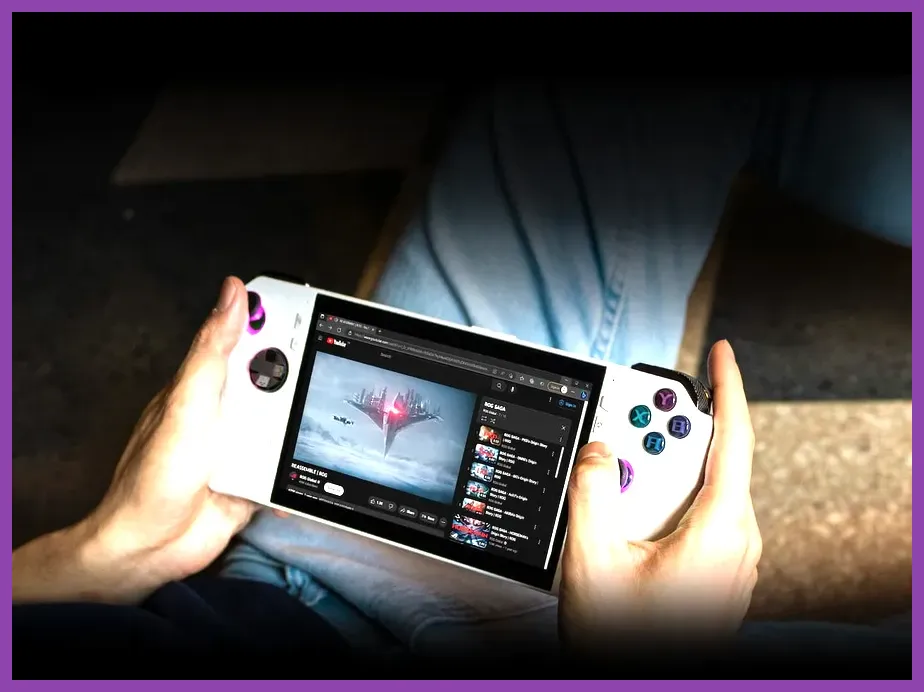
To optimize coop games on your ROG Ally, you must configure a combination of the 18W/25W Manual Operating Mode in ASUS Armoury Crate SE, lock your display resolution to 720p or 1080p with AMD Radeon Super Resolution (RSR) or AMD FidelityFX Super Resolution (FSR) set to Performance mode, and adjust Windows 11 virtual memory paging files to at least 8GB. Because cooperative multiplayer titles require consistent frame pacing to prevent desync and input lag during network-heavy sessions, relying on out-of-the-box presets will routinely cause stuttering during intense combat sequences.
Configuring Armoury Crate SE Power Profiles for Multiplayer
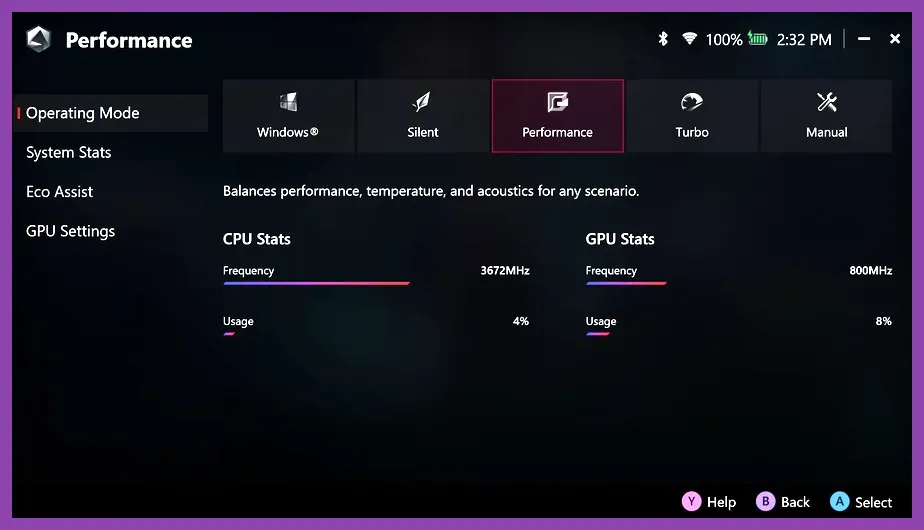
Running cooperative games like Remnant 2 or Helldivers 2 on the stock 15W Silent or Performance modes will result in severe frame drops when multiple particle effects and network states load simultaneously. You need to construct a custom manual profile that pushes the envelope of the AMD Ryzen Z1 Extreme chip without overheating the thermal chamber.
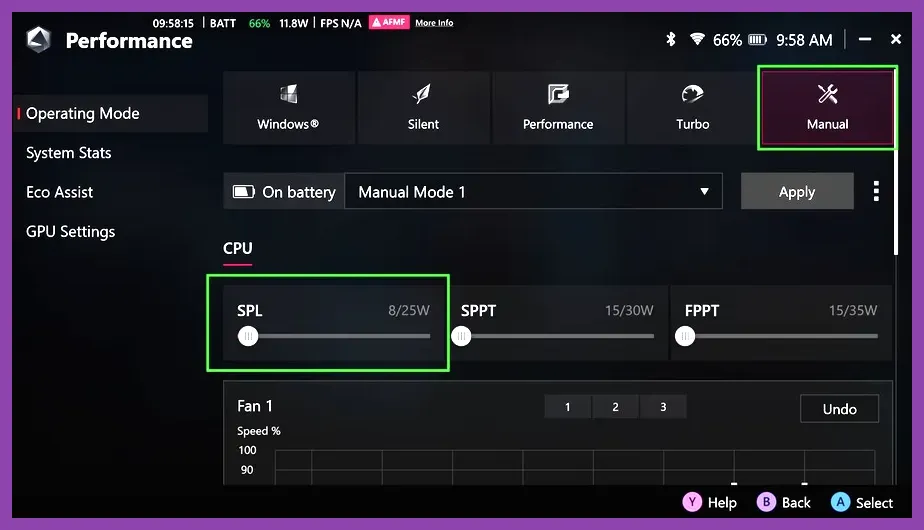
Open Armoury Crate SE, navigate to the Operating Mode tab, and create a Manual Profile. Set the Sustained Power Limit (SPL) to 22W when running on battery, or 30W when plugged into a 65W+ USB-C Power Delivery wall charger. Set the Fast Power Limit (SPPT) to 25W and the Slow Power Limit (FPPT) to 30W. For advanced tuning, keep the fan curve aggressive, ensuring fan speed hits 74% once internal temperatures cross 70°C. For more hardware-centric optimization strategies, you can also reference our PS5 Pro performance setup guide for parallels in managing high-demand system resources.
Setting Up AMD RSR and In-Game Graphics for High FPS
The ROG Ally's native 1080p 120Hz IPS display is crisp, but rendering demanding co-op titles at native resolution puts an immense load on the integrated AMD Radeon RDNA 3 graphics. Utilizing spatial upscaling is mandatory if you want to maintain a locked 60 frames per second during intense wave-clear phases.
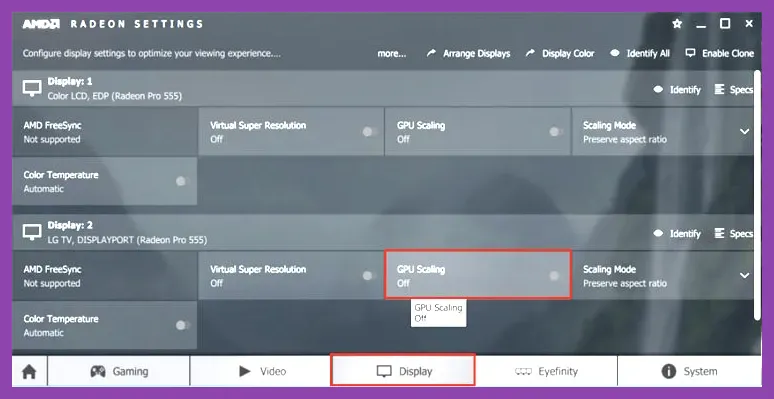
First, drop your Windows display resolution to 1280x720. Open the AMD Software: Adrenalin Edition app, locate Gaming > Display, and toggle on Radeon Super Resolution (RSR). Inside your specific co-op game settings, set the rendering resolution to 720p, lower Shadows and Ambient Occlusion to Medium or Low, set Textures to Medium to conserve the shared VRAM pool, and ensure VSync is enabled to prevent screen tearing on the native FreeSync Premium display. For comparative optimization workflows on PC hardware, check out our Bannerlord high FPS graphics settings guide.
Optimizing Windows 11 and VRAM Allocation
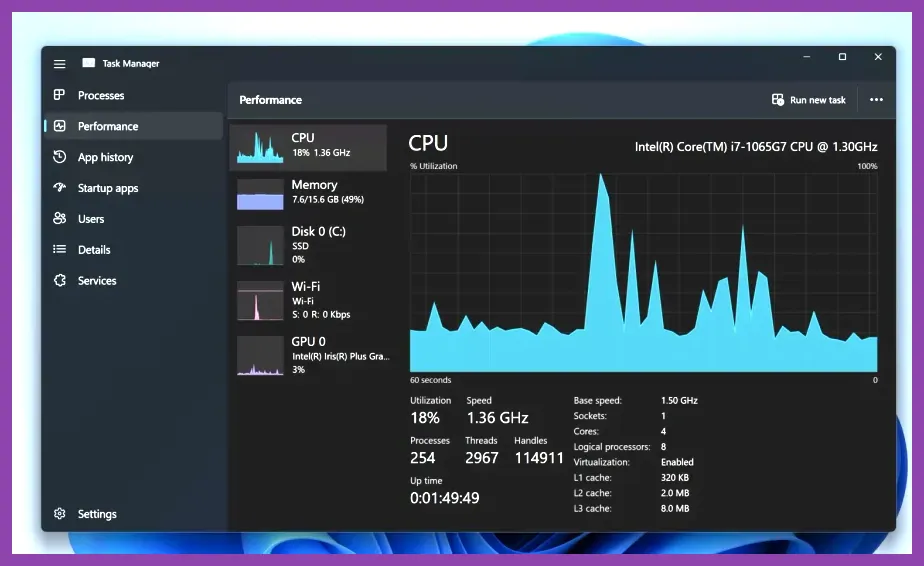
Windows 11 background services consume a massive chunk of the ROG Ally's unified 16GB LPDDR5 memory pool. If your system is constantly fighting background telemetry and update tasks, your co-op sessions will suffer from micro-stutters and sudden connection timeouts due to thread contention.
Start by altering your VRAM allocation within Armoury Crate. Go to Settings > Operating Mode > GPU Memory and manually increase the frame buffer size from the default 4GB to 6GB. This prevents games like Helldivers 2 from crashing due to out-of-memory errors during heavy extraction sequences. Next, disable Windows Game Bar, Xbox Game DVR, and core isolation (Memory Integrity) in Windows Security to reclaim up to 8% overall CPU performance. If you enjoy managing intensive inventory management and farming loops in multiplayer ecosystems, review our strategies in the Remnant 2 scrap and currency farming guide.
Managing Thermal Limits and Stability During Long Sessions
Cooperative gaming sessions often stretch for hours, meaning thermal throttling is a primary enemy of the ROG Ally. When the APU heats past 85°C, the system aggressively downclocks core frequencies, causing immediate input lag and frame pacing spikes that can ruin a coordinated multiplayer run.
To mitigate thermal saturation, never play with the handheld resting flat on a fabric surface, as this blocks the rear intake grills. Elevate the bottom edge of the Ally by at least one inch using a portable stand or a small dock to allow unobstructed airflow into the dual fans. Additionally, cap your framerate globally using the AMD Anti-Lag and Radeon Chill features, locking the minimum and maximum FPS to 60. This simple limiter stops the system from wasting power and generating excess heat trying to render frames your eyes cannot utilize on a 7-inch panel. For additional hardware-level performance tweaks across diverse gaming platforms, consult our comprehensive Mortal Kombat 1 system requirements breakdown.
Network Optimization and Wi-Fi Stability for Seamless Co-Op
Hardware performance is only half the battle when optimizing coop games; wireless packet loss and high latency will introduce rubber-banding regardless of your frame rate. The ROG Ally features a MediaTek Wi-Fi 6E controller which requires specific driver tuning to prevent connection drops.
Open Device Manager, locate your wireless network adapter under Network Adapters, and open its Properties menu. Under the Advanced tab, disable Energy Efficient Ethernet, set Roaming Aggresiveness to Lowest, and ensure Wireless Mode is forced to 802.11ax if your router supports Wi-Fi 6. Furthermore, if you play near a microwave or Bluetooth accessories (like wireless controllers and headsets operating on the crowded 2.4GHz band), connect your home router to a dedicated 5GHz or 6GHz channel specifically for your handheld. If you are exploring other demanding multiplayer or tactical coordination titles, take a look at our insights within the Phasmophobia investigation build guide.
Essential Third-Party Utilities for Advanced Monitoring
To truly verify that your optimizations are working, you need real-time data collection rather than guesswork. Relying solely on built-in software counters can hide critical 1% and 0.1% low metrics that indicate stuttering.
Install RivaTuner Statistics Server (RTSS) alongside MSI Afterburner to overlay a detailed HUD showing exact APU temperature, total wattage draw, RAM utilization, and frametime graphs. Fine-tuning your game settings until the frametime graph remains flat at 16.6ms guarantees a buttery-smooth 60 FPS experience. For more tips on maximizing early-game performance across various popular multiplayer releases, browse our breakdown of the Once Human early game optimization strategies.