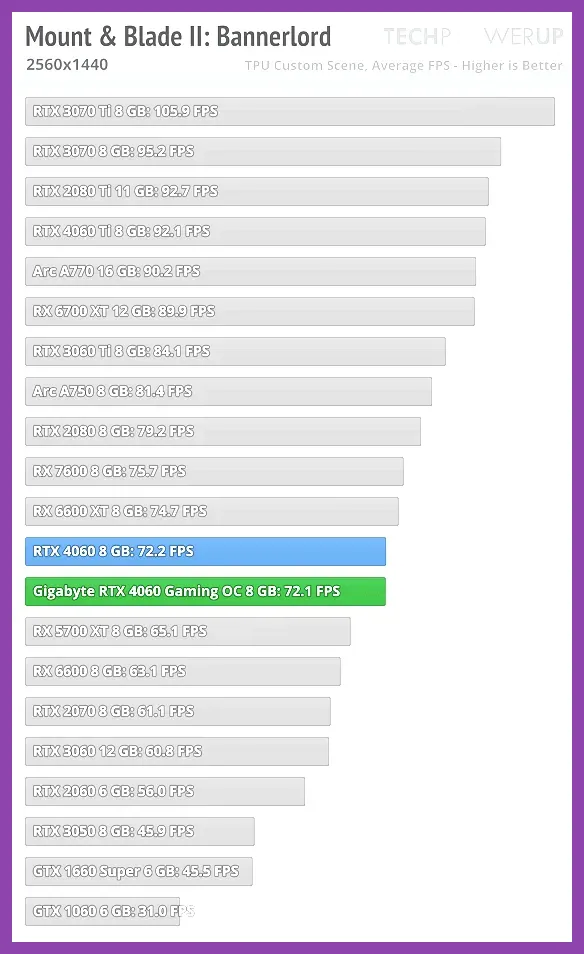
To achieve stable 60+ FPS in Mount & Blade II: Bannerlord during massive 1,000-unit field battles and siege warfare, set Battle Size to 600–800, drop Dynamic Shadows to Disabled, lower Audio Channels to 64 (or 32), set Cloth Simulation to Off or Agency Only, and enable DLSS or FSR 2 on Quality Mode. Bannerlord is aggressively bottlenecked by CPU pathfinding, ragdoll physics, and multi-channel audio processing rather than GPU rendering alone. Lowering CPU-bound settings instantly eliminates micro-stuttering during cavalry charges and siege tower breaches while maintaining crisp visual fidelity at 1080p and 1440p resolutions.
Essential Graphics Settings Profile for High FPS and Visual Clarity
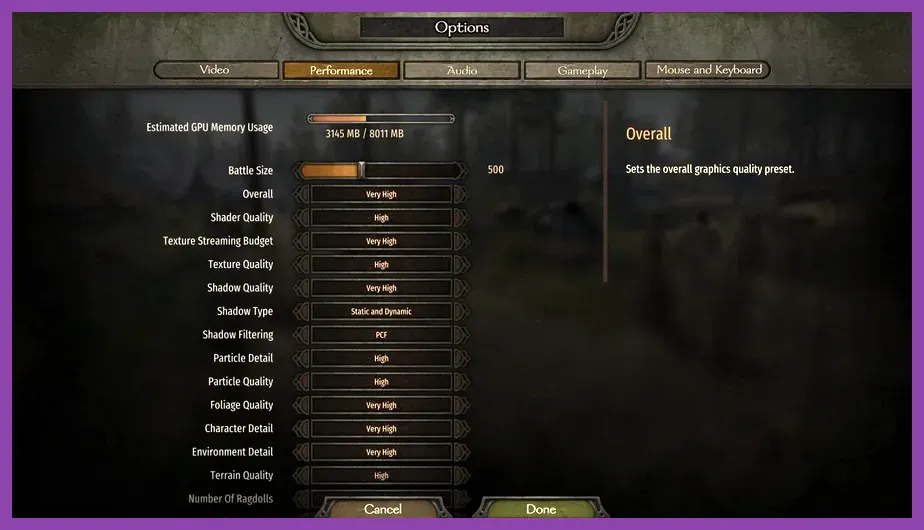
Finding the ideal balance between visual splendor and competitive frame rates requires isolating TaleWorlds’ custom graphics engine settings. Bannerlord includes a built-in benchmark tool within the options menu, but real combat scenarios involving archery volleys, shield walls, and cavalry flank charges present far heavier rendering loads than static benchmark runs. Below is the definitive graphics profile designed to maximize frame rate stability while preserving character detail and foliage visibility.
- Display Mode: Fullscreen (Borderlands/Windowed introduces desktop window manager latency).
- Resolution Scale: 100% (Avoid lowering below 100% natively; use DLSS or FSR instead).
- Frame Rate Limit: Display Refresh Rate (or Uncapped if utilizing G-Sync/FreeSync).
- V-Sync: Disabled (Reduces input lag during melee directional blocking).
- Overall Quality: Custom.
- Battle Size: 600 to 800 (1000 only on high-end modern CPUs like Ryzen 7 7800X3D or i7-13700K).
- Shader Quality: Medium (High introduces unnecessary shader compilation hitches during fire arrow effects).
- Texture Quality: High (Set to Medium only if your VRAM is 4GB or lower).
- Texture Filtering: Anisotropic 8x (Minimal GPU performance impact, crisp terrain patterns).
- Shadow Quality: Low or Medium (High shadow map resolution severely tanks GPU bandwidth).
- Shadow Type: Static Only (Disabling dynamic shadows saves up to 15% overall framerate).
- Shadow Filtering: Low.
- Particle Detail: Medium.
- Particle Physics: Low.
- Cloth Simulation: Off or Agency Only (Huge CPU lifesaver in large infantry clashes).
- Environment Detail: Medium.
- Terrain Quality: Medium.
- Number of Ragdolls: 5 to 10.
- Subsurface Scattering: Off (Negligible visual improvement during combat).
- Ambient Occlusion: Low or GTAO Low (Off for budget setups).
- Depth of Field: Off (Improves tactical distance visibility).
- Motion Blur: Off.
- DLSS / FSR 2: Quality (at 1440p/4K) or Off (at native 1080p).
Managing CPU Bottlenecks: Battle Size, Ragdolls, and Audio Channels
Unlike typical action RPGs, Bannerlord pushes processing units to their absolute limit. Every soldier on the field requires individual AI decision-making, collision detection, equipment hitboxes, pathfinding calculations, and dynamic sound events. When your framerate drops drastically despite owning a powerful graphics card, your CPU is failing to handle the tactical simulation simulation overhead.
The single biggest hardware sink in the game is Battle Size. While launching a 1,000-troop slaughter looks cinematic, reducing this slider from 1000 to 600 decreases CPU processing loads by nearly 40%. Reinforcements will spawn in waves to replace fallen soldiers, ensuring massive battles still take place without forcing your processor into thermal throttling. If you are recruiting top-tier warriors based on our Mount & Blade 2 Bannerlord best companions guide, maintaining steady 60 FPS in duels and command maneuvers is vital for keeping your party alive.
Another unexpected CPU hog is the game's sound engine. Under the Audio Settings tab, lower Sound Channels from 128 or 256 down to 64 or 32. When hundreds of units clash, processing hundreds of simultaneous sword clangs, horse grunts, and war cries consumes significant CPU cycles. Lowering audio channels frees up thread availability for AI pathfinding without noticeable loss in spatial sound quality.
Ragdoll physics calculations also rapidly saturate system resources. Setting Number of Ragdolls between 5 and 10 ensures dead units convert into static props shortly after falling. This prevents the physics engine from constantly computing overlapping skeletal bodies on bottlenecked siege ramps or narrow castle gates.
GPU-Heavy Graphics Settings: Shadows, Lighting, and VRAM Optimization
Once your CPU is unburdened, fine-tuning GPU-bound rendering parameters ensures smooth frametimes. Graphics settings in Bannerlord scale non-linearly, meaning a select few settings swallow massive amounts of VRAM and rasterization headroom while offering minor visual upgrades.
Shadows represent the highest GPU resource drain in the game. Setting Shadow Type to Static Only or disabling Dynamic Shadows completely removes real-time shadow casting from moving soldiers, trees, and flying projectiles. If you still prefer soft unit shadows, select Shadow Quality: Low and Shadow Filtering: Low. This configuration preserves spatial grounding under character feet while restoring up to 20 FPS during daytime battles.
| Setting Option | Performance Impact | Recommended Value | Visual Impact |
|---|---|---|---|
| Dynamic Shadows | Very High (-15 to -25 FPS) | Disabled / Static Only | Medium |
| Battle Size | Extreme (CPU Bound) | 600 - 800 Units | High (Troop Density) |
| Sound Channels | High (CPU Bound) | 32 or 64 Channels | Low |
| Cloth Simulation | High (CPU/GPU) | Agency Only / Off | Low |
| Texture Quality | Low (VRAM Dependent) | High (6GB+ VRAM) | High |
| Subsurface Scattering | Medium | Off | Negligible |
For players operating mid-range systems comparable to recommended hardware listed in our PC gaming system requirements guide, Texture Quality can remain at High as long as your graphics card possesses at least 6GB of VRAM. High textures utilize pre-allocated video memory without incurring significant extra shading math, keeping armor crests and heraldry crests sharp.
Upscaling Tech: DLSS vs. FSR 2 and Anti-Aliasing Tuning
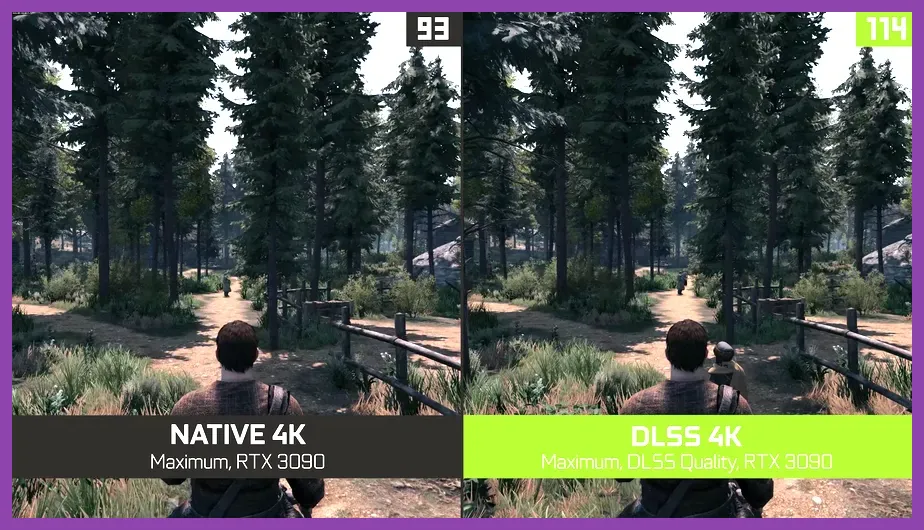
Mount & Blade II: Bannerlord natively supports NVIDIA Deep Learning Super Sampling (DLSS) and AMD FidelityFX Super Resolution 2 (FSR 2). Utilizing spatial or temporal upscaling allows the game engine to render frames at a lower internal resolution (such as 960p) and upscale them to your target output resolution (such as 1440p) using advanced reconstruction algorithms.
For NVIDIA GeForce RTX users, setting DLSS to Quality Mode provides a noticeable framerate uplift of 20% to 35% with almost zero image degradation. In high-density archery skirmishes, DLSS can actually resolve thin items like bowstrings and spears better than standard Temporal Anti-Aliasing (TAA), which often introduces unwanted ghosting and temporal blur when moving the camera rapidly on horseback.
For AMD Radeon owners or GTX series GPU users, FSR 2 Quality offers similar gains. However, if you notice shimmering on grass blades or horse manes, apply a light sharpness pass via the driver software or lower the in-game sharpening slider to 0.2. If upscaling is disabled, set Anti-Aliasing to TAA and avoid SMAA x2, which causes noticeable performance drops without eliminating jagged edges on complex armor meshes. You can verify engine updates directly on the Mount & Blade II: Bannerlord Steam Store page.
Bannerlord Engine Config Tweaks for Low-End and Mid-Range PCs
Players struggling to reach consistent performance on legacy GPUs or budget gaming laptops can unlock additional performance by editing the hidden engine config file directly. Similar to tuning complex survival sandboxes detailed in our Project Zomboid performance guides, manual tweaks bypass standard menu limitations.
To access the configuration file, navigate to the following path on your local drive:
C:\Users\[YourUsername]\Documents\Mount and Blade II Bannerlord\Configs\engine_config.txtOpen engine_config.txt using Notepad or any text editor and adjust the following specific line values:
max_individual_sound_sources = 32(Forces lower audio thread allocation)number_of_ragdolls = 0(Completely disables body physics for maximum CPU responsiveness)enable_bloom = 0(Disables lens glow, freeing up post-processing passes)enable_dof = 0(Disables depth of field blurring completely)decal_do_not_use_budget = 0(Prevents blood and arrow decals from overriding memory limits)
Save the file and set its properties to Read-Only so game updates or in-game menu tweaks do not overwrite your customized performance parameters. For further official developer updates on engine optimization patches, check out the TaleWorlds Entertainment official website.
Siege Battles vs. Open Field Performance Tuning
Siege battles place completely different stresses on hardware compared to open field battles. In open fields, long draw distances and foliage rendering dominate GPU load. During sieges, hundreds of troops compress into tight bottlenecks on ramparts, triggering intense collision math, pathing recalculations, particle smoke from fire catapults, and wall destruction physics.
If your framerate plummets specifically when ladders touch castle walls, adjust Particle Detail to Low and Decal Quantity to Low. Burning oil, siege engine explosions, and shattered gate debris generate thousands of temporary sprite particles. Lowering particle density prevents frame pacing spikes during critical breach pushes.
Furthermore, ensure Lighting Quality is set no higher than Medium. Castle interiors and dark gatehouses utilize complex dynamic light bouncing. Disabling complex lighting filters stabilizes framerates during claustrophobic indoor sword fights. For more tips on tactical combat mechanics and character progression, explore our RPG action combat guides and character optimization walk-throughs.
By combining these targeted visual adjustments, tuning sound processing threads, and capping troop densities to fit your processor's limits, Mount & Blade II: Bannerlord will maintain buttery-smooth framerates across both massive open-field skirmishes and chaotic castle sieges. Check the full community database on the Mount & Blade Wiki for deep dives into army mechanics and troop stats.