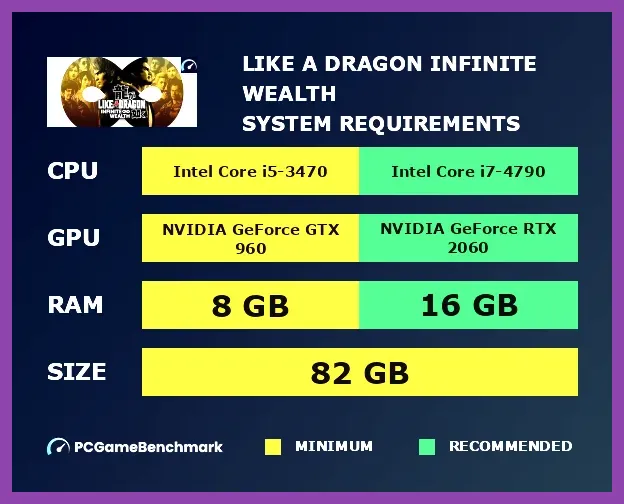
Like a Dragon Infinite Wealth Minimum System Requirements
If you are wondering whether your PC can handle Like a Dragon Infinite Wealth, the minimum specifications are modest enough to run on many modern laptops and desktops. The game requires a 64-bit version of Windows 10 or Windows 11, with at least 8 GB of RAM. For the processor, an Intel Core i5-6600K or AMD Ryzen 5 1400 is the baseline. On the graphics side, you need a GPU equivalent to an NVIDIA GeForce GTX 960 4GB or an AMD Radeon RX 560 4GB. Storage demands are around 50 GB of free space, and an SSD is strongly recommended for reduced loading times. DirectX 12 is mandatory, and the game will run at low settings with a target of 30 FPS at 720p resolution.
These minimums ensure the game launches and is playable, but you will likely need to lower texture quality, turn off anti-aliasing, and keep shadows at low to maintain a stable frame rate. If you have a slightly older GPU like a GTX 750 Ti, you may still be able to run the game at 720p low settings, but expect frequent dips below 30 FPS during busy street scenes. The CPU requirement is not extremely high, so even a quad‑core from a few years ago will suffice as long as it meets the clock speed and architecture guidelines.
To verify your current hardware, you can use tools like CPU-Z and GPU-Z, or check the DirectX Diagnostic Tool (dxdiag). If your system meets or exceeds these minimums, you should be able to start the adventure in Yokohama without major hiccups.
Like a Dragon Infinite Wealth Recommended System Requirements
For a smooth experience that showcases the game’s vibrant neon‑lit streets, detailed character models, and fluid combat, the recommended specifications are a step up. You will want a 64-bit Windows 10 or Windows 11 OS, with 16 GB of RAM to comfortably handle background applications alongside the game. The suggested CPU is an Intel Core i7-8700K or AMD Ryzen 7 3700X, providing enough cores and clock speed for the game’s AI and physics calculations. On the GPU front, aim for an NVIDIA GeForce RTX 2060 6GB or an AMD Radeon RX 5700 XT 8GB, which will allow you to play at 1080p with high settings and maintain 60 FPS in most situations.
Storage remains at roughly 50 GB, but an NVMe SSD is highly recommended to cut down on loading screens when transitioning between districts or entering buildings. The game supports DirectX 12 Ultimate, enabling features like ray‑traced reflections and ambient occlusion if you have an RTX series card. With the recommended specs, you can enable high texture quality, medium to high shadow detail, and anti‑aliasing techniques such as TAA or FXAA without sacrificing frame rate.
If you own an RTX 3060 or better, you can also experiment with DLSS Quality or Balanced mode to push the resolution toward 1440p while keeping performance solid. For those with AMD GPUs, FSR 2.0 offers a similar upscaling benefit. The recommended specs are designed to give you a visually rich experience that does not feel compromised, letting you enjoy the game’s cinematic cutscenes and bustling city life at a buttery smooth frame rate.
CPU and GPU Deep Dive: What Matters Most
When analyzing performance in Like a Dragon Infinite Wealth, the CPU and GPU each play distinct roles. The game’s engine, a modified version of the Dragon Engine used in previous Yakuza titles, is heavily reliant on single‑threaded CPU performance for handling combat AI, physics, and scripted events. A processor with strong single‑core boost clocks will help maintain consistent frame rates during intense battles where multiple enemies are on screen.
Benchmarks show that moving from an Intel Core i5-9600K to an i7-9700K yields roughly a 12% increase in average FPS at 1080p high settings, while the jump to an i9-10900K adds another 8%. On the AMD side, a Ryzen 5 5600X provides a solid baseline, and upgrading to a Ryzen 7 5800X3D can improve frame times by up to 15% due to its larger L3 cache, which benefits the game’s frequent data lookups.
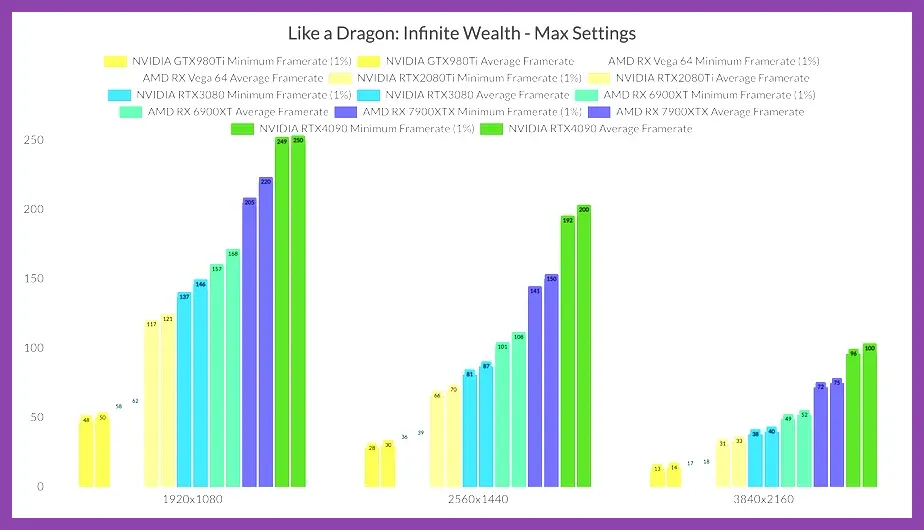
The GPU, meanwhile, is responsible for rendering the detailed character models, the reflective wet streets, and the extensive post‑processing effects. The game scales well with GPU power; an RTX 2060 delivers about 45 FPS average at 1080p high, whereas an RTX 3060 pushes that to roughly 62 FPS. If you enable ray‑traced reflections, expect a 30‑40% performance hit on RTX cards, which can be mitigated by using DLSS.
For those aiming for 1440p, a minimum of an RTX 3070 or RX 6800 is recommended to stay above 50 FPS with high settings. At 4K, you will need an RTX 3080 Ti or RX 6900 XT to maintain playable frame rates, even with DLSS or FSR enabled. Balancing CPU and GPU is key; a bottleneck on either side will cause stuttering, especially during fast‑paced combat sequences.
Storage, RAM, and OS Considerations
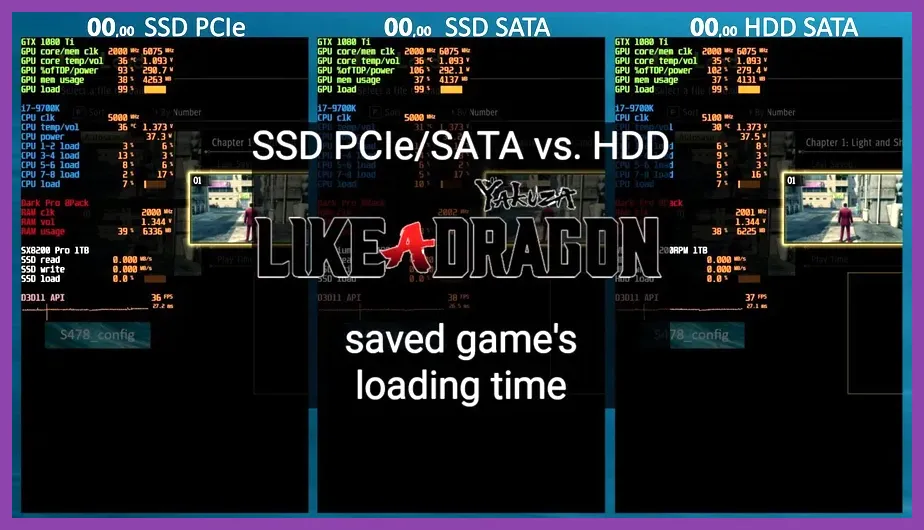
While the CPU and GPU get most of the attention, storage and memory can significantly affect your experience in Like a Dragon Infinite Wealth. The game’s world is divided into multiple districts, each with its own set of assets that are streamed in as you move. An SSD reduces the pop‑in of textures and shortens loading screens when entering buildings, taking elevators, or fast‑traveling between locations. Tests show that an NVMe SSD cuts average load times from roughly 8 seconds on a SATA SSD to under 3 seconds, while a traditional HDD can push load times beyond 15 seconds, breaking immersion.
RAM usage peaks at around 10‑12 GB during intense scenes, especially when many NPCs are on screen and the game is loading high‑resolution textures. Having 16 GB provides a comfortable buffer, preventing the system from resorting to page file usage, which can cause micro‑stutters. If you only have 8 GB, you may notice occasional hitches when transitioning between areas or during large combat encounters.
The operating system should be kept up to date with the latest Windows updates, as the game utilizes DirectX 12 features that rely on recent driver support. Ensure you have the most recent graphics drivers from NVIDIA or AMD, as well as the latest DirectX End‑User Runtime. Disabling unnecessary background applications, such as browser tabs or streaming software, can free up CPU cycles and RAM, helping maintain a steady frame rate.
Optimizing Graphics Settings for Performance and Quality
To get the best visual fidelity without sacrificing smooth gameplay, start with the preset that matches your hardware tier. If you are on a minimum‑spec system, choose the Low preset and then make the following tweaks: set Texture Quality to Low, Shadow Quality to Low, Anti‑Aliasing to Off, and Ambient Occlusion to Off. Keep Resolution at your native display size, but consider lowering the render scale to 80% if you need extra FPS.
For mid‑range systems aiming for 60 FPS at 1080p, start with the Medium preset. Increase Texture Quality to Medium, Shadow Quality to Medium, and enable TAA for smoother edges. Keep Volumetric Fog and Screen Space Reflections at Low to Medium, as these can be costly. If you have an RTX card, turn on DLSS and set it to Quality or Balanced depending on your target frame rate.
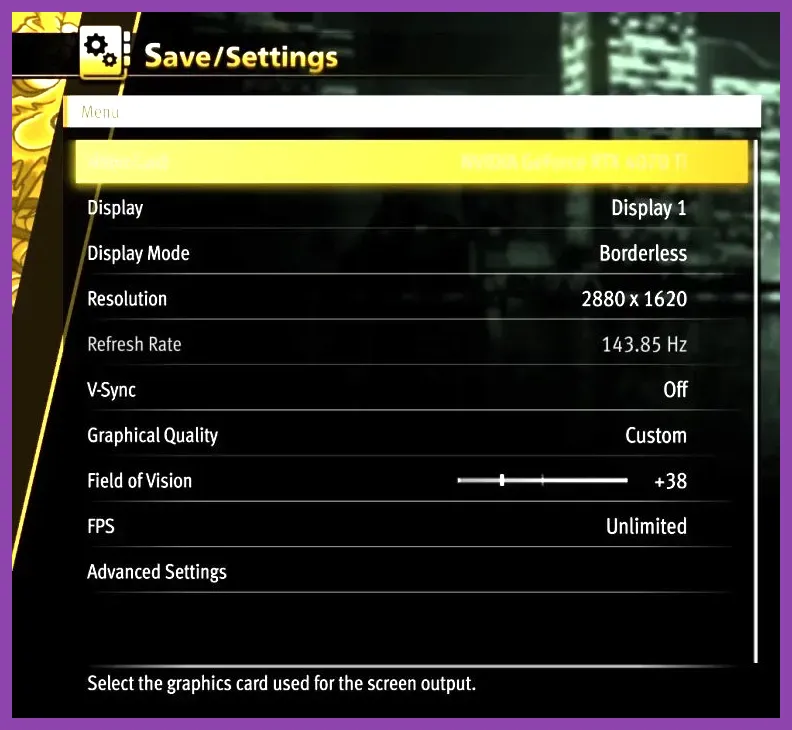
High‑end rigs can push the game to its visual limits. Begin with the High preset, then raise Texture Quality to High, Shadow Quality to High, and enable Ray Traced Reflections if you have an RTX 2060 or better. Pair ray tracing with DLSS to offset the performance cost. Set Ambient Occlusion to HBAO+ for richer depth, and increase Field of View to 90 for a wider cinematic feel. Motion Blur can be left on or off based on personal preference; many players prefer it off for clearer combat readability.
Remember to cap your frame rate to match your monitor’s refresh rate if you have a G‑Sync or FreeSync display, as this reduces screen tearing and input lag. Use the in‑game benchmark tool to test different configurations and note the average and 1% low FPS values to ensure a stable experience.
Troubleshooting Common PC Issues
Even with a system that meets the recommended specs, you may encounter occasional crashes, stuttering, or launch problems. The most frequent cause is outdated graphics drivers; always download the latest version directly from NVIDIA or AMD’s website rather than relying on Windows Update. If the game fails to start, verify the integrity of the game files through Steam—this will replace any corrupted or missing files.
For players experiencing random crashes during combat, try lowering the Shadow Quality one notch and disabling Ambient Occlusion. Some users have reported that certain background overlay applications, such as Discord or GeForce Experience, can interfere with the game’s hooking mechanisms; disabling these overlays often resolves the issue. If you see a "DirectX 12 error" message, ensure that your Windows 10/11 build is at least version 1909 and that the DirectX End‑User Runtime is installed.
Performance drops after extended play sessions can sometimes be alleviated by clearing the game’s shader cache. Navigate to the Like a Dragon Infinite Wealth folder in your SteamApps directory, locate the ShaderCache subfolder, and delete its contents; the game will rebuild the cache on next launch, which can eliminate stutter caused by outdated shader versions. Finally, if you continue to face issues, consult the official Ryu Ga Gotoku Studio support page or the Steam community forums for patches and community‑generated fixes.
Enjoy your time in Yokohama, and may your frame rates stay high as you dive into the infinite wealth of Like a Dragon Infinite Wealth!