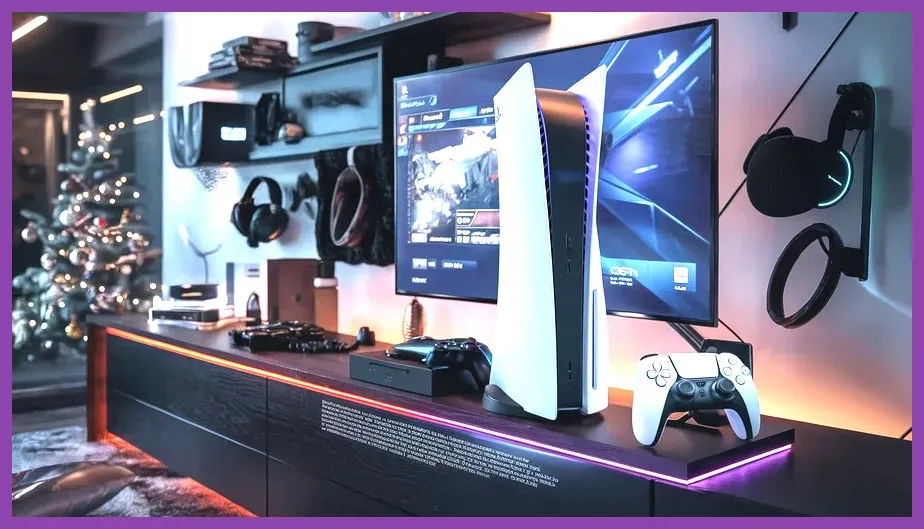
To achieve the ultimate PS5 Pro endgame build, you must configure your console's display output to 4K resolution at 120Hz, activate Sony's PlayStation Spectral Super Resolution (PSSR) for AI-driven upscaling, and install a dedicated PCIe Gen4 NVMe M.2 SSD with a minimum read speed of 7,000 MB/s. By balancing the console's advanced GPU architecture with optimal system settings, external cooling management, and display calibration, you eliminate frame stuttering, minimize input latency, and experience open-world RPGs or high-fps action titles at maximum visual fidelity without compromising frame pacing.
PS5 Pro Display and PSSR Calibration Settings
The cornerstone of any high-end console setup is maximizing the output pipeline to your display. The PS5 Pro features an upgraded GPU with 67% more compute units and 28% faster memory than the base model, making precise output settings mandatory. Navigate to your console's Screen and Video settings and lock your Resolution to 2160p (4K), set 4K Video Transfer Rate to Automatic, and ensure HDR is toggled to Always On for compatible panels.
When launching demanding titles like Final Fantasy 7 Rebirth or sprawling simulation games akin to Frostpunk 2, you will encounter game-specific graphics presets. Always select the "Pro Enhanced" or "Resolution/Performance Hybrid" mode rather than choosing between raw 30fps Fidelity or stripped-down Performance modes. PSSR intelligently bridges this gap by utilizing machine learning to upscale lower internal rendering resolutions to crisp 4K, matching or exceeding traditional temporal anti-aliasing methods while maintaining a locked 60 frames per second.
Advanced HDR and Color Space Tunnelling
To extract the deepest blacks and most vibrant highlights in endgame content, calibrate your HDR through the system settings by adjusting the three-step luminance screens until the sun symbol is barely visible. Pair this with a high-speed HDMI 2.1 cable plugged directly into a dedicated 4K/120Hz port on your television or monitor. Ensure ALLM (Auto Low Latency Mode) and VRR (Variable Refresh Rate) are forced on within the PS5 Pro dashboard to eliminate screen tearing during intense combat encounters.
Storage Architecture and High-Speed SSD Expansion
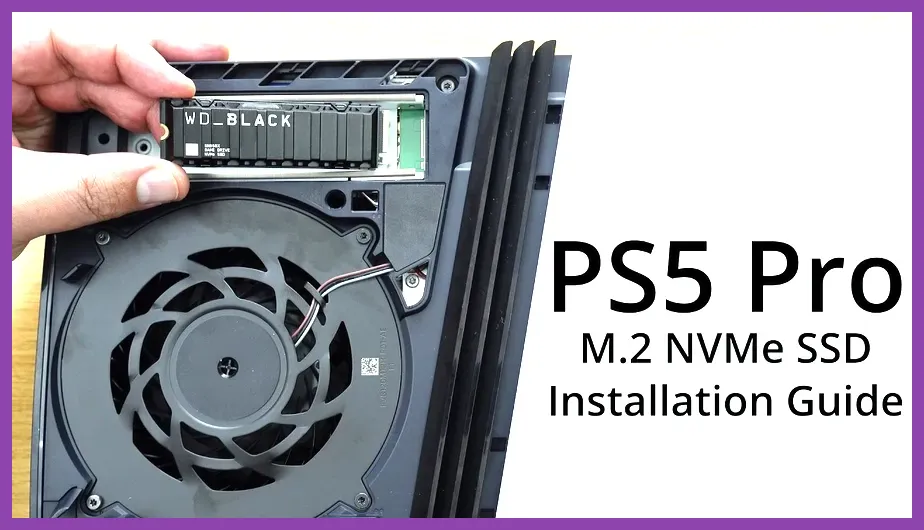
Endgame builds require rapid asset streaming, especially for massive open-world titles where texture pop-in can disrupt immersion. While the base PS5 Pro includes a custom 2TB high-speed SSD, power users should populate the internal M.2 expansion slot with a top-tier drive. Compatible models must meet strict Sony requirements: a PCIe Gen4 x4 M.2 NVMe SSD with a recommended sequential read speed of 5,500 MB/s or faster, paired with an effective heatsink structure.
Popular high-performance choices include the Samsung 990 Pro with Heatsink or the WD_BLACK SN850X. Installing these drives requires removing the console's side cover, unscrewing the metal expansion bay slot, and carefully seating the module until it clicks into place. Once formatted, shift your primary game installation directory to this secondary drive to ensure lightning-fast asset loading, seamless fast travel, and instant menu transitions during long session marathons.
Data Management and Maintenance
Keep your system storage optimized by regularly clearing the system cache through Safe Mode if you notice micro-stutters during heavy asset streaming. Additionally, archive completed single-player campaigns to external USB storage devices, leaving your internal NVMe drives exclusively populated with live-service titles or active high-performance RPGs that demand instant memory read capabilities.
Input Precision with the DualSense Edge Controller
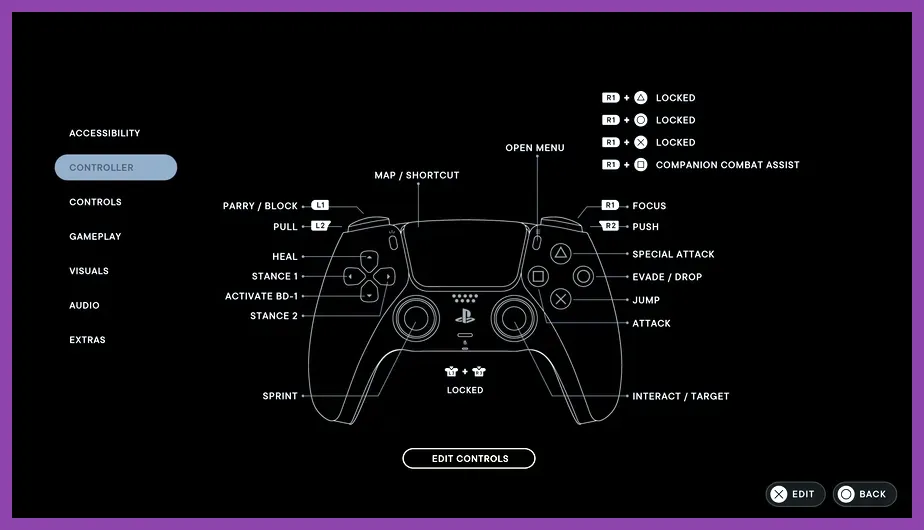
A true endgame hardware build extends directly to your hands. Standard controllers introduce mechanical wear and analog stick drift that can ruin precise combat timing. Transitioning to the DualSense Edge Wireless Controller provides modular stick modules, adjustable trigger stops, and mappable back buttons that drastically improve input execution.
For fast-paced action and competitive titles, configure your left and right trigger stops to the shortest actuation depth (Level 1) to fire weapons or execute heavy strikes instantly. Assign the rear paddle buttons to frequently used actions such as dodging, jumping, or cycling consumables, allowing your thumbs to remain anchored to the analog sticks during high-stakes boss encounters.
Custom Stick Sensitivity Profiles
Access the controller settings menu on your PS5 Pro dashboard to create custom stick sensitivity profiles. For precision aiming in shooter games or tactical positioning, select the "Dynamic" or "Precise" curve profile to dampen minor thumb movements while scaling up response times during rapid turns. Adjust the deadzones manually to eliminate any unwanted drift while retaining maximum responsiveness.
Advanced Ray Tracing and Visual Fidelity Tuning
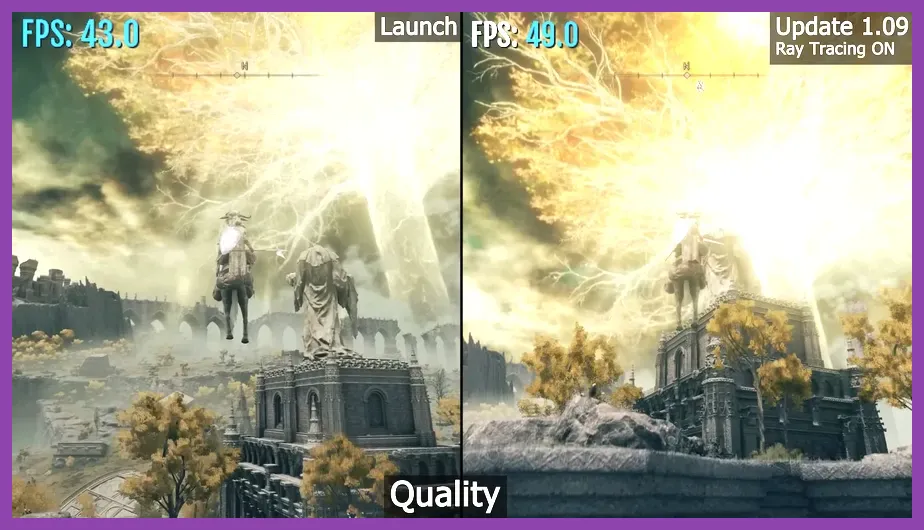
Ray tracing is no longer a luxury feature that tanks frame rates; on the PS5 Pro, accelerated ray tracing architecture allows for real-time reflections, shadows, and global illumination without sacrificing performance. When diving into graphically intensive software, check if the developer has patched in specific Pro enhancements.
Titles optimized for the hardware often feature advanced ray-traced reflections that map environmental details onto water surfaces, metallic armor sets, and glass windows with physics-accurate precision. When comparing visual settings, always prioritize modes that enable ray-traced ambient occlusion alongside PSSR upscaling. This combination delivers cinematic fidelity that rivals high-end PC rigs without requiring manual driver tweaks or complex configuration files.
Managing Thermal Performance and Airflow
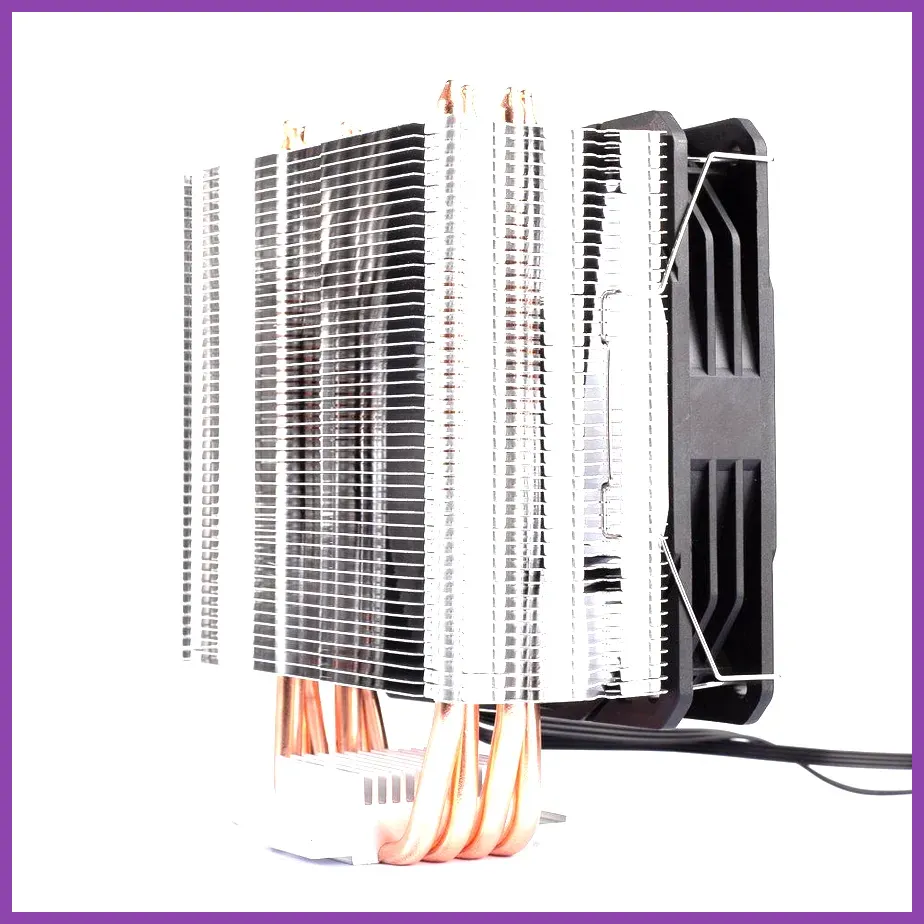
Pushing the PS5 Pro's GPU and CPU to their absolute limits generates significant thermal output. To maintain stable clock speeds and prevent thermal throttling during multi-hour gaming sessions, your physical hardware setup is crucial. Place the console in a wide-open, well-ventilated area with at least four inches of clearance on all sides, avoiding enclosed media cabinets or dusty carpeted floors.
Optimizing Audio Landscapes with Tempest 3D AudioTech
Endgame builds are incomplete without a soundscape that provides tactical awareness through spatial audio. The PS5 Pro features specialized hardware acceleration for 3D audio, processing hundreds of simultaneous sound sources to pinpoint enemy footsteps, projectile trajectories, and ambient environmental cues with pinpoint accuracy.
To fully utilize this feature, connect a compatible headset such as the PlayStation Pulse Elite or an audiophile-grade headphone setup via USB or Tempest-supported wireless dongles. Navigate to the Sound settings menu, select "Headphone 3D Audio," and run through the calibration wizard to match the audio profile to your unique hearing anatomy. This provides a distinct competitive edge, allowing you to react to threats before they appear on screen.
Network Optimization for Online Endgame Content
Hardware optimization means little if network latency introduces rubber-banding or packet loss during multiplayer endgame raids or competitive matches. Whenever possible, bypass wireless connections entirely by plugging a Category 6 (Cat6) or higher Ethernet cable directly from your router into the back of the PS5 Pro.
If wired connections are unavailable, ensure your Wi-Fi router operates on the 5GHz or 6GHz frequency band, keeping interference from household appliances to an absolute minimum. Test your internet connection via the console dashboard to verify that your NAT Type is set to Type 1 or Type 2, ensuring seamless party matchmaking and stable server communication.
Matching Your Build with High-Refresh Monitors
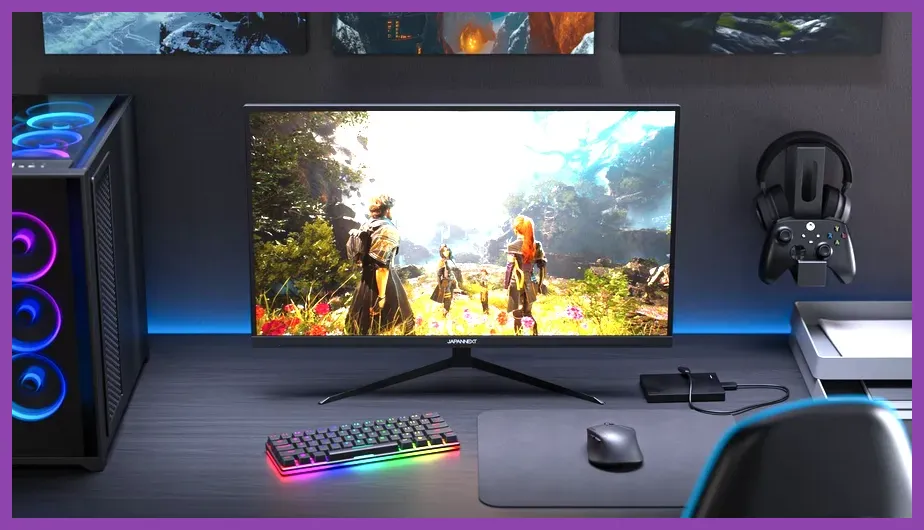
The final link in your PS5 Pro hardware chain is the display panel itself. Traditional 60Hz televisions will bottleneck the console's capability to output high framerates. To fully appreciate your endgame setup, invest in a modern 4K gaming monitor or TV featuring native HDMI 2.1 ports, a 120Hz refresh rate, and low input lag.
Look for displays supporting AMD FreeSync Premium or generic VRR compatibility to ensure seamless synchronization between the console's frame output and the display's refresh rate. Calibrate your screen's black equalizer and contrast settings to ensure dark dungeon environments remain legible without washing out vibrant color highlights, completing the ultimate console gaming experience.