We have all been there. You get swept up in launch day hype, buy a brand-new title on launch night, fire it up with massive expectations, and within twenty minutes, reality slaps you in the face. Maybe the game crashes every time you open the inventory, the optimization is an absolute horror show, or the gameplay is completely different from what the cinematic trailers promised. Buyer's remorse in PC gaming hits hard, but thankfully, Valve offers one of the most customer-friendly refund policies in the entire digital entertainment industry.
Knowing how to get a Steam refund quickly and painlessly is an essential skill for any PC gamer. Whether you accidentally bought the wrong version of a game, realized your rig can't handle the system requirements, or bought a title right before it went on a massive discount, Valve's automated support system has your back. In this comprehensive guide, we will walk you through the exact requirements, the step-by-step refund submission process across multiple platforms, special exceptions, and expert tips to ensure your refund gets approved every single time without risking your account status.
The Golden Rules: Steam's Official Refund Policy Explained
Before submitting a request, you need to understand Valve's primary guidelines. Valve outlines their standard terms directly on the official Steam Refund Policy page, but here is the quick breakdown of what you need to know:
- The 2-Hour Playtime Rule: You must have played the game or software for less than 2 hours total (120 minutes) as tracked by the Steam client interface.
- The 14-Day Ownership Window: The purchase must have been made within the last 14 calendar days.
If your purchase meets both criteria, your refund is almost guaranteed to be approved automatically by Valve's system. However, even if you exceed these limits slightly, Valve explicitly states that you can still submit a request, and a human support representative will review your case manually. If you're hunting for risk-free alternatives after returning a dud, check out our list of the best free Steam games to play right now to keep your gaming session going without spending a dime.
How to Request a Steam Refund on PC (Step-by-Step)
Submitting a refund request through the desktop client takes less than two minutes. Follow these simple steps to start the process:
Step 1: Open Steam Support
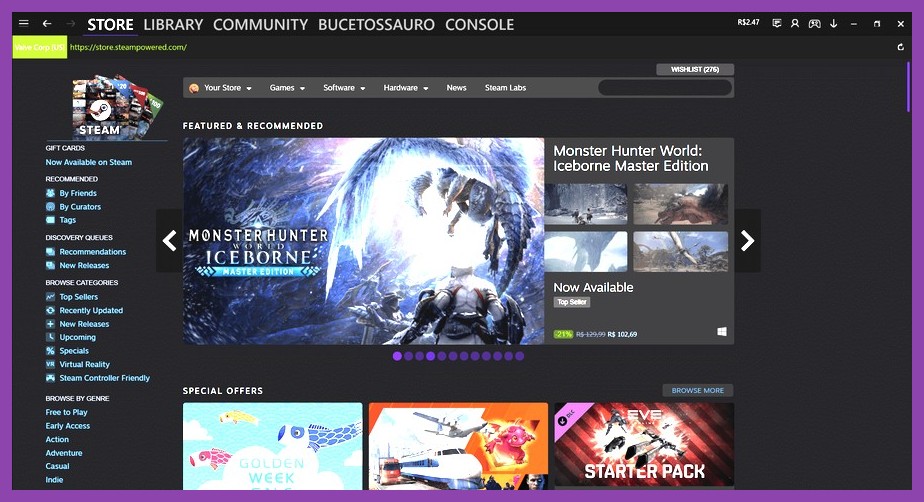
Launch your Steam desktop application or open your Web browser and head directly to Steam Support. If you are inside the desktop client, click on the Help menu in the top-left corner of the window and select Steam Support from the drop-down menu.
Step 2: Select the Game You Want to Refund
On the main Steam Support page, you will see a section labeled A Purchases or a list under Recent Products. If the title you want to return is listed under recent products, click on it immediately. If it is not visible, click on Purchases to view your full transaction history, then locate and click on the relevant order.
Step 3: State Your Reason for the Refund
Steam will ask you what issue you are experiencing with the product. Select one of the primary options depending on your situation:
- "It's not what I expected"
- "I purchased this by accident"
- "Gameplay or technical issue"
- "Frame rate is too low / Performance is poor"
Step 4: Request a Refund
After selecting your primary issue, a sub-menu will appear giving you options for troubleshooting or returning the item. Click on I'd like to request a refund.
Step 5: Choose Payment Destination & Submitting
Choose where you want the refunded money sent. Depending on how you originally paid and your region, you can select either your original payment method (such as PayPal, Visa, or Mastercard) or your Steam Wallet balance. Provide a brief note in the text box explaining why you are returning the title (e.g., "Game stutters heavily on my hardware" or "Purchased by mistake"), then click Submit Request.
Requesting a Refund on Steam Deck
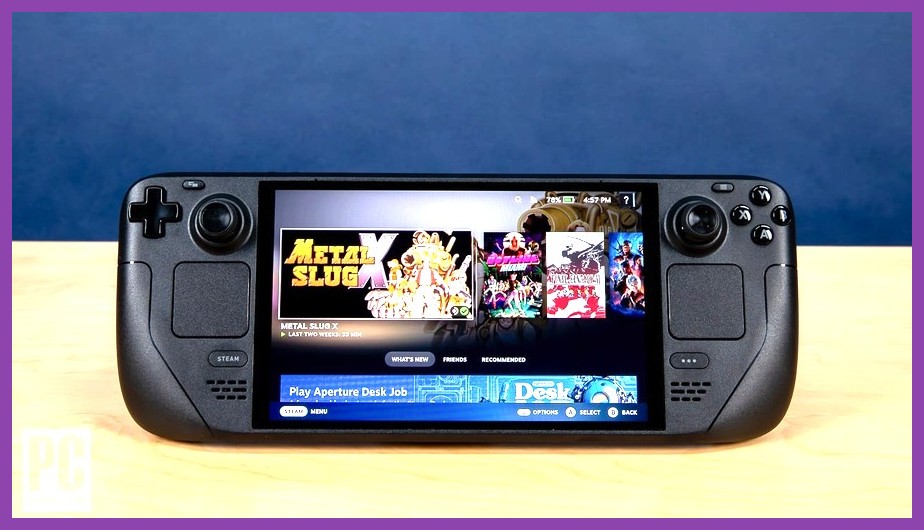
If you primarily game on Valve's portable powerhouse, you do not need to boot up a desktop computer to process your return. The Steam Deck interface includes full support system functionality directly within SteamOS:
- Press the STEAM button on your handheld to pull up the main side menu.
- Scroll down to Settings and navigate to System or click directly on Help.
- Select Steam Support.
- Select Purchases, navigate to the game in question, and choose I'd like to request a refund.
If you're looking to optimize your handheld experience so you don't have to keep returning demanding games, dive into our essential Steam Deck tips and tricks guide to dial in your settings for optimal frame rates and battery life.
Refunding Steam Purchases on Mobile (iOS & Android)
Away from your rig? You can process refunds using the official Steam Mobile app or through any mobile web browser on smartphone devices:
- Open the Steam App on your mobile phone and tap your profile icon or the burger menu icon (three lines).
- Tap on Support.
- Tap on Purchases to view your recent billing history.
- Select the game, select your reason, and click Request a Refund.

Special Refund Rules: DLC, Pre-Orders, Bundles, and In-Game Items
While standard base games follow the 2-hour/14-day rule, other digital assets on the platform operate under slightly specialized rules set by Valve's Steam Subscriber Agreement:
1. Pre-Orders
When you pre-order a game on Steam, you can request a refund at any point prior to the title's official release date. Once the game launches, the standard 14-day / 2-hour window kicks in starting from the official release time.
2. Downloadable Content (DLC)
DLC purchased through Steam can be refunded within 14 days of purchase, provided the underlying base game has been played for less than 2 hours total since the DLC was purchased, and the DLC has not been consumed, modified, or transferred.
3. In-Game Purchases
Valve-developed titles (like Counter-Strike 2 or Dota 2) offer refunds for in-game purchases within 48 hours, provided the item has not been consumed, modified, or traded. Third-party developers have the option to enable or disable in-game refunds for their own titles, which will be explicitly noted at checkout.
4. Bundles
You can refund any bundle containing games, DLC, or software bought on Steam, provided none of the individual items inside the bundle have been transferred or played for more than 2 hours in total. If a single item in the bundle exceeds the limit, the entire bundle becomes ineligible for an automated return.
5. Refunding Steam Gifts
Unredeemed gifts can be refunded by the original purchaser within 14 days. If the recipient has already redeemed the gift to their library, the recipient must first initiate the refund process through Steam Support to authorize Valve to remove the title from their account. Once authorized, the original buyer receives the funds back.
Buying Games Before Steam Sales: The Price Difference Loophole
Have you ever bought an expensive game at full price, only to watch it go on a 75% discount during a seasonal Steam Sale two days later? Valve explicitly encourages gamers to use the refund system in this exact scenario!
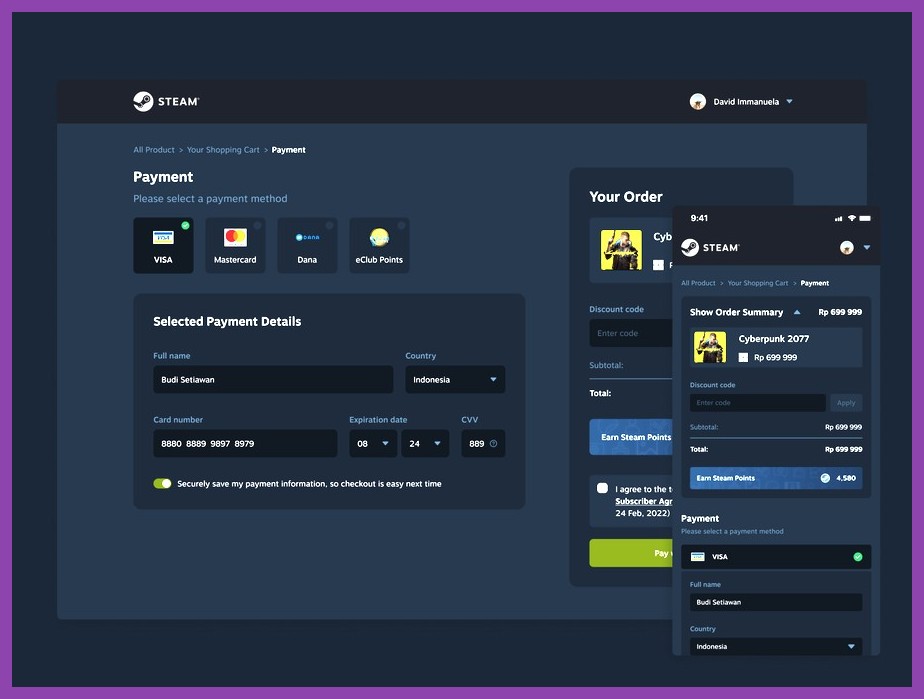
According to Valve's official support guidelines, requesting a refund for a title bought immediately before a sale so that you can re-buy it at the discounted price is not considered refund abuse. As long as you remain within the 14-day and 2-hour limit, you can request a refund, wait for the funds to return to your Steam Wallet, and re-purchase the game at the lower price tag.
To avoid getting caught off guard by sudden price drops in the future, take a look at our 10 essential Steam Sale tips to build your PC library on a budget.
What If You Exceed 2 Hours or 14 Days?
If you have played 3 hours of a game or owned it for 20 days, the automated system will initially flag your account as ineligible. However, do not give up immediately! You can still submit a manual ticket under the general support tab.
Human support representatives review edge-case requests on a case-by-case basis. Reasons where Valve often grants leniency include:
- A major game update broke compatibility on your hardware after launch.
- You spent over 2 hours stuck on launcher screens or fixing game-breaking bugs without actually playing the main content.
- The developers engaged in deceptive marketing practices or pulled online server access unexpectedly.
Be extremely polite, clear, and concise in your ticket explanation. Clearly state how much time was spent troubleshooting versus actual gameplay.
Where Does Your Refunded Money Go?
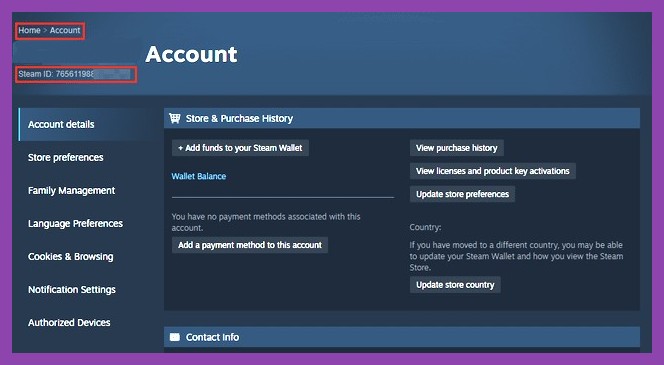
When your refund is approved, Valve will process the transaction back to your selected payment method. You can track your pending funds under your account details page on the Steam Store.
| Payment Option | Processing Time | Details |
|---|---|---|
| Steam Wallet | 24 to 48 Hours | Fastest option. Funds appear as 'Pending' almost immediately. |
| Credit Card / Debit Card | 3 to 7 Business Days | Subject to your banking institution's standard processing windows. |
| PayPal | 2 to 5 Business Days | Returned directly to your PayPal account balance or linked card. |
Can Your Refund Rights Be Revoked? (Avoiding Refund Abuse)
Steam's generous policy is designed to eliminate risk when buying games, not to serve as a free rental service. If Valve detects that you are abusing the system—such as buying games, beating them in 90 minutes, and requesting refunds repeatedly—they will issue a warning to your email address.
Continued abuse after a warning will lead to a permanent restriction on your account's ability to request refunds in the future. To keep your account in good standing:
- Do not treat refunds as a temporary demo system for dozens of titles a week.
- Always provide genuine, honest feedback in your support requests.
- Use real game reviews and performance guides before buying demanding titles.
How to Fix Game Issues Without Refunding
Before you wipe a game from your library over stuttering or crashing, remember that many technical glitches can be fixed with quick software tweaks or driver updates. Don't throw away a potentially amazing experience before giving your setup a quick check!
If you're dealing with sluggish performance, low FPS, or stuttering graphics, check out our comprehensive guide on how to optimize Steam performance for smooth gameplay. You can also dive into our technical guide on Steam game optimization tweaks to ensure your rig is squeezing every drop of performance out of latest releases.
And if you decide that refunding is still the best option, you can easily pivot to incredible deep-dive experiences in our curated roundup of the best RPG games on Steam you need to play.
Frequently Asked Questions About Steam Refunds
How long does Steam take to approve a refund?
Automated refund requests that meet the under 2-hour / 14-day threshold are usually approved within 1 to 4 hours. Manual requests requiring human review can take anywhere from 12 to 24 hours.
Can I refund a game if I bought a digital key from a third-party seller?
No. Steam refunds only apply to purchases made directly through the official Steam Store client, website, or Steam Deck interface. CD keys purchased through external retail sites or key marketplaces cannot be refunded through Valve.
Can I refund a game if I was VAC banned in it?
No. If you receive a VAC (Valve Anti-Cheat) ban in a game, you permanently lose the right to request a refund for that specific game, regardless of your playtime or ownership duration.
Now that you know exactly how to navigate Valve's refund policy, you can explore the massive Steam catalog with complete confidence. Keep your eyes on performance benchmarks, keep track of your playtime, and enjoy risk-free gaming on PC!