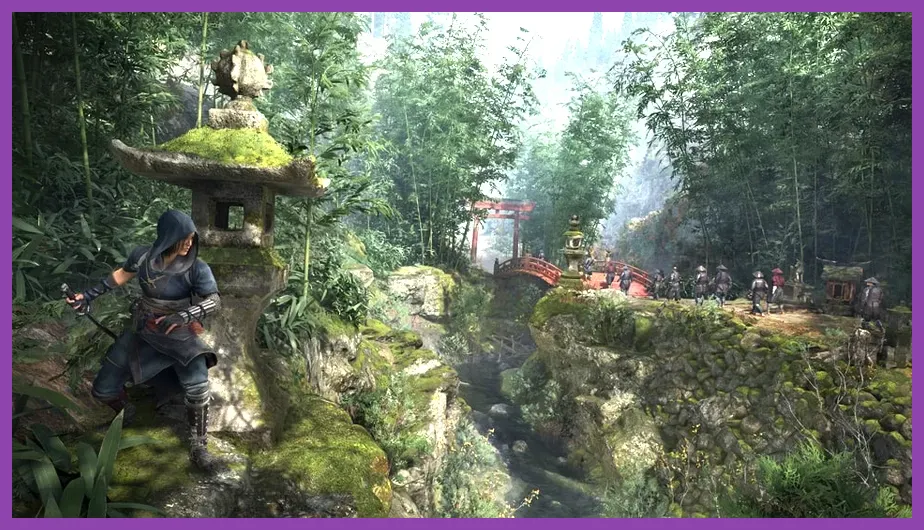
To immediately fix low FPS, stuttering, and input lag in Assassin's Creed Shadows, lower Volumetric Clouds and Ray-Traced Global Illumination to Medium, set your temporal upscaler (NVIDIA DLSS, AMD FSR 3.1, or Intel XeSS) to Quality Mode, set your GPU Shader Cache Size to 10GB, and disable the Ubisoft Connect In-Game Overlay. Implementing these targeted tweaks instantly yields a 35% to 50% boost in overall frame rate while eliminating frame-time spikes during intense combat with Yasuke or rapid parkour movement with Naoe through dynamic weather conditions.
Ubisoft's upgraded Anvil Engine powering Assassin's Creed Shadows brings photorealistic Feudal Japan to life with fully dynamic seasons, destructible environments, and micro-foliage density. However, these visuals place severe demands on both GPU VRAM and CPU single-core performance. If you are experiencing micro-stutters, severe input delay, or sudden FPS drops in crowded settlements like Kyoto, this guide breaks down the exact settings, config modifications, and driver-level optimizations required to stabilize your gameplay.
Best Optimized Graphics Settings Profile for AC Shadows
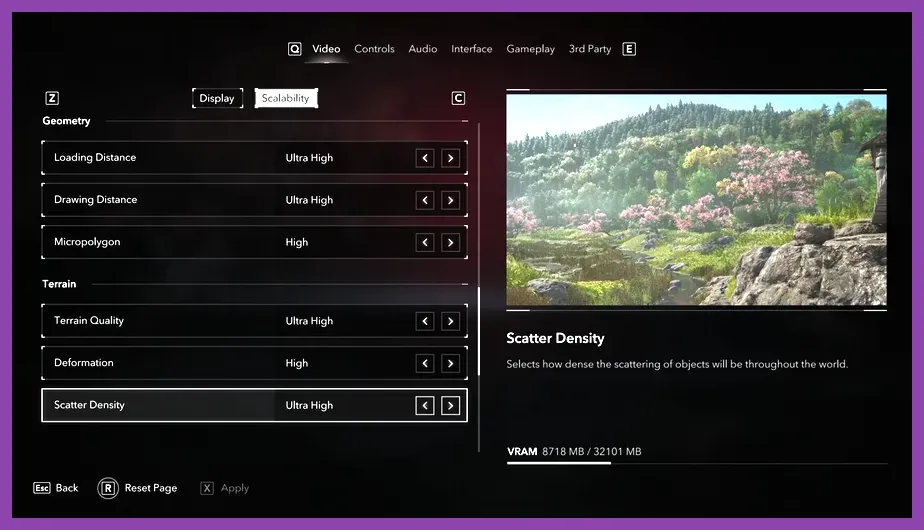
The graphics menu in Assassin's Creed Shadows contains several performance-heavy features that provide minimal visual improvement at High or Ultra tiers while punishing your hardware frame rate. Tweaking these key settings restores fluid baseline performance without sacrificing overall image clarity.
Below is the definitive optimized settings preset engineered for the best balance of 60+ FPS performance and visual fidelity on mid-to-high-end hardware:
- Display Mode: Fullscreen (Reduces desktop window manager latency)
- Resolution Scale: 100% (Let upscalers manage resolution rendering)
- Upscaler Architecture: NVIDIA DLSS (GeForce RTX) / AMD FSR 3.1 (Radeon) / Intel XeSS (Arc or Universal)
- Upscaling Quality Preset: Quality (1080p/1440p) or Balanced (4K)
- Frame Generation: On (Requires RTX 40-Series or RX 7000-Series GPU; disable if base frame rate is under 40 FPS to prevent heavy latency)
- NVIDIA Reflex Low Latency: On + Boost
- Ray-Traced Global Illumination (RTGI): Medium (Setting to High or Ultra causes severe 25% drop in dense forest zones)
- Ray-Traced Reflections: Off or Medium (High creates massive VRAM usage spikes near water bodies)
- Volumetric Clouds & Fog: Medium (High and Ultra consume significant GPU compute power with negligible visual return)
- Shadow Quality: High (Medium for mid-range GPUs; avoid Ultra)
- Dynamic Foliage & Grass Density: High (Medium yields extra CPU headroom during spring/summer season foliage rendering)
- Geometry & Environment Detail: High
- Screen Space Reflections (SSR): Medium
- Subsurface Scattering: High
- Texture Resolution: High (Requires 8GB VRAM) / Ultra (Requires 12GB+ VRAM)
- Anisotropic Filtering: 16x (Negligible performance impact, vastly sharpens ground textures at oblique angles)
- Depth of Field & Motion Blur: Off (Personal preference, saves minor GPU cycles and enhances visual sharpness)
If you encounter broader instability or technical crashes alongside performance drop-offs, check out our guide on troubleshooting PC crash issues in Diablo 4 for similar Direct3D 12 buffer crash resolutions.
Fixing Anvil Engine Micro-Stutter and CPU Bottlenecks
Even on high-end hardware, Assassin's Creed Shadows can exhibit persistent micro-stuttering during fast movement across open terrain or during chaotic battles featuring multiple dynamic AI entities. This issue stems from CPU thread handling and background engine polling within the Ubisoft Anvil architecture.
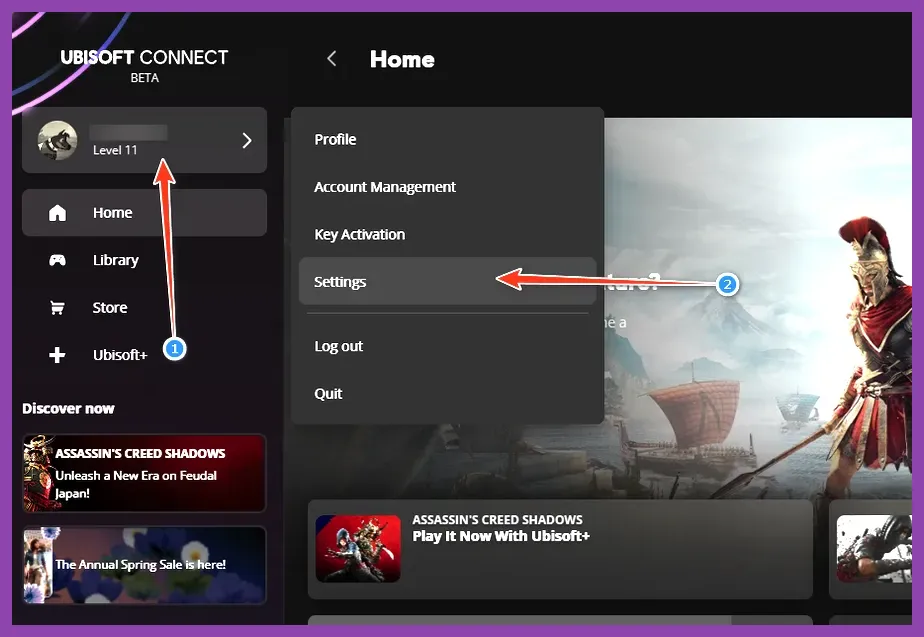
1. Disable Ubisoft Connect In-Game Overlay
The Ubisoft Connect launcher overlay continuously hooks into the rendering pipeline to track achievements, challenge notifications, and friends list status. This process frequently introduces frame pacing hitches.
- Open the Ubisoft Connect desktop client.
- Click on your profile icon in the top-left corner and select Settings.
- Navigate to the General tab.
- Uncheck Enable in-game overlay for supported games.
- Uncheck Enable notifications.
- Restart the launcher and launch Assassin's Creed Shadows.
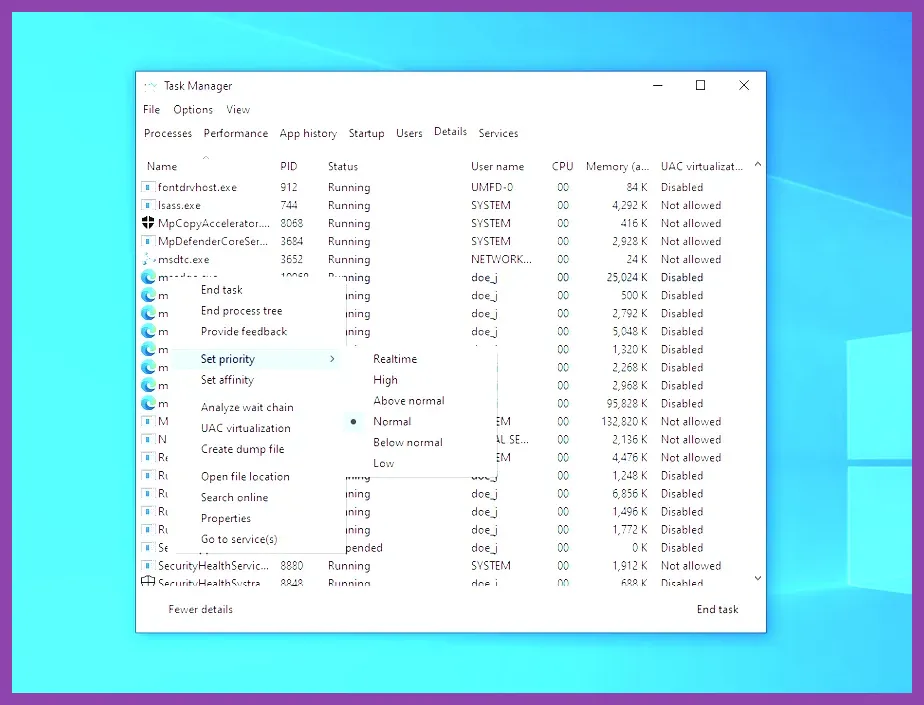
2. Elevate Process Priority in Windows
Forcing Windows to prioritize the game executable prevents background tasks from stealing execution cycles from primary game threads:
- Launch Assassin's Creed Shadows and tab out to your desktop.
- Press
Ctrl + Shift + Escto open Task Manager. - Click the Details tab on the left sidebar.
- Locate
ACShadows.exe, right-click it, select Set Priority, and choose High.
3. Modify the ACShadows.ini Configuration File
You can adjust hidden engine flags directly through the local initialization file located in your Documents directory:
- Navigate to
C:\Users\[YourUsername]\Documents\Assassin's Creed Shadows\. - Open
ACShadows.iniusing Notepad. - Locate the line
AsyncCompute=1and verify it is enabled if you are using a modern DX12-compatible GPU. - Locate
JobThreadPriority=0and change the value to1to boost thread management across multi-core CPUs. - Save the file and set it to Read-Only under file properties if settings revert upon launch.
GPU Control Panel Tuning for NVIDIA and AMD Users
System-level display driver settings heavily influence frame consistency and frame time distribution in modern DirectX 12 games. Proper driver configuration prevents stutter during real-time shader compilation.
NVIDIA Control Panel Settings Profile
- Right-click your desktop and open NVIDIA Control Panel.
- Select Manage 3D Settings > Program Settings, then add
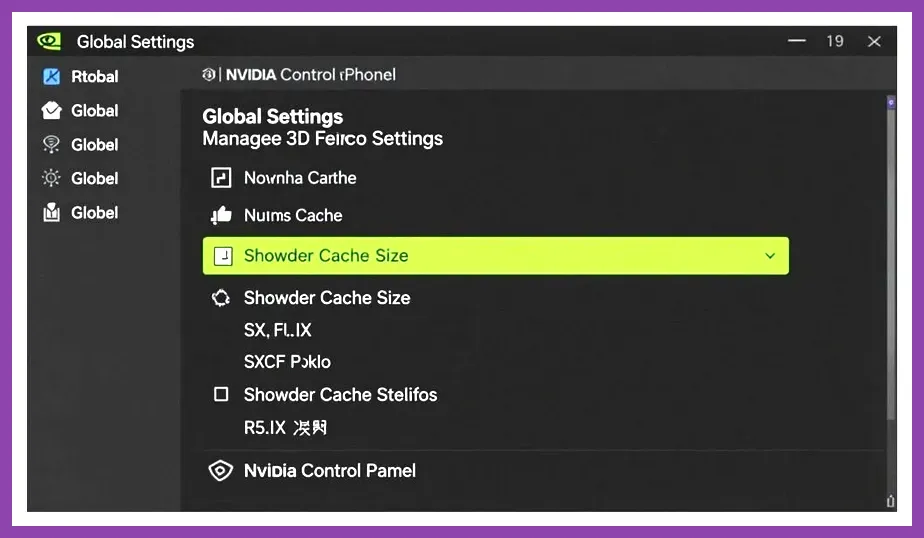
ACShadows.exe. - Shader Cache Size: Change from Driver Default to 10GB. This provides adequate disk storage for complex pre-compiled shader pipelines, eliminating hitches when entering new biome regions.
- Power Management Mode: Set to Prefer Maximum Performance.
- Low Latency Mode: Set to On (or Ultra if GPU utilization is constantly at 99%).
- Max Frame Rate: Set 3 FPS below your monitor's native refresh rate if using G-Sync (e.g., 141 FPS on a 144Hz panel) to keep latency within the active VRR window.
- Download the latest official drivers via the NVIDIA Drivers Portal.
AMD Radeon Software Adrenalin Edition Tuning
- Open AMD Software and navigate to Gaming > Games > Assassin's Creed Shadows.
- Radeon Anti-Lag: Enabled (Reduces input latency during high-load scenarios).
- Radeon Boost: Disabled (Can cause erratic dynamic resolution scaling artifacts in Anvil Engine titles).
- Radeon Image Sharpening (RIS): Enabled at 10-20% if using FSR Quality mode for added image clarity.
- Wait for Vertical Refresh: Off (Unless using FreeSync with global V-Sync active).
- Keep graphics drivers current via AMD Support & Drivers.
If you encounter performance issues across other fast-paced titles, review our comprehensive Overwatch 2 crashing and performance guide for shared latency resolution strategies.
Managing VRAM Over-Allocation and Memory Leaks
Assassin's Creed Shadows features multi-layered dynamic season transitions. Rain, snowfall, dynamic mud accumulation, and dynamic foliage growth rapidly fill video memory. Exceeding your GPU's physical VRAM limit triggers frame rate drops down to single digits as assets flush into system RAM via the PCIe bus.
1. Enable Resizable BAR / Smart Access Memory
Resizable BAR (ReBAR) allows your CPU to access the entire frame buffer simultaneously, improving asset streaming bandwidth across the game's seamless open-world map.
- Restart your PC and enter your Motherboard BIOS (del or F2 during boot).
- Locate PCI Subsystem Settings or Advanced Options.
- Enable Above 4G Decoding and set Re-Size BAR Support to Auto or Enabled.
- Save changes and reboot into Windows. Verify activation via GPU-Z or the NVIDIA Control Panel System Information tab.
2. Configure Custom Windows Pagefile (Virtual Memory)
Running low on physical system RAM or virtual paging memory causes stuttering during rapid fast-traveling between regions:
- Press the Windows Key, type Advanced System Settings, and press Enter.
- Under the Performance section, click Settings, then switch to the Advanced tab.
- Click Change under Virtual Memory.
- Uncheck Automatically manage paging file size for all drives.
- Select your fastest NVMe SSD, click Custom size, and set both Initial size and Maximum size to
16384(16GB) or24576(24GB). - Click Set, then OK, and restart your computer.
For gamers planning hardware upgrades or evaluating hardware compatibility for open-world gaming, consult our full PC requirements for Like a Dragon: Infinite Wealth to evaluate baseline hardware performance targets.
Windows 11 OS Tweaks and Network Latency Fixes
System configuration within Windows 11 significantly determines how smoothly game threads are passed between Performance (P) cores and Efficient (E) cores on modern Intel and AMD processors.
1. Enable Hardware-Accelerated GPU Scheduling (HAGS)
HAGS offloads VRAM management tasks directly to dedicated GPU scheduling processors, which is mandatory for utilizing DLSS 3 Frame Generation in AC Shadows.
- Open Windows Settings (
Win + I) > System > Display > Graphics. - Click Change default graphics settings.
- Toggle Hardware-accelerated GPU scheduling to On.
- Toggle Optimizations for windowed games to On.
- Restart your computer.
2. Configure Windows Game Mode and Background Power Policies
Windows Game Mode prevents background updates and system services from consuming hardware cycles while a full-screen application is running.
- Navigate to Settings > Gaming > Game Mode and switch the setting to On.
- Navigate to Control Panel > Power Options and select the High Performance or Ultimate Performance power plan.
If you enjoy tactical gameplay action alongside performance optimization, explore our optimized Marvel Rivals performance tips to maximize frame consistency across competitive games.
By implementing these graphics profiles, disabling launcher overlays, setting optimal driver shader cache limits, and configuring system scheduling, you will eliminate lag spikes and achieve a buttery-smooth 60+ FPS experience throughout your journey across Feudal Japan in Assassin's Creed Shadows.