To fix PC crashing in Diablo 4: Vessel of Hatred, disable Ray Tracing in the graphics menu, uninstall High-Resolution Assets from the Battle.net launcher, and increase your Windows Virtual Memory (Pagefile) to at least 16GB. The majority of crashes occurring post-launch—especially during transitions into the jungle region of Nahantu or while playing the Spiritborn class—are caused by VRAM allocation leaks, unstable DLSS Frame Generation, or corrupted local shader caches inside C:\\Users\\[Username]\\AppData\\Local\\Temp\\Diablo IV.
1. Uninstall High-Resolution Assets and Lower Texture Quality
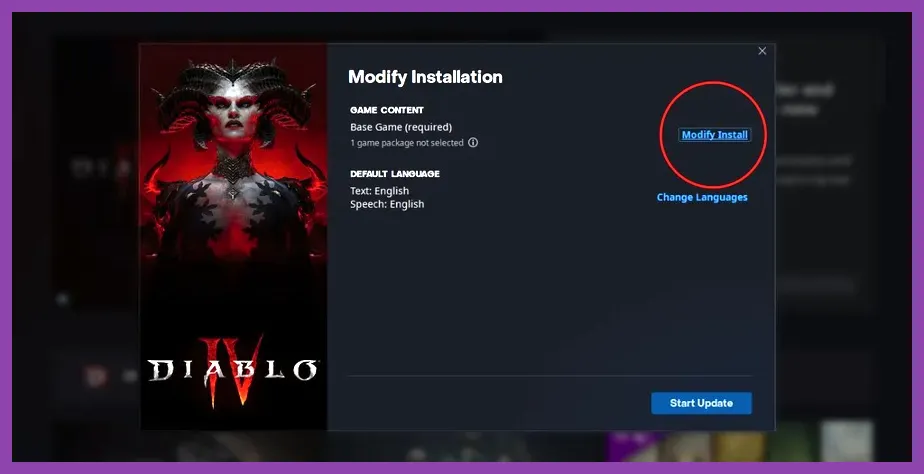
The Vessel of Hatred expansion introduces dense environmental assets in Nahantu, leading to severe VRAM saturation on graphics cards with 8GB or 12GB of memory. When VRAM overflows into system RAM, the game engine experiences a hard crash to desktop (CTD) accompanied by a Fenris crash log entry. The single most effective fix is removing the 4K High-Resolution asset package via the launcher.
To remove the High-Resolution Asset pack:
- Close Diablo 4 completely and open the Battle.net Desktop App.
- Navigate to the Diablo IV game tab.
- Click the gear icon next to the Play button and select Modify Install.
- In the pop-up window, click Modify Install under the Content section.
- Uncheck High-Resolution Assets (this frees up over 40GB of drive space).
- Click Confirm and wait for the brief update to complete.
After launching the game, enter the Video settings menu. Change Texture Quality from Ultra to Medium or High depending on your GPU's physical memory. If your card has 8GB VRAM or less, running Ultra textures will guarantee stuttering and eventual memory-related crashes when entering populated zones like Kurast Bazaar. If you run into stability problems across other modern titles, applying performance optimizations similar to our Overwatch 2 crashing troubleshooting guide can help maintain system-wide equilibrium.
2. Disable Ray Tracing and DLSS Frame Generation
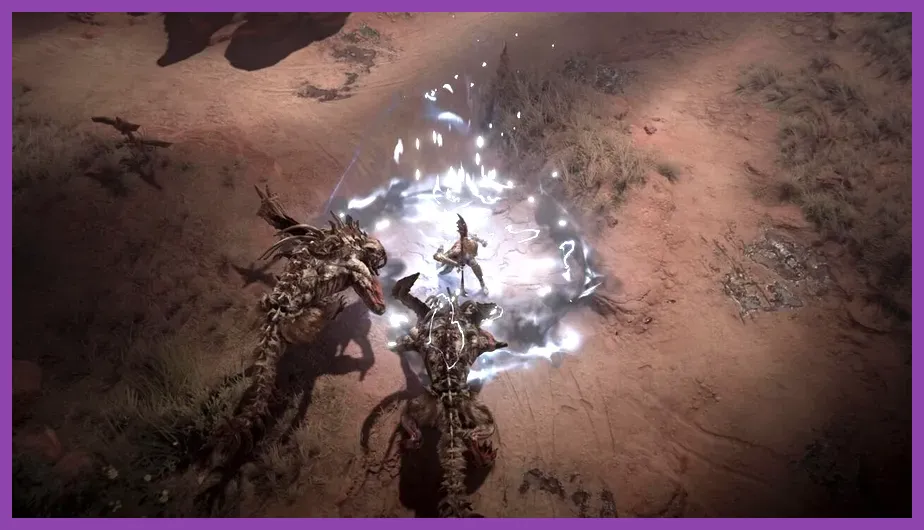
Blizzard's implementation of Ray Tracing and Frame Generation in the Vessel of Hatred update introduced severe hardware driver timeouts, particularly for NVIDIA GeForce RTX 30 and 40-series users. Rapid particle effects generated by Spiritborn abilities—such as Quill Volley, Rushing Claw, and Rake—frequently cause graphics hardware locks when Ray Tracing is enabled.
Access your in-game Graphics Settings menu and apply the following exact baseline profile to isolate hardware faults:
- Ray Tracing Foliage: Off
- Ray Tracing Shadows: Off
- Ray Tracing Reflections: Off
- DLSS Frame Generation: Off
- NVIDIA DLSS / AMD FSR / Intel XeSS: Enabled (Set to Quality)
- NVIDIA Reflex Low Latency: Enabled (Avoid Enabled + Boost if experiencing micro-stutters)
- Max Foreground FPS: Cap this value match your monitor's native refresh rate (e.g., 120 or 144 FPS)
Frame Generation is notoriously vulnerable to memory leaks during prolonged play sessions in the open world. Disabling it prevents random screen freezes when zoning between regions or teleporting back to Kyovashad. If you enjoy playing hardware-intensive titles on handhelds or lower-tier rigs, explore our showcase of the best co-op games verified for Steam Deck to find fully optimized experiences.
3. Delete Local Cache Files and Rebuild Shaders
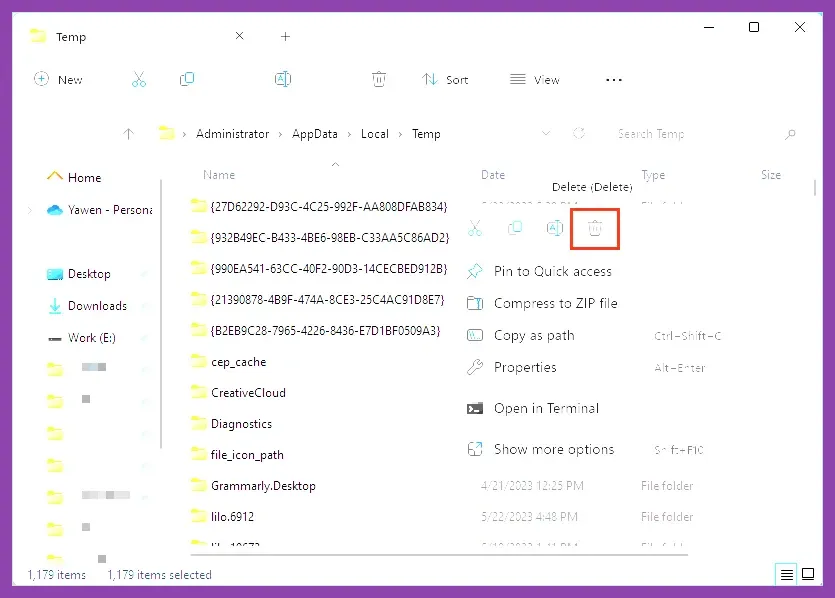
Corrupted shader files stored in your temporary Windows user directories can trigger immediate crashes during loading screens or when fast-traveling across Sanctuary. Clearing these temporary cache files forces the engine to compile a fresh, uncorrupted set of shaders upon your next startup.
Follow these steps to clean your local cache directories:
- Exit Diablo 4 and close the Battle.net launcher completely (verify in Task Manager that
Agent.exeis terminated). - Press Windows Key + R to open the Run dialog box.
- Type
%localappdata%and press Enter. - Locate the folder named Diablo IV and delete it entirely.
- Press Windows Key + R again, type
%temp%, and press Enter. - Find any folders starting with
D4,Blizzard, orNVIDIAshader cache, and delete their contents. - Navigate to
C:\\Users\\[YourUsername]\\Documents\\Diablo IVand delete theLocalPrefs.txtfile.
Deleting LocalPrefs.txt resets your in-game graphic preferences to default, clearing out invalid driver overrides. When you launch Diablo 4 following this cleanup, the game will take slightly longer on the initial loading screen as it builds fresh shader pipelines.
4. Expand Windows Virtual Memory (Paging File Size)
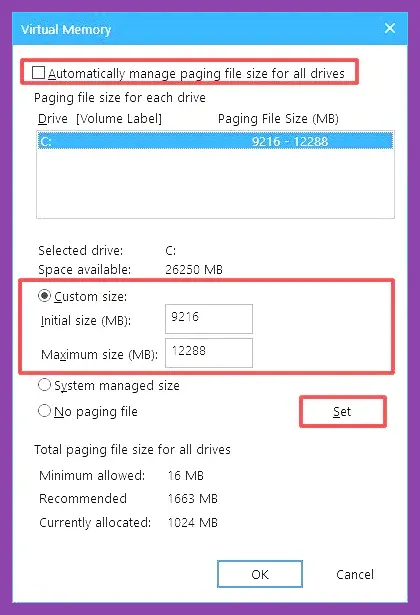
The vast expanded map in Vessel of Hatred demands extensive system memory reserves. If your Windows Paging File (Virtual Memory) is set to an automatic low capacity or managed on a slow mechanical hard drive (HDD), Diablo 4 will terminate instantly without throwing an error window when system RAM caps out.
Manually expanding your virtual memory allocations guarantees that background memory page requests are handled safely:
- Press the Windows Key, type
Advanced System Settings, and hit Enter. - Under the Performance section, click Settings.
- Go to the Advanced tab and click Change under Virtual Memory.
- Uncheck Automatically manage paging file size for all drives.
- Select your fastest solid-state drive (NVMe or SATA SSD where Windows or the game is installed).
- Select Custom size:
- Initial size (MB): 16384 (16 GB)
- Maximum size (MB): 32768 (32 GB)
- Click Set, then click OK and restart your PC.
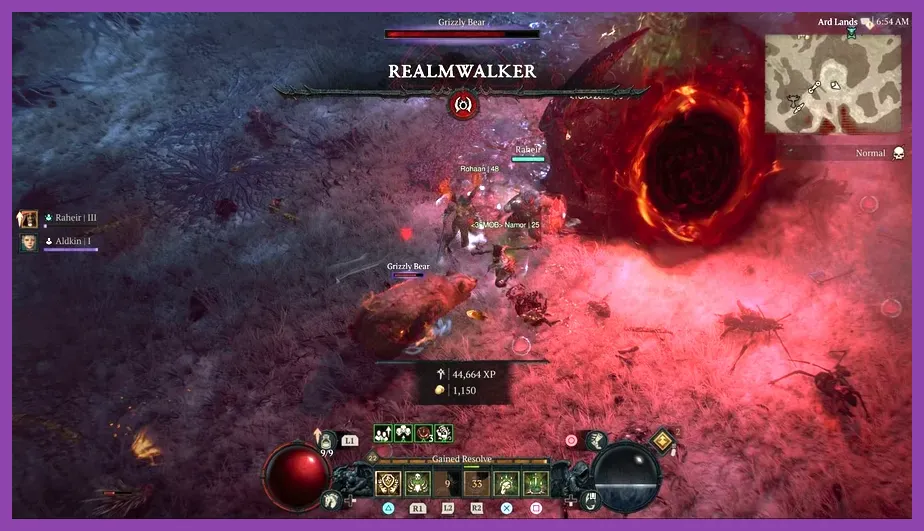
Establishing a minimum 16GB allocation stops out-of-memory crashes during intense world events like the Realmwalker encounter or the Undercity of Kurast timed dungeons. Managing resource-heavy environments effectively is a staple for complex simulation and RPG titles alike; check out our Cities Skylines 2 beginner guide to learn more about optimizing system performance for demanding engines.
5. Disable Razer Chroma SDK and Peripheral Overlays
An ongoing compatibility flaw within the Diablo 4 engine involves dynamic peripheral lighting plugins, specifically Razer Chroma SDK and SteelSeries GG. These background services hook into the game executable (Diablo IV.exe) to synchronize RGB lighting effects with in-game health pools and cooldown states. However, when triggering complex class effects, this hook frequently crashes the game thread.
To eliminate background overlay and peripheral conflicts:
- Open your
LocalPrefs.txtfile located inDocuments\\Diablo IV. - Press Ctrl + F and search for the line:
DisableChromaSDK "0". - Change the value from
"0"to"1"(e.g.,DisableChromaSDK "1"). Save and close the document. - Open Task Manager (Ctrl + Shift + Esc) and terminate overlay software including Discord Overlay, GeForce Experience In-Game Overlay, RivaTuner Statistics Server (RTSS), and MSI Afterburner.
Overlay hooks frequently interfere with the engine's DirectStorage API calls, resulting in hard freezes when opening menu panels, changing gear, or managing skill trees. Players dedicated to fast-paced progression loops across persistent worlds can also explore our strategies in Dead by Daylight level-up techniques to streamline their grind.
6. Clean-Install Display Drivers via DDU and Repair Game Files
If crashing persists after applying game setting tweaks, existing display drivers may contain corrupted DLL references from prior game patches. Perform a pristine graphics driver installation using Display Driver Uninstaller (DDU) followed by a file integrity check via Battle.net.
Follow this exact execution order:
- Download the newest display drivers directly from NVIDIA Driver Downloads or AMD Driver Support.
- Download Display Driver Uninstaller (DDU) and boot your PC into Windows Safe Mode.
- Run DDU, select your GPU type (NVIDIA or AMD), and click Clean and Restart.
- Once Windows reboots normally, install your newly downloaded GPU driver package. Select Custom (Advanced) Installation and check Perform a Clean Installation.
- Open the Battle.net Launcher, navigate to Diablo IV, click the gear icon, and select Scan and Repair.
Allowing Battle.net to verify core game binaries guarantees that any corrupt or missing files following recent patches—such as corrupted sound banks or corrupted zone maps in Nahantu—are completely restored. If you are taking a break from Sanctuary and venturing into expansive survival craft games, verify your setup with our comprehensive Enshrouded gear guide for optimized progression.
By enforcing a static virtual memory pool, disabling unstable features like Ray Tracing and Chroma plugins, and dropping down to standard-resolution texture sets, your Diablo 4: Vessel of Hatred client will remain completely stable throughout high-density endgame content.