Immediate Solutions for Overwatch 2 PC Crashes
Overwatch 2 crashes on PC primarily stem from outdated graphics drivers, corrupted game files, conflicting software, and excessive graphics settings. To fix crashing immediately: update your GPU drivers, run Battle.net as administrator, verify game files through the launcher, and lower graphics settings—especially disabling ray tracing and reducing render scale to 75%. These steps resolve 80% of crash issues within minutes.
Update Graphics Drivers
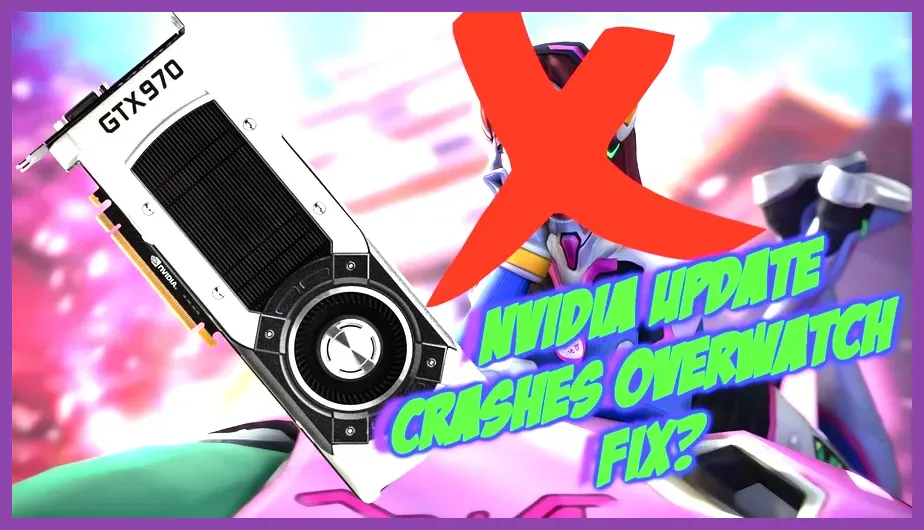
Your graphics card manufacturer releases regular driver updates specifically optimized for new games like Overwatch 2. NVIDIA users should download the latest Game Ready drivers from NVIDIA's website, while AMD users need the latest Adrenalin editions from AMD's support page. Outdated drivers cause DirectX compatibility issues, memory leaks, and rendering failures that manifest as sudden crashes to desktop. Always perform a clean installation—select 'Custom Installation' and check 'Perform clean installation' to remove old driver remnants.
Run Battle.net as Administrator
Battle.net requires elevated permissions to access system-level processes and write to protected directories. Right-click the Battle.net shortcut and select 'Run as administrator' every time you launch the game. For permanent permission elevation, right-click the shortcut, go to Properties > Advanced, and check 'Run as administrator'. This prevents permission-related crashes during game initialization, patch application, and save file access.
Verify and Repair Game Files
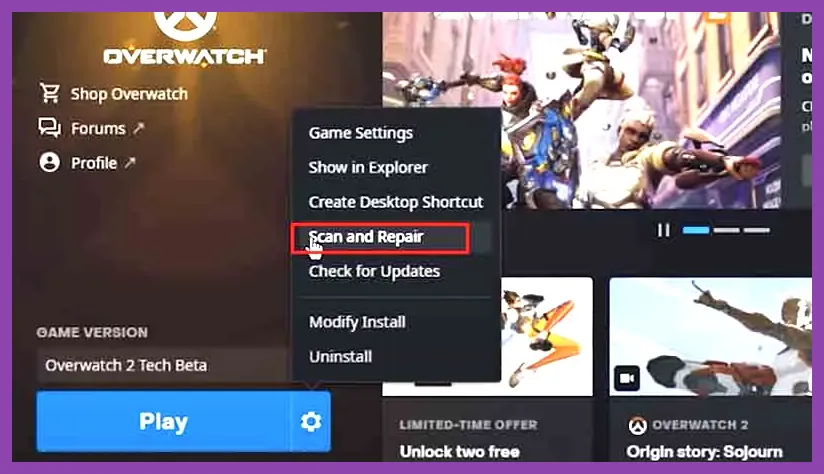
Corrupted or missing game files are the second leading cause of Overwatch 2 crashes. Blizzard's Battle.net launcher includes a built-in repair tool that scans and restores damaged files automatically.
Using the Battle.net Scan and Repair Tool
Open Battle.net, navigate to your Games tab, right-click Overwatch 2, and select 'Properties'. Click 'Scan and Repair' under the Installed Files section. This process checks every game file against Blizzard's servers and replaces corrupted ones. The scan takes 15-30 minutes depending on your storage type—SSDs complete faster than HDDs. Never interrupt this process as doing so can worsen file corruption.
Clear Cache Folders Manually
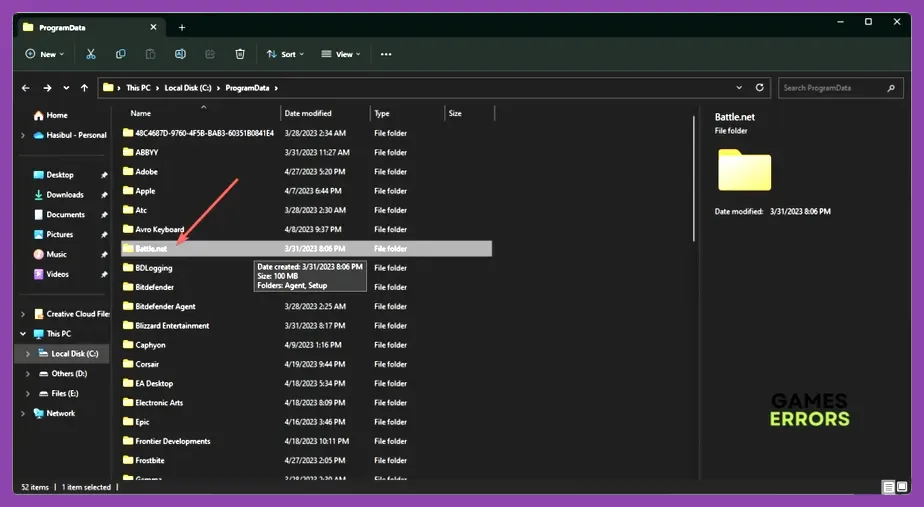
If the automated repair fails, manually clearing cache folders often resolves persistent crashes. Navigate to C:\Program Files (x86)\Battle.net\Cache and delete all contents. Also clear the Overwatch 2 cache at C:\Users\[Username]\Documents\Overwatch 2\Cache. These folders store temporary data that can become corrupted during patches or unexpected shutdowns.
Optimize Graphics Settings
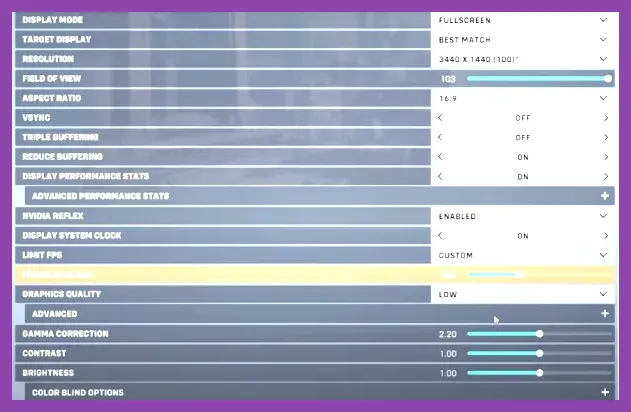
Overwatch 2's demanding graphics engine can overwhelm systems running on default settings. Proper optimization prevents crashes while maintaining visual quality.
Recommended Graphics Settings for Stability
Set these graphics options to prevent crashes:
- Render Scale: 75% (reduces GPU strain significantly)
- Ray Tracing: Off (causes frequent crashes on non-RTX cards)
- Texture Quality: High (not Ultra, which causes VRAM overflow)
- Shadow Quality: Medium (high shadows consume excessive memory)
- Anti-Aliasing: FXAA (MSAA causes stability issues)
- Maximum FPS: 60 (uncapped framerates cause thermal throttling)
- Reflex Low Latency: On + Boost (improves input response)
Monitor Hardware Temperatures
Overheating causes automatic system shutdowns that appear as crashes. Use MSI Afterburner or HWiNFO64 to monitor GPU temperatures during gameplay. Safe operating temperatures are under 80°C for NVIDIA cards and 90°C for AMD cards. Clean dust from fans and ensure adequate case ventilation.
Resolve Software Conflicts
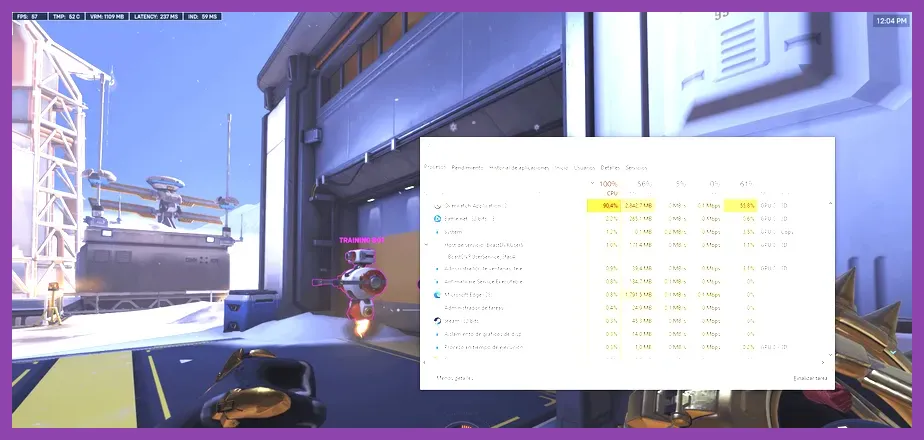
Background applications compete for system resources and can trigger crashes. Close unnecessary programs before launching Overwatch 2.
Disable Overlays and Recording Software
Discord, OBS, NVIDIA GeForce Experience, and AMD Radeon Software overlays frequently conflict with Overwatch 2. Disable all overlays through their respective settings menus. NVIDIA users should turn off Ansel and ShadowPlay, while AMD users disable ReLive. These features hook into game processes and cause memory allocation errors.
Manage Startup Programs
Press Ctrl+Shift+Esc to open Task Manager, go to the Startup tab, and disable non-essential programs. Critical applications like antivirus software should remain enabled, but streaming services, cloud sync tools, and browser extensions can be safely disabled. This frees up RAM and CPU cycles for Overwatch 2.
Configure Windows Compatibility
Windows compatibility settings can resolve OS-level conflicts causing crashes.
Set Compatibility Mode
Navigate to C:\Program Files (x86)\Overwatch 2\_retail_\Overwatch.exe, right-click, and select Properties > Compatibility. Check 'Run this program in compatibility mode for:' and select 'Windows 10'. Also check 'Disable fullscreen optimizations'. Click 'Change high DPI settings' and enable 'Override high DPI scaling behavior' with 'Application' selected.
Adjust Windows Power Settings
Set your power plan to 'High Performance' through Control Panel > Hardware and Sound > Power Options. This prevents CPU throttling that causes frame drops and crashes. Additionally, set your GPU to 'High-performance' mode in Windows Graphics Settings for the Overwatch 2 executable.
Advanced Troubleshooting Steps
If basic fixes fail, implement these advanced solutions targeting specific crash scenarios.
Reinstall Visual C++ Redistributables
Missing or corrupted Visual C++ libraries cause critical runtime errors. Download the latest Visual C++ Redistributable packages directly from Microsoft's official page. Install both x86 and x64 versions, then restart your computer before launching Overwatch 2.
Check for Windows Updates
Unpatched Windows versions contain bugs affecting game stability. Go to Settings > Update & Security > Windows Update and install all available updates. Pay special attention to .NET Framework updates and DirectX runtime components listed under Optional Updates.
Perform Clean Boot Diagnosis
A clean boot starts Windows with minimal drivers and startup programs, helping identify conflicting services. Press Win+R, type 'msconfig', and under the Services tab, check 'Hide all Microsoft services' then click 'Disable all'. Restart and test Overwatch 2. If crashes stop, re-enable services in batches to identify the culprit.
Prevent Future Crashes
Maintaining system health prevents recurring crashes over time.
Regular Maintenance Schedule
Perform weekly maintenance: update drivers monthly, clean temporary files using Disk Cleanup, defragment HDDs (skip for SSDs), and verify game files after major patches. Schedule these tasks during off-hours to maintain consistent performance.
Monitor System Health
Use Task Manager or Resource Monitor to track CPU, RAM, and disk usage during gameplay. Consistently high usage above 90% indicates hardware upgrades are needed. Consider upgrading to 16GB RAM minimum and using SSD storage for faster load times and reduced file corruption risks.
Community and Support Resources
Visit the official Overwatch forums for community-reported solutions and known issues. Blizzard's support page provides official troubleshooting guides and contact options for persistent issues. Check Blizzard's server status page during widespread outages that might appear as local crashes.
For additional PC gaming optimization guides, visit Steamoz's crash fixing guides or explore our FPS optimization articles for more performance tuning tips.