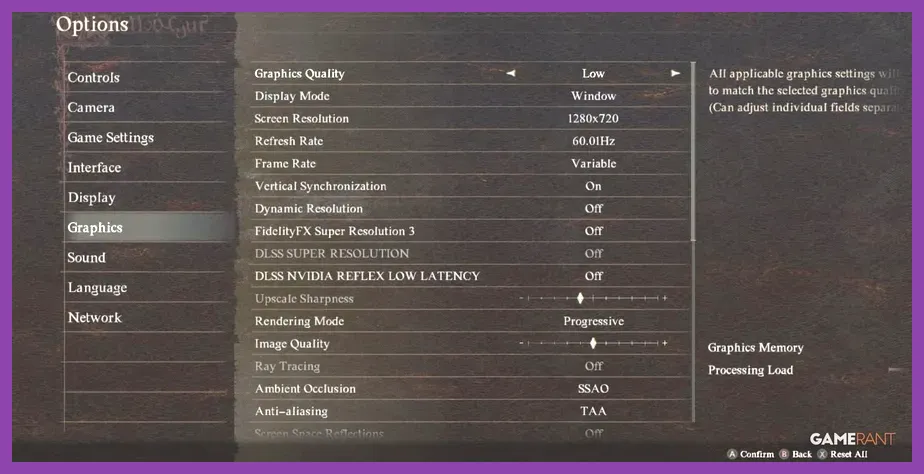
To fix Dragon's Dogma 2 crashing to desktop, freezing, or throwing EXCEPTION_ACCESS_VIOLATION errors on PC, instantly turn off Ray Tracing, lower Texture Quality to high (0.25 GB) or medium, delete the shader.cache file in your main installation folder, and set a hard 60 FPS cap inside the option.ini configuration file. Most crashes in Capcom's RE Engine occur due to severe VRAM memory leaks when crossing 8GB usage limits, paired with high CPU thread saturation inside dense hub cities like Vernworth and Bakbattahl.
Optimize In-Game Display and Graphics Settings
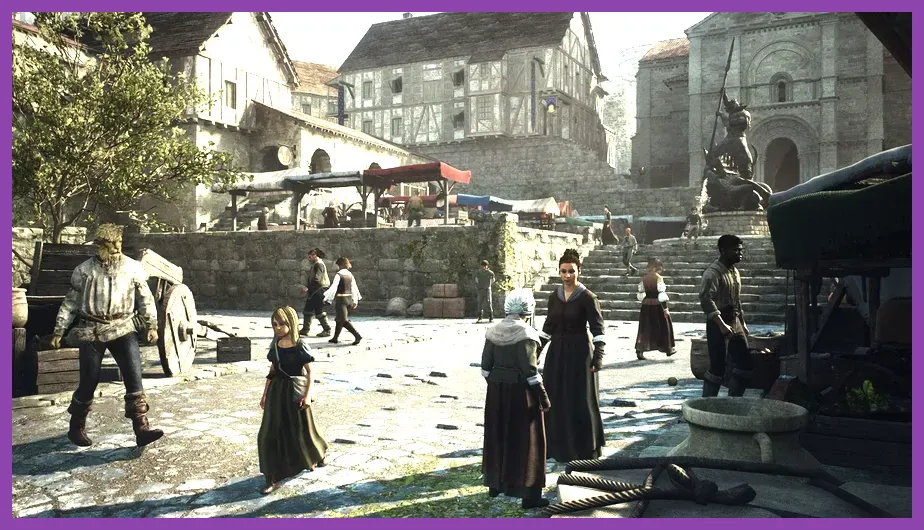
The primary trigger for desktop crashes in Dragon's Dogma 2 is video memory allocation failure. When the game attempts to allocate more VRAM than your graphics card possesses, the RE Engine immediately closes without displaying an error message. Adjusting specific sub-settings yields dramatic stability improvements without destroying visual quality.
Start by launching the game and opening the Graphics Options menu. Set your basic display parameter to Fullscreen or Windowed Borderless at your monitor's native resolution. If you are experiencing mid-game freezes during spellcasting or giant monster encounters, apply the following setting profile:
- Display Mode: Fullscreen
- Frame Rate: Max 60 (or Max 30 for budget GPUs)
- V-Sync: Off (Enable G-Sync/FreeSync via GPU Control Panel instead)
- Dynamic Resolution: Off
- DLSS / FSR Super Resolution: Quality or Balanced
- DLSS Frame Generation: Off (Turn Off to eliminate persistent memory leak crashes)
- Ray Tracing: Off (Crucial: Ray Tracing causes immediate VRAM spikes in cities)
- Shadow Quality: Medium
- Contact Shadows: On
- Motion Blur: Off
- Depth of Field: Off
- Subsurface Scattering: Medium
- Mesh Quality: Medium
- Texture Quality: High (0.25 GB) for 8GB VRAM cards; High (1 GB) for 12GB+ cards
Pay close attention to the VRAM usage bar displayed at the bottom right of the settings menu. The total memory allocation standard must remain in white text. If the text turns red, your current configuration exceeds system safety boundaries. Similar to optimizing performance graphics setups in complex games, keeping a safety margin of at least 1.5 GB of free VRAM prevents rendering pipeline crashes when traveling between region zones.
Purge Shader Cache and Rebuild Pipeline
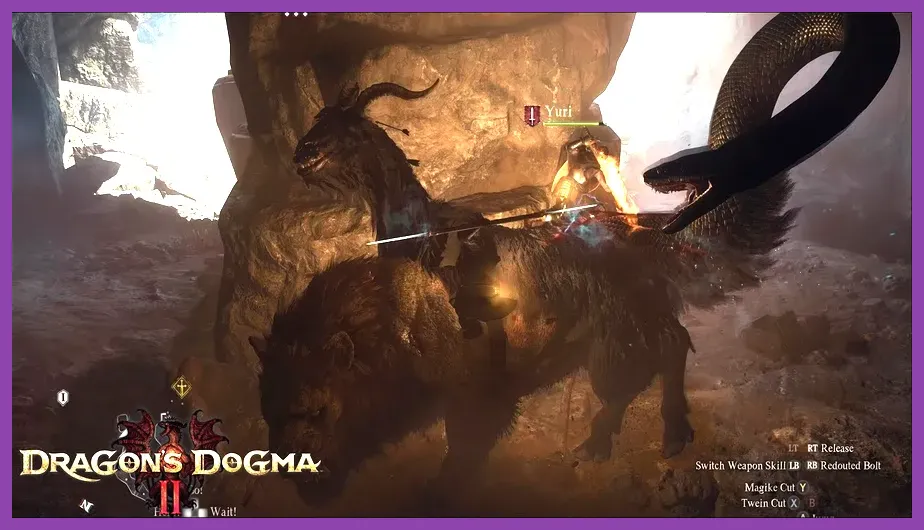
Corrupted pre-compiled shader caches regularly force Dragon's Dogma 2 to crash upon loading save files or entering new geographic regions. Forcing the RE Engine to rebuild its shader database from scratch resolves black screen crashes, infinite loading loops, and startup crashes.
To rebuild your shader cache, follow these exact manual steps:
- Completely exit Dragon's Dogma 2 and shut down Steam.
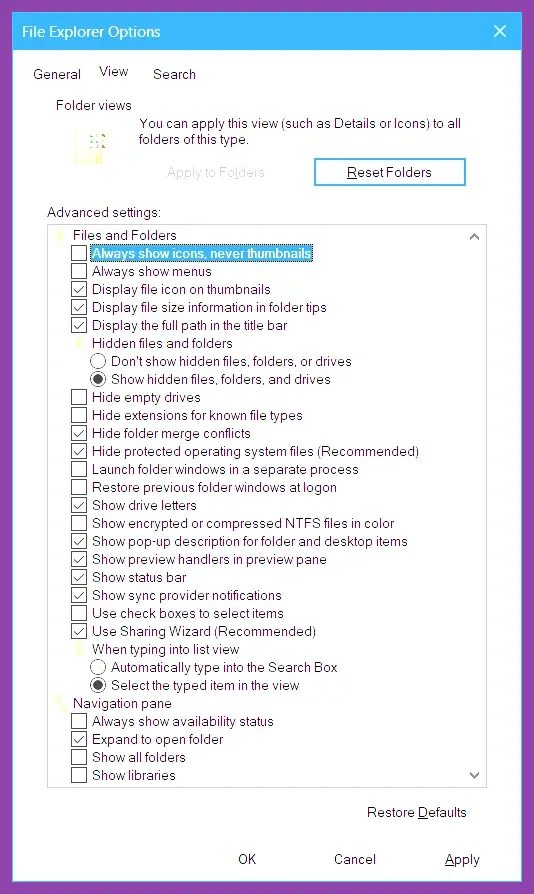
- Open Windows File Explorer and navigate to your main game installation folder:
C:\Program Files (x86)\Steam\steamapps\common\Dragons Dogma 2. - Locate the file named
shader.cache(orshader.cache2). - Right-click and delete the file completely (or move it to your desktop as a backup).
- Navigate to your Steam User Data folder:
C:\Program Files (x86)\Steam\userdata\[YourSteamID32]\2054970\remote. - Open Steam, right-click Dragon's Dogma 2 in your library, select Properties > Installed Files, and click Verify integrity of game files.
- Relaunch the game. Allow the main menu to sit uninterrupted for 3 to 5 minutes while the game recreates the compiled shaders in real time.
Performing this wipe after every major game update or graphics driver update prevents residual file conflicts. You can check official patch notes and known build issues on the official Dragon's Dogma 2 Steam Page.
Modify the Option.ini File for Stability
Certain graphic toggles modified inside the game menu fail to write properly to system memory, causing background execution errors. Manually editing the configuration file forces hardware parameters to launch safely.
Navigate to your local app settings path or root game folder to locate option.ini. Right-click the file and choose to open it with Notepad. Scroll down through the text file and locate the following key variables, modifying their values to match these stable parameters:
TargetFPS=60
RenderingMethod=EngineDefault
CapsuleAO=Disable
RayTracingEnable=Disable
LowLatency=Disable
QualitySubSrf=Medium
DLSS_Quality=Quality
DLSS_FrameGen=Disable
Save the file changes (Ctrl + S) and close Notepad. Right-click option.ini, select Properties, check the Read-only box at the bottom, and click Apply. This action locks the parameters, preventing the game engine from dynamically overriding your custom stability values during heavy load transitions.
Fix CPU Bottlenecks in Vernworth and High-Density Zones
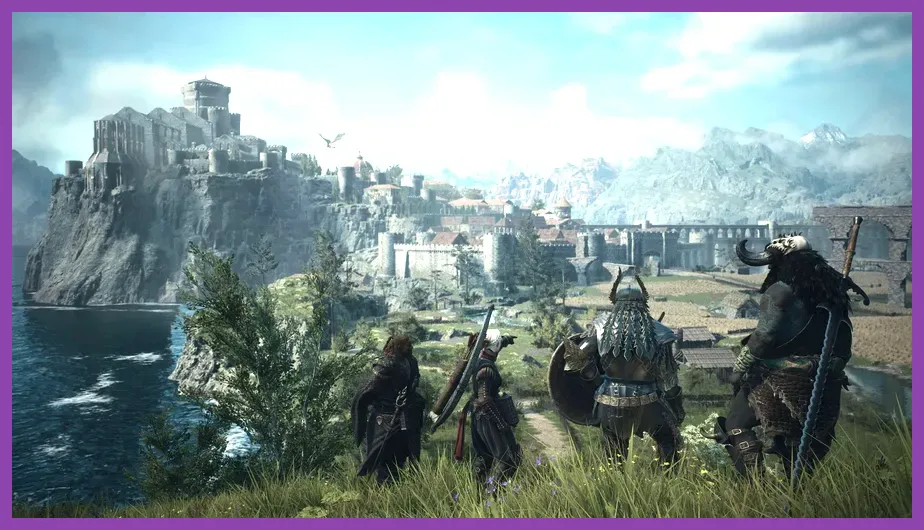
Unlike standard action RPGs, Dragon's Dogma 2 runs advanced physical simulation threads and AI behavior routines for every single NPC in major urban environments. When entering Vernworth or Bakbattahl, CPU usage across all cores routinely spikes to 100%, causing thread synchronization timeouts that crash the desktop.
While exploring settlements or searching for hidden treasures highlighted in our Dragon's Dogma 2 secret locations guide, CPU stalls can be mitigated using Windows system priority overrides:
- Launch Dragon's Dogma 2 and load into your character save.
- Press
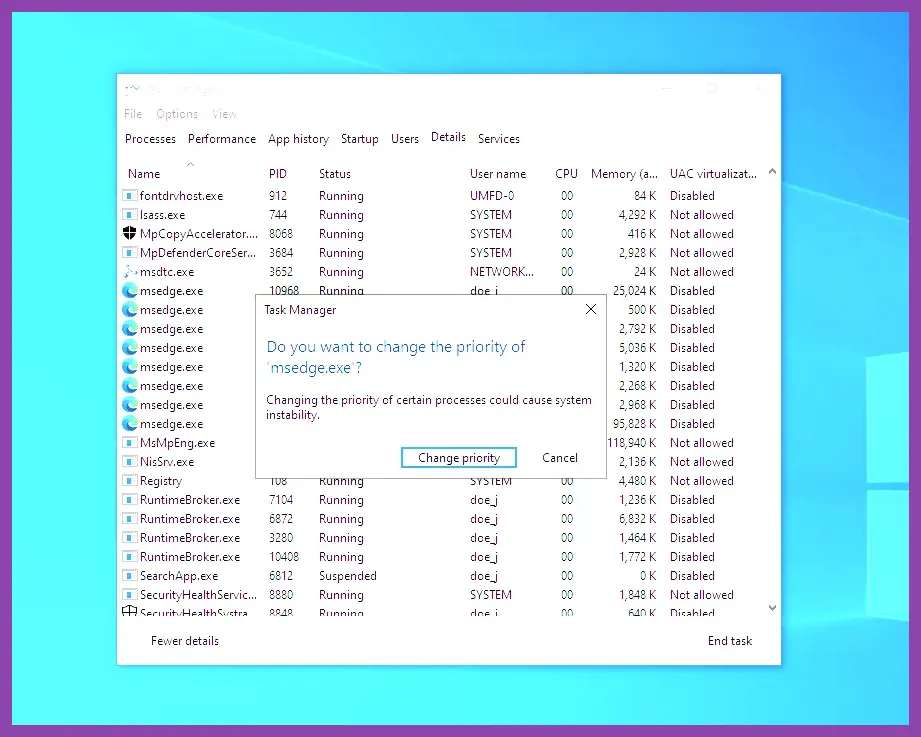
Ctrl + Shift + Escto open Windows Task Manager. - Click on the Details tab on the left navigation panel.
- Right-click
DD2.exe, hover over Set Priority, and select High. - Right-click
DD2.exeagain, select Set Affinity, and ensure all CPU cores (including Threads/Logical Processors) are fully checked.
Additionally, disable Windows Game Mode if you operate on older 8-core processors without E-cores, as Windows thread scheduling can inadvertently send essential game physics threads to sleeping background cores. If you encounter hardware constraints on older systems, compare your setup against modern PC specification requirements to verify hardware baseline compatibility.
Clean Install Graphics Drivers and Disable Interfering Overlays
Third-party overlay hooks and outdated GPU drivers are frequent causes of RE Engine crash logs. Background software like Discord Overlay, GeForce Experience In-Game Overlay, MSI Afterburner, and RivaTuner Statistics Server (RTSS) conflict with Dragon's Dogma 2's anti-tamper layer, causing fatal executable crashes during screen transitions.
To ensure driver stability, perform a clean graphics driver installation using Display Driver Uninstaller (DDU):
- Download the newest game-ready driver directly from the Nvidia Driver Download Page or AMD Driver Support.
- Boot Windows into Safe Mode, run DDU, and choose Clean and Restart to completely wipe residual display drivers.
- Install the newly downloaded driver package. During installation, select Custom (Advanced) and check Perform a Clean Installation.
- Open Nvidia Control Panel (or AMD Software Adrenalin Edition), go to Manage 3D Settings, locate Dragon's Dogma 2, and set Power Management Mode to Prefer Maximum Performance.
- Set Shader Cache Size to 10 GB or Unlimited within your GPU Control Panel settings.
Disable all overlay features in Steam (Settings > In-Game > Enable the Steam Overlay while in-game = OFF), Discord (User Settings > Game Overlay = OFF), and GeForce Experience prior to launching the title. For more tips on balancing frame delivery stability, review our guide on maximizing PC frame rates across modern action titles.
Increase Virtual Memory Windows Pagefile Size
If your system features 16GB of system RAM, Dragon's Dogma 2 can easily exhaust active system memory alongside video RAM during extended gameplay sessions. When Windows runs out of virtual allocation space, the OS forcefully terminates the process, causing sudden crashes without error dialog boxes.
Manually expanding your Windows Virtual Memory allocation creates a dedicated fallback buffer on your high-speed SSD, preventing out-of-memory fatal crashes:
- Press the Windows Key, type
Advanced System Settings, and press Enter. - Under the Advanced tab, click Settings inside the Performance box.
- Select the Advanced tab in the new window and click Change under Virtual Memory.
- Uncheck Automatically manage paging file size for all drives.
- Select your fastest installed NVMe/SATA SSD drive letter where the game is installed.
- Click Custom size: Set Initial size (MB) to
16384(16GB) and Maximum size (MB) to32768(32GB). - Click Set, then click OK, and restart your computer to apply the changes.
By enforcing a static 32GB pagefile buffer, disabling volatile graphics features like Ray Tracing and Frame Generation, clearing corrupted shader caches, and managing GPU VRAM allocations below strict thresholds, you eliminate the underlying triggers for Dragon's Dogma 2 PC crashes. If crash issues persist after taking these steps, visit official hardware diagnostic resources at Capcom Technical Support to submit your crash dump files for further analysis.