Palworld runs on modest hardware, but knowing the exact minimum and recommended PC specs helps you avoid stutters and enjoy smooth survival‑crafting action. Below are the official requirements from Pocketpair, plus real‑world benchmarks for low, medium, high and ultra settings.
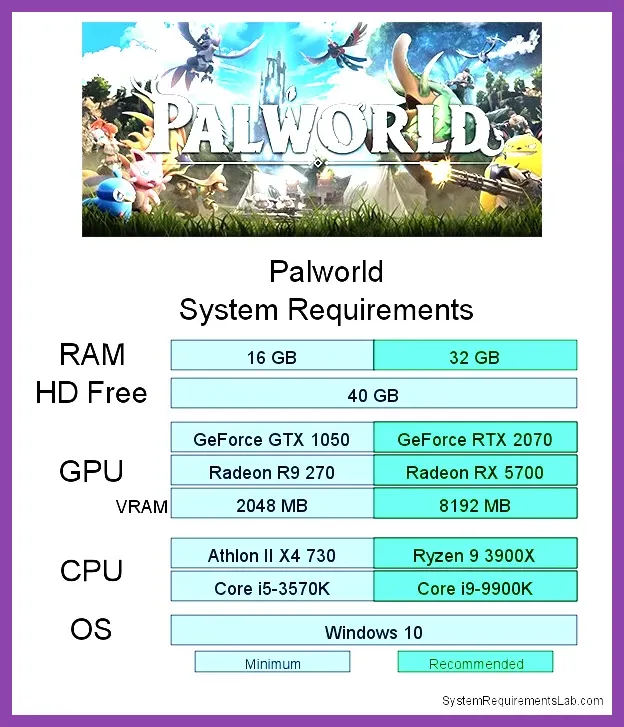
Minimum System Requirements
If you’re ready to tackle tougher foes, our secret boss guide prepares you for the challenge.
- OS: Windows 10 64‑bit (version 1909 or newer)
- CPU: Intel Core i5‑9400F @ 2.9 GHz or AMD Ryzen 5 2600 @ 3.4 GHz
- GPU: NVIDIA GeForce GTX 1650 4 GB or AMD Radeon RX 570 4 GB
- VRAM: 4 GB GDDR5
- RAM: 8 GB DDR4
- Storage: 20 GB SSD (HDD works but may cause longer load times)
- DirectX: Version 12
- Network: Broadband Internet connection
These specs let you launch Palworld at 720p with Low graphics and maintain around 30 FPS. For a smoother experience, aim for the recommended tier.
Recommended System Requirements
- OS: Windows 10 64‑bit (version 2004 or newer) or Windows 11
- CPU: Intel Core i7‑10700K @ 3.8 GHz or AMD Ryzen 7 5800X @ 3.8 GHz
- GPU: NVIDIA GeForce RTX 3060 12 GB or AMD Radeon RX 6700 XT 12 GB
- VRAM: 12 GB GDDR6
- RAM: 16 GB DDR4
- Storage: 30 GB SSD (NVMe preferred)
- DirectX: Version 12
- Network: Broadband Internet connection
With the recommended build you can comfortably run Palworld at 1080p, High preset, averaging 60 FPS. Enabling DLSS (Quality) or FSR 2.0 pushes performance higher without sacrificing visual fidelity. For optimal base building, see our mount guide.
Performance Settings Guide
For tips on earning currency quickly, see our guide on how to farm gold fast in Palworld.
Low (720p, ~30 FPS)
- Resolution: 1280×720
- Texture Quality: Low
- Shadow Quality: Low
- Anti‑Aliasing: FXAA
- View Distance: Low
- Effects: Low
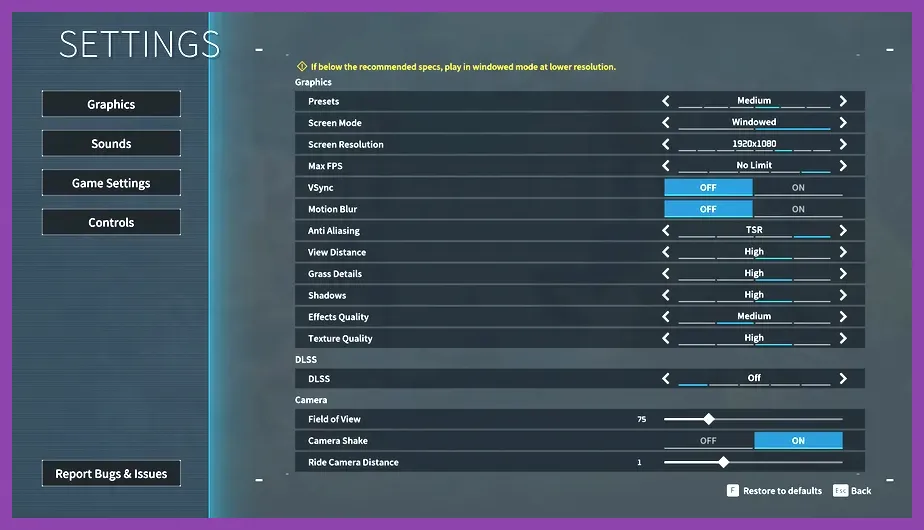
Medium (1080p, ~45 FPS)
- Resolution: 1920×1080
- Texture Quality: Medium
- Shadow Quality: Medium
- Anti‑Aliasing: TAA
- View Distance: Medium
- Effects: Medium
High (1080p, ~60 FPS)
- Resolution: 1920×1080
- Texture Quality: High
- Shadow Quality: High
- Anti‑Aliasing: TAA
- View Distance: High
- Effects: High
- DLSS: Quality (if RTX)
Ultra (1440p, ~60 FPS)
- Resolution: 2560×1440
- Texture Quality: Ultra
- Shadow Quality: Ultra
- Anti‑Aliasing: TAA
- View Distance: Ultra
- Effects: Ultra
- DLSS: Balanced or Performance (RTX)
- Ray Tracing: Optional (requires RTX 30‑series or AMD RX 6000+)
Adjust the scaling resolution or enable VSync only if you experience screen tearing; otherwise keep it off for lowest input lag.
How to Check Your PC Specs
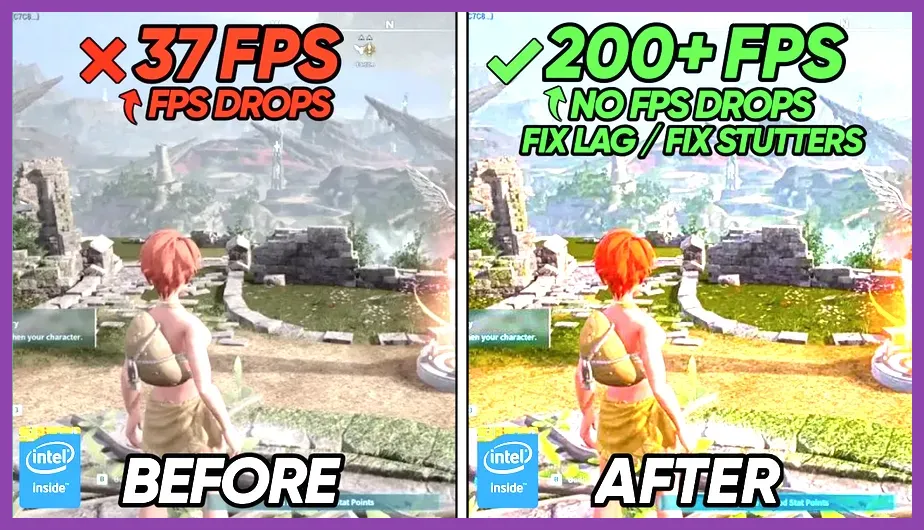
Before diving into Palworld, verify that your hardware meets at least the minimum tier:
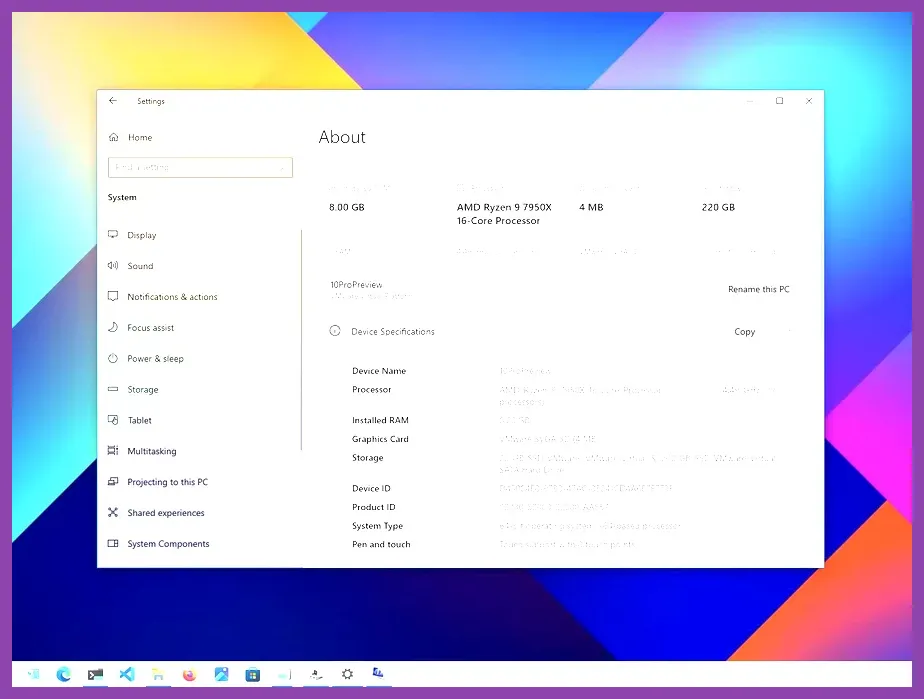
- Press Win+I → System → About to see your CPU and RAM.
- Open Win+R, type
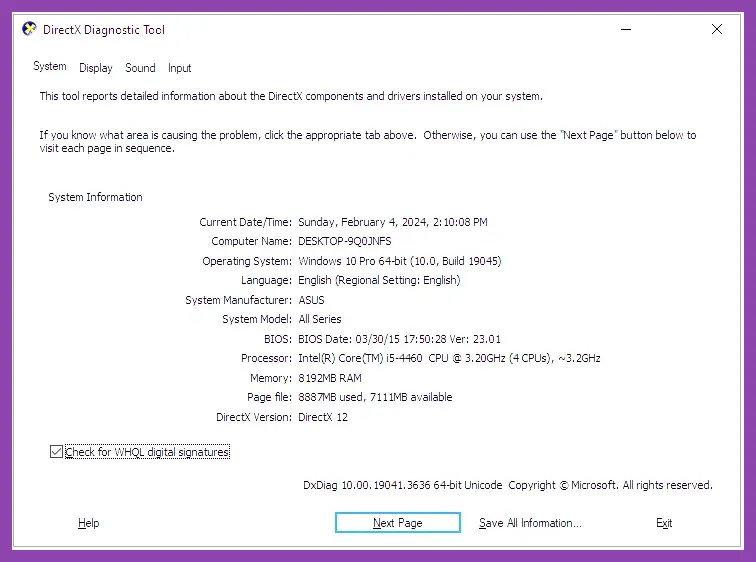
dxdiagand hit Enter; the Display tab shows your GPU and VRAM. - Check storage type in This PC → right‑click the drive → Properties → Tools → Optimize; SSDs will show “Solid state drive”.
- For a quick benchmark, launch Palworld, open the graphics settings, and note the FPS counter (enable it via Settings → Gameplay → Show FPS).
If any component falls short, consider upgrading the GPU first, as Palworld is more GPU‑bound than CPU‑bound. Want to respec your Pals after upgrading? Check out our Palworld skill respec guide.
Troubleshooting Low FPS & Crashes
Even with specs that meet the recommendations, you can encounter stutters or crashes. Follow these steps to stabilize performance:
- Update GPU drivers to the latest version from NVIDIA or AMD.
- Verify game files via Steam (Library → Palworld → Properties → Installed Files → Verify integrity).
- Lower Shadow Quality to Medium or Low; shadows are the biggest FPS drain.
- Disable VSync and enable Triple Buffering only if you have a G‑Sync/FreeSync monitor.
- Set Power Management Mode to “Prefer maximum performance” in the NVIDIA Control Panel.
- Close background applications (Chrome, Discord) that consume CPU or RAM.
- If crashes persist, increase virtual memory (page file) to 1.5× your RAM size.
- Refer to our crash‑fix guide for more detailed steps: How to Fix Palworld Crashes on PC.
Looking for completionist goals? See our Palworld achievement guide.
Applying these tweaks should push your average FPS into the 50‑60 range on a recommended rig, letting you focus on catching Pals and building bases.