
If you’ve ever launched Genshin Impact on your PC only to be greeted by jittery movements, sudden frame drops, and that dreaded stutter, you’re not alone. The game’s gorgeous open‑world can be a performance nightmare on mis‑configured rigs, but the good news is that most of the hiccups are fixable with a few tweaks. Below you’ll find a step‑by‑step guide that walks you through diagnosing the problem, polishing your Windows and driver settings, and squeezing every last frame out of your hardware. Grab a cup of coffee, fire up the game, and let’s turn that choppy adventure into a buttery‑smooth journey.
Identify the Culprit: CPU vs GPU Bottleneck

Check Task Manager and In‑Game Metrics
Before you start toggling settings, you need to know which component is choking the performance. Open Windows Task Manager (Ctrl+Shift+Esc) while Genshin is running and watch the CPU and GPU usage percentages. If the CPU hovers near 100 % while the GPU is idle, you’re dealing with a CPU bottleneck – often caused by background processes or an under‑powered processor. Conversely, a maxed‑out GPU indicates graphics‑heavy strain.
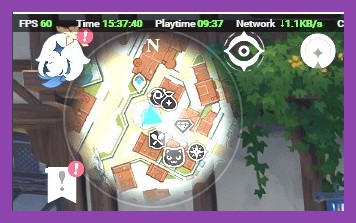
Pair this with the in‑game FPS counter (press Ctrl+Shift+F in Genshin) to see real‑time frame rates. Consistent dips below 30 FPS are a clear sign of stutter. Knowing the bottleneck helps you target the right fixes later on.
Update Drivers and Windows
Graphics Drivers: Your First Line of Defense
Out‑of‑date GPU drivers are the most common cause of stuttering. Head over to the NVIDIA driver download page or AMD’s equivalent, grab the latest Game Ready or Adrenalin driver, and install it. During installation, choose a clean install to wipe old files that might be causing conflicts.
Windows Updates and DirectX
Microsoft regularly releases performance patches that affect how games interact with the OS. Open Settings → Update & Security and install any pending updates. Also, make sure you have the latest DirectX runtime – you can grab it from Microsoft’s DirectX download page. A fresh DirectX install can resolve hidden graphics glitches that manifest as stutter.
Tweak In‑Game Settings for Smooth Play
Resolution and Frame Rate Caps
Genshin Impact runs best at your monitor’s native resolution, but if you’re seeing stutter, drop the resolution by one step (e.g., from 1920×1080 to 1600×900). Then, enable the V‑Sync toggle to lock the frame rate to your monitor’s refresh rate, eliminating screen tearing that can feel like stutter.
Graphics Quality Sliders
The game offers a handful of sliders: Overall Quality, Shadow Quality, Visual Effects, and Particle Quality. The biggest performance hit usually comes from Shadow Quality and Particle Quality. Set Shadows to Medium and Particles to Low. You’ll still enjoy the vibrant art style while gaining 20‑30 FPS in combat‑heavy zones.
Advanced Options: Anti‑Aliasing and FidelityFX
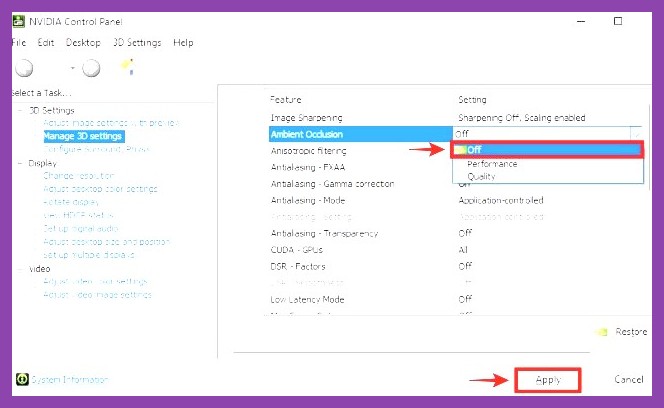
If you’re using an NVIDIA card, turn off MSAA and enable FidelityFX Super Resolution (FSR) if available. FSR upscales a lower‑resolution render to look near‑native, shaving off GPU load without a noticeable visual downgrade.
Optimize Windows Power & Background Services
High‑Performance Power Plan
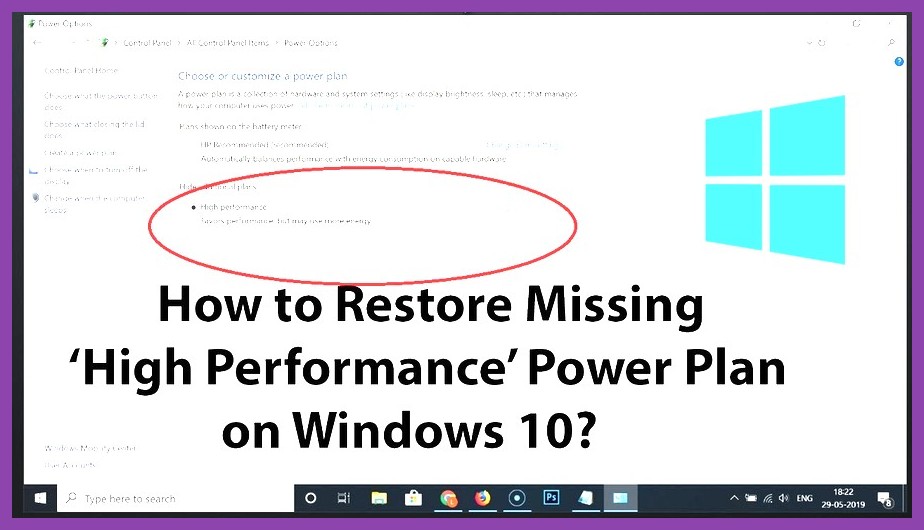
Windows defaults to a balanced power plan that throttles CPU frequency to save energy. Switch to High Performance (Control Panel → Power Options) to keep your cores running at full speed. This alone can boost frame rates by 5‑10 % on CPU‑limited rigs.
Disable Unnecessary Startup Programs
Press Ctrl+Shift+Esc → Startup tab, and disable anything you don’t need while gaming – think cloud sync apps, web browsers, or video streaming services. Less background RAM usage means more memory for Genshin’s massive textures.
Turn Off Game Bar and Game DVR
Windows Game Bar can introduce micro‑stutters. Open Settings → Gaming → Xbox Game Bar and toggle it off. Likewise, disable Game DVR under the “Captures” tab to prevent the OS from constantly writing video buffers.
Use Third‑Party Tools Wisely
Razer Cortex, MSI Afterburner, and Process Lasso
These utilities can help you prioritize the game process. In Razer Cortex, add Genshin Impact to the “Game Boost” list – the app will temporarily shut down background services. MSI Afterburner lets you cap GPU temperature and set a manual clock offset for a smoother experience. Be cautious with aggressive overclocks; they can cause instability that feels like stutter.
Latency Optimizers
If you’re playing on a Wi‑Fi connection, packet loss can masquerade as visual stutter. Tools like Steam Remote Play Lag Fixes offer DNS tweaks and network prioritization that reduce latency spikes.
When All Else Fails: Reinstall or Verify Files
Steam Verify Integrity
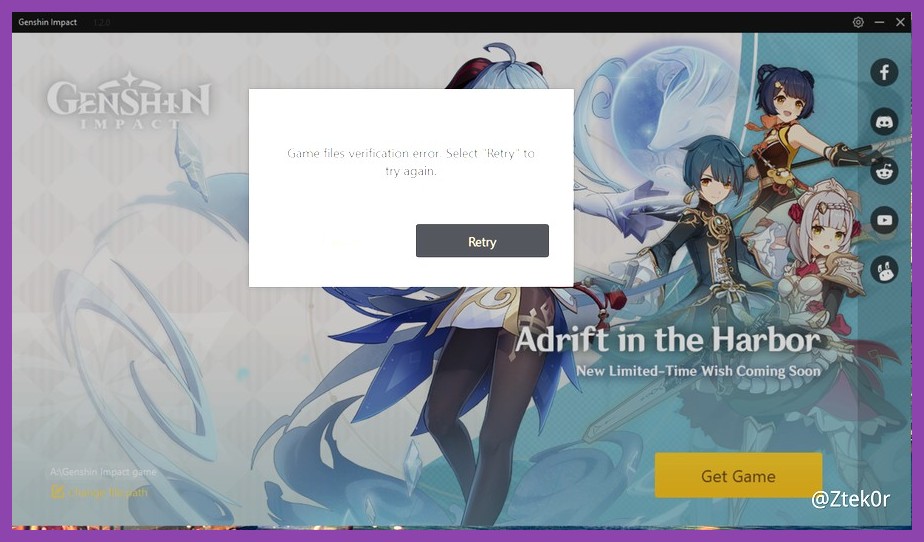
Even though Genshin Impact isn’t on Steam, many players launch it via the Steam client’s performance tools. Right‑click the game in your library, choose Properties → Local Files → Verify Integrity of Game Files. Corrupt files can cause frame‑time spikes that mimic stutter.
Full Reinstall
If verification doesn’t help, back up your save folder (usually in C:\Users\[YourName]\AppData\LocalLow\miHoYo\Genshin Impact) and uninstall the game. Then, download the latest installer from the official Genshin Impact website and reinstall. A clean install wipes lingering registry entries that can sabotage performance.
Check for Mod Interference
While Genshin doesn’t officially support mods, community texture packs sometimes slip in. If you’ve experimented with custom shaders, disable or remove them. The Steam Workshop guide explains how to safely manage mods for other titles – the same caution applies here.
By following these steps, you’ll likely see a noticeable reduction in stutter, smoother combat, and a more immersive exploration of Teyvat. Remember, performance tuning is a bit of trial and error; start with the low‑hanging fruit (drivers, power plan) and work your way down the list. Happy adventuring, and may your frame rates stay as high as your ambitions!
For more PC‑gaming performance tips, check out our guides section, read the ultimate stability guide for Clair Obscur Expedition 33, or explore the PC games category for other titles that may need a performance boost.