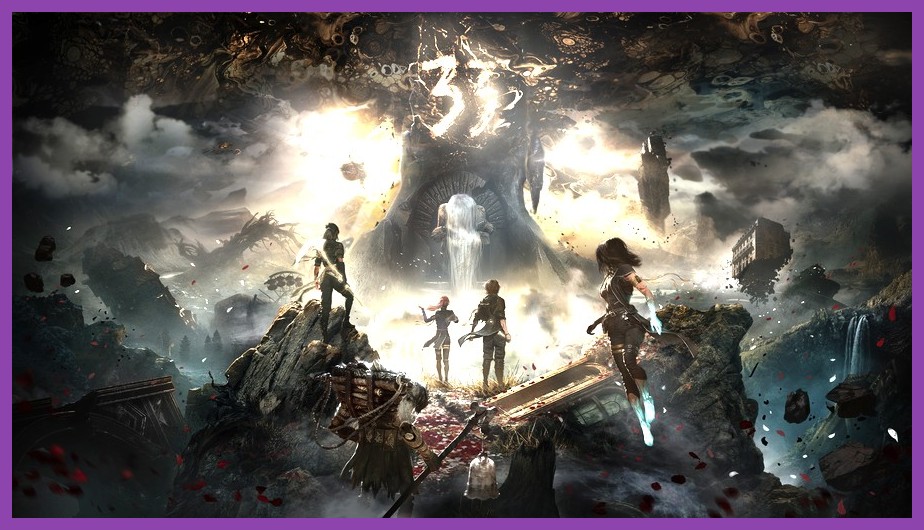
You are in the middle of executing a turn-based combo, timing your parry to perfection against an terrifying paint-swirled monster, and suddenly screen freezes. A second later, you are looking at your desktop alongside a dreaded Unreal Engine 5 Crash Reporter window. Nothing ruins the flow of Sandfall Interactive's gorgeous RPG faster than random desktop crashes, low memory errors, or instant GPU driver resets.
Because Clair Obscur: Expedition 33 pushes the absolute limits of Unreal Engine 5 with stunning Belle Époque aesthetics and fast-paced reactive combat, it puts immense pressure on your CPU, VRAM, and storage pipeline. If you are struggling with random crashes during boss encounters, loading screen freezes, or startup crashes, do not worry. This guide walks you through every verified fix to get your party back on the road to destroy the Paintress once and for all.
Check System Requirements and System Bottlenecks
Before diving into complex registry tweaks or software reinstalls, it is vital to ensure your rig actually meets the baseline requirements for running a modern UE5 flagship title. Unreal Engine 5 relies heavily on fast SSD asset streaming and high system memory bandwidth. If your system falls below key thresholds, hardware instability will inevitably manifest as hard crashes to desktop (CTD).
- Minimum OS: Windows 10/11 64-bit (Version 21H2 or newer)
- Processor: Intel Core i7-8700K or AMD Ryzen 5 3600
- Memory: 16 GB RAM (32 GB strongly recommended for UE5 stability)
- Graphics: NVIDIA GeForce RTX 2060 (6 GB) or AMD Radeon RX 5700 XT (8 GB)
- DirectX: Version 12
- Storage: NVMe SSD required (Installing on a mechanical HDD causes massive asset streaming hitches and game crashes)
If your hardware is right on the boundary line—especially in terms of GPU VRAM—you will need to be aggressive with your graphics preset tweaks. If you are looking to brush up on early-game mechanics once your performance stabilizes, check out our Expedition 33 best starting build guide.
Step 1: Clean Up Drivers and Verify Game File Integrity
Corrupted shaders, missing dynamic library files, and legacy GPU drivers are responsible for nearly 60% of launch and mid-game crashes in newly released games. Performing basic file maintenance is always your best starting step.
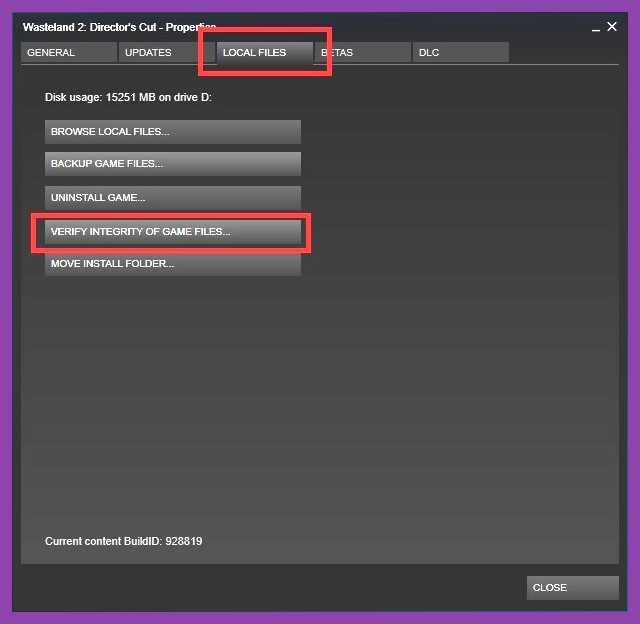
1. Verify Game Files on Steam
If an update downloaded incorrectly or a shader cache got corrupted, Steam can automatically repair it:
- Open your Steam Library.
- Right-click on Clair Obscur: Expedition 33 and select Properties.
- Navigate to the Installed Files tab on the left.
- Click Verify integrity of game files.
- Wait for Steam to scan all local archives. Any missing or corrupted files will automatically re-download.
2. Perform a Clean GPU Driver Reinstall
Outdated or dirty graphics drivers frequently cause DXGI_ERROR_DEVICE_HUNG and DXGI_ERROR_DEVICE_REMOVED crash popups. To eliminate driver corruption:
- Download the latest official drivers directly from NVIDIA Driver Downloads or AMD Driver Support.
- During the installation process, select Custom (Advanced) Installation.
- Check the box that says Perform a Clean Installation (or use Display Driver Uninstaller / DDU in Safe Mode for the cleanest results).
- Restart your PC once the installation completes.
If you enjoy maintaining peak software efficiency across all your gaming platforms, check out our detailed guide on how to optimize Steam performance for smooth gaming.
Step 2: Unreal Engine 5 Launch Options and Shader Cache Fixes
Unreal Engine 5 games build shader pipelines dynamically during initial loading screens and new area transitions. When these shader caches get oversaturated or fail to build, the game instantly crashes. You can force the engine to start cleanly or fallback to alternative renderer paths using Steam command parameters.
1. Force DirectX 11 or Alternative Rendering Modes
While Expedition 33 runs natively on DirectX 12, certain legacy GPU architectures or Windows installs encounter severe driver timeouts with DX12 pipelines. You can force DirectX 11 as a diagnostic workaround:
- Open your Steam Library and right-click Clair Obscur: Expedition 33.
- Under the General tab, locate the Launch Options input field.
- Type in
-dx11(or try-d3d11/-force-d3d11). - Launch the game. If the crashing stops, your GPU or driver has an active conflict with DX12 features.
Note: Running in DX11 mode may disable hardware-accelerated Ray Tracing or Frame Generation features, but it often completely halts random crash-to-desktop loops.
2. Clear the Unreal Engine Shader Cache Folder
If your game crashes specifically on the loading screen before entering battle or loading a save file, clearing stale shader caches usually does the trick:
- Press
Windows Key + Rto open the Run box. - Type
%LOCALAPPDATA%and press Enter. - Look for folders named
Sandfall,Expedition33, orUnrealEngine. - Open the
Savedfolder and delete theD3D12ObjectCacheandShaderCachedirectories. - Relaunch the game. The initial load will take a minute longer as new shaders compile, but corrupt cache crashes will be gone.
Step 3: Fine-Tune In-Game Settings to Stop VRAM Overflow
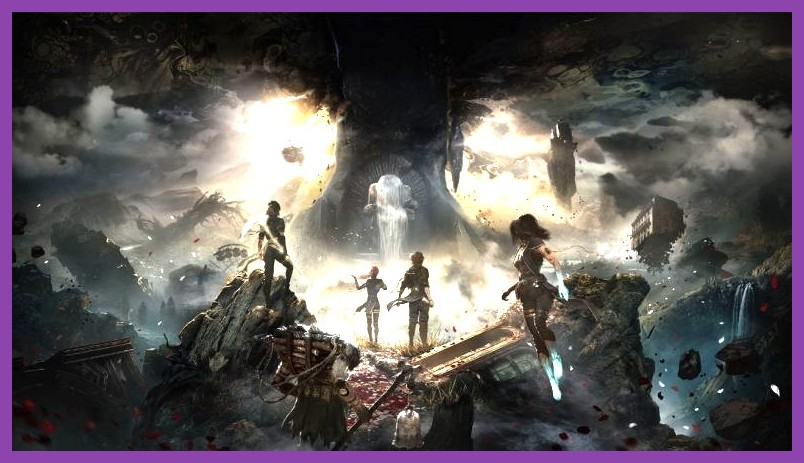
VRAM leaks are one of the primary culprits behind mid-session crashes in UE5 titles. When texturing and geometry stream beyond your graphics card's physical memory buffer (e.g., trying to run Ultra Textures on an 8 GB VRAM GPU), Windows attempts to swap VRAM data into system RAM, resulting in an immediate game freeze.
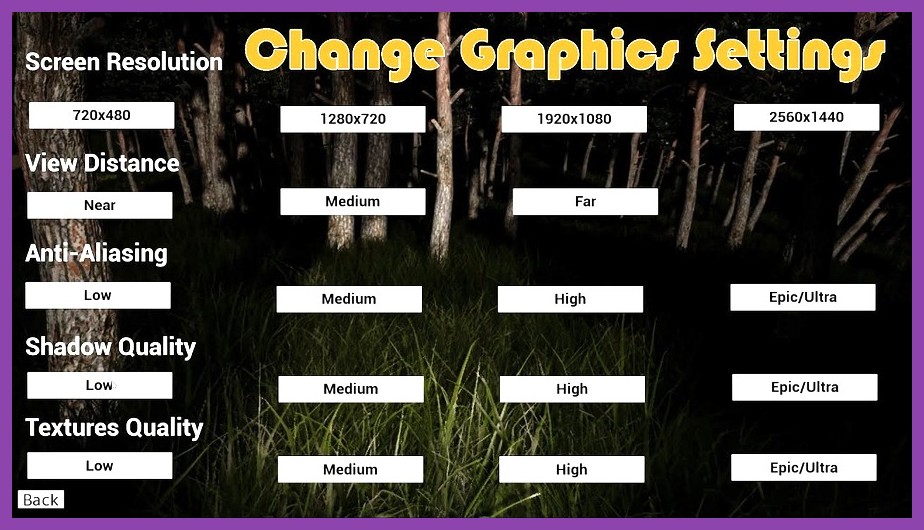
Optimal Graphics Settings for Maximum Stability
Lowering specific render features in the settings menu preserves memory stability without sacrificing much visual fidelity:
- Display Mode: Exclusive Fullscreen (Avoid Borderless Windowed if experiencing micro-stutters or random crashes).
- Texture Quality: Set to Medium on 8 GB cards, High on 12 GB cards, and Ultra only on 16 GB+ cards.
- Ray Tracing: Turn OFF completely while troubleshooting. RT effects cause huge VRAM spikes during fast spell animations.
- DLSS / FSR / XeSS: Set to Quality or Balanced. Upscaling dramatically drops rendering resolution, saving precious VRAM.
- Frame Generation (DLSS 3 / FSR 3): TURN OFF. Frame Generation consumes significant VRAM overhead and is a notorious source of random crashes in early UE5 patches.
- Motion Blur & Depth of Field: Turn OFF (Reduces post-processing buffer strain).
- Shadow Quality: High to Medium (Shadow maps in UE5 Virtual Shadow Maps feature are extremely memory-intensive).
Once your game is running smooth as silk without crashes, you can comfortably push through tough combat encounters. If you are hitting a wall against major bosses, head over to our walkthrough on how to beat the hardest bosses in Expedition 33, or gear up using our best weapons tier list.
Step 4: Fix Out-of-Memory Errors by Adjusting Windows Virtual Memory (Pagefile)
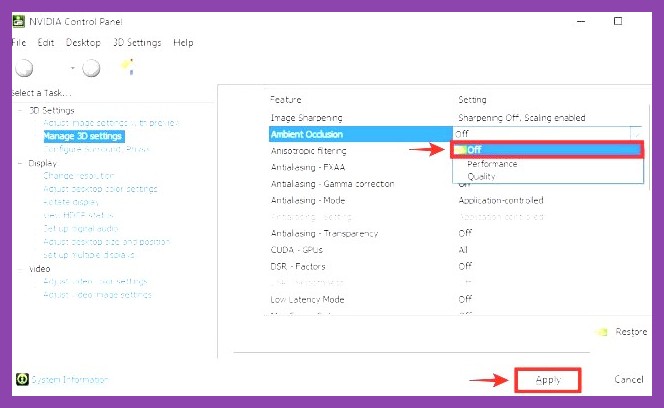
Have you seen an error stating "Out of video memory trying to allocate a rendering resource" or had the game close silently without an error window? This almost always points to an exhausted Windows Pagefile (Virtual Memory). When games demand more system RAM than is physically available, Windows relies on your SSD page file as emergency overflow.
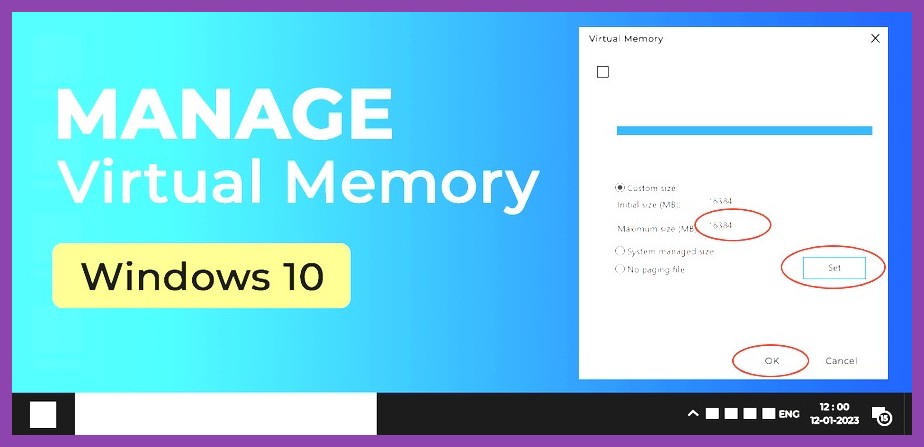
How to Expand Your Virtual Memory Allocation
- Press
Windows Key + S, type View advanced system settings, and hit Enter. - In the System Properties window, click on the Advanced tab.
- Under the Performance section, click Settings.
- In the new Performance Options window, click the Advanced tab, then click Change... under Virtual Memory.
- Uncheck Automatically manage paging file size for all drives.
- Select your fastest NVMe SSD drive (where Windows or the game is installed).
- Select Custom size and set the following values (for a 16 GB RAM system):
- Initial size (MB): 16384 (16 GB)
- Maximum size (MB): 32768 (32 GB)
- Click Set, then click OK, and restart your computer.
Expanding your Pagefile provides a safety net for UE5 memory spikes and virtually eliminates out-of-memory crashes during heavy spell casting or region swapping.
Step 5: Disable Overlays, Background Apps, and Aggressive Overclocks
Background software that injects hook code directly into the game's display chain can conflict with Unreal Engine's DirectX 12 swapchain mechanics. If you are experiencing unexplained crashes during cutscenes or menu navigation, third-party software is likely interfering.
1. Disable In-Game Overlays
Disable overlay hooks across all your active applications:
- Discord Overlay: Open Discord Settings > Game Overlay > Toggle off "Enable in-game overlay".
- Steam Overlay: Steam Settings > In-Game > Uncheck "Enable the Steam Overlay while in-game".
- GeForce Experience / AMD ShadowPlay: Open GeForce Experience > Settings > General > Toggle off In-Game Overlay.
- RivaTuner / MSI Afterburner: Close RivaTuner Statistics Server (RTSS) or set Application Detection Level to None while playing.
2. Revert GPU Overclocks and Address 13th/14th Gen Intel CPU Instability
Unreal Engine 5 is notorious for exposing unstable GPU factory overclocks and CPU power delivery issues:
- GPU Overclocks: If you used MSI Afterburner or AMD Adrenalin to overclock your GPU core or memory clocks, revert them back to stock factory defaults. You can even try applying a small -50 MHz underclock to test stability.
- 13th & 14th Gen Intel CPUs (i9-13900K, i7-14700K, etc.): These processors have known baseline power profile issues that trigger
Out of Video Memorycrashes in UE5 games. Update your motherboard BIOS to the latest version with the official Intel Default Settings microcode patch, or use Intel Extreme Tuning Utility (XTU) to lower your Performance-Core ratio by 1x or 2x (e.g., from 55x to 53x).
Step 6: Update Visual C++ Redistributables & Administrator Privileges
If Clair Obscur: Expedition 33 crashes immediately upon clicking "Play" in Steam without even launching a game window, missing dynamic link libraries (.dll files) are the primary root cause.
1. Install the Latest All-In-One Visual C++ Runtimes
Games built on modern engines require updated Microsoft C++ Runtime libraries:
- Visit the official Microsoft Visual C++ Redistributable Download Center.
- Download both the x86 and x64 installers for Visual Studio 2015–2022.
- Run both installers, select Repair (or Install), and reboot your system.
2. Run as Administrator and Disable Fullscreen Optimizations
Windows administrative permissions can sometimes block the game from writing essential state files to your local drive:
- Right-click Clair Obscur: Expedition 33 in Steam, hover over Manage, and select Browse local files.
- Locate the main executable file (e.g.,
Expedition33.exeor insideEngine/Binaries/Win64/). - Right-click the executable and select Properties.
- Click the Compatibility tab.
- Check Disable fullscreen optimizations.
- Check Run this program as an administrator.
- Click Apply and OK.
Final Thoughts: Enjoying Expedition 33 Crash-Free
By stepping through driver cleans, forcing proper DirectX render options, dialing back VRAM-heavy settings like Frame Generation, and optimizing your Windows virtual memory, you can conquer even the most persistent Unreal Engine 5 crashes. Clair Obscur: Expedition 33 offers one of the most exciting, novel RPG battle systems in recent years, and fixing technical hiccups ensures you stay focused on party management, master timing mechanics, and unraveling the mysteries of Lumière.
Looking for more deep dives into character builds, gear locations, or crafting strategies? Explore our comprehensive coverage across the site:
- Master crafting resources with our Expedition 33 crafting guide.
- Dominate challenging solo encounters with our solo character builds guide.
- Browse more technical fixes and walkthroughs in our overall Steamoz Guides section or check out our general PC Gaming category for the latest industry news.