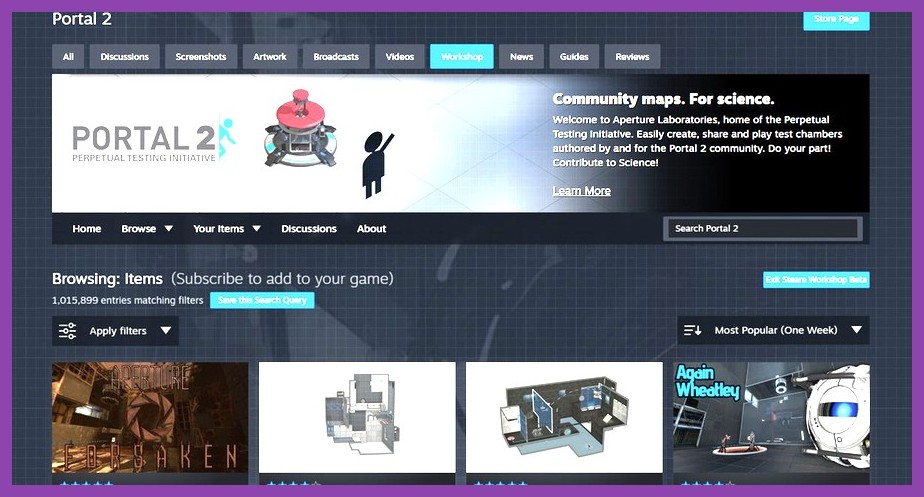
There was a time when modding a PC game felt like preparing for delicate surgery. You would spend hours scouring obscure file-sharing forums, downloading suspicious archive files, carefully backing up game directories, and manually dragging unzipped files into fragile root folders. One wrong move, and your beloved campaign would collapse into an unplayable mess of missing textures and desktop crashes. Thankfully, Valve changed the PC gaming ecosystem forever when they introduced the Steam Workshop. Designed to bridge the gap between talented community creators and everyday gamers, the Workshop transformed modding from an intimidating tech project into a frictionless, single-click affair.
Whether you want to overhaul the graphics of your favorite sandbox, add hundreds of new weapon types, fine-tune user interface elements, or turn every dragon into Thomas the Tank Engine, learning how to use Steam Workshop mods unlocks infinite replayability across thousands of titles on Steam. In this comprehensive walkthrough, we will cover everything you need to know: finding the best community mods, managing complex load orders, troubleshooting stuck downloads, and making sure your game stays buttery smooth even when running hundreds of custom add-ons simultaneously.
What Is the Steam Workshop and How Does It Work?
Before diving headfirst into subscribing to mods, it helps to understand what happens under the hood when you interact with the Steam Workshop. At its core, the Workshop is Valve’s centralized repository and distribution platform for user-generated content (UGC). Developers who integrate Workshop support into their titles give players a direct pipeline to upload, discover, and download custom maps, character skins, game scripts, total conversion overhauls, and quality-of-life tweaks.
Unlike traditional third-party modding hubs like Nexus Mods where you often need to handle archive files or external mod managers manually, the Steam Workshop connects directly to your Steam account. When you browse the Workshop, Valve tracks your subscriptions on a cloud level. This means if you install a mod on your desktop rig, log into your Steam Deck while traveling, or re-install the game six months later on a brand-new PC build, Steam automatically fetches and synchronizes your active Workshop subscriptions.
Automatic Updates and Cloud Integration
One of the greatest quality-of-life benefits of using Workshop mods is automated updating. Mod authors frequently patch bugs, add features, or update their files to stay compatible with official game updates. Steam handles these updates in the background right alongside regular official game patches. However, this automated system can occasionally be a double-edged sword. If a massive official game patch drops, an outdated mod might break your save file until the creator updates it—something we will address in our troubleshooting section.
For gamers looking to get the absolute most out of their PC hardware while running heavily modded titles, keeping your operating system and graphics settings tuned is essential. Be sure to check out our detailed guide on how to optimize Steam game performance so your framerates stay rock solid even when loaded down with high-resolution texture packs.
How to Find and Subscribe to Mods in Steam Workshop
Getting started with Steam Workshop is as simple as clicking a single button, but knowing how to navigate the massive library of content will save you hours of aimless scrolling. Here is the step-by-step process to finding and downloading content safely and effectively.
Step 1: Accessing the Workshop for Your Game
You can access the Steam Workshop in two main ways—either directly inside the desktop Steam Client or through any web browser logged into your Steam account.
- Via the Steam Client: Open your Steam Library, click on the game you want to mod (for instance, RimWorld, Cities: Skylines, or Garry's Mod), and look at the navigation tabs right below the Play button. Click on Community Hub, then click the Workshop tab along the top navigation bar. Alternatively, scroll down your game page in the library view and click the dedicated Workshop button in the right-hand column.
- Via Web Browser: Navigate to the official Steam Store, log in, hover over the Community tab in the main header, and select Workshop from the dropdown menu. Search for your specific game in the search bar.
Step 2: Filtering, Searching, and Sorting Mods
Once inside a game’s specific Workshop, you will be greeted by thousands—sometimes hundreds of thousands—of individual user creations. To avoid getting overwhelmed, use the filter panel usually located on the right side of the screen.
- Search Bar: Type specific keywords if you are looking for a particular mod name, author, or feature (e.g., "UI overhaul", "HD textures", "infinite ammo").
- Category Tags: Developers categorize mods into tags such as Items, Maps, Scenarios, Tweaks, Fixes, or Skins. Checking these boxes dramatically narrows down your search results.
- Sorting Options: Filter content by Most Popular (over the last week, month, or all-time), Most Subscribed, or Most Recent. Sorting by Most Popular (3 Months) is often the sweet spot for finding stable, highly regarded mods that are actively maintained by active creators.
Step 3: Evaluating Mod Quality Before Subscribing
Not all mods are created equal. Before slapping a hundred items onto your download queue, spend thirty seconds reading the mod’s detail page:
- Star Ratings & Community Badges: Community ratings (out of five stars) are a reliable indicator of quality and stability. Mods with thousands of positive ratings are generally safe bets.
- Required Items (Dependencies): Look at the right sidebar of the mod page. Many complex mods require prerequisite frameworks or base code libraries to function. If a mod lists Required Items, you must subscribe to those files as well, or the mod will fail to launch or crash your game.
- Last Updated Date: Check when the mod author last updated the project. If a game received a massive update last month but a mod hasn't been touched in four years, there is a strong chance it might be incompatible with current build versions.
- Comments & Change Notes: Skim the recent user comments. If the top ten comments all say "This crashes the game after update 1.5", step back and wait for a community patch before installing.
Step 4: Subscribing to Download
Once you have verified a mod, simply click the bright green + Subscribe button. Steam will instantly queue the mod for download. You can monitor the download progress at the bottom of your Steam Client window, just like standard game updates. The moment the download finishes, the mod files are placed in your system's dedicated Workshop folders, ready for action.
Managing Your Subscribed Mods and Load Orders
Downloading mods is only half the battle. Organizing them and making sure they play nicely together is where modding turns into a real art form. If you are exploring massive open-world titles, you know how crucial stability can be. You can check out our curated list of the best open world games on Steam to find games with thriving modding communities.
In-Game Mod Managers vs. External Launchers
Different games handle Workshop files in different ways:
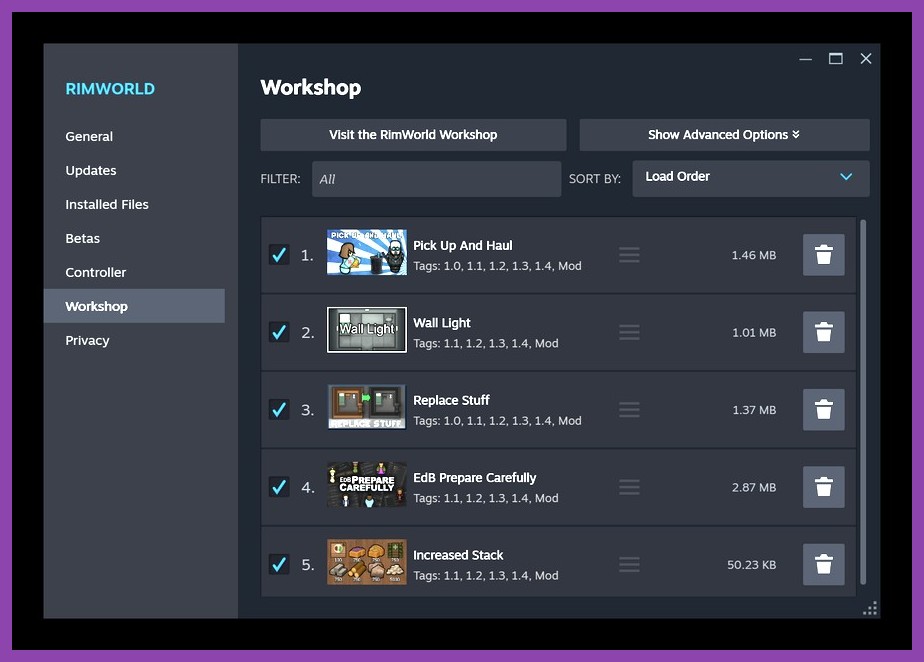
- Built-in Mod Menus: Games like RimWorld, Project Zomboid, Left 4 Dead 2, and Subnautica have dedicated Mod screens inside their main main menu. Once you launch the game, you go to "Mods", enable the items you subscribed to, and apply the changes.
- Game Launchers: Strategy games from Paradox Interactive (like Stellaris, Hearts of Iron IV, and Crusader Kings III) or games like Total War use an external launcher window before the game boots. Here, you create "Playsets" or toggle active Workshop mods on and off.
- Automatic Background Loading: Simple cosmetic mods or maps in games like Garry's Mod load automatically upon boot without requiring manual menu activation.
Understanding Mod Load Order
If you install multiple mods that alter the same game files, the order in which the game reads those files matters immensely. This is known as Load Order.
As a general rule of thumb:
- Core Libraries & Frameworks go at the very top of your load order.
- Major Overhauls & Game Mechanics come next.
- New Factions, Maps, and NPCs fit into the middle.
- UI Tweaks, Sound Effects, and Visual Skins usually go near the bottom.
- Compatibility Patches MUST be placed below the two conflicting mods they are fixing.
If your game offers an auto-sort feature (or supports community order tools like RimPy for RimWorld), use it! Proper load order is the single most important factor in preventing annoying crashes and weird graphical glitches.
If you enjoy deep gameplay customization, you might also want to explore our top recommendations for the best RPG games on Steam, where modding communities regularly add hundreds of hours of custom quests and mechanics.
Troubleshooting Common Steam Workshop Issues
Even with Valve's automated system, modding PC games occasionally runs into technical hiccups. Here are the most common Workshop issues gamers face and exact solutions to fix them fast.

Issue 1: Steam Workshop Mod Stuck on "Downloading" or Not Updating
Sometimes Steam gets confused and leaves a mod queued indefinitely at 0 bytes or paused in your download queue.
Fixes:
- Clear Steam Download Cache: Go to
Steam > Settings > Downloadsand click Clear Download Cache. Steam will restart, and you will need to log back in. This flushes corrupt download temp files and forces Steam to re-check all Workshop subscriptions. - Verify Integrity of Game Files: Right-click the game in your library, select
Properties > Installed Files, and click Verify integrity of game files. Steam will scan for missing core files and push pending Workshop updates through. - Change Download Region: In
Steam > Settings > Downloads, switch your Download Region to a nearby server location. Sometimes a local content server experiences temporary downtime.
Issue 2: Game Crashes to Desktop (CTD) on Startup
If your game instantly crashes after subscribing to a batch of new mods, you likely have a mod conflict, missing dependency, or outdated file.
Fixes:
- Disable Mods in Batches: Don't unsubscribe from everything at once. Uncheck the last 5-10 mods you added to isolate the culprit.
- Check for Unsubscribed Dependencies: Go back to the Workshop pages of your recently added mods and ensure you didn't miss a required base framework.
- Manually Clear Workshop Cache Folders: Sometimes Steam fails to cleanly delete old mod files when you unsubscribe. Navigate to your Steam installation folder:
C:\Program Files (x86)\Steam\steamapps\workshop\content\. Inside, each game has a folder named after its Steam App ID (for example, the App ID for RimWorld is294100). Deleting the contents of that folder forces Steam to re-download clean, fresh copies of all your active subscribed mods.
Issue 3: Unsubscribing Doesn't Remove the Mod
If you click Unsubscribe on a mod but its assets remain inside your game, the game launcher or local cache might have saved copy files. Check the game's internal mod menu to manually delete local copies, or navigate to Documents\My Games\[Game Name]\Mods to purge leftover folders manually.
For more technical breakdowns and troubleshooting advice, check out our dedicated PC gaming guides on Steamoz.
Best Steam Workshop Supported Games You Should Try Today
While thousands of titles feature Workshop integration, a few legendary games stand out for having some of the most vibrant, creative, and transformative modding communities in gaming history.
- Garry's Mod: The ultimate physics sandbox. The Workshop here contains millions of custom prop models, weapons, game modes (like Prop Hunt and Trouble in Terrorist Town), and interactive entities.
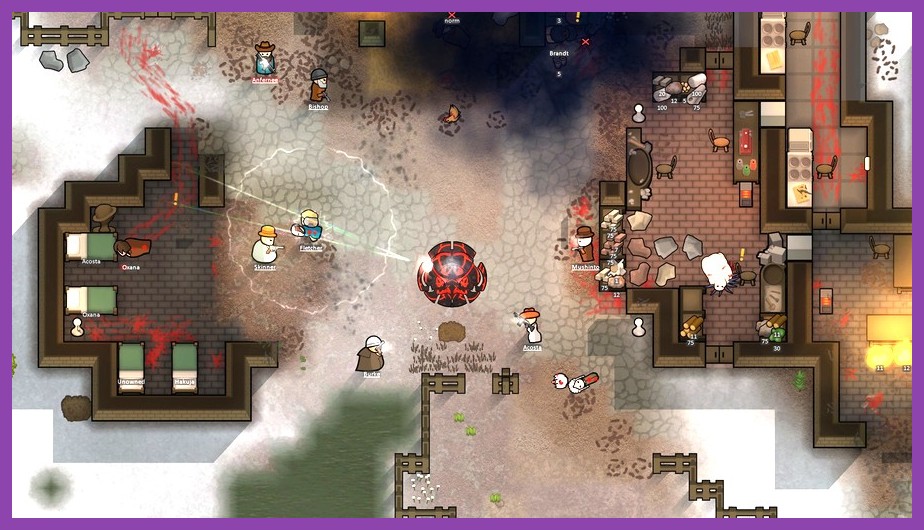
- RimWorld: A sci-fi colony simulator where mods allow you to turn the experience into a medieval fantasy simulator, a Star Wars campaign, or an ultra-hardcore survival simulator.
- Cities: Skylines: The base city builder is great, but Workshop mods add real-world traffic management tools, thousands of custom buildings, and graphic filters that turn it into a photorealistic civil engineering sim.
- Left 4 Dead 2: Replace the Infected with hilarious models, swap pipe bombs for custom audio clips, and download campaign maps built by the community that rival Valve's official design quality.
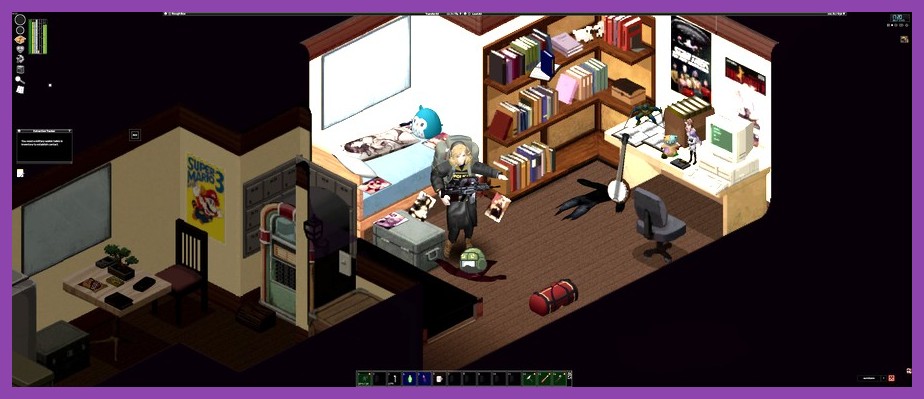
- Project Zomboid: An unforgiving zombie survival RPG where Workshop mods introduce new vehicles, crafting recipes, weapons, and vast custom cities.
If you're looking for fantastic budget-friendly titles with incredible mod support, take a look at our selection of the best Steam games under $10—many of which offer thousands of hours of free replayability thanks to community creations. You can also snag great deals during major store events with our proven Steam sale tips.
Using Steam Workshop Mods on Steam Deck
One of the coolest features of Valve’s handheld machine is its native support for the Steam Workshop. Because your Workshop subscriptions are linked directly to your Steam cloud profile, installing mods on Steam Deck is seamless.
When you install a Workshop-enabled game on your Steam Deck, your subscribed mods will automatically download alongside the main game files. For native Linux or Proton compatibility details, developers document these setups in the official Steamworks Workshop Documentation.
However, keep a few handheld-specific tips in mind:
- Performance Impact: Heavy texture packs or complex AI overhaul mods can drain the Steam Deck battery quickly and drop framerates. Stick to lighter tweaks or UI mods when gaming on the go.
- Mod Launchers on Deck: Games that require external pop-up launchers work fine on Deck, but you may need to use the touchscreen or trackpad to toggle your Workshop playsets before launching into full screen.
- Storage Space: Workshop files are stored on your primary storage drive or microSD card alongside your game files. Keep an eye on your available storage, as a heavy mod collection for games like ARK: Survival Evolved or Cities: Skylines can easily add 30GB+ of extra files.
To get the absolute best handheld experience possible, check out our collection of essential Steam Deck tips and tricks.
Whether you're looking to tweak small user interface annoyances or completely overhaul your favorite game into something fresh, the Steam Workshop is one of the greatest features in all of PC gaming. Dive in, experiment with community creations, and remember to drop a thumbs-up rating for the hard-working mod creators who keep our favorite games alive for years!
For more game reviews, performance guides, and PC gaming news, browse through our PC games section and stay tuned to Steamoz for the latest gaming breakdowns!