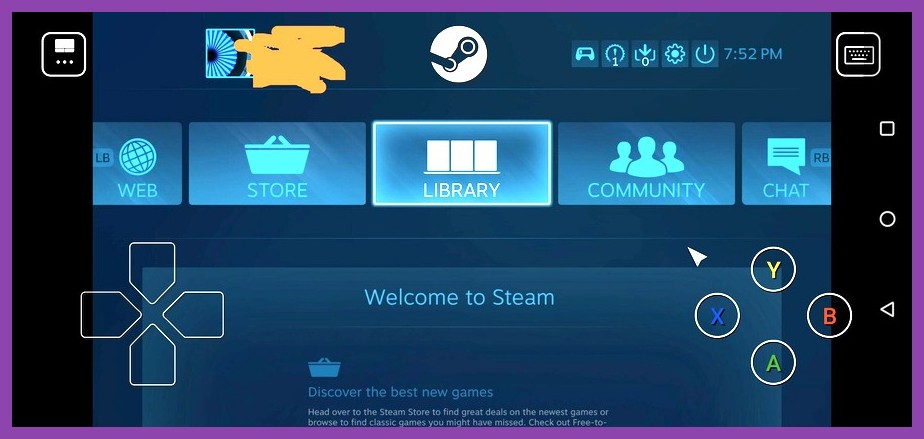
Picture this: you have a beefy, water-cooled gaming desktop sitting in your office, but you want to relax on the living room couch and play high-end games on your lightweight laptop or mobile phone. Or maybe you want to jump into a hilarious local co-op session with a friend across the globe, but only one of you actually owns the game. Enter Valve's revolutionary streaming ecosystem. If you have been sleeping on this feature, it is time to wake up, because knowing how to harness Steam Remote Play completely changes how and where you play your favorite titles.
While game streaming used to be infamous for muddy visuals and unbearable controller lag, years of relentless updates from Valve have transformed Steam Remote Play into an incredibly sleek, low-latency experience. Whether you want to stream graphics-heavy blockbusters across your home network or host seamless multiplayer parties, this guide breaks down everything you need to know. We will cover step-by-step setup, essential network tweaks to banish latency, and how to get the absolute most out of Steam Remote Play Together.
Understanding Steam Remote Play vs. Remote Play Together
Before diving into configuration menus, it is important to clarify the distinction between the two primary streaming modes offered within Valve's ecosystem. While they share underlying network architecture, they serve completely different gaming scenarios.
1. Steam Remote Play (Personal Game Streaming)
This mode allows you to stream a game from your main host computer (your powerful rig) to another device you own. The destination device could be an older laptop, a tablet, an Android or iOS smartphone, a smart TV, or a Steam Deck. Your host PC does all the heavy graphical rendering and hardware processing, while sending video and audio frames over your local network or the internet to your client device. Your button inputs are sent back to the host PC in real-time.
2. Steam Remote Play Together (Virtual Local Co-op)
This feature takes local multiplayer games—titles that normally require two or more players sitting on the same couch with multiple controllers—and opens them up over the internet. The host boots up the game, opens their Steam overlay, and invites remote friends. The magic here? Only the host needs to buy and install the game. Your friends do not need to purchase a copy, nor do they need a powerful computer. They simply join your stream, and Steam treats their inputs as if they were plugged directly into your computer's USB ports.
Hardware & Network Requirements for Smooth Streaming
Because game streaming transmits uncompressed or lightly compressed video frames in real-time, your network infrastructure plays a far bigger role than the processor inside your client device. If your connection drops packets or suffers from high jitter, your game stream will suffer from stutter, latency spikes, or sudden drops in resolution.
- The Host PC: Requires a solid multi-core CPU and a modern dedicated graphics card (NVIDIA GTX 10-series/RTX or AMD Radeon RX series) capable of hardware-accelerated video encoding (NVENC or AMF).
- Network Connection (Crucial): For local streaming, a wired Ethernet connection for the host PC is strongly recommended. If wireless is your only option, ensure your host and client devices are operating on a 5 GHz or Wi-Fi 6/6E frequency band. The legacy 2.4 GHz spectrum is far too congested and prone to interference for real-time video streaming.
- Internet Speed (For Remote Play Anywhere): If you are streaming outside your local home network, aim for an upload speed of at least 15 to 25 Mbps on your host connection, and a download speed of 25+ Mbps on the receiving end. You can test your connection speed on Speedtest.net before setting up long-distance sessions.
Step-by-Step Guide to Setting Up Steam Remote Play
Setting up your main desktop to broadcast games takes less than five minutes. Follow these simple steps on both your host machine and your client devices to get connected.
Step 1: Enabling Remote Play on Your Host PC
- Launch the Steam client on your main PC and sign in.
- Click on Steam in the top-left corner and select Settings.
- In the left sidebar menu, navigate to the Remote Play tab.
- Toggle the switch labeled Enable Remote Play to the ON position.
Step 2: Configuring Client Streaming Preferences
While still in the Remote Play menu on your host (or on your client PC), click on Advanced Host Options and Advanced Client Options to fine-tune visual fidelity and performance:
- Enable Hardware Encoding: Make sure this option is enabled under Host options. It offloads video rendering tasks from your CPU to your GPU's specialized encoder chips, dramatically reducing performance impact while gaming.
- Change Desktop Resolution to Match Streaming Client: Check this box if your host PC uses a 4K monitor but you are streaming to a 1080p laptop screen. This prevents your host from wasting horsepower rendering extra pixels you cannot see.
- Client Options profile: Choose between Fast, Balanced, or Beautiful. If you experience latency, set this to Fast. If your network is rock solid, set it to Beautiful.
For more general client tweaks and system optimization tips, check out our comprehensive guide on how to optimize Steam game performance across all your devices.
How to Host Steam Remote Play Together Sessions
Want to turn single-system games into global multiplayer parties? Steam Remote Play Together makes online couch co-op absurdly simple. Here is how to launch a session with your friends:
- Boot up any local multiplayer or split-screen title from your Steam library (look for the "Remote Play Together" badge on the game's store page).
- Once the game reaches the main menu, open the Steam Overlay by pressing Shift + Tab on your keyboard (or the guide button on your controller).
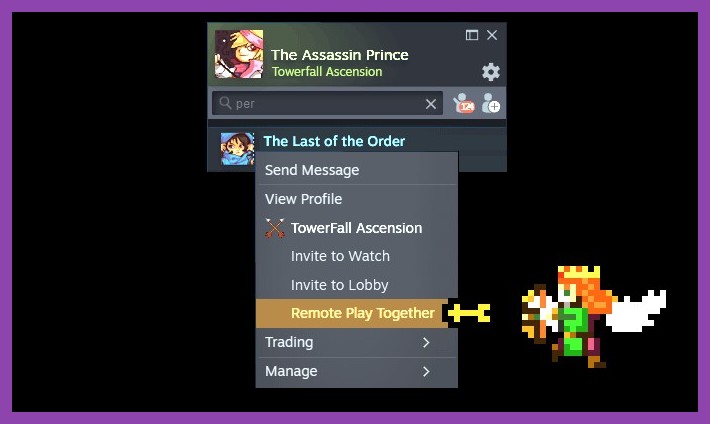
- Open your Friends List, right-click the friend you want to invite, and select Remote Play Together.
- Your friend will receive a chat notification with an invitation link. Once they accept, their audio and controller inputs will immediately sync with your game!
Managing Guest Permissions and Controls
When hosting a guest, Valve gives you granular control over what inputs your friend can use. In the Remote Play Together overlay panel, you can toggle access to specific input devices:
- Keyboard & Mouse Access: Disabled by default for security. Only enable this if you fully trust your guest, as it grants them control over your cursor.
- Gamepad Controllers: Enabled by default. Steam automatically assigns incoming controller signals to Virtual Player 2, Player 3, or Player 4 slots seamlessly.
- Volume Control: You can individually adjust the guest's volume slider if their voice chat is overpowering the game audio.
Looking for expanded options or general Steam platform advice? Head over to our Steammoz Guides category for deep-dive tutorials on platform features and user tricks.

How to Fix Input Lag and Stuttering: Advanced Tweaks
Nothing destroys the excitement of a fast-paced action game quite like floaty mouse controls or noticeable controller lag. If your Remote Play stream feels sluggish or looks like pixelated soup, try these proven fixes to restore butter-smooth performance.
1. Lock Your Bitrate and Limit Resolution
By default, Steam attempts to dynamically adjust streaming bitrate based on network flux. However, sudden spikes can cause bad bufferbloat. Open Steam Settings > Remote Play > Advanced Client Options and set your Bandwidth Limit manually. For 1080p 60FPS streaming over home Wi-Fi, cap the bitrate between 30 Mbps and 50 Mbps rather than leaving it on Automatic.
2. Enable Performance Overlay Information
To pinpoint whether latency is caused by network transmission or hardware rendering, turn on the Performance Information overlay inside Client Options (set it to Detailed). While in-game, you will see a real-time graph showing:
- Display Time: Latency caused by client decoding. High display time means your receiving device is struggling to decode the video feed.
- Network Time: Latency introduced by packet transit. High network time indicates Wi-Fi interference or insufficient network bandwidth.
- Frame Loss: Dropped video frames caused by network packet loss.
3. Disable Hardware Acceleration on Weak Client Devices
If you are streaming to an old office laptop with an ancient integrated Intel GPU, hardware decoding might actually be slower than pure CPU decoding. Toggle off Enable Hardware Decoding in the Client Options menu to force the client CPU to handle frame processing instead.
If you regularly game on underpowered hardware or vintage laptops, be sure to check our handpicked list of the best Steam games for low-end PCs that play natively without needing to stream at all!
Streaming to Mobile and Steam Deck
Valve’s official Steam Link App allows you to extend your PC gaming reach to iOS, Android, Apple TV, and Android TV devices effortlessy.
Setting Up Steam Link on Smartphones
- Download the free Steam Link app from the Google Play Store or Apple App Store.
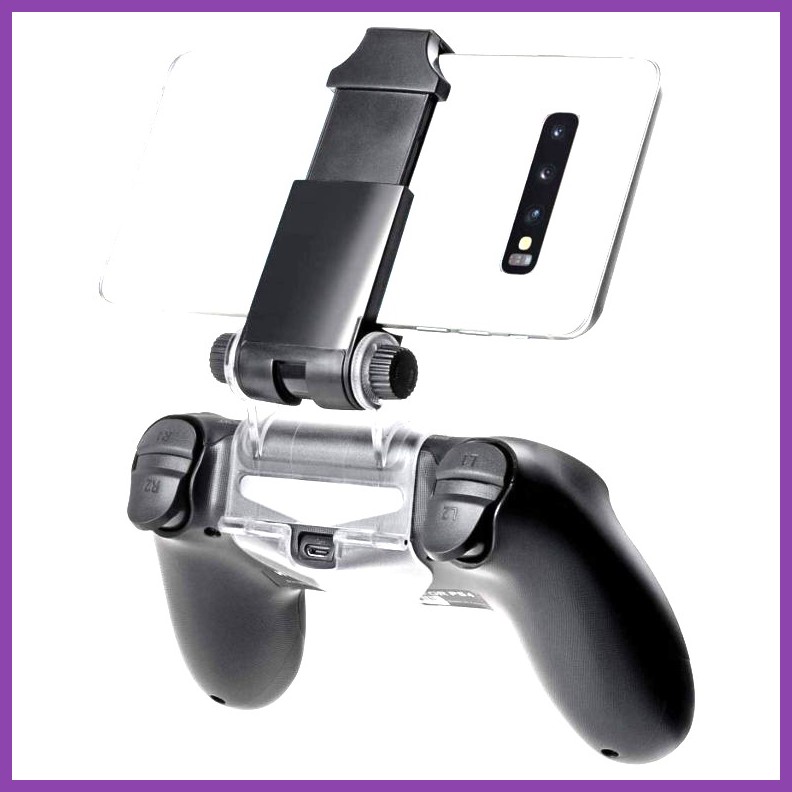
- Pair a Bluetooth controller (such as an Xbox Wireless Controller, DualSense, or mobile grip like the Backbone One) to your smartphone.
- Open the app with your host PC powered on and running Steam on the same Wi-Fi network.
- Enter the 4-digit PIN generated by your mobile app into the prompt that pops up on your PC screen.
- Hit Start Playing to instantly mirror your Steam Big Picture mode to your phone!
Leveraging Remote Play on the Steam Deck
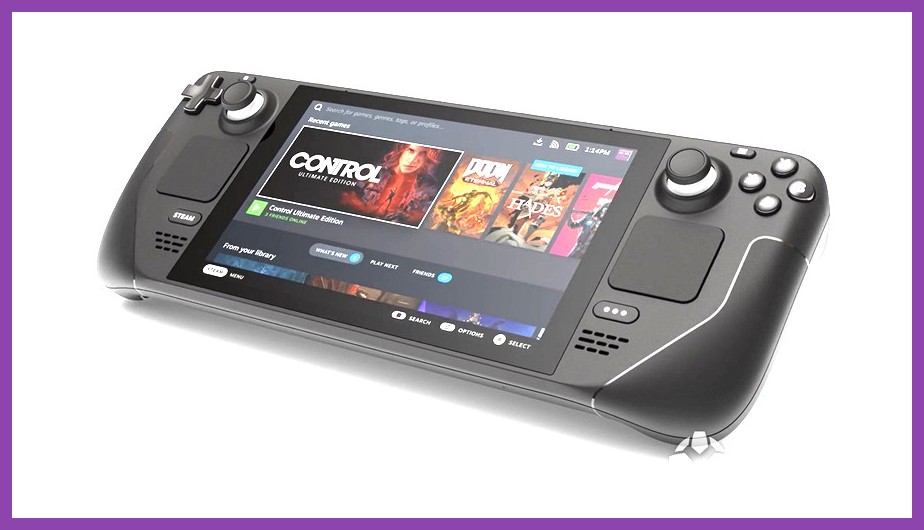
While the Steam Deck is a capable handheld powerhouse in its own right, streaming ultra-demanding AAA games from your main rig to the Deck is a genius strategy. Doing so allows you to play games at max settings with ray tracing enabled at native 60 FPS or 90 FPS while keeping the Deck cool, silent, and dramatically extending battery life from 1.5 hours up to 6+ hours!
To stream on the Deck, simply select any installed game on your main PC from your Deck's library. Instead of clicking "Play," click the drop-down arrow next to the play button and select your host PC name, then tap Stream. For more tips on mastering Valve's handheld, dive into our essential Steam Deck tips and tricks guide.
Best Games to Experience via Remote Play Together
Not every game benefits equally from Remote Play, but local multiplayer titles with simple controls, puzzle mechanics, and couch co-op designs absolutely shine over the feature. Here are a few must-play genres and recommendations:
- Co-op Platformers & Puzzlers: Titles like It Takes Two, Overcooked! All You Can Eat, and Portal 2 are unmatched in quality. Because precision twitch aim isn't strictly necessary, minor network variances won't spoil the experience.
- Brawlers & Party Games: Classics like Gang Beasts, Pummel Party, Castle Crashers, and TMNT: Shredder's Revenge bring endless laughter when played with remote friends.
- Turn-Based RPGs & Strategy: Games with local hot-seat modes or turn-based combat allow zero latency interference, making them flawless streaming candidates.
If you are looking to build up your cooperative gaming library on a budget, browse through our top picks for best Steam games under $10, or check out our curated collection of 20 free Steam games you can play right now to jump into the action without spending a dime.
Troubleshooting Common Steam Remote Play Bugs
Even with optimal settings, software glitches can occasionally crop up. Here is how to fix the most frequent streaming hiccups:
Black Screen with Working Audio
This usually happens when the host PC is running elevated Administrator privileges that block input hook capture, or when custom display scaling (DPI) is configured improperly on Windows. Try disabling HDR in Windows display settings on your host, as older Remote Play protocols occasionally struggle with active HDR tone mapping.
No Controller Input Detected on Guest Device
If your guest's controller is not registering in-game, ensure that Steam Input is enabled for that game on the host machine. Right-click the game in your library, select Properties > Controller, and choose Enable Steam Input from the override dropdown. For official Valve help resources, visit the Steam Remote Play Support FAQ.
Final Thoughts: Stream Smarter, Play Anywhere
Steam Remote Play and Remote Play Together are easily among the best quality-of-life innovations Valve has introduced to modern PC gaming. By offloading processing power to your host rig and leveraging smart network settings, you can turn nearly any smart device into a portable gaming powerhouse while sharing endless multiplayer sessions with friends worldwide—all without spending an extra cent.
Tweak your bitrate, plug your host PC into Ethernet, grab a controller, and take your library with you wherever you go. For more gaming hardware tips, game reviews, and deep-dive guides, explore our main PC Games destination page at Steamoz!