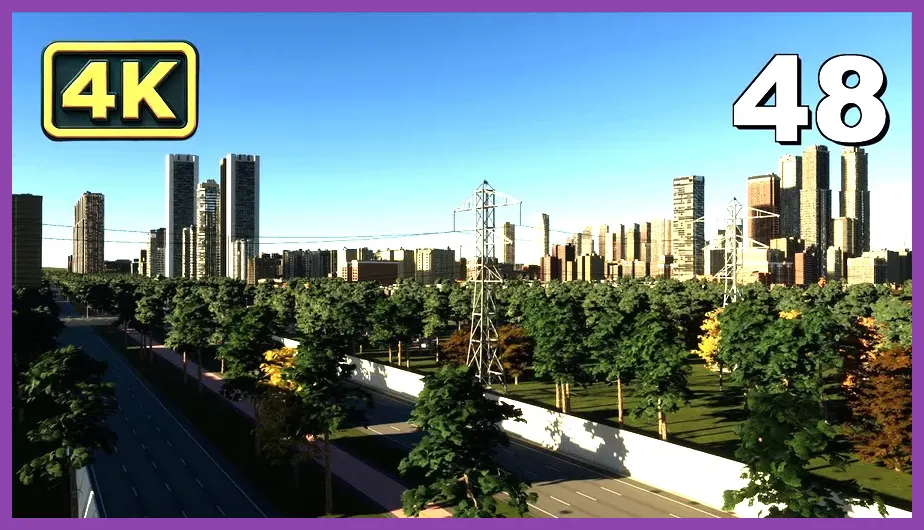
To immediately fix crashing on PC in Cities: Skylines 2, you must disable Volumetric Clouds, set Global Illumination to Medium, cap your framerate to 60 FPS in the Nvidia Control Panel or AMD Adrenalin software, and verify your game files via Steam. Colossal Order's sprawling urban builder is notoriously demanding on both CPU and VRAM, meaning default settings often push modern hardware past its stability threshold, triggering unhandled exceptions and sudden CTDs (Crash to Desktop).
1. Optimize Heavy Graphics Settings
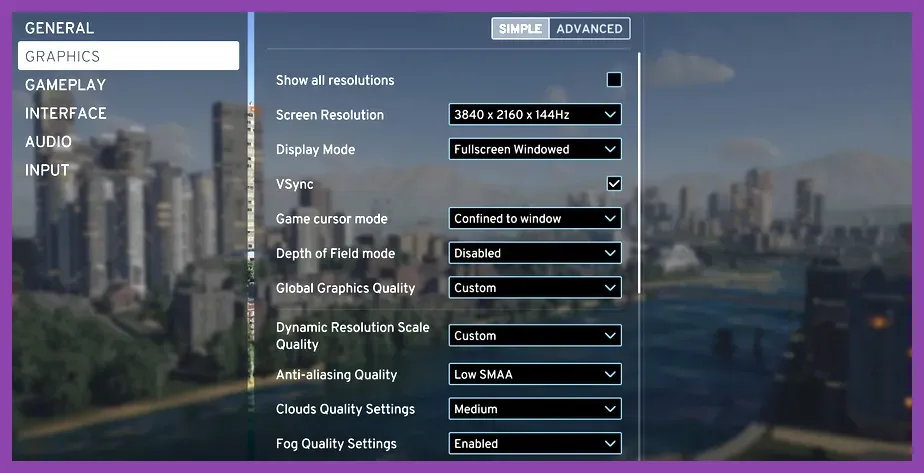
The single greatest cause of hard crashes in Cities: Skylines 2 is excessive VRAM and GPU utilization. When your graphics card runs out of video memory while rendering massive urban sprawls, the engine crashes instantly without throwing a clean error log. To mitigate this, open your in-game graphics menu and apply a stable performance-focused preset. First, turn Volumetric Clouds completely off or set them to Low; they render true 3D volumetric data that heavily taxes compute shaders. Next, drop Level of Detail (LOD) from High to Medium, and lower Global Illumination to Medium or Low. Global Illumination handles dynamic ray-traced bouncing light, which can cripple even high-end cards like the RTX 4080 when your city passes the 100,000-citizen mark.
Anti-aliasing also plays a critical role in stability. Switch your anti-aliasing method from Temporal Anti-Aliasing (TAA) to SMAA if you experience flickering or memory bloat. Additionally, ensure that Depth of Field, Motion Blur, and Dynamic Resolution Scale are completely disabled. Dynamic Resolution, in particular, tries to scale your rendering resolution on the fly during heavy simulation ticks, which frequently confuses the DirectX 12 pipeline and causes fatal access violations. For players seeking alternative performance guides for demanding PC releases, check out our breakdown on Nine Sols best graphics settings for high performance to understand how subtle toggle adjustments safeguard system stability.
2. Verify Game Files and Clear Cache
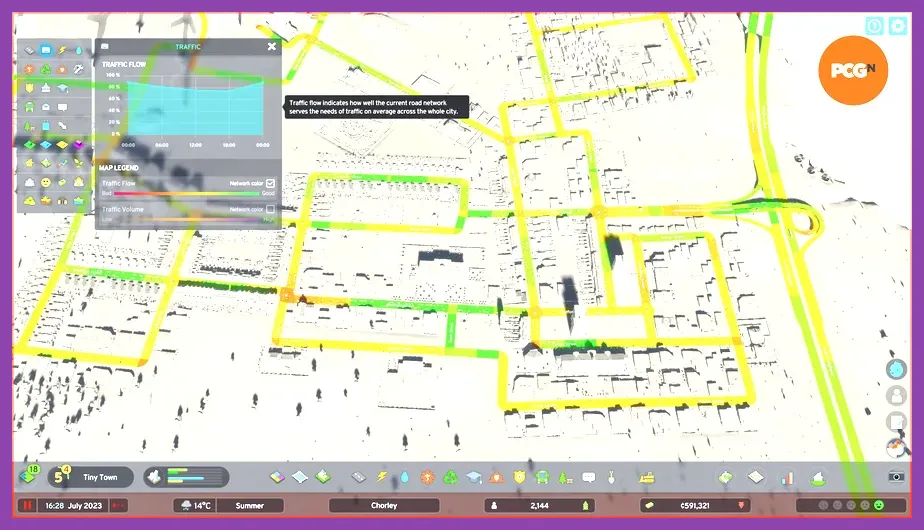
Corrupted installation files or leftover mod caches from previous updates frequently trigger startup crashes or mid-game freezes during autosaves. To address this, navigate to your Steam Library, right-click Cities: Skylines 2, select Properties, go to the Installed Files tab, and click Verify integrity of game files. Steam will automatically scan your directory and replace any missing or corrupted .pak and asset files. This process usually takes between three to five minutes depending on your storage drive speed.
Beyond verifying via Steam, you should clear your local cache. Open your Windows File Explorer, type %localappdata%\\Colossal Order into the address bar, and look for the Cities: Skylines II folder. Inside, locate the Caches folder and delete its contents. Do not delete your save files, which are stored separately under %varies%\\AppData\\Local\\Colossal Order\\Cities Skylines II\\Saves. Clearing the shader and asset cache forces the game to rebuild a fresh, uncorrupted compilation database upon your next launch, eliminating infinite loading screens and abrupt crashes upon loading a saved map.
3. Manage Paradox Mods and Custom Assets
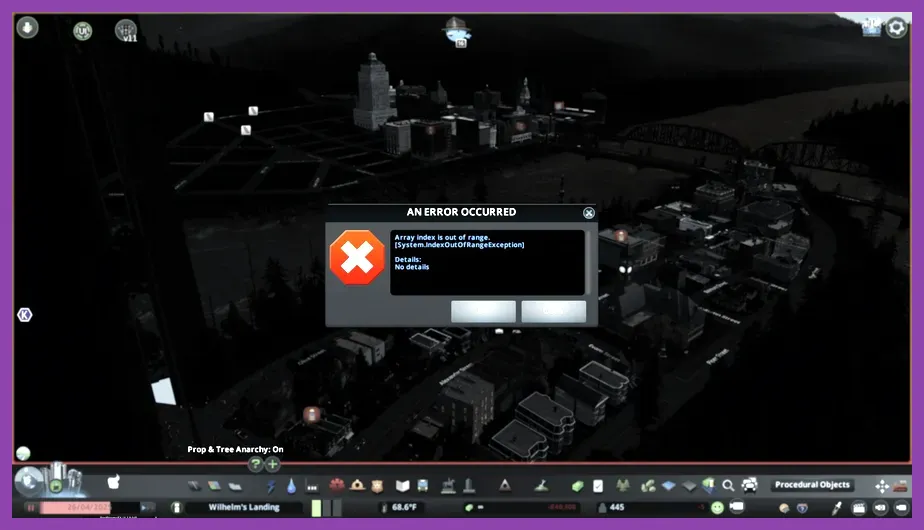
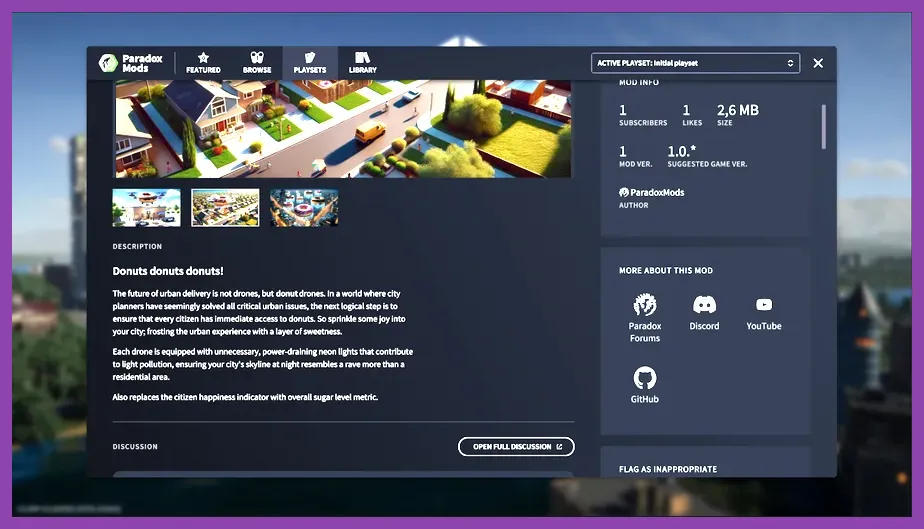
The integration of the Paradox Mods platform has introduced incredible player-made content, but incompatible or outdated custom assets are the leading culprit behind post-launch crashes. If your game crashes the moment you load into a specific saved map, an active mod or custom building asset is almost certainly throwing a null-reference exception. Open the game launcher, navigate to the Paradox Mods tab, and temporarily disable all active community mods, including traffic managers, custom intersection packs, and visual LUTs.
If the game successfully launches with mods disabled, reactivate them one by one or in small batches to isolate the specific offender. Furthermore, check the official Paradox Forums for community-maintained compatibility spreadsheets regarding major game updates. Keeping your mods synchronized with the current game version is non-negotiable for maintaining stability. For those balancing hardware performance across various complex titles, you might also find our guide on Stardew Valley 1.6 system requirements minimum and recommended useful for benchmarking your broader PC library's resource demands.
4. Adjust Windows Pagefile and Virtual Memory
Cities: Skylines 2 is notoriously aggressive with system RAM consumption, especially as your city expands and pathfinding calculations multiply for hundreds of thousands of simulated citizens and vehicles. Even if you have 32GB of physical RAM, memory leaks can push your system over the edge, resulting in instant desktop crashes with no error message. Expanding your Windows Virtual Memory (Pagefile) provides a vital safety net that prevents hard crashes when physical RAM allocation peaks.
To configure your pagefile: press the Windows key, type Advanced system settings, and open View advanced system settings. Under the Advanced tab, click Settings in the Performance section. Navigate to the Advanced tab again within the new window, and click Change under Virtual Memory. Uncheck Automatically manage paging file size for all drives, select your fastest NVMe SSD drive, and choose Custom size. Set the Initial Size to 16384 MB (16GB) and the Maximum Size to 32768 MB (32GB). Click Set, press OK, and restart your PC. This ensures that when the simulation demands more memory than your physical sticks can handle, Windows smoothly spills the excess data onto your ultra-fast SSD without crashing the application.
5. Configure GPU Driver Profiles and Power Management
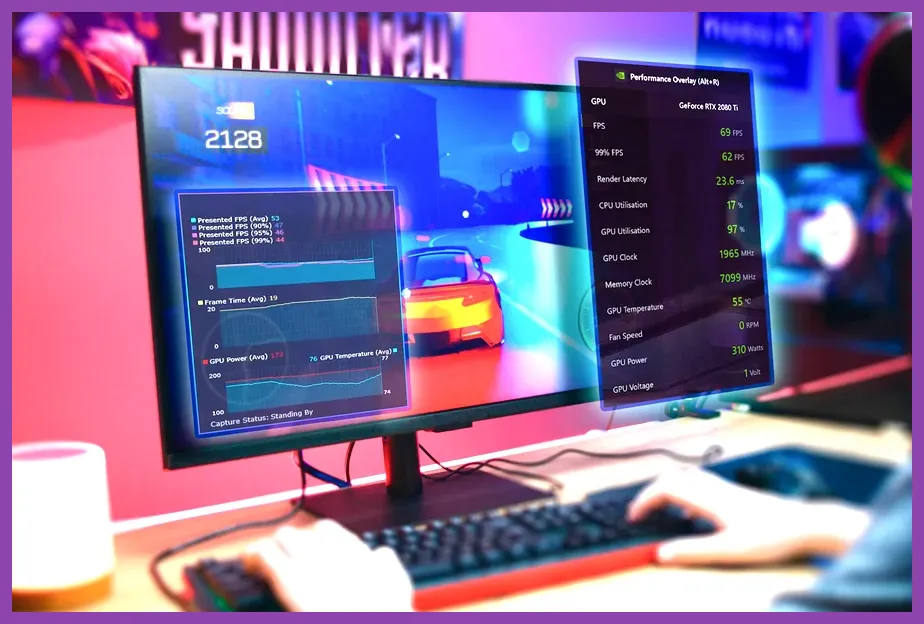
Hardware instability often stems from how your graphics card handles power delivery and clock speeds during sustained simulation loads. Overclocked GPUs—even factory-overclocked models from board partners like ASUS, MSI, or Gigabyte—frequently struggle with Cities: Skylines 2 due to constant micro-stutters and rapid thermal shifts. To stabilize your GPU, open your Nvidia Control Panel (or AMD Adrenalin software), navigate to Manage 3D Settings, select the Program Settings tab, and add Cities: Skylines 2 to the list.
Set Power Management Mode to Prefer maximum performance to prevent downclocking during complex rendering frames. Additionally, set Max Frame Rate to 60 FPS or 90 FPS depending on your monitor refresh rate; uncapped framerates in menu screens and pause menus can cause GPU temperatures to skyrocket instantly, triggering thermal protection shutdowns or driver crashes. If you use utilities like MSI Afterburner or RivaTuner Statistics Server (RTSS), ensure that hardware monitoring overlay hooks are disabled for this game, as they frequently conflict with Colossal Order's proprietary anti-cheat and rendering hooks. For additional optimization strategies across resource-heavy games, review our insights on Stardew Valley 1.6 best settings for max fps to maximize your framerate efficiency.
6. Disable Overlays and Background Applications
Third-party software overlays are infamous for injecting code into DirectX 12 rendering pipelines, frequently triggering fatal game crashes. Before launching your city builder, ensure that all unnecessary background overlays are completely disabled. This includes the Steam Overlay, Discord Overlay, Xbox Game Bar, GeForce Experience In-Game Overlay, and third-party monitoring tools like Razer Cortex or Overwolf. The Steam Overlay can be disabled globally by right-clicking Steam, going to Settings, selecting In-Game, and toggling off Enable the Steam Overlay while in-game.
Furthermore, close resource-heavy web browsers like Google Chrome or Mozilla Firefox before loading large save files. Modern web browsers consume massive amounts of system RAM and hardware acceleration resources that directly compete with Cities: Skylines 2 for memory bandwidth. By running the game on a clean system with minimal background interference, you eliminate external variables and ensure that every megabyte of your system's processing power is dedicated entirely to maintaining simulation stability and smooth rendering performance.