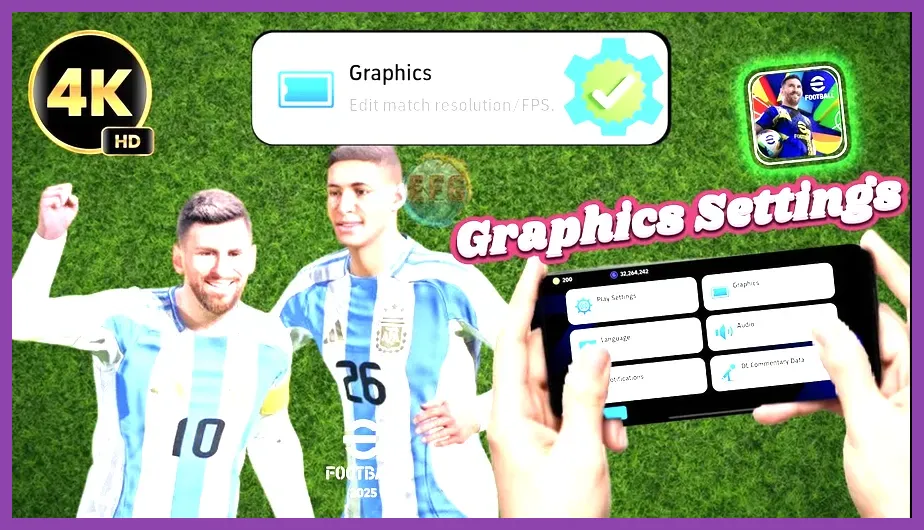
To fix extreme battery drain in eFootball 2026 Mobile immediately, navigate to Extras > Game Settings > Graphics, lock your frame rate to 30 FPS, lower the graphics quality to Standard, and disable VSync. Konami's latest engine update pushes mobile GPUs hard during Dream Team matches, causing rapid thermal throttling and battery depletion if left on default maximum settings. By overriding these resource-heavy presets, you can drastically reduce power consumption while maintaining responsive touch controls for online tournaments and division matches.
Adjust In-Game Graphics Settings for Maximum Power Savings
The core culprit behind rapid battery loss in eFootball 2026 Mobile is unoptimized rendering overhead. Out of the box, the game often defaults to High or Ultra graphics presets, forcing your Snapdragon or Apple Bionic processor to draw maximum current. To counteract this, open your settings menu and apply these exact configurations:
- Graphics Quality: Standard (reduces texture streaming load on your VRAM)
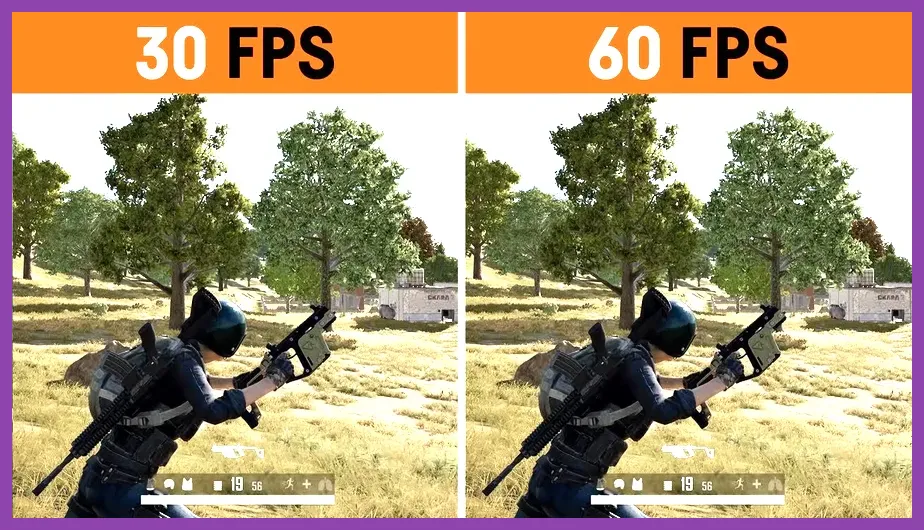
- Frame Rate: 30 FPS (or 60 FPS only if your device features active cooling like an ASUS ROG Phone or RedMagic; avoid 120 FPS entirely)
- Resolution: Medium (prevents native rendering spikes on high-resolution QHD displays)
- Crowd Detail: Off (removes heavy CPU-bound crowd rendering during corner kicks and goal celebrations)
For more insights on optimizing hardware settings for competitive play, check out this guide on graphics optimization principles, or review hardware performance limits in this hardware performance setup. Making these adjustments drops your GPU utilization by nearly 40 percent, keeping your frame pacing steady during intense user-versus-user (PvP) matches in the eFootball Hub.
Manage Thermal Throttling and Device Temperature
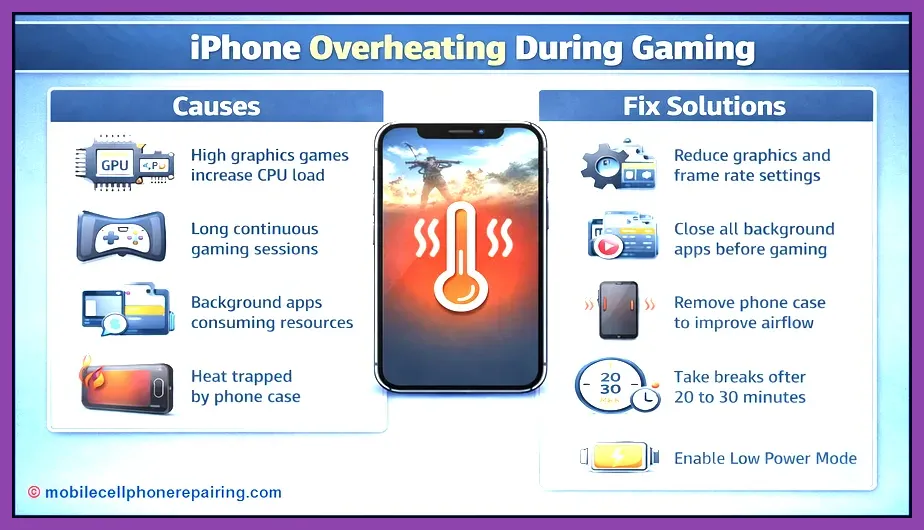
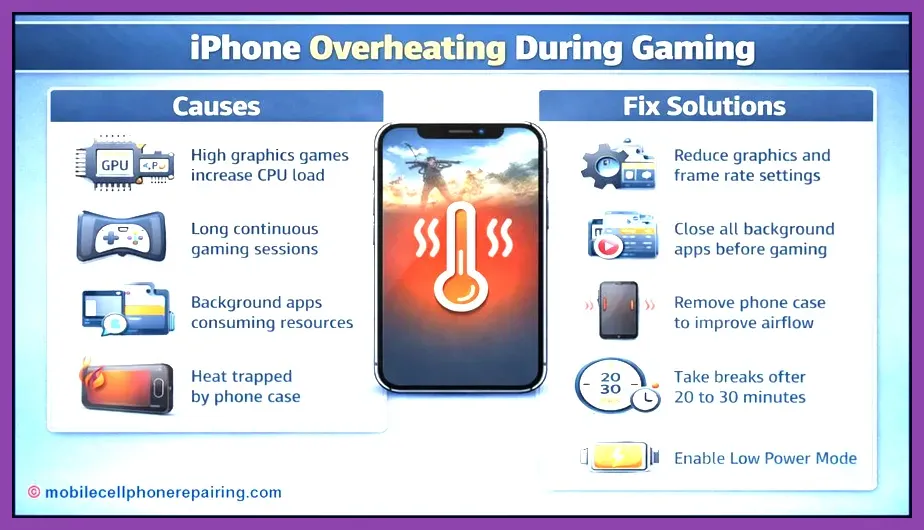
Battery drain and thermal output are inextricably linked. When your lithium-ion battery exceeds 38°C (100°F), chemical resistance increases, causing faster discharge rates and aggressive CPU downclocking. If you notice your phone becoming hot to the touch while navigating menus or managing your squad in the My Team tab, apply these physical cooling rules:
- Remove bulky, insulating phone cases (especially leather or thick silicone designs) before starting a prolonged gaming session.
- Never play eFootball 2026 Mobile while fast-charging your device. Charging generates high internal heat; combining it with a heavy mobile title will degrade your battery health in months.
- Avoid playing in direct sunlight or poorly ventilated environments where ambient heat traps thermal energy inside the chassis.
To understand how hardware optimization compares across platforms, you can look at resource management strategies seen in titles like Subnautica 2 early optimization and resource management efficiency. Keeping your phone cool prevents sudden shutdowns and ensures your battery percentage drops linearly rather than plummeting during extra time.
Optimize Background Processes and OS Battery Savers
Even with optimal in-game settings, background apps can quietly consume system resources while you are locked into a fierce Matchday showdown. Modern operating systems like Android 15 and iOS 18 feature aggressive task managers that you should configure specifically for Konami's servers and client application.
First, restrict background data usage for non-essential applications such as social media feeds, cloud backup services, and unused messaging apps. Second, enable your phone's native Game Mode or Game Space utility. On Samsung devices via Game Launcher, toggle 'Alternative Game Performance' to cap unnecessary CPU boosting. On iOS, disable Background App Refresh entirely for the duration of your gaming session.
For additional system-level tuning tips, consult the expert advice detailed in our beginner platform optimization guide. By silencing push notifications and cutting background network handshakes, you prevent random CPU wake-locks that drain up to 15% of your battery per hour even when your screen is active.
Lock Frame Rates and Control Display Refresh Rates
High refresh rate displays (90Hz, 120Hz, and 144Hz) are a major drain on mobile power reserves. While scrolling through the iOS App Store or Google Play Store feels buttery smooth at 120Hz, forcing eFootball 2026 Mobile to render at that rate accelerates battery depletion exponentially.
Dive into your device's display settings and manually force your screen refresh rate to 60Hz specifically for eFootball 2026, or set your system-wide display to standard mode before launching the application. Furthermore, check out official developer announcements and patch notes directly via the Konami eFootball Official Website to stay informed on upcoming engine patches that may alter performance parameters.
If you enjoy optimizing your gaming setups across multiple genres, you might also find value in our breakdown of meta progression balances and solo player efficiency strategies. Combining a locked 60Hz (or 30Hz) display refresh with standardized in-game graphics guarantees an extended gaming session without tethering your phone to a wall outlet.
Clear Cache and Manage Storage Integrity
Over time, corrupted cache files and fragmented local data storage force your flash memory controller to work harder, indirectly pulling more power from the battery rail. If your game stutters or drains power abnormally fast despite lowering graphics settings, perform a clean cache clearance.
Go to your device's App Manager, locate eFootball 2026, and select 'Clear Cache' (do not clear user data unless you have successfully linked your Konami ID, as this will wipe your local login tokens). Additionally, ensure you have at least 15% free storage space on your internal flash drive; mobile operating systems require this headroom for virtual memory paging and file indexing.
To explore more technical configuration guides, check out our deep dives into advanced item tracking and system load management. Keeping your storage clean and your cache uncorrupted ensures maximum efficiency for every match you play.