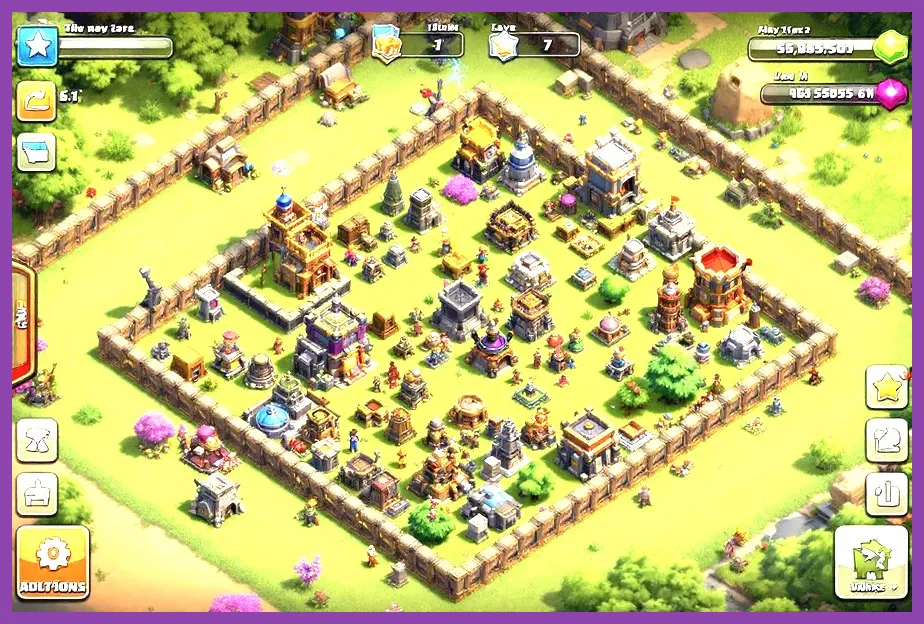
To achieve a rock-solid 60 or 120 frames per second in Clash of Clans, you must navigate away from default auto-detect configurations and manually enforce high refresh rates through your device's native developer options while minimizing background animation assets. While Supercell's flagship title appears visually simple, modern updates featuring complex particle effects during Clan War League matches, dynamic lighting on Town Hall 16 weapon tiers, and massive spell animations like the Overgrowth or Invisibility spells can cause severe frame drops on mid-range and even high-end mobile devices. If you are experiencing stuttering during crucial Queen Walk deployments or chaotic Siege Barracks drops, tweaking both your game client preferences and underlying OS parameters is essential. For additional performance insights on optimizing mobile hardware, check out this performance optimization guide, and for broader system setups, review the hardware performance setup.
Understanding Clash of Clans Performance Architecture
Clash of Clans relies on a proprietary rendering pipeline developed by Supercell, designed to scale across thousands of distinct Android and iOS hardware configurations. Unlike open-world PC titles, mobile games tie their frame generation directly to the device display refresh rate and the graphics processing unit's (GPU) ability to process 2D sprite layers and 3D polygon structures simultaneously. When you deploy massive armies featuring dozens of Electro Dragons, Supercell's servers and your local client must render hundreds of individual lightning chains and death-damage sparks simultaneously. Without proper configuration, your device's thermal throttling protocols will kick in, slashing your FPS from 120 down to a choppy 30 frames per second mid-attack.
To prevent this, you need to understand how your device handles hardware acceleration. Modern smartphones utilize dynamic clock speeds that throttle performance to preserve battery life and reduce heat generation. Clash of Clans does not feature an advanced in-game graphics slider menu like traditional PC games; instead, it reads display APIs directly from your operating system. Therefore, achieving maximum FPS requires a combination of in-app toggles, device-specific gaming suites, and OS-level developer tweaks. For strategy tips on managing high-tier units, you can explore the character tier list rankings and the weapon tier list guide.
In-Game Settings Optimization Profile

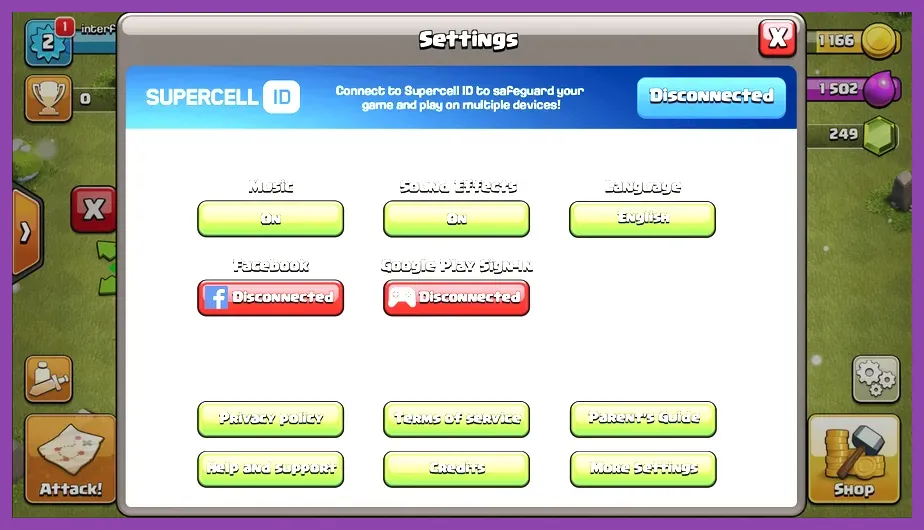
Although Clash of Clans keeps its settings menu relatively streamlined, several critical toggles directly impact GPU load and frame pacing. Open your in-game settings by tapping the gear icon in the bottom right corner of your village screen. Navigate to the "More Settings" tab to adjust your core preferences.
- Sound Effects and Music: Set to Off or Low. While audio does not directly render graphics, processing multiple simultaneous audio channels on older mobile chipsets can introduce micro-stutters during high-action raid scenarios.
- Language and Localization: Keep set to your native region to prevent background server ping fluctuations that can cause network-induced frame hitching.
- Connected Accounts: Ensure Supercell ID is active to prevent cloud-save sync loops that occasionally lock client threads during gameplay.
Beyond the official client menu, you must utilize your device's native gaming launcher—such as Samsung Game Launcher, OnePlus Game Space, or iOS Guided Access—to lock the performance profile into "Maximum Performance" or "Gaming Mode." This forces your chipset to maintain peak clock frequencies, bypassing aggressive battery-saving governors that drop frame rates during prolonged Legend League attack sessions. For related optimization tips, see the beginner tips and tricks and the crafting guide materials.
Android Specific Developer Options for High Refresh Rates
Android users have a distinct advantage when tuning Clash of Clans for maximum FPS due to the granular control offered by Developer Options. To unlock these capabilities, navigate to your device Settings > About Phone > Software Information, and tap the Build Number field seven times until a prompt confirms that developer mode is enabled. Go back to your main settings menu, select Developer Options, and apply the following precise configuration profile:
- Force 4x MSAA: Set to Disabled. While multi-sample anti-aliasing smooths out jagged edges on defensive structures like the Inferno Tower and Monolith, it places an immense, unnecessary load on mobile GPUs, directly tanking your frame rate.
- Window Animation Scale: Set to .5x or Off. This reduces the transition rendering overhead when opening village menus, clan chat windows, and the troop training interface.
- Transition Animation Scale: Set to .5x or Off.
- Animator Duration Scale: Set to .5x or Off.
- Force Peak Refresh Rate: Set to Enabled (or force 120Hz/144Hz depending on your specific panel hardware). This prevents your screen from dynamically stepping down to 60Hz or 90Hz during static base building phases.
- Disable HW Overlays: Set to Enabled. This forces the GPU to handle all screen compositing rather than relying on hardware overlays, drastically reducing UI input latency during fast-paced troop drops.
By enforcing these parameters, your Android device prioritizes raw rendering throughput specifically for active applications like Clash of Clans. For additional mobile game optimization strategies, consult the Stardew Valley mobile guide and the Summoners War active codes list.
iOS Specific Display and Accessibility Tweaks
Apple devices manage frame pacing differently through iOS and iPadOS. Because iOS manages memory allocation aggressively, background processes rarely interrupt active applications, but thermal throttling remains a primary cause of FPS drops during extended Clan War sessions on iPhones and iPads. To optimize your iOS device for maximum frame rates, follow these steps:
- Navigate to Settings > Accessibility > Motion.
- Toggle Reduce Motion to On. This minimizes parallax effects and UI zoom transitions across the entire operating system, freeing up GPU cycles for your game.
- Go to Settings > Display > Motion (available on ProMotion-enabled iPads and iPhone Pro models) and ensure Limit Frame Rate is toggled Off, allowing the display to run at its maximum native refresh rate.
- Navigate to Settings > Battery > Battery Health > Charging and ensure Low Power Mode is strictly disabled while playing. Low Power Mode automatically caps CPU and GPU performance, throttling your frame rate down to 30 FPS regardless of application demands.
- Keep your device out of direct sunlight and remove thick protective gaming cases during heavy farming sessions to prevent thermal throttling from degrading your frame stability.
For more deep dives into complex game mechanics and progression routes, check out Portal 2 legendary weapons guide, Starfield legendary weapons guide, and Space Marine 2 character unlock guide.
Clearing Cache and Managing Storage Thermal Loads
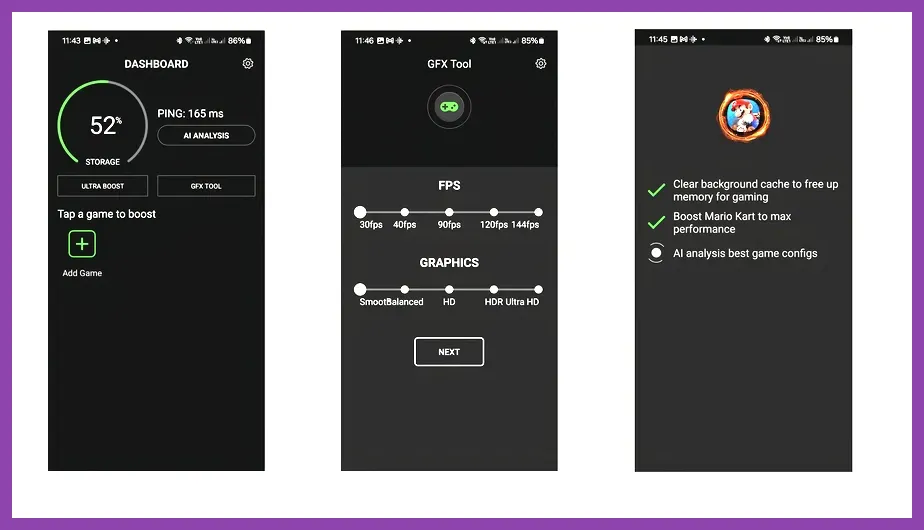
Hardware performance is not solely dictated by CPU and GPU specifications; storage read and write speeds, as well as RAM availability, play a massive role in maintaining consistent frame times. When Clash of Clans loads cached sprite sheets for troops, spells, and custom scenery themes (such as the Epic Magic Theatre or Pirate Scenery), fragmentized storage sectors can cause stuttering. To mitigate this:
- Maintain at least 15% to 20% free storage space on your device internal flash memory to allow proper swap-space allocation and wear-leveling.
- On Android, clear the application cache by going to Settings > Apps > Clash of Clans > Storage > Clear Cache (never clear data unless your account is safely linked to Supercell ID).
- Force close all background applications, web browsers, and streaming services before launching into competitive Legend League attacks or Clan War League matches.
- Restart your device completely at least once a day to flush the system RAM kernel and reset background service threads.
For additional gaming masterclasses and technical breakdowns, review the Remnant 2 gold and scrap farming guide, the Subnautica 2 early skills guide, the Smite solo player class guide, and the Smite early skills guide. For official community updates and patch notes, you can also reference the official Supercell Clash of Clans portal.
Advanced Third-Party Utilities and Network Latency Sync
Frame drops in Clash of Clans are frequently misdiagnosed as hardware bottlenecks when they are actually network-induced latency hitches. Because Clash of Clans is an always-online real-time strategy title, server synchronization packets sent between your device and Supercell regional data centers can conflict with local rendering threads if your packet loss exceeds 5%. To eliminate network stuttering:
- Switch from standard mobile data (4G/5G) to a stable 5GHz Wi-Fi network when participating in high-stakes wars, as 5GHz frequencies suffer from significantly less interference than 2.4GHz bands.
- Disable Bluetooth while playing if you are not using wireless headphones; Bluetooth signals often share the same 2.4GHz spectrum as Wi-Fi adapters, causing micro-drops in packet delivery that manifest as stuttering gameplay animations.
- If utilizing a gaming router, enable Quality of Service (QoS) prioritization specifically for your mobile device MAC address, ensuring traffic destined for Clash of Clans game servers receives absolute priority over other household bandwidth usage.
By executing these systematic adjustments—ranging from OS developer option tweaks and display refresh rate locks to thermal management and network optimization—you will unlock the maximum possible frames per second in Clash of Clans, ensuring fluid troop deployment, precise hero ability timing, and a distinct competitive edge in every raid.