The fastest way to reduce Azur Lane’s storage footprint is to repair or redownload only the required resources, clear Android’s cache, remove optional voice and event files when the client allows it, and reinstall safely if corrupted data has become oversized. Do not tap Clear data or delete the app until your account is linked to a Yostar account, Apple ID, Google Play account, or another supported login method.
Azur Lane does not have one permanent installation size. The base client, downloaded battle assets, ship voices, skin files, event resources, replay data, and operating-system cache can all change the number shown in device storage. A fresh install may therefore be much smaller than a client that has survived several years of major events. These steps target the files you can remove without sacrificing your fleet or account progress.
Check What Is Using Azur Lane Storage
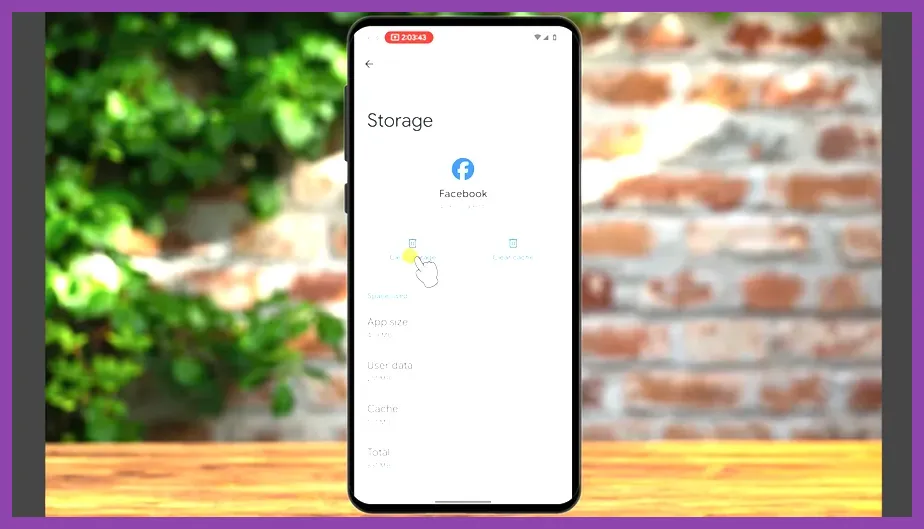
Start with the operating system’s storage screen, not a random file manager. On Android, open Settings > Apps > Azur Lane > Storage. On some Samsung devices the route is Settings > Apps > Azur Lane > Storage, while Pixel phones may label the page Storage & cache. Record the figures for the app, user data, and cache before changing anything.
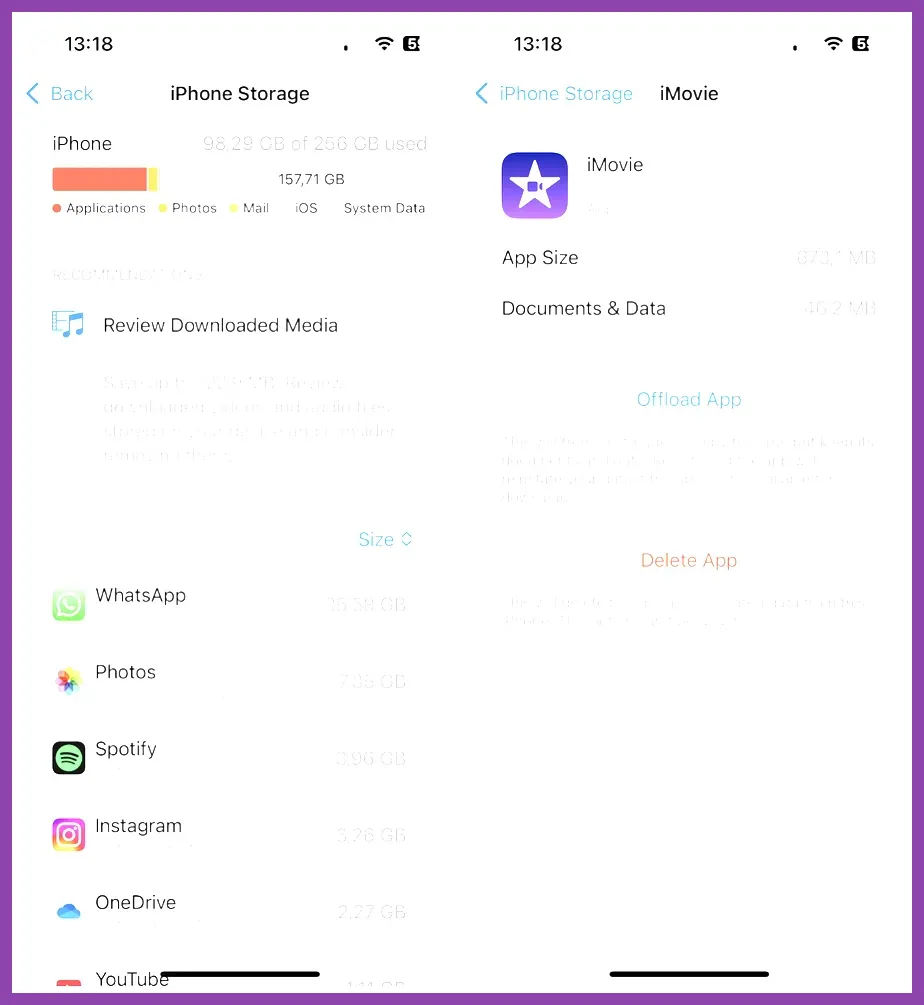
On iPhone or iPad, open Settings > General > iPhone Storage > Azur Lane. iOS generally combines the application and its documents into one total, so it provides less detail than Android. If the number is unexpectedly large, take a screenshot first. It gives you a useful before-and-after comparison after maintenance.
Separate the problem into three categories:
- Cache: temporary files that are usually safe to remove immediately.
- Documents and data: downloaded game resources, settings, account session data, and sometimes unpacked event assets.
- Application size: the installed client itself, which normally changes only after an update or reinstall.
If Android reports a large cache, the fix is straightforward. If user data is the main contributor, clearing cache will produce little change; use Azur Lane’s own resource tools or perform a verified reinstall instead. For broader Android housekeeping, Steamoz’s guide to optimizing gacha games on Android covers background downloads and device storage planning.
Use Azur Lane’s Repair Tools First
Launch Azur Lane and inspect the title screen, login screen, or in-game settings for a Repair, Resource Repair, or similarly named maintenance option. Menu labels can differ between the English, Japanese, and regional clients, and Yostar can move the button during updates. The purpose is the same: verify the client and remove or redownload incomplete resources instead of blindly deleting every file.
- Finish or cancel active downloads. Do not begin maintenance while an event pack or voice package is still installing.
- Close the game completely. Reopen it and use the repair option from the title screen if it is available there.
- Choose the smallest repair scope. Prefer verification or basic resource repair before a full redownload.
- Restart the client. Check whether the storage figure has fallen and confirm that your dock, Dorm, formations, and missions load normally.
Repairing is especially useful after a large limited-time event, such as an event with a new map, story scenes, EX stages, and event shop assets. The client may retain unpacked files after the event ends, or it may accumulate duplicate data after several patches. A repair can clean invalid packages without touching your server-side fleet.
Before using any destructive option, confirm that your account is bound. Your Commander level, cubes, ships, gear, oath records, and event progress are attached to the account service, not merely the local app. A guest session is the exception: removing local data from a guest installation can permanently remove access. Check the account menu and save your UID or take a screenshot of the profile page.
Clear Cache Without Deleting Your Fleet
Android users should use Clear cache, not Clear storage or Clear data. Go to Settings > Apps > Azur Lane > Storage & cache > Clear cache, then launch the game and allow it to rebuild only the temporary files it needs. This normally removes thumbnails, unpacked temporary downloads, and other disposable data. The amount recovered may be small or substantial depending on how long the client has been installed.
Never assume that Clear data is an expanded version of Clear cache. It resets the local client, removes downloaded resources, and may remove the login session. It can be safe only after account binding and only if you are prepared to download the game again. Android’s official storage guidance explains the difference between clearing cache and clearing app data in its Android storage help.
After clearing cache, connect to stable Wi-Fi and open Azur Lane before starting another game. Let the login screen and home port finish loading, then visit a normal sortie such as 1-1 to confirm battle assets work. Check the Dock, Dorm, Academy, and Gear menus as well. If portraits are blank or the client repeatedly requests the same download, stop and use resource repair rather than repeatedly clearing cache.
iPhone and iPad users have two safer options. First, use Settings > General > iPhone Storage > Azur Lane > Offload App. Offloading removes the executable while preserving documents and data; reinstall the app from the same screen afterward. Apple describes this behavior in its official iPhone and iPad storage guide. Second, delete and reinstall the app only after confirming account binding and recording your login method.
Remove Optional Downloads and Old Assets
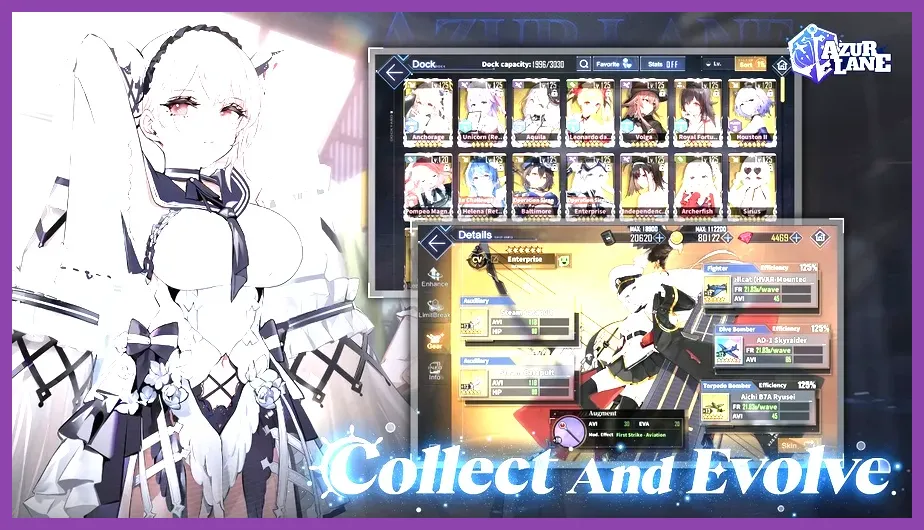
Azur Lane’s largest avoidable files are usually optional resources rather than the core combat client. Open the game’s settings and look for audio, voice, download, or resource preferences. If your version offers separate voice downloads, keep only the language you actually use. English, Japanese, and other voice packs can contain separate files for ship lines, secretary interactions, combat calls, and story scenes.
Do the same with high-resolution or quality options if the client presents them. A phone with limited free space does not need every premium skin preview or maximum-quality asset permanently installed. Remove optional packages from the game’s own menu whenever possible; do not manually delete folders from Android’s Android/data or Android/obb directories. Modern Android versions restrict those folders, and deleting the wrong package can force a complete redownload.
Review the content that tends to expand over time:
- Ship voice packs: optional lines for characters such as Enterprise, Belfast, Akagi, and New Jersey.
- Skin and dorm assets: Live2D costumes, furniture, background art, and animation files.
- Event resources: story scenes, event maps, special bosses, music, and shop previews.
- Repeated patch files: temporary packages left after interrupted updates or failed verification.
Do not uninstall a skin, oath item, or ship from your account to save space. Your collection entries are server-side; the storage cost comes from downloaded presentation assets. If the client has no individual deletion control, a full resource repair or clean reinstall is the safer way to rebuild a smaller installation.
Reinstall Azur Lane the Safe Way
A clean reinstall is the most reliable Azur Lane storage size reduction tip when documents and data have grown far beyond the current client’s normal footprint. It also fixes update loops and corrupted resource packages. Treat it as a controlled migration, not a first resort.
- Bind the account. Open the account or settings screen and connect the game to a supported Yostar or platform login. Confirm the binding status, not just the presence of an email address.
- Record recovery details. Save your UID, server name, Commander name, and the exact login method. Take screenshots of the account page and any important purchase receipts.
- Check free space. Keep several gigabytes available beyond the displayed app size. The client needs room to download, unpack, and replace patch files; insufficient space can create a failed-installation loop.
- Remove the app normally. On Android use uninstall from the app settings or launcher. On iOS choose Delete App, not merely Remove from Home Screen.
- Install from an official store. Use the official Azur Lane Google Play listing where available, or the regional App Store listing. Avoid modified APKs and third-party “compressed” clients.
- Log in before downloading extras. Restore your account, then skip optional voice or high-quality packages until the base client is working.
Use the official Azur Lane website if you need to verify the correct regional client or find current support information. A reinstall may initially look larger while resources are unpacked, so wait for the first login and one restart before judging the final storage total.
Prevent Azur Lane From Growing Again
Storage reduction works best when you prevent repeated accumulation. Keep Azur Lane updated through one official store rather than switching between APK versions. Do not interrupt a patch while it is verifying or unpacking, and avoid starting a major download with less than a few gigabytes of free space. A nearly full device gives Android and iOS little room for temporary update files.
At the end of a large event, restart the game and check its resource settings. If optional voice, Live2D, or high-resolution downloads are enabled by default, disable the packages you do not use. Clear Android cache after a failed patch, not every day; excessive clearing only forces the game to rebuild common files and can increase network usage.
For phones with 64GB of storage, keep at least 8GB free before major Azur Lane updates. On 128GB devices, maintaining 10GB or more provides a safer buffer for simultaneous operating-system and game updates. Move photos and videos to cloud storage or a computer rather than deleting Azur Lane folders manually. Steamoz’s guide to optimizing gacha games on low-end hardware also covers reducing background pressure, while the mobile RPG performance guide has additional device-maintenance advice.
Finally, recheck storage after every major client update and after installing a new voice language or Live2D-heavy skin. The winning routine is simple: inspect the breakdown, clear cache, repair resources, remove optional downloads, and reinstall only after account binding. These steps reduce Azur Lane’s local footprint without deleting your ships, equipment, Dorm progress, or event records.