If your crosshair hitches the split-second a Jett dashes onto your screen or your client abruptly dumps you to desktop during an overtime match point, you're fighting your own machine harder than the enemy duelists. Sudden frame drops, micro-stutters, and random crashes in Valorant almost always trace back to three specific culprits: Unreal Engine 4 asset-hitch loading caused by an undersized DirectX shader cache, CPU thread starvation triggered by ultra-high mouse polling rates, or Riot Vanguard clashing with deep-level Windows security services. Fixing this doesn't require dropping a grand on a flagship GPU—it takes locking down your background system services, tuning in-game frame pacing, and eliminating OS-level rendering bottlenecks.
1. Dialing In the Ultimate Valorant Graphics Settings Profile
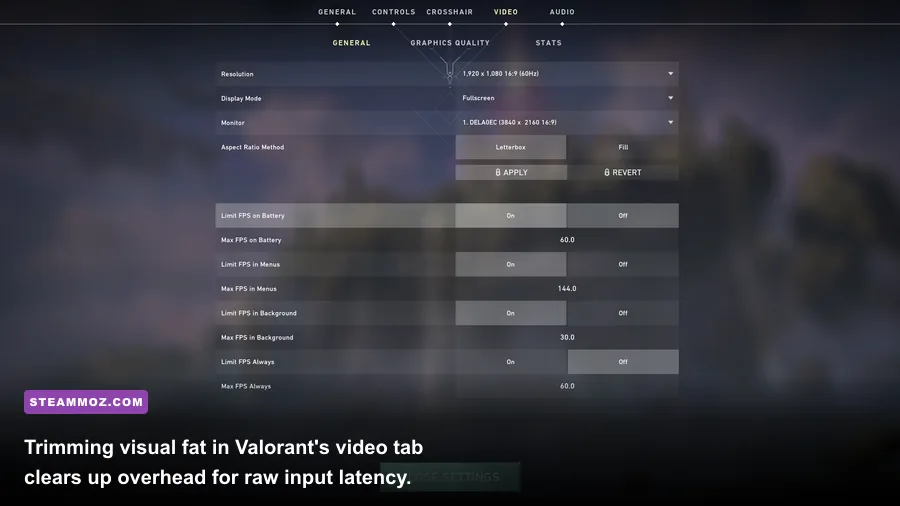
Valorant runs on a customized build of Unreal Engine 4 engineered to deliver reliable 128-tick client updates. Even so, cranked-up post-processing and dynamic lighting can swamp your CPU's main render thread with unnecessary draw calls. Because the game is heavily CPU-bound, your goal isn't just to lighten the GPU load—it is to eliminate frame-time variance so every single rendered frame arrives in under 4 milliseconds.
Head to Settings > Video > Graphics Quality. Turn off Vignette and Distortion instantly. Vignette creates a dark gradient around your screen edges that eats up precious milliseconds during post-process passes without offering any tactical value. Distortion forces the game engine to compute refractive transparent passes whenever a Sage slow orb lands or an Astra smoke pops, which tanks your 1% low frame rates mid-gunfight.
| Setting | Optimal Value | Frame-Time Impact | Competitive & Visual Takeaway |
|---|---|---|---|
| Multithreaded Rendering | On | Massive Boost (-35% CPU frame time) | Essential. Splits render workloads across multi-core CPUs. |
| Material Quality | Low | Minimal (~2% FPS gain) | Removes distracting specular sheen and reflective floor gloss. |
| Texture Quality | Low / Medium | Negligible (VRAM dependent) | Medium keeps weapon skins crisp; Low maximizes headroom on 4GB VRAM cards. |
| Detail Quality | Low | Moderate (~7% FPS gain) | Strips away non-essential foliage, decorative trash, and map debris. |
| UI Quality | Low | Low (~3% FPS gain) | Reduces HUD render overhead during ability-heavy skirmishes. |
| Vignette & Distortion | Off | High during utility (~12% 1% Lows) | Stops frame hitching when walking through Viper toxin or Brimstone smokes. |
| Anti-Aliasing | None or MSAA 2x/4x | Low on modern GPUs | Never use FXAA; it blurs crosshair lines and agent silhouettes at range. |
| Anisotropic Filtering | 1x or 2x | Negligible | Keep at 1x or 2x for clear ground markings without micro-stutters. |
| NVIDIA Reflex Low Latency | On + Boost | Critical Latency Reduction | Eliminates the GPU render queue and pins GPU clocks to max frequency. |
Make absolutely certain that Multithreaded Rendering is enabled. If this option is grayed out, your CPU either lacks sufficient physical cores or your hyperthreading/SMT is disabled in your motherboard BIOS. Without it, Valorant dumps its rendering and game-tick threads onto a single core, causing massive framerate plunges whenever multiple players activate ultimates simultaneously. If you want a similarly smooth experience across other PC titles, check out our guide on tuning graphical settings for max FPS.
2. Eliminating Vanguard Conflicts and Constant Crash-to-Desktop Bugs
Riot Vanguard (vgk.sys) operates as a Type-1 ring-0 kernel driver that boots up alongside Windows. Because it runs with highest-level privileges, any system permission error, outdated background driver, or memory integrity mismatch won't just generate an in-game stutter—it will trigger an outright crash, an error code like VAN 1067 or VAN 9003, or force a complete machine restart. Similar stability problems frequently crop up in other titles, as we explored in our breakdown of PC fixes that stop crashes and rescue FPS.
If you keep crashing to desktop without an error code, your system's vgc background service has likely stopped responding or timed out. Here is how to fix its startup behavior for good:
- Press Windows Key + R, type
services.msc, and hit Enter. - Scroll down until you locate vgc. Double-click it.
- Change the Startup type from "Manual" to Automatic.
- Switch to the Recovery tab and configure "First failure", "Second failure", and "Subsequent failures" to Restart the Service. Set "Reset fail count after" to 1 day.
- Click Apply, hit OK, and reboot your PC.
If crashing persists after a patch, corrupted driver binaries are often lingering in your Vanguard directory. Run Command Prompt as Administrator, execute sc delete vgc followed by sc delete vgk, and then reboot. Windows will purge the registered services, allowing the Riot Client to perform a clean, error-free reinstallation of Vanguard upon your next launch.
3. Driver Configurations: NVIDIA Control Panel and AMD Adrenalin Tuning
Default GPU driver profiles lean heavily toward visual smoothing, which harms competitive latency and creates unpredictable frame pacing. Both the NVIDIA Driver Hub and AMD Software: Adrenalin Edition include features that accidentally fight Valorant's internal engine clocking. If you've run into similar hitching issues in puzzle adventures or space sims, such as those covered in our Filament guide for higher FPS or the Everspace 2 crashing and FPS fix, the culprit is often driver-side buffer bloat.
NVIDIA Control Panel Optimization
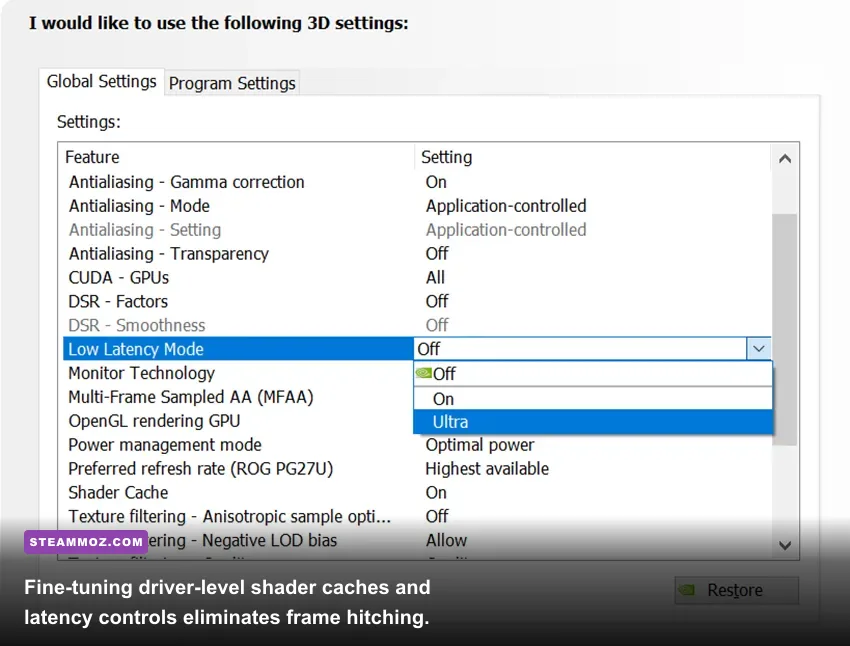
- Shader Cache Size: Change from "Driver Default" to 10 GB or Unlimited. The default 4GB cache fills up rapidly across modern games. Once saturated, Unreal Engine 4 is forced to recompile shaders in real time mid-round, causing severe 100ms micro-freezes during firefights.
- Low Latency Mode: Set to On. (Do not use Ultra here if you already have NVIDIA Reflex On + Boost enabled in Valorant's game menu, as running both can cause queue contention).
- Power Management Mode: Set to Prefer Maximum Performance. This stops your GPU from downclocking to save power while you are holding passive defensive angles.
- Threaded Optimization: Set to On. Never leave this on Auto, as Windows sometimes fails to distribute Valorant's background worker threads efficiently.
AMD Radeon Adrenalin Tuning
Under the Gaming tab for Valorant, disable Radeon Anti-Lag 2 if you encounter sudden mouse judder, as its current API hook can conflict with Vanguard's input interception. Enable Radeon Boost only if you run on integrated Vega graphics; otherwise, leave it Off. Set Tessellation Mode to "Override application settings" and limit the Maximum Tessellation level to 2x or Off to prevent geometry bloat on detailed maps like Pearl and Lotus.
4. Windows 10/11 OS Tweaks: Polling Rates, HAGS, and Core Parking
Valorant reads mouse input through a hyper-sensitive Windows raw input thread. Modern esports mice running at 4000Hz or 8000Hz polling rates flood the Windows input stack with up to 8,000 coordinate reports per second. If your CPU cannot service those interrupts quickly enough, you will see dramatic 100+ FPS drops every time you flick your mouse quickly.
To stop polling-rate lag dead in its tracks, open Valorant's General Settings, scroll to the Mouse section, and toggle RawInputBuffer to On. This bypasses the standard Windows OS API pipeline and hooks directly into the direct input stream, dropping CPU overhead by up to 10% during aggressive flicks. If your mouse software permits, dial your polling rate back from 8000Hz to a rock-solid 1000Hz or 2000Hz—the human sensory difference is virtually zero, but the stability gain on your frame pacing is night and day.
Next, configure the executable's direct interaction with the Windows Desktop Window Manager (DWM):
- Navigate to your installation folder:
C:\Riot Games\VALORANT\live\ShooterGame\Binaries\Win64. - Right-click
VALORANT-Win64-Shipping.exeand select Properties. - Switch to the Compatibility tab.
- Check Disable fullscreen optimizations.
- Click Change high DPI settings, check Override high DPI scaling behavior, and choose Application from the drop-down menu. Hit OK and Apply.
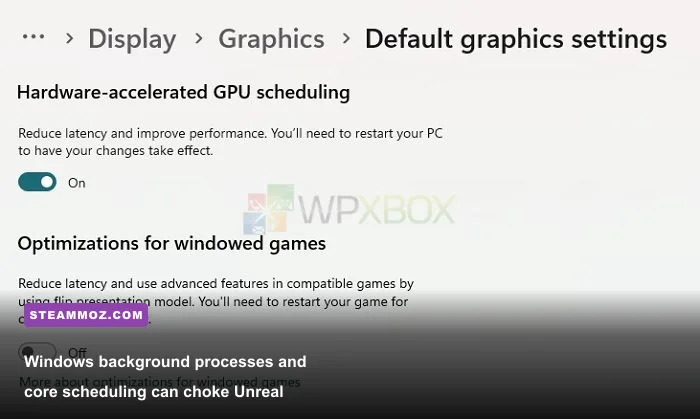
Finally, inspect Hardware-Accelerated GPU Scheduling (HAGS) in Windows 10/11 (Settings > System > Display > Graphics). While HAGS boosts average FPS in heavy GPU-bound titles, it can induce micro-stuttering in low-overhead, CPU-bound games like Valorant on mid-range quad-core or older hex-core processors. If you notice frame-time hitching despite high average numbers, toggle HAGS Off, restart your PC, and compare your frame pacing. For more system-level adjustments, our troubleshooting rundown on fixing crashes and low FPS in EscapeVR shares similar low-level Windows workarounds.
5. Pinpointing Bottlenecks with Valorant’s Built-in Performance Metrics
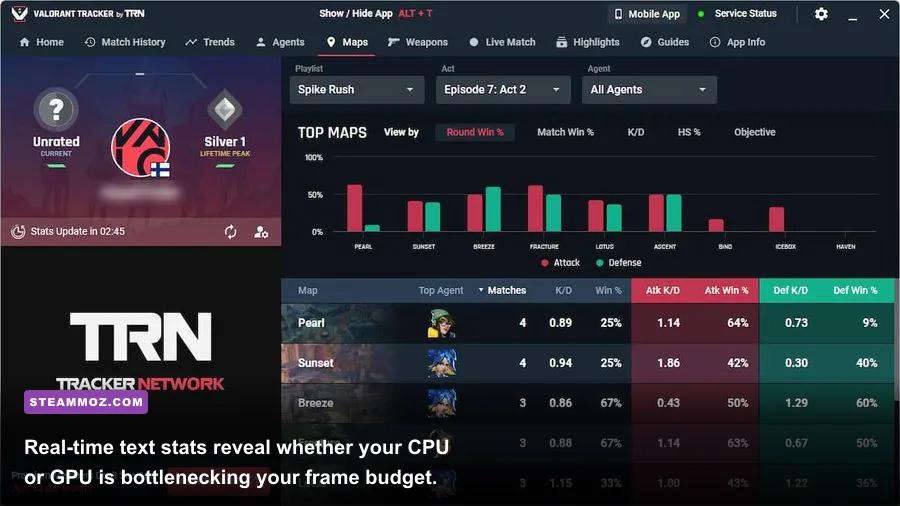
Stop guessing whether your micro-stutters stem from your hardware, your home network, or Riot's servers. Valorant features one of the most comprehensive real-time telemetry suites in tactical shooters. Head to Settings > Video > Stats and turn on text displays for the diagnostics outlined in the table below to catch performance culprits in real time.
| Diagnostic Stat | Target Baseline | Spike Threshold | Underlying Cause & Corrective Action |
|---|---|---|---|
| Client FPS | Matches Refresh Rate (e.g., 144/240) | Sudden >30 FPS drop | CPU thread bottleneck or background update task kicking in. |
| CPU Frame Time | < 4.0 ms (for 240Hz play) | > 8.0 ms | CPU starvation. Disable High Precision Event Timer (HPET) or close background apps. |
| GPU Frame Time | < 3.5 ms | > 7.0 ms | GPU bound. Lower resolution scale or drop anti-aliasing to None. |
| Network RTT Avg (Ping) | Stable (< 40 ms) | Jitter > 15 ms | Bufferbloat or Wi-Fi channel interference. Switch strictly to Ethernet. |
| Packet Loss | Strictly 0% | Any value > 0% | ISP routing failure or router queue dropping UDP packets. |
Pay close attention to the relationship between CPU Frame Time and GPU Frame Time. If your CPU Frame Time spikes while your GPU Frame Time remains low and flat, your graphics card is sitting idle waiting for instructions. To cure this, close heavy background apps like Discord (turn off its Hardware Acceleration feature in Discord Settings > Advanced), Spotify, and browser tabs with video feeds running in the background.
Lastly, don't overlook your in-game sound engine. Under Settings > Audio, verify your sound setup. While Enable HRTF (Head-Related Transfer Function) is phenomenal for spatial awareness, it computes advanced binaural audio simulation on your CPU. On budget or aging CPUs, running HRTF alongside high mouse polling rates can trigger instant audio crackling and micro-stutters during heavy combat exchanges with multiple ultimates firing at once. If your frame times fluctuate violently whenever a Phoenix flash goes off next to you, switch off HRTF and test your framerate stability. Dial in these tweaks, clean up your background processes, and you will step onto the server with ultra-crisp frame delivery and zero stutter to interrupt your aim.