If Modern Warfare 2 is hitching every time you snap your aim down sights, dipping below your monitor's refresh rate in the middle of a gunfight, or hard-crashing with error code 0xC0000005, you aren't alone. The culprit behind these issues is rarely underpowered hardware; instead, it almost always boils down to aggressive in-game VRAM over-allocation, broken shader pipelines, on-demand texture streaming overworking your network, or an improperly throttled CPU thread pool locked inside the game's configuration files. In most cases, trimming your Video Memory Scale down to 70%, purging corrupted DirectX shader files, and adjusting the RendererWorkerCount setting inside options.3.cod22.cst immediately stabilizes frame pacing and eliminates random desktop crashes.
Root Causes: Why Modern Warfare 2 Chokes on PC
Call of Duty: Modern Warfare II runs on an upgraded iteration of the IW engine (IW 9.0). While it delivers remarkable physical water simulation, global illumination, and spatial audio, its PC port exhibits aggressive resource management behaviors that quickly destabilize your system. Much like the engine hurdles detailed in our ELEX PC performance and crash troubleshooting guide, modern 3D engines demand rigorous asset synchronization between memory pipelines.
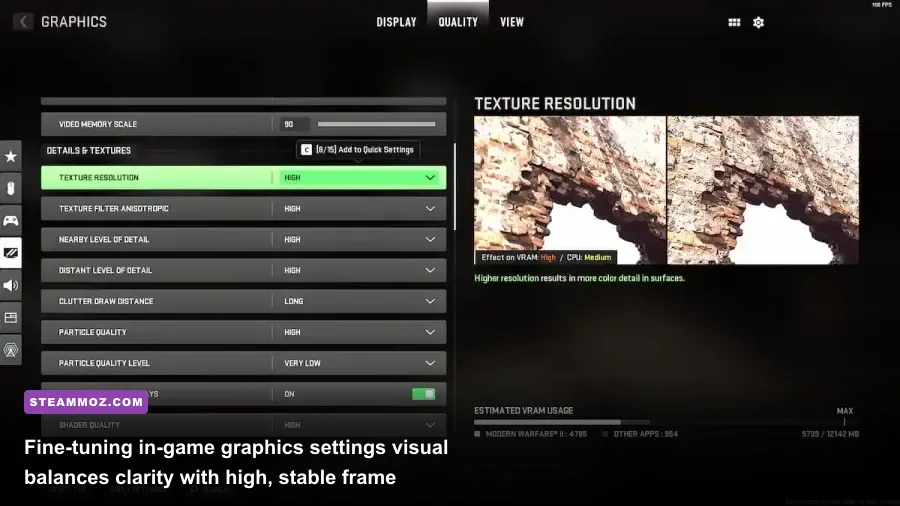
The primary issue stems from how the engine handles asset caching. When you leave settings like "Spot Cache" on Low, the engine is forced to dynamically generate shadow maps in real time whenever an explosion detonates or a flashbang pops. That spike forces the GPU to halt render execution while fetching assets, triggering a violent micro-stutter. Compounding this, the game frequently defaults its VRAM allocation target to 90%. When Windows, Discord, or background processes request even a sliver of dedicated video memory, the game overflows into standard system RAM—which is dozens of times slower—prompting instant frametime spikes or straight-to-desktop crashes. Similar memory choke points frequently appear in other modern titles, as highlighted in our breakdown of EscapeVR: The Basement crashing and low FPS fixes.
The Master Graphic Settings for Smooth Frames and High Clarity
To run Modern Warfare 2 competitively, you want the lowest possible frame latency combined with razor-sharp enemy silhouette visibility. Dialing down every single slider to absolute minimum is actually a mistake: certain low-tier settings shift the rendering load entirely onto your CPU, bottlenecking system threads and aggravating stutter. Just as we balanced visual fidelity in our Far Cry 6 GOTY settings for maximum FPS, the trick here is surgical optimization.
Start by heading into the Display and Quality tabs. Turn On-Demand Texture Streaming OFF immediately. This setting downloads high-resolution assets in real time during multiplayer engagements, saturating your internet bandwidth and causing severe packet bursts alongside frame hitching. Next, set your Spot Cache to High or Ultra. This allocates a dedicated chunk of VRAM to store shadow maps so your card doesn't waste precious cycles calculating them mid-gunfight.
| Graphic Setting | Recommended Value | FPS Impact | Visual Stability & Performance Note |
|---|---|---|---|
| On-Demand Texture Streaming | Disabled | Neutral (+0-2%) | Crucial: Eliminates network-induced micro-stutters and random packet bursts. |
| Spot Cache | High or Ultra | Slight (-1-2% VRAM) | Prevents severe frame drops during grenade detonations and tactical equipment use. |
| Texture Resolution | Normal (or Low on 6GB GPUs) | Low | Avoid High unless you pack 12GB+ of VRAM; Normal retains crisp weapon iron sights. |
| Particle Quality Level | Low | Moderate (+4-6%) | Stops frame-rate degradation when sliding through smoke and gas clouds. |
| Bullet Impacts & Sprays | On | Negligible | Provides tactical info on bullet penetration with zero real-world frame penalty. |
| Shader Quality | Low | High (+7-10%) | Massive frame boost across open maps like Al Mazrah and Guijarro. |
| Tessellation | Near | Low | Keeps ground surfaces textured without taxing the geometry pipeline. |
| Volumetric Quality | Low | Moderate (+5%) | Reduces fog render resolution; sharpens target acquisition at extreme range. |
| Screen Space Reflections (SSR) | Off | Moderate (+4%) | Removes distracting visual noise and artifacting across wet tarmac and puddle surfaces. |
| Upscaling / Sharpening | FidelityFX CAS (Strength: 65-75) | High Fidelity | Offers native rendering clarity without DLSS or FSR motion-blur artifacts. |
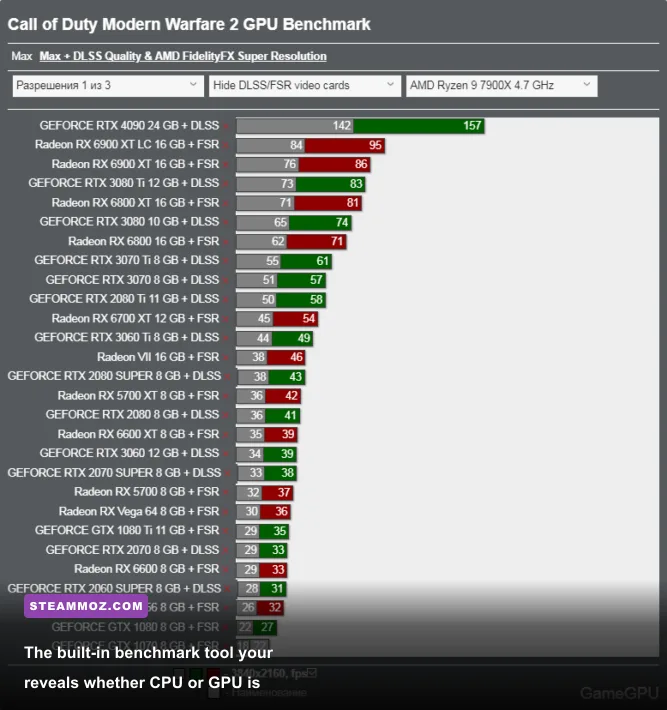
For upscaling, if you are running modern GPUs like an RTX 3070 or Radeon RX 6700 XT and higher at 1080p or 1440p, stick with FidelityFX CAS set to roughly 70 strength. It delivers the sharpest pixel response and target tracking. If your hardware is older, lean on NVIDIA DLSS or AMD FSR 2.1 set to Quality mode to reclaim a solid 20-30% bump in raw framerate, just as you would when optimizing performance in Filament: Marmalade Edition settings.
The Critical Config File Tweak: RendererWorkerCount and VRAM Scale
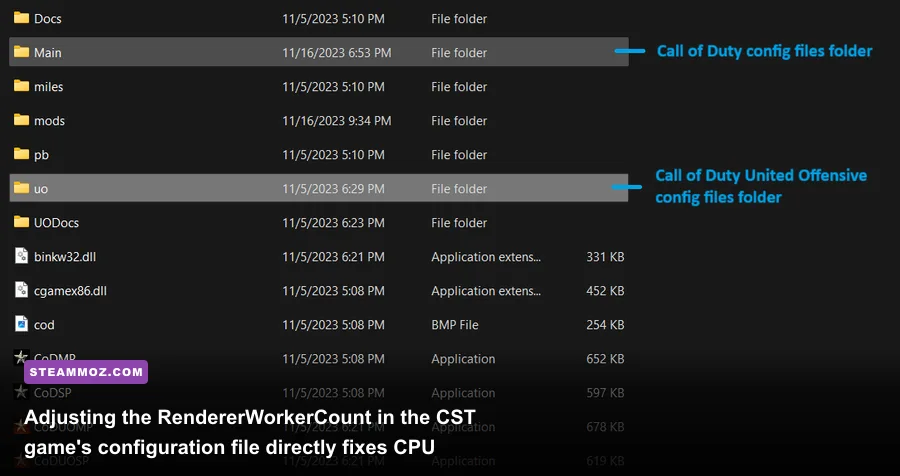
Even with optimal in-game graphics toggles, thousands of players suffer from choppy frametime graphs because the IW engine notoriously misidentifies the physical core layout of modern CPUs. Modern Warfare 2 writes your hardware configuration into a text file, and it frequently assigns an arbitrary number of worker threads that starves the engine or floods your CPU cores with lock contention.
To fix this, close the game completely and follow these steps:
- Open Windows File Explorer and navigate to:
This PC > Documents > Call of Duty > players. - Locate the file named options.3.cod22.cst. Right-click it, select Open With, and choose Notepad.
- Press
Ctrl + Fand search forRendererWorkerCount. - By default, you might see this set to 4, 6, or an odd number that does not match your CPU. Change the value inside the quotation marks to match your processor's physical performance core count (do NOT include virtual hyperthreads or Intel E-cores).
- Next, search inside the same document for
VideoMemoryScale. Change this value to0.70or0.75. - Click File > Save, close Notepad, right-click the file, select Properties, check the Read-only box, and hit Apply. (Note: Uncheck Read-only whenever you want to change in-game keybinds, then re-enable it).
| CPU Architecture / Series | Core / Thread Layout | Default Engine Value | Optimal RendererWorkerCount Value |
|---|---|---|---|
| AMD Ryzen 5 (e.g., 5600X, 7600X) | 6 Cores / 12 Threads | 4 or 5 | 6 |
| AMD Ryzen 7 (e.g., 5800X3D, 7800X3D) | 8 Cores / 16 Threads | 6 or 7 | 8 |
| Intel Core i5 (e.g., 12400F, 11400F) | 6 Cores / 12 Threads | 4 | 6 |
| Intel Core i7 Hybrid (e.g., 13700K, 14700K) | 8 P-Cores + 8/12 E-Cores | 12 to 14 | 8 (Target P-Cores only) |
| Legacy Quad-Core (e.g., i7-7700K, Ryzen 3300X) | 4 Cores / 8 Threads | 2 or 3 | 4 |
By locking the RendererWorkerCount strictly to your physical performance cores, you prevent Windows thread scheduling from shunting mission-critical render loops to slow efficiency cores or virtual hyperthreads. This flatlines your frametime graph and eliminates the stuttering that occurs when rounding corners or engaging enemies.
Eliminating Game Crashes: Error 0xC0000005 and Shader Cache Purges
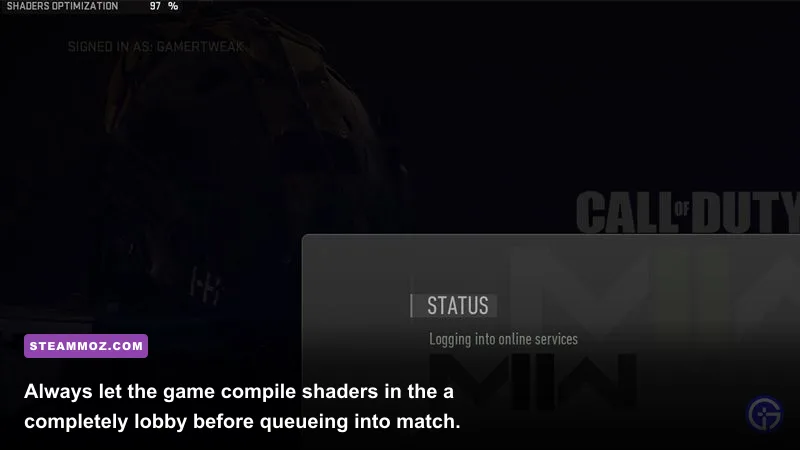
The dreaded 0xC0000005 (Access Violation) error code has plagued Modern Warfare 2 since launch. This error indicates that the game client attempted to access protected memory addresses that were corrupted, unallocated, or actively barred by the operating system. Corrupted shader caches compiled across multiple game patches are the single most common cause.
When developer Raven Software or Infinity Ward pushes a playlist update, old shader files often linger in your storage drives. To perform a clean purge:
- Boot the game, navigate to Settings > Graphics > Display, and click Restart Shader Optimization. Exit the game immediately.
- Press
Windows Key + R, type%localappdata%, and hit Enter. Locate the folders labeled Activision and Call of Duty, jump into their temporary directories, and delete the cache files. - Open the official Call of Duty: Modern Warfare II on Steam client (or Battle.net), right-click the title, and select Verify integrity of game files.
- Launch the game and sit patiently in the main menu. Do not jump into the gunsmith, do not browse weapon skins, and do not queue into a lobby until the shader pre-load bar hits a flat 100%.
Third-party software hooks also directly trigger crashes due to the game's kernel-level Ricochet anti-cheat. Overlays from Discord (especially with Hardware Acceleration toggled on), GeForce Experience ShadowPlay, MSI Afterburner with outdated RivaTuner Statistics Server (RTSS) versions, and NZXT CAM can trip memory violation checks. If you are struggling with chronic instability similar to the memory faults addressed in our Everspace 2: Wrath of the Ancients crash troubleshooting guide, disable background overlays completely before booting the game.
Windows and Driver Level Tweaks to Eliminate Micro-Stutter
Your operating system and GPU driver configurations dictate the ceiling of your system stability. Even clean hardware builds can stumble if Windows power profiles or driver caches are throttling throughput. For comprehensive baseline sanity checks, comparing your hardware against titles with known engine footprints—like checking Fatal Fury: City of the Wolves PC specs or reviewing old-school engine scalability in our Far Cry 2 PC requirements analysis—highlights how critical driver-level optimizations really are.
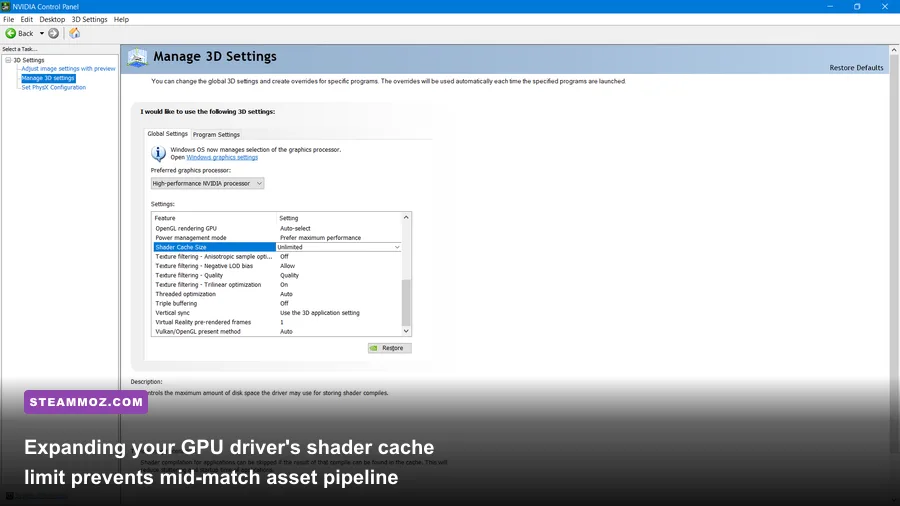
Grab the latest game-ready driver directly from the official NVIDIA driver portal (or AMD equivalent). When installing, opt for a clean installation if you have recently upgraded your graphics card. Once updated, open the NVIDIA Control Panel and configure these specific parameters under Manage 3D Settings > Program Settings > Modern Warfare II:
- Shader Cache Size: Set this to 10 GB or 100 GB instead of "Driver Default". Modern Warfare 2 generates massive cache files, and the Windows default 4GB limit forces the driver to constantly delete and rewrite compiled assets during gameplay.
- Power Management Mode: Set to Prefer maximum performance to stop GPU core clock fluctuations mid-round.
- Low Latency Mode: Set to On. (Inside the game menu, enable NVIDIA Reflex Low Latency: On + Boost to ensure your GPU queue remains clear).
Finally, open Windows Settings, navigate to Gaming > Game Mode, and verify that Game Mode is turned ON. Click on Graphics Settings on the right pane, toggle Hardware-accelerated GPU scheduling (HAGS) ON, and restart your computer. If stubborn crash loops continue, submit your system crash dump directly to Activision Support, but for the vast majority of PC players, pairing these driver optimizations with correct worker counts and purged shaders will lock your frame rates and keep you fragging without interruption.