
FATAL FURY: City of the Wolves needs a mid-range gaming PC for its official target settings: the minimum spec calls for an Intel Core i5-7500 or AMD Ryzen 5 1600, 8GB of RAM, and a GeForce GTX 1060 6GB or Radeon RX 580 8GB. For the recommended experience, SNK lists an Intel Core i7-8700 or Ryzen 5 3600, 16GB of memory, and an RTX 2070 or Radeon RX 5700 XT. The headline number for this fighter isn't ultra-high resolution, though. It's a dependable 60fps, because dropped frames and uneven pacing can turn a readable anti-air or reversal into a missed input.
Those specifications come from the game's official Steam listing. They should be read as a practical starting point rather than a guarantee for every preset, resolution, or background application. A GTX 1060 can still be perfectly useful for a 1080p fighting-game setup, while a modern laptop with a faster CPU but a weaker integrated GPU may struggle with visual effects. Here's how to interpret the numbers before you buy, download, or start changing settings.
FATAL FURY City of the Wolves minimum PC requirements
The minimum requirements are aimed at playing City of the Wolves at a sensible 1080p configuration, not maxing every visual option. The processor floor is an Intel Core i5-7500 or AMD Ryzen 5 1600, paired with 8GB of system memory. On the graphics side, the listed cards are Nvidia's GTX 1060 with 6GB of VRAM and AMD's Radeon RX 580 with 8GB.
That GPU pairing tells you something important: the game expects a discrete graphics card, and the VRAM requirement isn't just a technical footnote. Modern fighters often use high-resolution character textures, stage assets, lighting effects, and post-processing even when the camera stays relatively close to the action. A 4GB card may launch the game, but it isn't the safe target suggested by the published requirements.
| Component | Minimum specification | What it means in practice |
|---|---|---|
| Operating system | Windows 10 | Use a fully updated 64-bit Windows installation with current drivers. |
| Processor | Intel Core i5-7500 or AMD Ryzen 5 1600 | Enough CPU headroom for the game and normal background tasks, but older quad-core systems may need cleanup. |
| Memory | 8GB RAM | Playable baseline; close browsers, launchers, and recording tools before a serious session. |
| Graphics | GeForce GTX 1060 6GB or Radeon RX 580 8GB | Baseline discrete GPU target for 1080p-focused play. |
| DirectX | DirectX 12 | Install current Windows updates and graphics drivers rather than relying on an old driver package. |
| Storage | 30GB available space | Leave additional room for patches, shader data, and temporary installation files. |
Don't confuse the minimum processor with a license to run a crowded PC. An i5-7500 is a four-core chip from 2017, and Windows background activity can eat into the consistency you want in an online match. Eight gigabytes of RAM is also a true floor in 2025-era PC terms. The game may run, but loading another application, streaming through OBS, or leaving a dozen browser tabs open can produce stutters that have nothing to do with average GPU performance.
If your machine lands right on this line, start at 1920x1080 with shadows, effects, and post-processing reduced. Keep the display mode at fullscreen if the game offers it, disable unnecessary overlays, and test a local match before heading into ranked play. Players coming from older SNK fighters may also want to read our PC specs troubleshooting guide for the basic Windows checks that solve many launch and performance problems across Steam games.

🎮 FATAL FURY: City of the Wolves
Looking to experience this game? Grab your digital key directly on our store for $9.99.
View on Steammoz Store →Recommended specs for a stable 60fps

SNK's recommended target moves up to an Intel Core i7-8700 or AMD Ryzen 5 3600, 16GB of RAM, and either an Nvidia GeForce RTX 2070 or AMD Radeon RX 5700 XT. That's a much more comfortable setup for higher image quality, modern background software, and smoother frame-time behavior.
The CPU recommendation matters more than a simple average-FPS chart suggests. Fighting games rely on precise simulation and input timing, so a system that reports 120fps in a quiet training room can still feel worse than a locked 60fps machine if its frame times spike during effects-heavy exchanges. The i7-8700 and Ryzen 5 3600 provide six physical cores and twelve threads, giving the game more breathing room while Steam, voice chat, capture software, or an antivirus scan runs in the background.
| Component | Recommended specification | Why it helps |
|---|---|---|
| Operating system | Windows 10 | Meets the official OS target; Windows 11 systems should still be kept patched and driver-current. |
| Processor | Intel Core i7-8700 or AMD Ryzen 5 3600 | Stronger multithreaded headroom for stable frame times and background applications. |
| Memory | 16GB RAM | Better for online play, recording, browsers, and future updates without paging to storage. |
| Graphics | GeForce RTX 2070 or Radeon RX 5700 XT | Comfortable tier for higher-quality 1080p and more demanding resolutions. |
| Storage | 30GB available space | Install on an SSD when possible to reduce loading friction and leave patch headroom. |
The RTX 2070 and RX 5700 XT are older enthusiast cards now, but they're still substantially above the GTX 1060 and RX 580 minimum targets. If you own a newer RTX 3060, RX 6600 XT, RTX 4060, or comparable card, the GPU side should be comfortable at 1080p. At 1440p, the story depends on the rest of your system and the game's selected effects, so don't assume that a higher resolution automatically means perfect performance just because the card is faster than the recommended model.
Storage deserves a small warning. The published requirement is 30GB, but keep more free space than that on the installation drive. Steam needs room to unpack updates, and a drive that is nearly full can make patching painfully slow. An SSD won't magically increase combat FPS, yet it can make booting, mode changes, and post-update shader work feel much less sluggish than an aging hard drive.
Best PC graphics settings for City of the Wolves
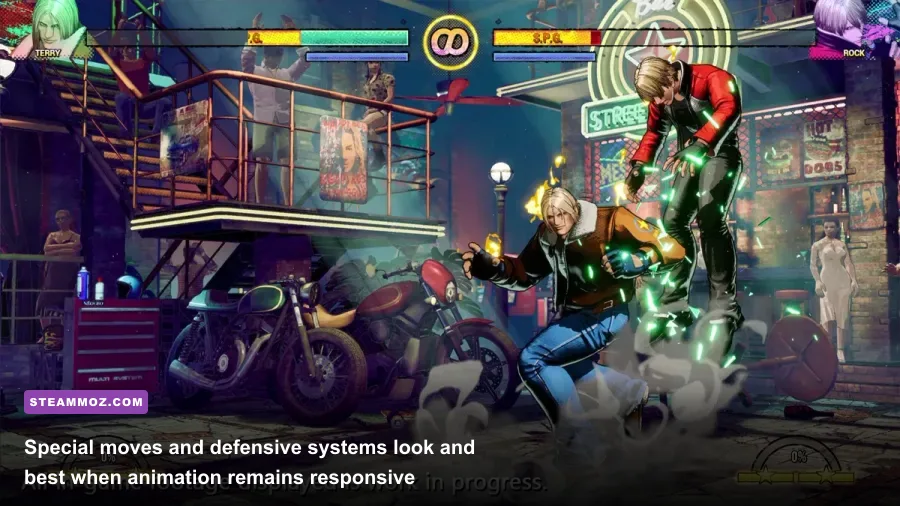
There is no prize for making a competitive fighter look needlessly expensive to render. Start with a locked 60fps target, then raise image quality one setting at a time. The most valuable upgrades are usually texture quality and resolution; the easiest cuts are shadows, volumetric effects, ambient occlusion, and heavy post-processing.
| Setting | Recommended value | FPS impact | Visual trade-off |
|---|---|---|---|
| Resolution | 1920x1080 on minimum hardware | High | Lower resolution gives the GPU the largest immediate performance boost. |
| Frame-rate cap | 60fps locked | Positive for consistency | Matches the timing target of a traditional fighting-game presentation. |
| Textures | High if VRAM allows; Medium on 4GB-class cards | Low to medium | Lower values can make costumes and stage surfaces look softer. |
| Shadows | Medium | Medium to high | Characters remain readable while stage shadow detail is reduced. |
| Effects and particles | Medium | Medium | Large specials lose some spectacle, but silhouettes stay clear. |
| Ambient occlusion | Low or Medium | Low to medium | Scenes have slightly less contact shading around characters and props. |
| Anti-aliasing | Medium or the game's default temporal option | Low to medium | Reduces jagged edges without making the image overly soft. |
| Motion blur | Off | Small | Sharper movement and cleaner visual reads during fast exchanges. |
| V-Sync | Use only if tearing bothers you | Variable | Can add latency; test it against your monitor's VRR setup. |
Why 60fps matters more than ultra settings
In a fighter, consistency beats spectacle. A dramatic super move can push the GPU harder than a neutral exchange, and a stage with bright effects can expose a weak frame-time profile that a training dummy never reveals. If your counter is stable but the match still feels uneven, watch for spikes rather than chasing a higher average. Cap the game at its intended 60fps if uncapped output causes oscillation between 60 and much higher numbers.
V-Sync needs a little care. Traditional V-Sync can remove tearing, but it may add a layer of input delay depending on your display and driver queue. If your monitor supports variable refresh rate, enable the display technology in Windows and your GPU control panel, then test the game with V-Sync off and a stable cap. Use the setup that feels cleanest in actual training mode, not just the one that produces the prettiest benchmark overlay.
For a minimum-spec profile, choose 1080p, Medium textures, Low-to-Medium shadows, Medium effects, reduced ambient occlusion, motion blur off, and a 60fps cap. For a recommended profile, use 1080p or 1440p, High textures, Medium-to-High shadows, High effects, and anti-aliasing at the default quality. If a busy super causes a dip, lower effects before textures. Character texture clarity is visible in every round; an expensive particle layer is not.
Our frame-by-frame PC settings guide covers the same practical approach: identify the setting that hurts frame time, cut that first, and avoid blindly dropping every option to Low. The result should look sharp enough to read Rock Howard's movement and Terry Bogard's attacks without turning the stage into a blurry background.
How to troubleshoot weak hardware and stuttering
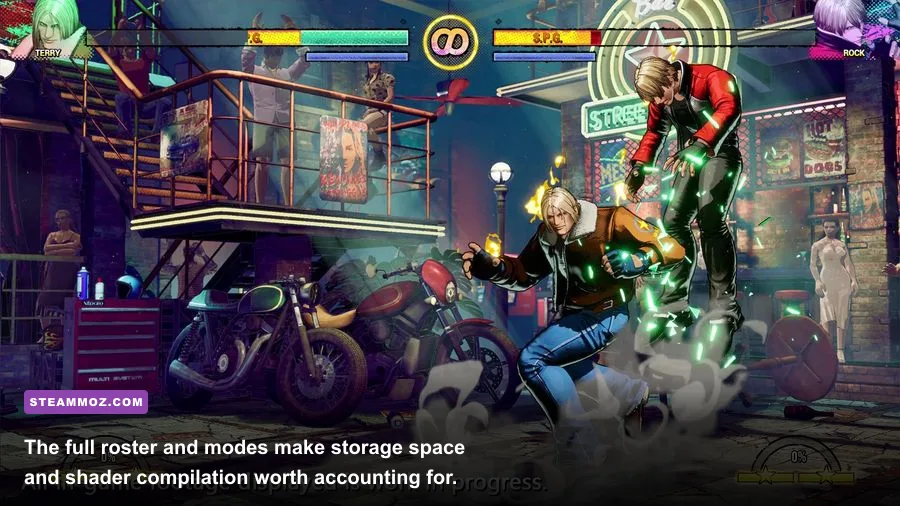
If City of the Wolves launches but feels rough, work through the problem in a fixed order. Randomly changing five settings at once makes it impossible to know what helped. First verify the game files in Steam, install the latest driver for your Nvidia or AMD card, and reboot after a major driver or Windows update. Then run one offline match and one online match, because network issues can feel like frame drops even when the renderer is fine.
Use a clean test profile
Close browsers, RGB utilities, hardware monitors, recording software, and unnecessary launchers. Disable Steam, Discord, and GPU overlays temporarily. These tools aren't automatically bad, but each can hook into the game's render process or consume CPU time. If the stutter disappears, re-enable them one at a time until you find the offender.
Next, check whether the game is using the dedicated GPU. This matters especially on gaming laptops and systems with integrated Radeon or Intel graphics. In Windows Graphics settings, assign the game's executable to the high-performance GPU. Plug the laptop into mains power, select a performance power plan, and make sure the manufacturer's control software hasn't silently switched to a quiet or battery mode.
Fix the common memory and storage traps
With 8GB RAM, leave Windows as much free memory as possible. A browser with video tabs, OBS, and a voice client can push the system into paging, where data is moved between RAM and storage. That produces hitching even if the GTX 1060 itself is fast enough. Upgrading to 16GB is one of the most sensible improvements for a minimum-spec PC.
Keep at least several gigabytes free on the game drive and prefer an SSD. If shader compilation happens after a driver update, let the process finish before judging the final performance. Sudden stutters in the first few matches after an update may settle once cached data has been created, although persistent drops during the same effect or stage point back to graphics settings, thermals, or drivers.
| Symptom | Likely cause | First fix to try | When to upgrade hardware |
|---|---|---|---|
| Low FPS everywhere | GPU below the target or resolution too high | Drop resolution and effects, then confirm dedicated GPU usage. | When 1080p Low still cannot hold 60fps. |
| Short hitches during effects | Effects, shaders, driver cache, or VRAM pressure | Lower effects, update the driver, and allow shader work to complete. | When the card has less VRAM than the minimum target. |
| Stutter with apps open | 8GB RAM exhaustion or CPU contention | Close background programs and disable overlays. | Upgrade to 16GB RAM if paging continues. |
| Slow loading and patching | Hard drive or nearly full storage | Move the installation to an SSD with free space. | Replace an aging mechanical drive. |
| Online matches feel delayed | Network latency, display lag, or inconsistent frame time | Test offline, use wired networking, and verify a stable 60fps. | Hardware is not always the cause; fix the display or connection first. |
Don't chase a network problem by lowering graphics. If offline training feels responsive but online matches feel late, check your connection, display mode, monitor response settings, and frame pacing before replacing the GPU. A wired connection can reduce packet instability, but it won't repair a PC that is dropping frames locally.
For crash-specific checks, our guide to PC crashes and FPS fixes is a useful companion. The same fundamentals apply here: validate files, eliminate overlays, update drivers, check temperatures, and isolate background software instead of installing questionable “FPS booster” utilities.
Is your PC ready for City of the Wolves?
If your system matches the official minimum, FATAL FURY: City of the Wolves is worth approaching as a 1080p, 60fps project rather than a max-settings showcase. A GTX 1060 6GB or RX 580 8GB paired with 8GB RAM should be treated as the baseline, with a clean background and sensible effects settings. The recommended i7-8700 or Ryzen 5 3600, 16GB RAM, and RTX 2070 or RX 5700 XT combination gives you considerably more room for quality settings and recording.
The best upgrade depends on your bottleneck. If the GPU is below the GTX 1060/RX 580 class, start there for rendering performance. If your graphics card is adequate but the machine has only 8GB RAM, memory is the cheaper fix for background-task stutter. If both are fine and the game still feels inconsistent, investigate thermals, drivers, display latency, and frame-time graphs before spending money.
That last point is especially important for a competitive fighter starring characters such as Rock Howard, Terry Bogard, Hotaru Futaba, and newcomer Vox Reaper. You want every normal, special, and defensive decision to appear when you expect it, not after a distracting hitch. The official SNK announcement material and the SNK website are the right places to watch for later patches or system-requirement updates.
Before buying, compare your exact CPU and GPU model with the table above, confirm 30GB of free storage, and remember that laptop versions can perform very differently from desktop versions with the same name. If you can hold a clean 60fps in a local match with effects enabled, you're ready for the game's real test: learning the roster, reading the opponent, and surviving the match without your hardware becoming the second player.
Players who enjoy deep systems and deliberate progression can also browse Steamoz's practical gameplay tips and strategy-focused reviews. For City of the Wolves, though, the winning PC setup is refreshingly straightforward: meet the minimum GPU target, aim for 16GB of RAM if possible, prioritize stable 60fps, and cut visual effects before sacrificing responsiveness.