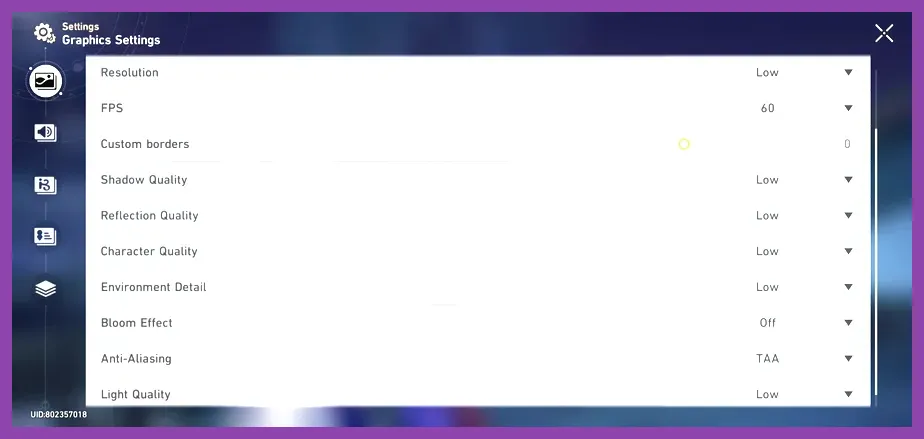
Optimizing open world games on Android requires lowering rendering distance to medium, capping frame rates at 60 FPS, disabling chromatic aberration, and shifting shadow quality to low to prevent thermal throttling and severe stuttering during high-speed traversal. Modern mobile hardware like the Snapdragon 8 Gen 3 or MediaTek Dimensity 9300 can brute-force many titles, but seamless exploration in massive sandboxes demands precise software configuration and hardware tuning.
Mastering In-Game Graphics Presets
Developers of massive mobile RPGs and survival titles pack their titles with complex rendering pipelines that easily choke mid-range and high-end chipsets alike. When diving into titles like Wuthering Waves or similar expansive sandboxes, the default "High" or "Ultra" presets are rarely optimized for sustained play sessions. Instead, treat presets as a baseline rather than a permanent choice.
Start by accessing the advanced graphics menu and isolating the settings that consume the most GPU bandwidth. Shadows, volumetric fog, and render resolution are the holy trinity of performance killers in open world engines. Moving shadow quality from High to Medium cuts down GPU workload by nearly twenty percent without dramatically impacting the aesthetic fidelity of daytime exploration. Similarly, locking your render resolution to 100% or slightly below native resolution stops your phone from downscaling a massive pixel grid, keeping UI elements sharp while easing the burden on the Adreno or Mali GPU.
For players seeking a reference point on how hardware configurations mirror other platform optimizations, check out this guide on Solo Leveling Arise Best Settings for Max FPS to understand how balance beats brute force. Additionally, memory management plays a crucial role when loading dense textures on the fly. If you encounter abrupt stuttering while sprinting across open fields, reduce crowd density and entity detail sliders.
Understanding Thermal Throttling and Sustained Performance

The single greatest enemy of smooth open world gaming on Android is thermal throttling. Unlike desktop rigs with massive liquid coolers, smartphones dissipate heat through their chassis. Once your processor core temperatures breach 45 degrees Celsius, the kernel aggressively downclocks CPU and GPU frequencies, turning a silky 60 FPS experience into a choppy 20 FPS slide show within fifteen minutes.
Mitigating heat requires a multi-pronged approach:
- Remove protective plastic or thick leather phone cases during long gaming sessions to allow unobstructed heat dissipation.
- Never charge your device while playing heavy titles; battery charging generates intense ambient heat that accelerates thermal throttling.
- Utilize external clip-on semiconductor cooling fans if you engage in extended multiplayer sessions or raid bosses.
- Keep screen brightness at 60% or lower; high display luminance adds significant heat to the internal stack right behind the panel.
Understanding how hardware behaves under thermal stress is just as important as knowing your software, mirroring the resource allocation strategies found in heavy survival titles discussed in our breakdown of Subnautica 2 Best Early Skills to Unlock. Keeping your processor cool guarantees consistent frame pacing, which is vital for timing dodges and counter-attacks in complex combat encounters.
Leveraging Android Developer Options and Game Boosters
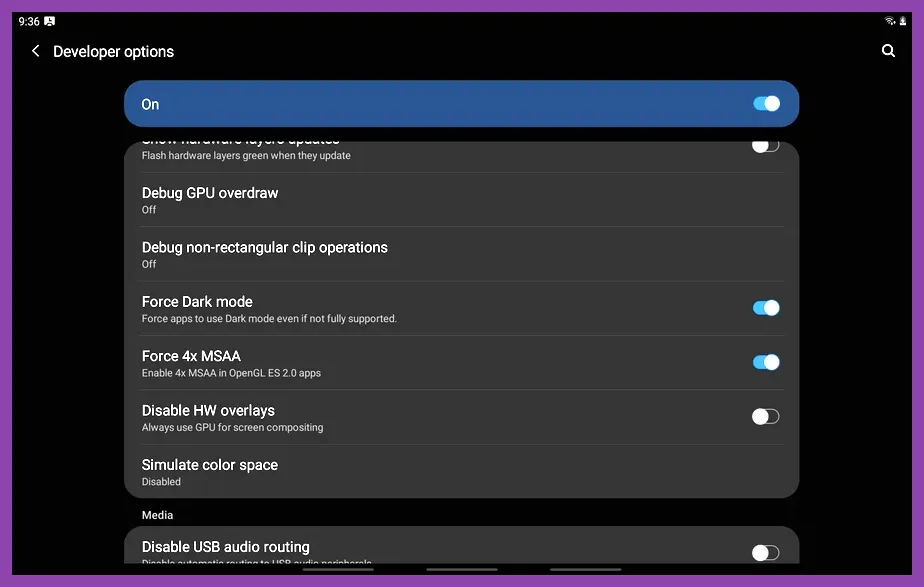
Stock Android hides several powerful tools beneath its system settings that can squeeze extra performance out of your hardware. Unlocking Developer Options by tapping your Build Number seven times in the About Phone menu gives you direct control over hardware acceleration layers.
Navigate to your newly unlocked Developer Options and locate the following toggles:
- Force 4x MSAA: Enable this only if your GPU is top-tier; it forces multisample anti-aliasing in OpenGL ES 2.0 applications for cleaner edges.
- Disable HW Overlays: Turning this on forces the GPU to handle screen composition entirely, reducing UI overhead during gameplay.
- Logger Buffer Sizes: Lowering or disabling loggers prevents the system from writing unnecessary background debug data to flash storage.
Furthermore, almost every major OEM provides a dedicated software suite—such as Samsung's Game Plugins, Xiaomi's Game Turbo, or OnePlus's Game Space. Always launch your open world games through these dedicated hubs. They allow you to pin CPU and GPU governors to performance mode, block intrusive notification pop-ups, and monitor real-time frame rates without installing bloated third-party monitoring apps from the Play Store.
For players juggling multiple resource-heavy titles across different ecosystems, keeping your device clean mirrors the inventory and squad management tips outlined in Squad Busters Best Weapons Tier List 2026, where elimination of redundant processes ensures peak responsiveness.
Managing Storage Speed and Virtual Memory
Open world games constantly stream assets—terrain geometry, textures, audio files, and NPC data—directly from your internal storage into RAM. If your storage is fragmented or running near maximum capacity, asset streaming hitches manifest as stuttering every time you cross a regional border or rotate your camera quickly.
Ensure your device maintains at least 15% to 20% free storage space so the flash controller has adequate breathing room for wear leveling and cache allocation. Furthermore, ensure the game is installed directly on UFS 3.1 or UFS 4.0 internal storage rather than an external MicroSD card. Even high-end SD cards suffer from bottlenecked random read speeds that cannot keep pace with modern game engines.
If your device supports virtual RAM expansion (sometimes marketed as RAM Plus or Memory Fusion), evaluate its impact carefully. While expanding virtual memory helps keep background apps from crashing, it uses slower flash memory as a swap space. For high-performance gaming, turning off virtual RAM expansion often yields more stable frame rates because the system relies exclusively on faster LPDDR5X physical RAM modules.
Fine-Tuning Frame Rate Caps and V-Sync
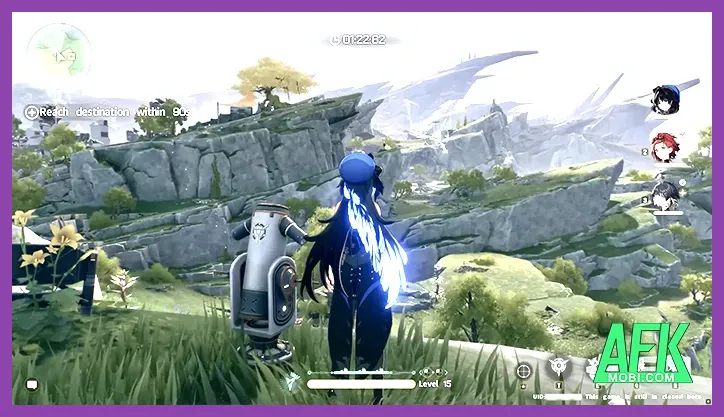
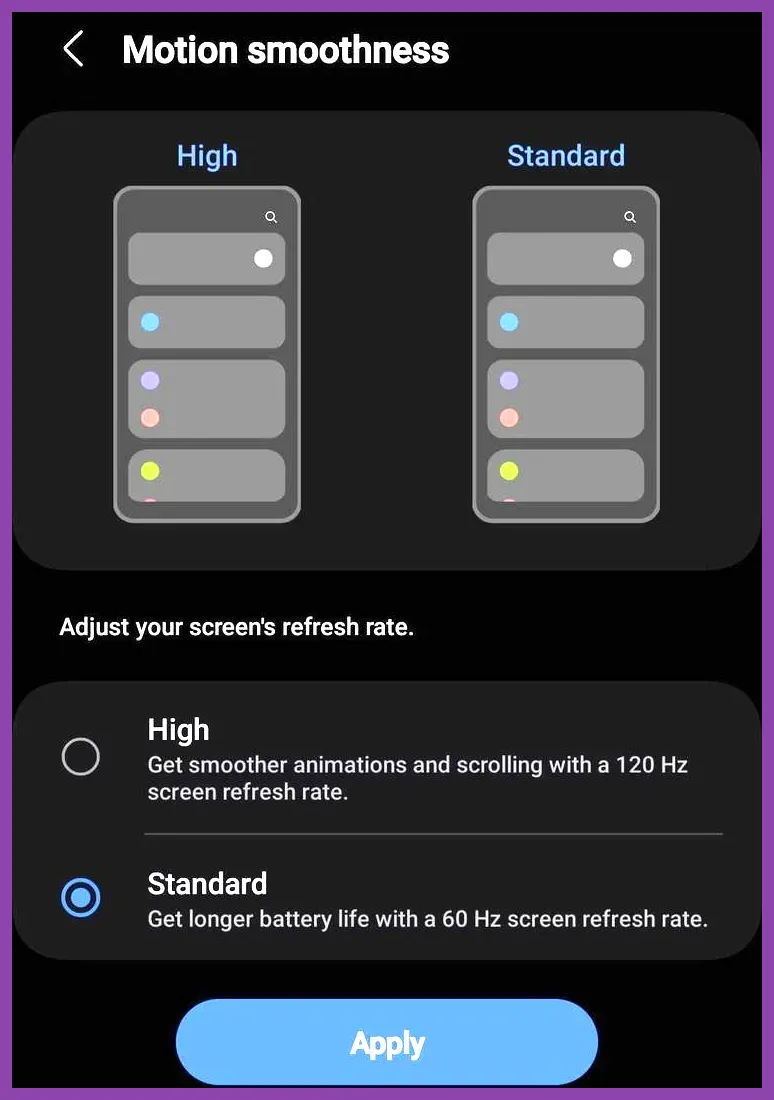
Many Android gamers make the mistake of setting frame rates to "Uncapped" or "120 FPS" simply because their phone screen supports a high refresh rate. In massive open world environments, maintaining a steady 120 FPS is an unrealistic expectation for mobile silicon, resulting in massive frametime spikes that feel worse than a locked, stable 30 or 45 FPS.
Adopt a frame rate cap that matches your device's sustainable thermal profile:
- Test the game at a locked 60 FPS on Medium settings for twenty minutes while monitoring for stutters.
- If the phone begins to heat up and frame rates drop into the 40s, manually lower the cap to 45 FPS or 30 FPS.
- A locked, consistent 30 FPS with stable frame pacing provides a vastly superior visual experience compared to a volatile 60 FPS that fluctuates wildly during chaotic combat.
- Disable V-Sync within the game settings only if your system utility offers an external adaptive sync or display lock, preventing screen tearing without introducing input lag.
For strategic depth on optimizing character builds and managing performance loads during intense tactical encounters, reference the advice in The First Descendant Best Team Comp Synergy. Balancing your workload ensures your device never buckles under pressure.
Network Optimization for Online Open Worlds
Most modern open world titles—whether featuring co-op dungeons, shared-world exploration, or live-service events—require a persistent internet connection. High latency and packet loss can masquerade as low performance, causing rubber-banding, delayed hit registration, and asset loading failures.
Always prioritize stable 5G connections or robust Wi-Fi 6 routers operating on the less congested 5GHz band. If you experience micro-stutters that persist even when your frame rate counter reads a solid 60 FPS, check your ping. Enable Wi-Fi Assistant or network acceleration features in your phone's gaming mode to automatically route game packets with higher priority.
For further reading on navigating sprawling sandbox environments and optimizing progression systems, explore our comprehensive guide on Starfield How to Get Legendary Weapons Fast. Applying these rigorous hardware, software, and network optimizations will transform your Android device into a true portable powerhouse capable of running the most demanding open worlds smoothly.