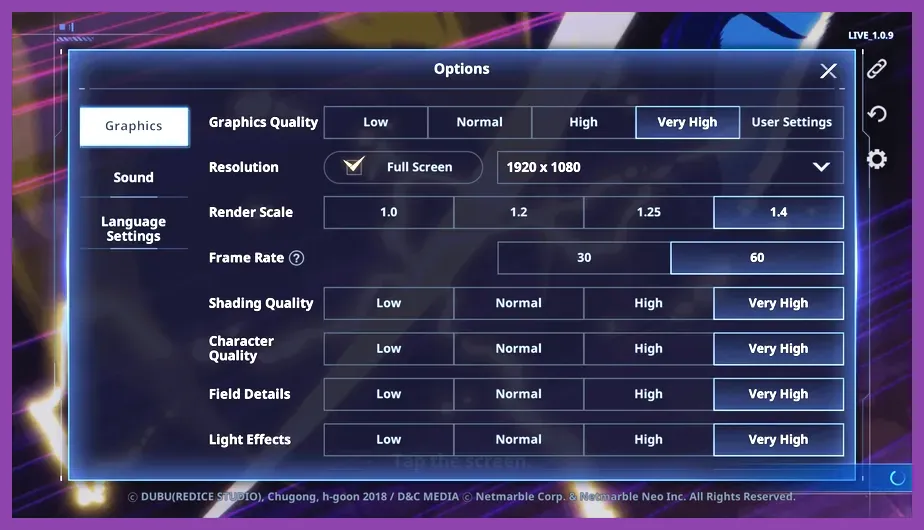
To achieve a locked, butter-smooth 60 or 120 FPS in Solo Leveling Arise, you need to configure your PC graphics settings by dropping Shadow Quality to Medium, disabling V-Sync, capping your framerate to your monitor's exact refresh rate, and turning down Post-Processing effects to minimize input lag during intense boss fights like Cerberus or Vulcan. While Netmarble's action RPG looks stunning when cranked to max, its heavy particle effects and shadow rendering can cause devastating frame drops during large-scale shadow extractions and heavy ability rotations involving Sung Jinwoo and hunters like Cha Hae-In or Choi Jong-In.
Understanding the PC Performance Bottleneck

Many players assume that because Solo Leveling Arise originated as a mobile game, any modern PC can easily brute-force the native desktop client. However, the PC port features significantly upgraded rendering pipelines, higher polygon counts, and enhanced lighting models that can strain both your CPU and GPU during high-density encounters. If you are experiencing micro-stutters or sudden frame drops while exploring gates or clearing instance dungeons, your hardware is likely struggling with inefficient shadow rendering and uncapped frame pacing.
Before tweaking individual settings, make sure your system meets the recommended requirements outlined on the official Solo Leveling Arise Official Website. Additionally, if you enjoy optimizing various game clients and checking out other popular titles, you might find our guide on Starfield weapon farming or our deep-dive into Subnautica 2 progression quite helpful for fine-tuning other gaming setups.
The Ultimate Max FPS Graphics Profile
To maximize your framerate without turning Sung Jinwoo into a blurry pixelated mess, apply this exact configuration in the in-game display and graphics menu. These values strike the perfect balance between high visual clarity and aggressive performance optimization, ensuring you never miss a boss telegraph.
- Display Mode: Exclusive Fullscreen (Crucial for reducing desktop composition overhead)
- Resolution: Native monitor resolution (1080p, 1440p, or 4K depending on your GPU capability)
- Framerate Cap: 120 FPS (Or match your monitor's maximum refresh rate)
- V-Sync: Off (Reduces input latency significantly; use your GPU control panel for G-Sync/FreeSync if needed)
- Graphics Quality Preset: Custom
- Shadow Quality: Medium (High shadows introduce severe CPU bottlenecks during multi-enemy fights)
- Texture Quality: High (Has minimal impact on FPS if your VRAM exceeds 6GB)
- Effect Quality: Medium (Prevents screen clutter and FPS drops during massive ultimate animations)
- Post-Processing: Low (Removes excessive bloom and motion blur that obscure combat clarity)
- Anti-Aliasing: FXAA or Temporal AA (TAA provides a cleaner image with minimal performance cost)
- Render Scale: 100% (Never drop this below 100% unless you are running on integrated graphics, as it destroys UI sharpness)
For players who love min-maxing their overall gaming ecosystem just as much as optimizing performance in action RPGs, check out our community favorites like Smite solo class breakdowns and our tactical advice on Squad Busters weapon tier lists.
Optimizing CPU and GPU Load During Combat
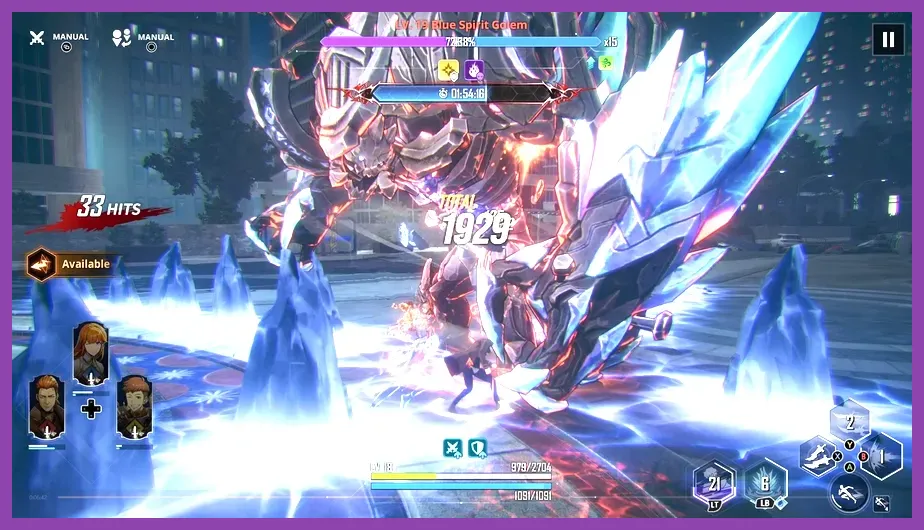
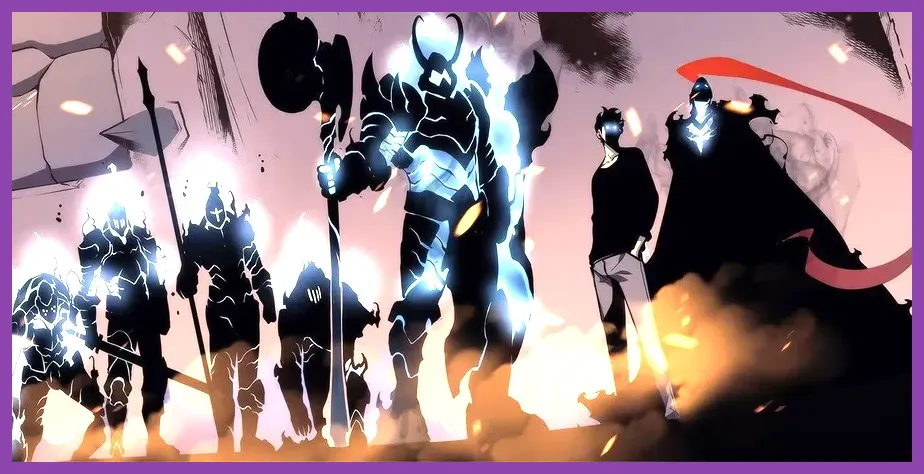
Solo Leveling Arise is heavily reliant on single-core CPU performance during combat calculations, especially when calculating damage numbers, status debuffs, and shadow soldier AI paths. When you summon your shadow army—such as Igris, Tank, or Iron—your CPU has to calculate the pathfinding and target acquisition for every single active entity on screen. This can cause severe frame drops if your background applications are eating up precious processing cycles.
To alleviate CPU pressure, open your Windows Task Manager before launching the game, navigate to the Details tab, find SoloLevelingArise.exe, right-click, select Set Priority, and change it to High. Furthermore, if you are looking for more mobile-to-PC crossplay optimizations, take a look at our mobile performance tricks featured in Stardew Valley mobile skins and our gacha progression insights in Summoners War active codes.
NVIDIA and AMD Driver-Level Tweaks for Extra Frames
In-game settings are only half the battle. To truly lock in your maximum framerate, you should apply targeted driver-level configurations via the NVIDIA Control Panel or AMD Software: Adrenalin Edition. These global or profile-specific overrides bypass inefficient software layers and force your hardware to prioritize game responsiveness over raw visual fidelity.
If you are using an NVIDIA graphics card, open the NVIDIA Control Panel, go to Manage 3D Settings, and configure the following parameters specifically for the Solo Leveling Arise executable:
- Low Latency Mode: Ultra (Drastically reduces input delay between your keyboard/mouse and on-screen actions)
- Max Frame Rate: Set to 117 FPS (If using G-Sync on a 120Hz display) or 163 FPS (For 165Hz displays) to keep rendering inside the VRR window
- Power Management Mode: Prefer maximum performance
- Texture Filtering - Quality: Performance
- Threaded Optimization: On
By enforcing these driver-level rules, your system prevents thermal throttling and keeps core clock speeds pinned at their maximum boost frequencies during prolonged dungeon crawling sessions. For additional tactical comparisons and squad-building strategies across other major genres, browse through our guides on Tekken 8 team synergy and Space Marine 2 character unlocks.
Managing Thermal Throttling and Background Services
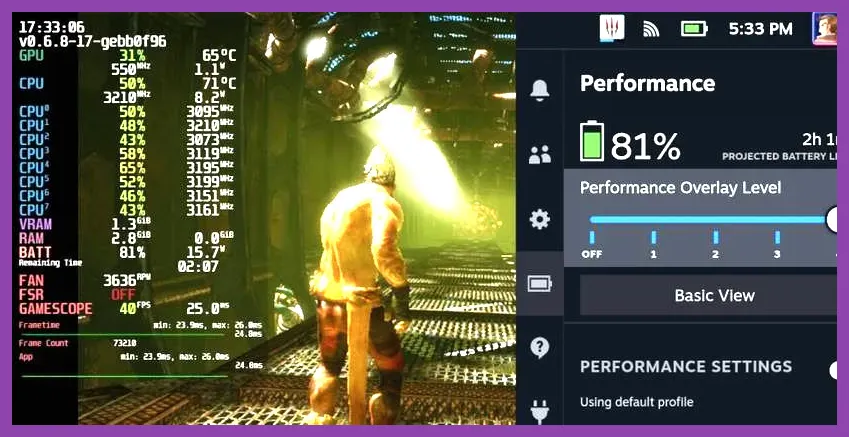
Even the most powerful hardware configurations will suffer from performance degradation if your PC begins to thermally throttle. Solo Leveling Arise is notorious for keeping GPU and CPU usage consistently elevated during lengthy Battlefield of Time runs or Encores Missions. Ensure your chassis fans are running an aggressive custom curve, and monitor your temperatures using software like HWMonitor or MSI Afterburner.
Additionally, disable Windows Hardware-Accelerated GPU Scheduling (HGS) if you experience micro-stuttering, or enable it if your CPU is the primary bottleneck. Testing both states in a controlled environment like the game's training room will reveal what works best for your unique hardware combination. For further reading on community-driven optimizations, consult the official Steam Platform Hub for general PC troubleshooting benchmarks.
Advanced Configuration File Tweaks
For advanced users who want to push beyond the limitations of the standard in-game menu, Solo Leveling Arise stores its configuration profiles in local app data directories. By modifying these text files, you can disable unnecessary rendering features like chromatic aberration, lens flare, and deep depth of field.
Navigate to your local user settings folder, locate the engine configuration configuration file, and look for variables governing volumetric lighting and particle density. Lowering volumetric fog density from default values to zero can yield an immediate 5 to 10 FPS boost during heavy spell animations in high-tier gate instances. Combine these tweaks with a clean background environment, keep your GPU drivers updated to the latest game-ready release, and you will experience fluid, responsive combat every single time you step into the gates as the Shadow Monarch.