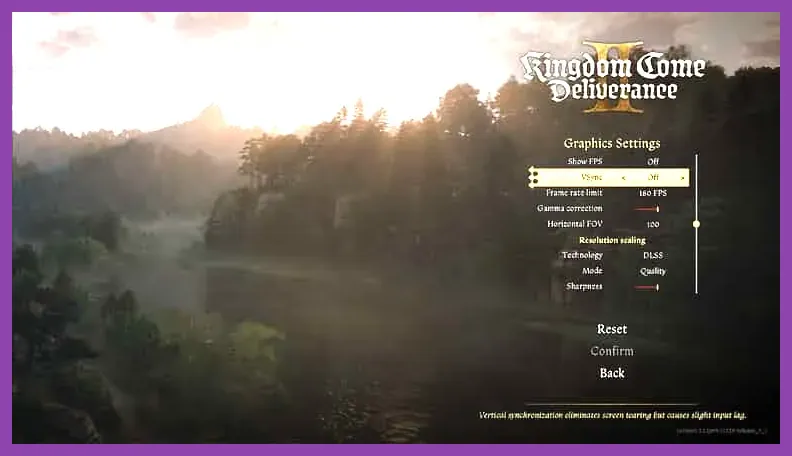
To immediately fix PC crashing in Kingdom Come Deliverance 2, you need to address memory leaks tied to volumetric fog, verify your Steam installation files, and disable unstable overclock profiles or experimental DLSS Frame Generation settings that trigger fatal DirectX errors. Warhorse Studios' massive open-world medieval RPG pushes modern hardware to its absolute limits, particularly during fast travel across the Bohemian countryside or during complex multi-actor sword fights in Rattay and Trosky Castle. If you are experiencing sudden desktop CTDs (Crashes to Desktop) or infinite loading screens, apply the targeted technical workarounds outlined below to stabilize your game instantly.
1. Verify Game Files and Clear Corrupted Shader Cache
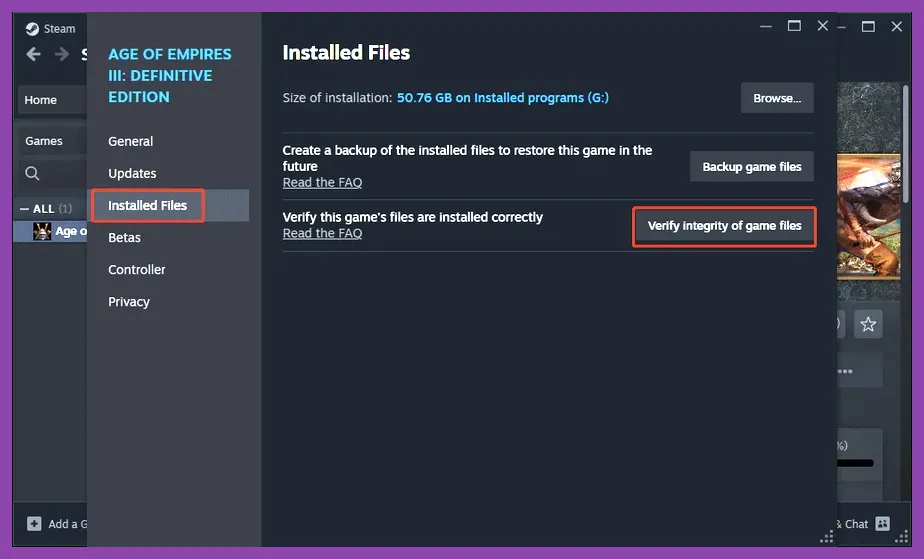
Corrupted local shader caches and missing asset pak files are the most common causes of startup crashes and random runtime errors in Kingdom Come Deliverance 2 on Steam. When the game engine attempts to load compiled shaders for complex environments like the rocky terrain of Bohemian Paradise, mismatched data leads to immediate memory access violations.
To fix this, completely clear your GPU shader cache and verify your installation files through the official client launcher:
- Open your Steam Library, right-click on Kingdom Come Deliverance 2, and select Properties.
- Navigate to the Installed Files tab and click on Verify integrity of game files. Let the process finish to replace any corrupted or missing pak files.
- Open your graphics card control panel (NVIDIA Control Panel or AMD Software: Adrenalin Edition) and clear the global shader cache. For NVIDIA users, set the Shader Cache Size to 'Unlimited' inside the Manage 3D Settings menu.
- Delete the local configuration folder located at
%localappdata%\KCD2\saved\Configto force the game to rebuild default configuration files upon your next launch.
For more hardware optimization guides tailored to demanding PC titles, check out our breakdown on Monster Hunter Wilds best system requirements PC settings to balance fidelity and stability.
2. Optimize Advanced Graphics Settings to Prevent VRAM Exhaustion
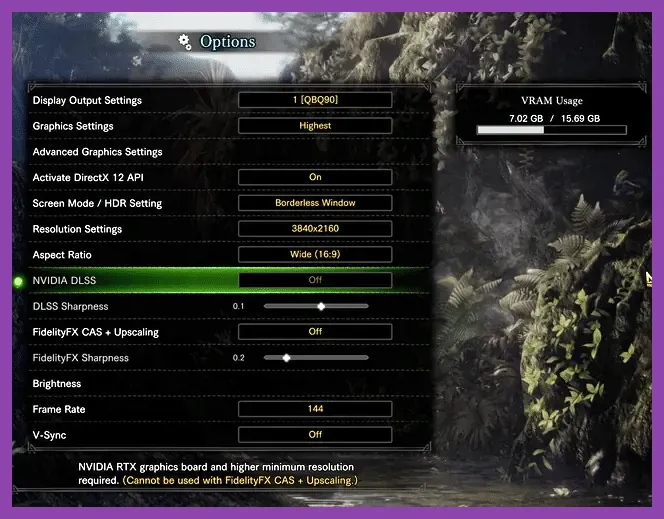
Kingdom Come Deliverance 2 features dense foliage rendering and ultra-high-resolution textures that easily consume more than 12GB of VRAM at native 4K resolutions. When your GPU runs out of video memory, Windows pagefile swapping occurs, leading to severe stuttering followed by a fatal engine crash. Applying an optimized profile prevents your graphics card from collapsing under heavy load.
Apply these exact graphic settings in the in-game options menu:
- Resolution Scale: 100% (Avoid dynamic scaling if you experience sudden black screens).
- Textures: High (Drop to Medium only if your GPU has 8GB VRAM or less).
- Volumetric Clouds & Fog: Medium (This specific setting is a massive VRAM hog and CPU bottleneck).
- Shadow Quality: High (Ultra introduces cascading shadow map calculations that crash older CPUs).
- Physics Quality: Medium (Reduces cloth and ragdoll calculation overhead during large-scale skirmishes).
- DLSS / FSR: Set to Quality mode. If you own an RTX card, enable DLSS, but ensure that Frame Generation is toggled OFF, as it currently introduces severe memory leak instability in patch builds.
- V-Sync: Enabled (Locks frame pacing and stops erratic GPU power spikes in menus).
If you enjoy tweaking hardware performance for complex RPGs and immersive sims, read our detailed guide on Lenovo Legion Go best graphics settings for performance to maximize frame rates on handheld setups.
3. Update Graphics Drivers and Disable Unstable Overclocks

Warhorse Studios worked closely with hardware manufacturers to release day-one game-ready drivers. Running outdated drivers while utilizing advanced DirectX 12 Ultimate features will consistently crash the game during cutscenes or fast-travel loading screens. Furthermore, aggressive CPU and GPU overclocks that pass synthetic benchmarks like Cinebench or TimeSpy often fail in Kingdom Come Deliverance 2 due to its heavy reliance on instruction-per-clock (IPC) stability.
Follow these steps to ensure your system architecture is fully stable:
- Download and install the latest GeForce Game Ready Driver or AMD Software Adrenalin driver specifically optimized for Kingdom Come Deliverance 2.
- If you use MSI Afterburner or AMD Ryzen Master, revert your core clocks and memory overclocks back to factory stock speeds. Even a minor +50MHz offset on VRAM can cause checksum errors inside the game's memory manager.
- Disable third-party overlay software including Discord Overlay, RivaTuner Statistics Server (RTSS), GeForce Experience In-Game Overlay, and MSI Afterburner On-Screen Display, as these hooks actively conflict with the CryEngine/Unreal-derived runtime wrappers.
For additional performance optimization strategies across demanding modern releases, consult our guide on Nine Sols best graphics settings for high performance.
4. Fix Direct3D Device Hung and Out of Memory Errors
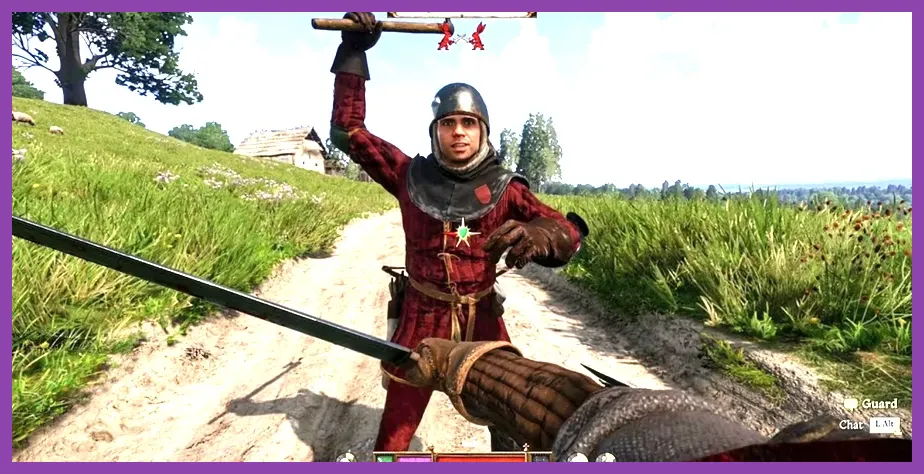
If your game freezes and throws a popup stating "DXGI_ERROR_DEVICE_HUNG" or "Out of Video Memory", the CryEngine-based renderer has lost communication with your graphics card. This usually happens when the Windows Pagefile is disabled or set too low. Kingdom Come Deliverance 2 requires a generous virtual memory allocation to handle uncompressed asset streaming as Henry rides across the open map.
Reconfigure your Windows pagefile settings manually to stop these memory-related crashes:
- Press the Windows Key, type Advanced system settings, and open View advanced system settings.
- Under the Advanced tab, click Settings in the Performance section.
- Navigate to the Advanced tab again and click Change... under Virtual Memory.
- Uncheck Automatically manage paging file size for all drives.
- Select your primary fast NVMe SSD drive, choose Custom size, and set both the Initial Size and Maximum Size to at least 16384 MB (16 GB) or 32768 MB (32 GB) if you have 32GB of physical RAM.
- Click Set, restart your PC, and launch the game again.
For more troubleshooting steps regarding game performance and system management, review our essential recommendations in the Manor Lords best beginner tips and tricks collection.
5. Address Save File Bloat and Mod Conflicts
Using outdated community mods or accumulating dozens of manual and auto-save files in your save directory can corrupt game state pointers, causing instant crashes whenever Henry interacts with inventory chests, merchants, or quest givers. Warhorse Studios implements strict data validation checks during autosave triggers.
Clean up your local save directory and mod folders to restore normal operation:
- Navigate to your user save directory located at
%savedgames%\KCD2\profiles\. - Move older save files out of the active folder into a backup directory on your desktop, keeping only your most recent 5 to 10 saves. An overloaded save folder drastically increases menu loading times and triggers background thread stalls.
- If you installed any community pak mods into the
KingdomComeDeliverance2\Data\folder, remove them entirely and test the game in a vanilla state to isolate conflicting scripts. - Run the game as an Administrator by right-clicking the main executable (
KingdomComeDeliverance2.exe) and checking Run this program as an administrator under Compatibility properties.
By executing these specific fixes—verifying local files, lowering volumetric fog and shadow parameters, expanding your Windows virtual memory pagefile, and removing unstable hardware overclocks—you will successfully eliminate crashes and enjoy a smooth, stable journey through sixteenth-century Bohemia.