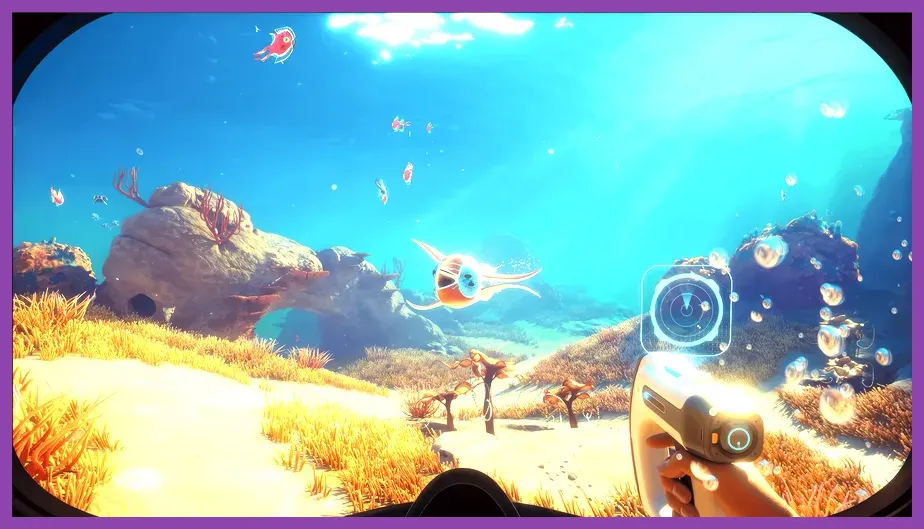
Fixing lag and low FPS in Subnautica 2 requires disabling volumetric fog, lowering shadow resolution to Medium, locking your maximum framerate to match your monitor's refresh rate, and enabling DLSS or FSR Performance mode. Because the sequel runs on an upgraded engine handling massive dynamic biomes, default configurations often cause severe stuttering when rendering complex alien flora and large submersibles like the Seatruck or upgraded PRAWN suits. If your frame rates plummet below 60 FPS while exploring the Deep Twisting Bridges or rendering intricate base modules, specific configuration tweaks are mandatory to stabilize performance.
1. Optimize In-Game Graphics Settings for Maximum FPS
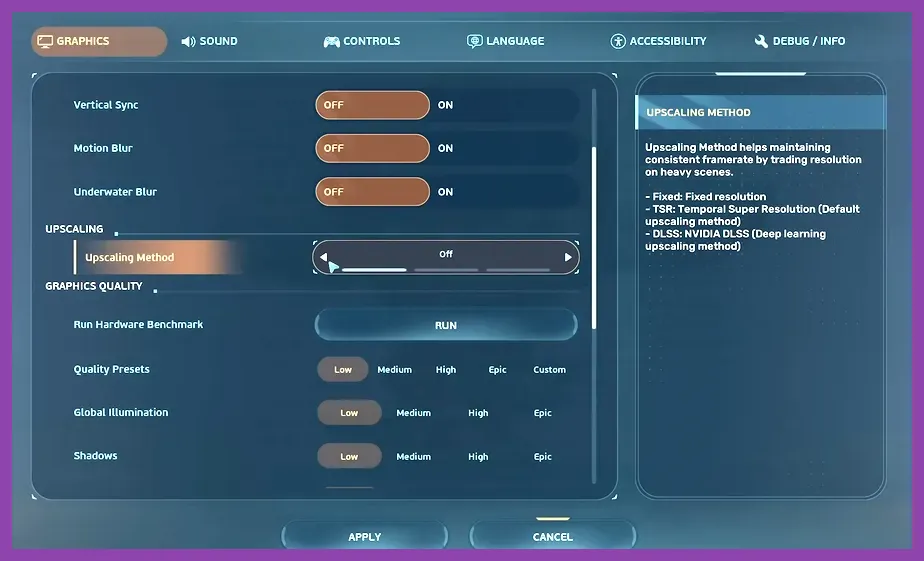
The default graphical presets in Subnautica 2 heavily burden both GPU and CPU cores, especially during fast ocean traversal. To reclaim stability, navigate to the settings menu via the Unknown Worlds official portal guidelines and adjust these parameters immediately. Start by changing your Display Mode to Exclusive Fullscreen rather than Borderless Windowed, which prevents background Windows processes from stealing rendering cycles. Next, set Shadow Quality from Ultra to Medium; this single toggle drastically reduces the GPU overhead caused by complex lighting calculations passing through dense kelp forests. Disable Motion Blur completely, as it artificially smears frames and masks stuttering, making low FPS feel much more jarring during high-speed glides. Finally, set Ambient Occlusion to SSAO instead of HBAO+ to minimize pixel shading costs on mid-range graphics cards.
For more performance optimization tricks across different handheld hardware, check out this guide on Lenovo Legion Go best graphics settings for performance or learn how to tweak portable setups with how to farm gold fast on steam deck oled for general system management. Keeping your system running lean ensures you avoid unexpected performance drops during intense survival scenarios.
2. Configure Upscaling (DLSS, FSR, and XeSS)
Subnautica 2 features advanced upscaling technologies that are essential for maintaining smooth frame rates at 1440p and 4K resolutions. If you own an NVIDIA RTX card, toggle NVIDIA DLSS to the 'Quality' profile for high-fidelity visuals or 'Performance' if you are targeting a rock-solid 120 FPS. AMD and Intel users should leverage AMD FSR 3 or Intel XeSS respectively, setting them to 'Balanced'. Upscaling works by rendering the game at a lower internal resolution—such as 1080p when your output is 1440p—and utilizing AI algorithms to reconstruct the image with minimal visual degradation. This drastically lowers the burden on your GPU's rasterization pipelines. Always ensure that Nvidia Reflex or AMD Anti-Lag is enabled alongside upscaling to reduce input latency, ensuring that your survival actions, scanning sweeps, and oxygen management feel snappy and responsive.
3. Fix Stuttering Caused by Asset Streaming and Storage Speeds
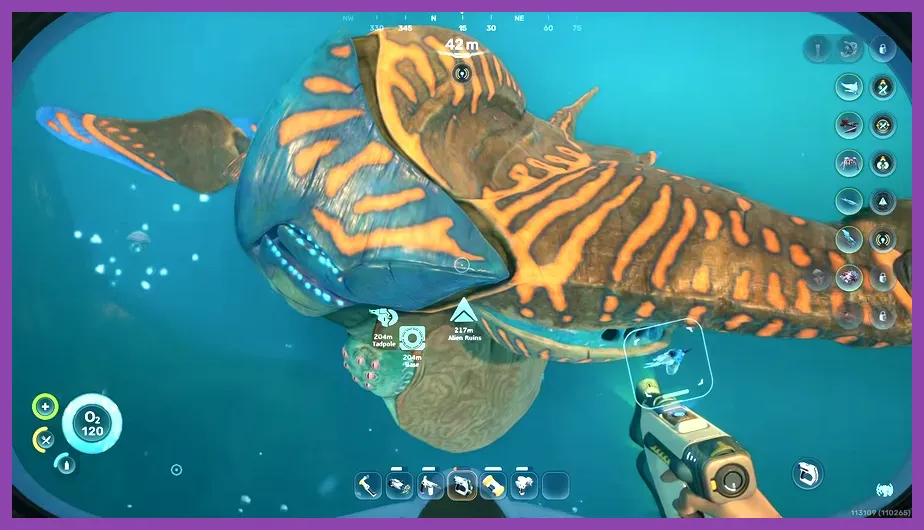
Micro-stutters and sudden gameplay freezes when entering new biomes are rarely caused by GPU limitations alone; they are frequently tied to asset streaming bottlenecks. Subnautica 2 dynamically loads terrain chunks, creature AI paths, and base structures in real-time as you swim through the water column. If the game is installed on an older mechanical Hard Disk Drive (HDD), the read speeds will inevitably cause massive stuttering. You must install Subnautica 2 on a high-speed NVMe Solid State Drive (SSD) with read speeds exceeding 3500 MB/s. Furthermore, check your background applications; memory-hogging software like Discord overlays, Chrome browser tabs, and third-party recording tools can throttle page file allocation. If you encounter fatal crashes or hard lockups while loading saves, cross-reference your error logs with troubleshooting steps found in how to fix crashing on pc in escape from-tarkov to isolate faulty memory allocations.
4. Tweak Advanced Configuration Files and Rendering Limits
For advanced users looking to squeeze every last drop of performance out of their rigs, manual configuration file editing offers deeper control than the in-game menus allow. Navigate to your local AppData folder where game configurations are stored and open the engine settings configuration file using Notepad. Locate the variable for r.ViewDistanceScale and lower it from 1.0 to 0.75 or 0.5. This reduces the distance at which distant terrain, rocks, and small scrap metal objects render, saving immense CPU processing power during open-ocean exploration. Additionally, modify r.VolumetricFog by setting it to 0 if your system struggles heavily in deep sea trenches where atmospheric fog creates massive pixel fill-rate bottlenecks. Remember to backup your configuration files before applying manual overrides to prevent corruption during updates downloaded via the Steam store platform.
5. Manage Base Building Complexity to Prevent Physics Lag
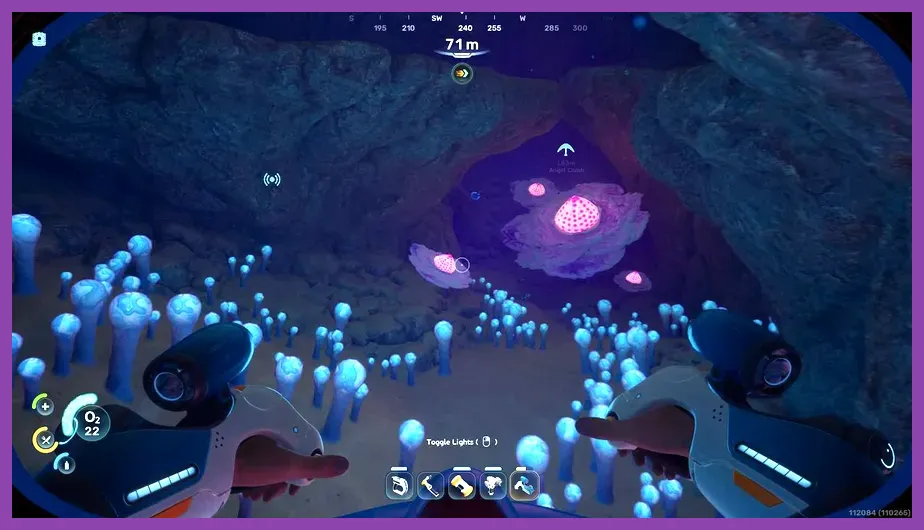
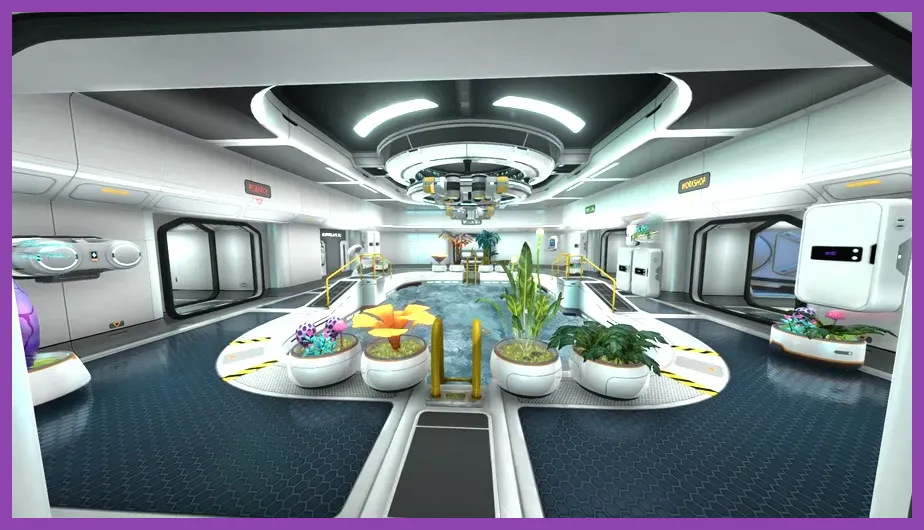
One of the most overlooked causes of late-game lag in Subnautica 2 is base complexity. As you construct massive underwater megastructures featuring multiple multi-purpose rooms, glass corridors, moonpools, and dozens of power cell chargers or water filtration machines, the game engine must continuously calculate collision physics, lighting updates, and item inventory states for every attached locker. When your frame rates drop significantly inside or near your primary base, it is usually a sign of structural overload. To fix this, consolidate your storage lockers into centralized, labeled zones, reduce the number of unnecessary glass components if you are experiencing severe rendering bottlenecks, and avoid placing excessive interior items in a single enclosed cell. Simplifying base architecture relieves the CPU from calculating extraneous physics interactions, keeping your framerate stable even in sprawling underwater colonies.
6. Keep Drivers and System Software Up to Date
Running outdated graphics drivers is a primary catalyst for sub-optimal game performance, graphical artifacts, and unoptimized memory leaks. Both NVIDIA and AMD routinely release Day-1 Game Ready drivers specifically tailored for major survival and open-world releases like Subnautica 2. Visit the official manufacturer portals to download the latest WHQL-certified drivers. Additionally, ensure your operating system has all recent cumulative updates installed, as Windows scheduler improvements directly impact how multi-core CPUs handle game threads. Keeping your system updated ensures full compatibility with the latest DirectX 12 rendering pipelines used by the game engine, giving you a smooth, immersive, and lag-free journey into the depths of the alien world.