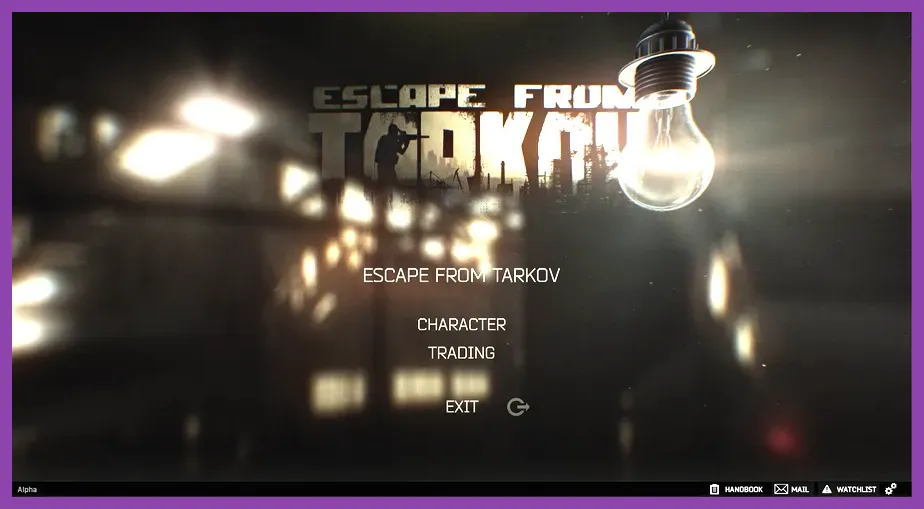
To fix crashing on PC in Escape from Tarkov, you must address the Unity engine's aggressive RAM allocation, disable high-overhead background features like MIP streaming and automatic RAM cleaner, and verify game files through the official Battlestate Games launcher. Freezing, desktop drops, and Unity error code crashes plague many raids, particularly on heavy maps like Streets of Tarkov and Customs. Implementing systematic hardware, game setting, and system file changes will restore raid stability.
Adjust In-Game Graphics Settings to Prevent Memory Leaks
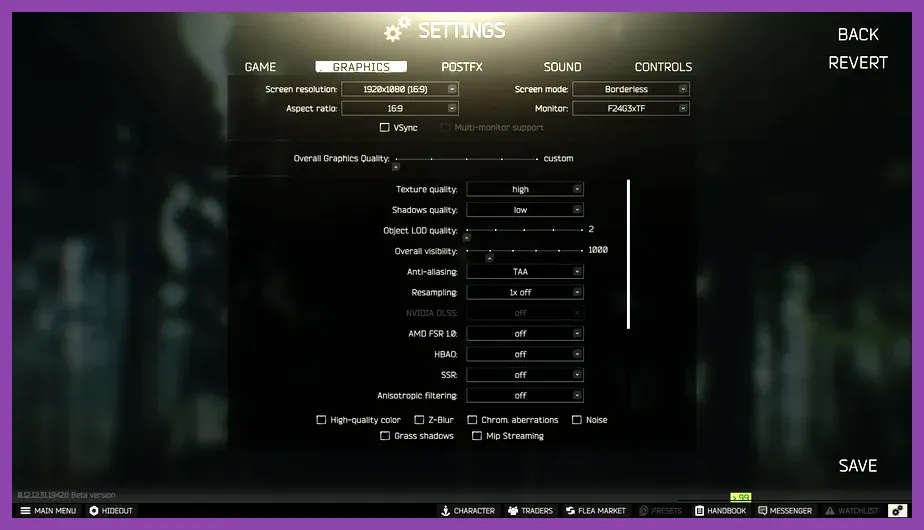
Escape from Tarkov is notoriously heavy on both VRAM and system memory, which often triggers fatal crashes when allocations spike. Start by heading into the settings menu and modifying your parameters. Set your Textures to Medium or High (depending on your GPU VRAM, but avoid Ultra if you have less than 12GB), turn Shadows to Medium, and completely disable VSync in-game while forcing it off or on via your Nvidia Control Panel or AMD Software to reduce input lag and pipeline strain.
Crucially, locate the Use physical cores only checkbox. For many modern CPUs with hyperthreading (like Intel's hybrid architecture or AMD's simultaneous multithreading), enabling this setting forces the game to utilize only your primary physical performance cores, drastically cutting down on micro-stutters and thread-lock crashes. Also, uncheck Automatic RAM cleaner. While it sounds helpful, the built-in cleaner often causes massive hitching and game freezes when it tries to purge memory mid-combat in locations like the Resort on Shoreline or the Interchange shopping mall.
Manage Virtual Memory and Page File Sizes
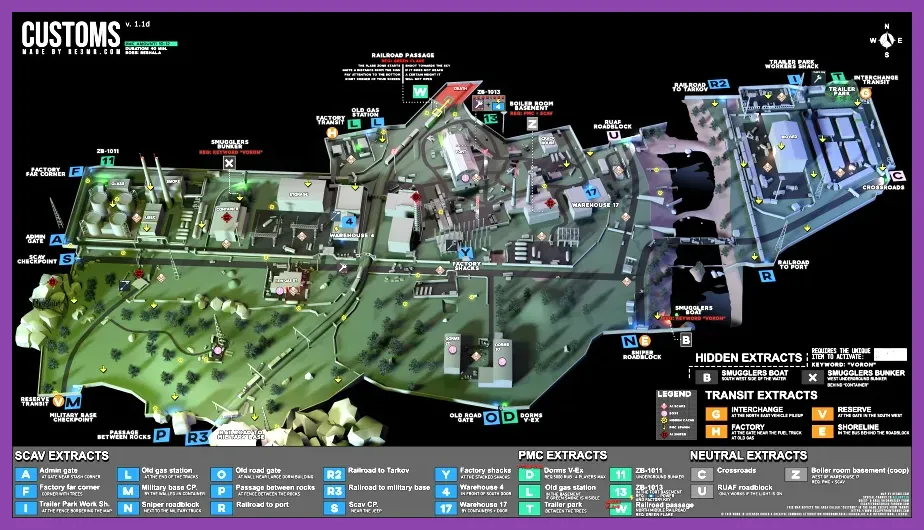
Even if you have 16GB or 32GB of physical RAM, Tarkov's infamous memory leaks can easily consume all available resources, especially on sprawling maps like Streets of Tarkov. If Windows runs out of memory headroom, the game will instantly crash to your desktop. You need to ensure your Windows Page File (Virtual Memory) is correctly configured on a fast NVMe SSD rather than a traditional mechanical hard drive.
Navigate to your Windows Advanced System Settings, open Performance Settings, go to the Advanced tab, and click Change under Virtual Memory. Uncheck 'Automatically manage paging file size for all drives'. Select your fastest SSD, choose 'Custom size', and set the Initial Size and Maximum Size to at least 16384 MB (16GB) or 32768 MB (32GB). This gives the Unity engine a safe overflow buffer when navigating complex stashes, Trader screens, and heavy raid environments.
Clear Cache and Verify Integrity via the Launcher
Corrupted local game files are a primary catalyst for unexpected crashes during the loading loot pools and matching phases. Before launching your next raid with your favorite modified M4A1 or FN FAL, open the Battlestate Games launcher, click on your profile drop-down menu in the top right corner, and select Clear cache. This wipes out temporary shader and asset caches that frequently break after hotfixes or minor patches.
Following this, click on Integrity check to let the launcher scan your game directory for missing or altered files. If any core asset related to maps like Factory or Labs is corrupted, the launcher will automatically download and repair it. For more troubleshooting insights on optimizing game storage and reducing overhead, check out our guide on storage size reduction tips.
Disable Overlays, Background Apps, and RivaTuner
Software conflicts are another frequent culprit behind sudden Escape from Tarkov CTDs (Crash to Desktop). Overlay software hooks directly into the game's rendering pipeline, which frequently conflicts with BattlEye anti-cheat and Unity's graphics API. Disable the Discord overlay, Nvidia GeForce Experience in-game overlay, Steam overlay (if playing via added shortcuts), and Xbox Game Bar.
Furthermore, hardware monitoring tools like MSI Afterburner and RivaTuner Statistics Server (RTSS) can trigger instant anti-cheat flags or cause rendering crashes. If you must monitor your temperatures and frame rates, ensure RTSS is updated to the latest beta version or completely close it while running raids. If you enjoy optimizing performance across different demanding titles, you may also find our breakdown on handling demanding hardware loads quite useful.
Update GPU Drivers and Manage Overclocks
Outdated graphics drivers or unstable hardware overclocks will consistently crash Unity-based games. Tarkov demands absolute stability from your GPU and system memory. Download the latest Game Ready drivers from Nvidia or Adrenalin software from AMD. If you are experiencing persistent driver-related crashes, use Display Driver Uninstaller (DDU) in Safe Mode to completely wipe old driver remnants before installing a fresh copy.
If you have applied an aggressive overclock to your GPU core clock, memory clock, or CPU via XMP/EXPO profiles, dial them back to stock speeds temporarily. Tarkov is notoriously sensitive to unstable RAM overclocks; even if your system passes synthetic benchmarks like Cinebench or TimeSpy, an unstable memory profile will cause random game crashes mid-raid when loading scav spawns or processing ballistic calculations.
Configure Network Settings and Background Services
While network issues usually manifest as "Server Connection Lost" or massive rubberbanding rather than direct client crashes, severe packet loss can occasionally destabilize the game client if it coincides with heavy local asset streaming. Ensure you manually select servers with the lowest ping in the game launcher rather than leaving it on automatic. Additionally, disable unnecessary Windows background services such as SysMain (Superfetch) and Windows Search if they are actively indexing files on your game drive while you play.
If you enjoy tactical depth and resource management games that require clean system optimizations, take a look at our specialized guides such as Frostpunk 2 resource management strategies and our detailed walkthrough on optimizing gameplay performance in V Rising. Keeping your operating system lean ensures that high-intensity survival shooters run without interruption.