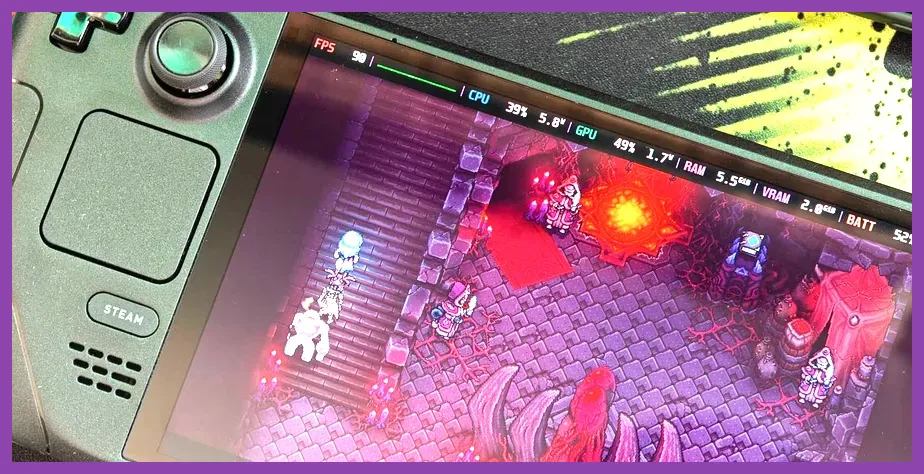
Beating a punishing final boss on the Steam Deck OLED requires dropping your frame rate cap to a stable 40Hz/40FPS via the Quick Access Menu, locking your TDP to 12 watts, and remapping your back grip buttons to handle frantic dodging and item consumption without breaking your grip. While Valve's upgraded handheld brings a stunning 90Hz HDR display and vastly improved battery efficiency, taxing modern climax encounters demand strict hardware profiling alongside traditional mechanical mastery. Whether you are tackling a relentless Souls-like arbiter or a bullet-hell bullet sponge, overcoming that final health bar on a mobile Linux-based device comes down to optimizing your SteamOS frame pacing, mastering the tighter OLED analog sticks, and exploiting precise boss telegraph windows.
Understanding Steam Deck OLED Hardware Limitations During Endgame Encounters
When the screen floods with particle effects, alpha blending, and multi-stage boss transformations, your Steam Deck OLED's Custom APU can suffer from micro-stutters that ruin split-second dodge timings. Unlike a desktop rig packing an RTX 4080, mobile hardware must aggressively manage thermal dissipation. If left on default settings, the system will dynamically throttle clock speeds mid-fight, leading to sudden input lag spikes right when you need to parry.
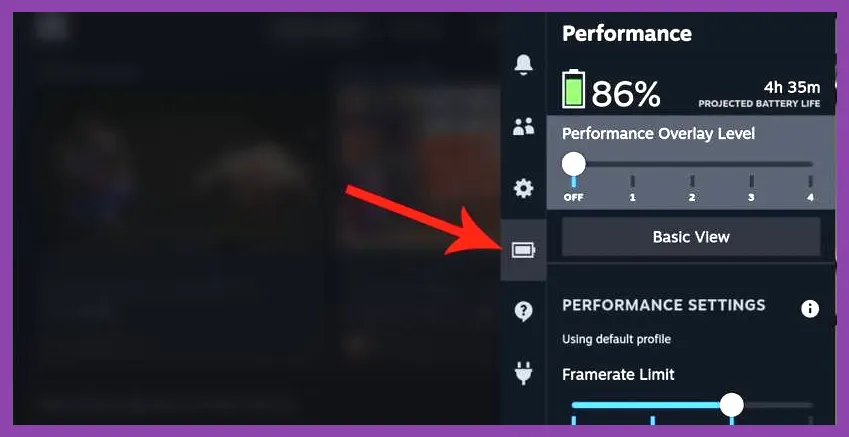
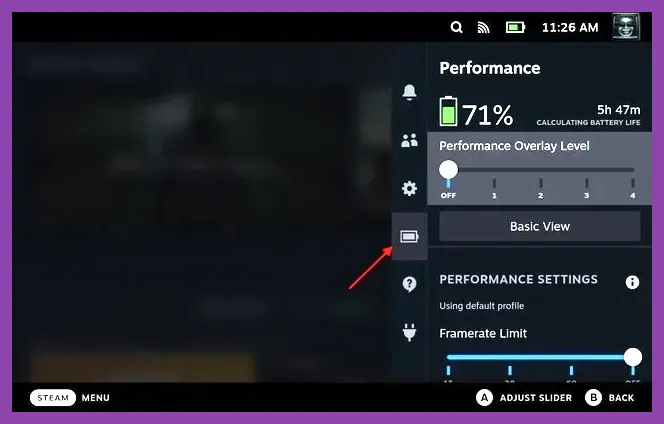
To prevent this, press the three-dot button on the right side of your chassis to open the Performance menu. Toggle the Framerate Limit to 40 FPS and set the Refresh Rate to 40Hz. This sweet spot reduces the rendering load on the Zen 2 CPU and RDNA 2 GPU while delivering a significantly smoother motion clarity than a fluctuating 30 FPS cap. Furthermore, ensure you check out tactical insights from our Valheim best skills guide to understand how resource management directly mirrors successful hardware configuration.
Next, enable manual GPU clock control and lock it to a stable frequency—typically around 1300MHz to 1400MHz depending on the title. This stops the APU from aggressively hunting for maximum clock speeds, which generates unnecessary heat and causes thermal throttling. For official system specifications and driver updates, consult the official Steam Deck hardware page.
Mastering OLED Display Settings for Better Boss Telegraph Recognition
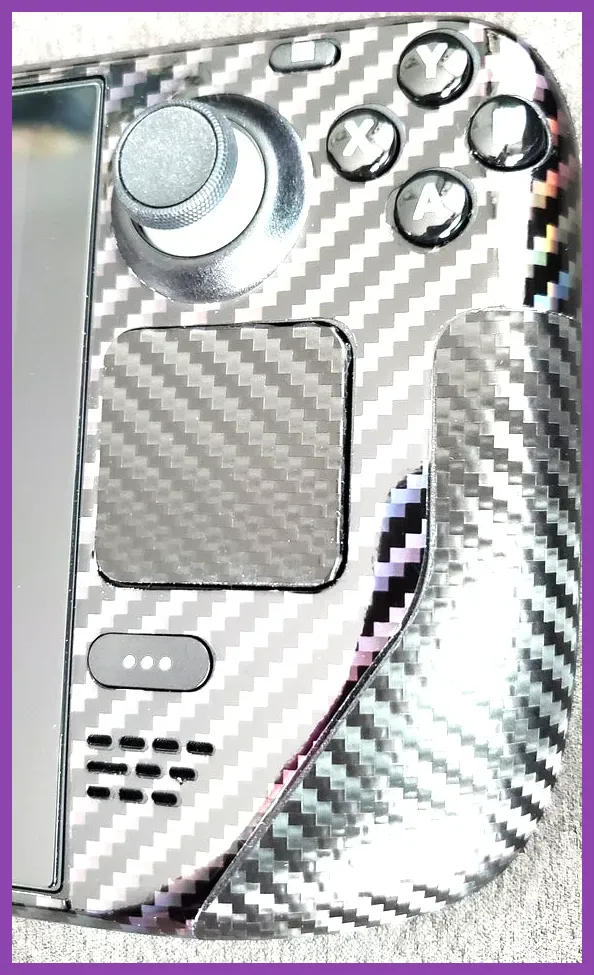
The transition from the LCD Steam Deck to the 7.4-inch HDR OLED screen is a massive competitive advantage for action games, provided you calibrate your settings correctly. Final bosses love to utilize dark, high-contrast arenas filled with shadowy tells, and the infinite contrast ratio of the OLED panel lets you distinguish a boss's shoulder twitch from the background environment much faster.
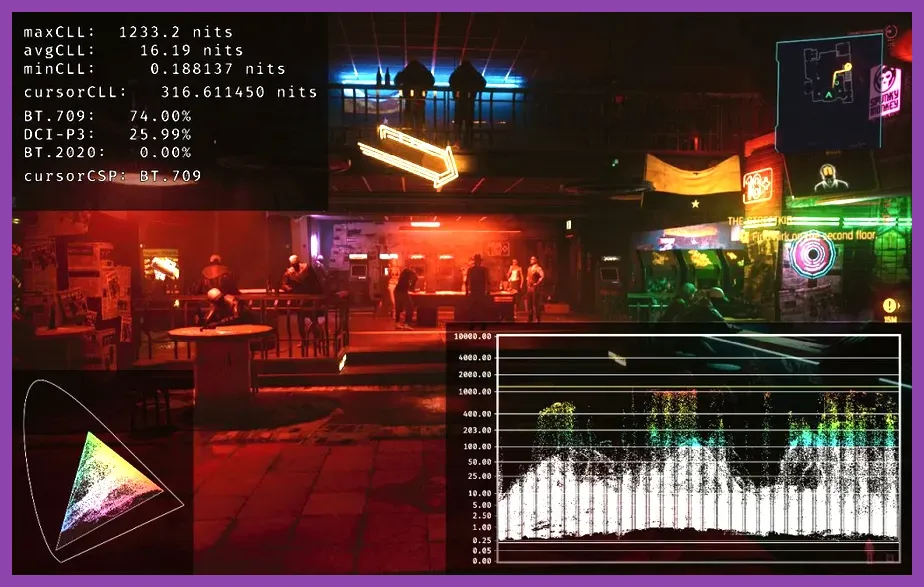
In-game, turn off chromatic aberration, motion blur, and film grain. These post-processing effects artificially muddy the screen, making it infinitely harder to track projectile trajectories and hitbox boundaries on a handheld screen. If the game supports native HDR, enable it in the graphics menu and adjust the peak brightness slider to match the Steam Deck OLED's 1000-nit peak capabilities in HDR mode.
Additionally, take advantage of SteamOS's native scaling filters. If you are running the game at a lower resolution like 720p to maintain a locked frame rate, set the FSR (FidelityFX Super Resolution) sharpness slider to 3 or 4 in the performance overlay. This keeps HUD elements crisp while preserving the visual fidelity of enemy attack animations. For more optimization frameworks, review our deep dive into the Wuthering Waves defensive setup.
Ergonomic Tweaks: Remapping Back Buttons for Complex Input Chains
Bosses that require simultaneous movement, camera control, sprinting, dodging, and item hotkeying can strain your hands and lead to clumsy inputs on standard controller layouts. The Steam Deck OLED features four tactile rear grip buttons (L4, L5, R4, R5) that serve as your secret weapon for high-tier combat.
Open Controller Settings in SteamOS before launching your game and map your primary dodge or roll action to L4, and your healing flask or primary consumable to R4. This allows your right thumb to remain permanently glued to the right trackpad or analog stick for camera management, ensuring you never lose sight of a teleporting or airborne boss.
For games with complex combo strings, utilize Steam Input's advanced command features to set up toggle modes or fire-rate macros where applicable. If you are struggling with intricate mechanical rotations, you can reference the layout strategies found in our Valorant endgame economy guide to streamline your decision-making under pressure.
Optimizing TDP and Thermal Profiles to Prevent Mid-Fight Stutters
Battery drain is a harsh reality when pushing demanding titles to their absolute limit, but thermal throttling is an even deadlier enemy. When your APU reaches critical temperatures during a sprawling third-phase boss encounter, the system automatically downclocks to protect the silicon, resulting in dropped frames that can completely ruin your dodge windows.
Cap your TDP (Thermal Design Power) limit in the performance menu to somewhere between 11W and 13W. While this might sound counterintuitive for a maximum performance scenario, it forces the hardware to consume less power, thereby generating significantly less heat. Less heat means the cooling fan operates at a more consistent curve, and your clock speeds remain pinned without thermal throttling dips.
Furthermore, ensure your fan control is set to the updated firmware curve in SteamOS settings rather than the legacy profile. The updated profile reacts quicker to temperature spikes during loading screens and heavy arena transitions. For additional crafting and preparation mechanics that feed into boss readiness, explore the resources detailed in the V Rising crafting guide.
Phase-by-Phase Boss Tactics on Handheld Hardware
Executing a flawless boss run requires memorizing attack telegraphs while accounting for the physical dimensions of the Steam Deck. In Phase 1, focus entirely on defense and learning the recovery frames of the boss's heaviest punishing attacks. Do not commit to multi-hit combos unless you have confirmed a clear opening; on a handheld, over-committing makes it much harder to course-correct mid-animation.
As the boss transitions into Phase 2, environmental hazards or screen-wide area-of-effect (AoE) attacks usually take center stage. This is where your dialed-in 40Hz frame rate shines, giving you smooth motion feedback to thread the needle through bullet hell patterns or charging animations. Keep your eyes locked on the boss's core torso rather than floating damage numbers, as core animations provide the earliest visual cue for dodging.
When the final health bar flashes on screen during Phase 3, resist the urge to panic-spam your attacks. Boss AI frequently becomes hyper-aggressive and gains hyper-armor frames at low health. Bait out their leaping or lunging attacks, sidestep, punish with a single high-damage skill, and immediately back away. For comprehensive class balance sheets and skill choices, check out the Wuthering Waves weapons tier list.
Troubleshooting SteamOS Network and Sleep Mode Glitches Before the Fight
One hidden trap for Steam Deck OLED players tackling long boss runs is relying on the system's suspend/resume feature right before a major encounter. While putting the Deck to sleep by tapping the power button is incredible for portable play, certain game engines fail to properly re-initialize audio buffers or controller states upon waking up, leading to desynced audio cues or unresponsive triggers during critical boss sequences.
Always perform a clean launch of the game from your Steam library right before attempting a serious multi-phase boss fight. Close out any background compatibility tools or proton overlay logs that might be siphoning RAM. Keeping your SteamOS client updated to the latest stable branch ensures that memory leaks are kept to an absolute minimum.
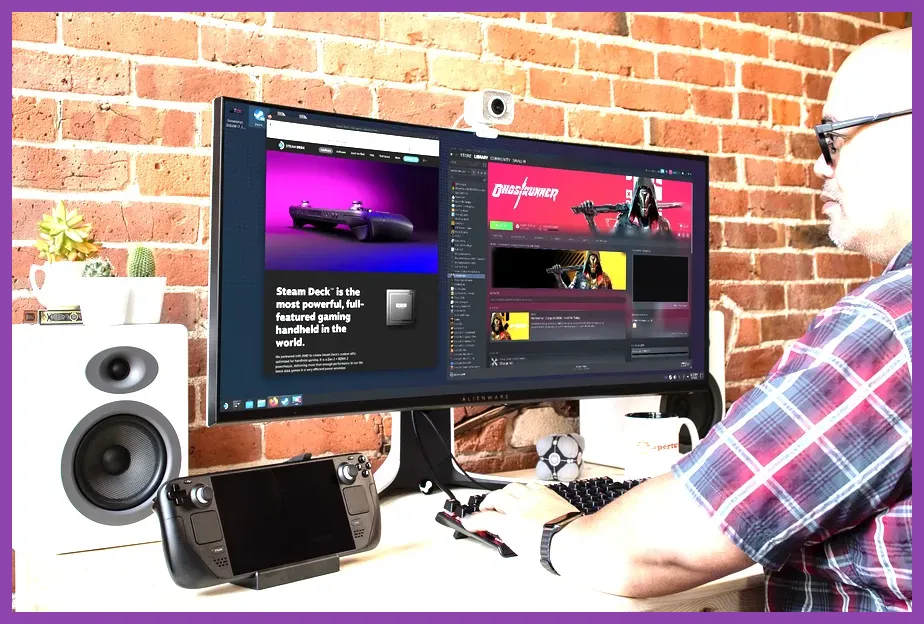
Finally, if you find that thumbstick precision is still holding you back during ultra-precise aiming or dodging segments, consider pairing your Steam Deck OLED with an external controller or utilizing a tabletop dock setup with low-latency wired peripherals. For deeper insights into managing progression gates and secret areas prior to the climax, review our comprehensive Valheim secret locations guide. Combine these hardware optimizations, ergonomic button mappings, and phase-specific strategies, and that stubborn final boss will finally crumble on your handheld screen.