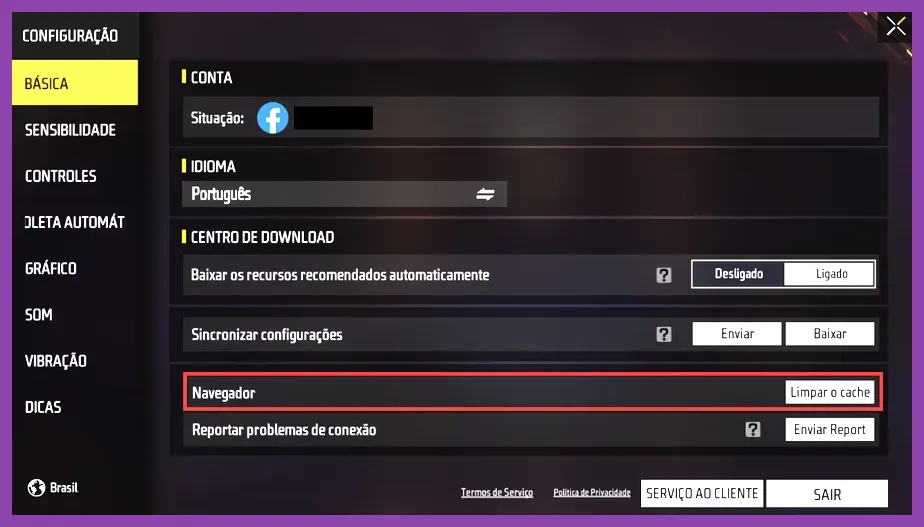
You can instantly reduce Garena Free Fire's storage size by up to 3GB by navigating to the in-game Download Center and deleting unused high-definition resource packs, audio files, and auxiliary map data such as Kalahari and Alpine. Over successive updates, Garena Free Fire and its enhanced counterpart, Free Fire MAX, accumulate massive amounts of cached event assets, high-resolution weapon skins like the M4A1-Underground Howl, and character resource bundles that bloat the app footprint far beyond its initial download size. By systematically purging unessential assets, utilizing system-level cache clearing, and managing your expansion packs properly, you can reclaim vital storage space without sacrificing core competitive gameplay performance on your mobile device.
How to Use the In-Game Download Center to Strip Bloatware
The most effective method for shrinking your Free Fire installation footprint is utilizing the built-in Download Center interface. When you first install the game or receive a major patch, the client often prompts you or automatically queues expansive resource packs that include elite pass items, rare gloo wall skins, pet animations, and voice packs for operators like Alok, Chrono, and Kelly. Many of these assets are purely cosmetic and load dynamically during matches, taking up precious megabytes or gigabytes on your flash storage.
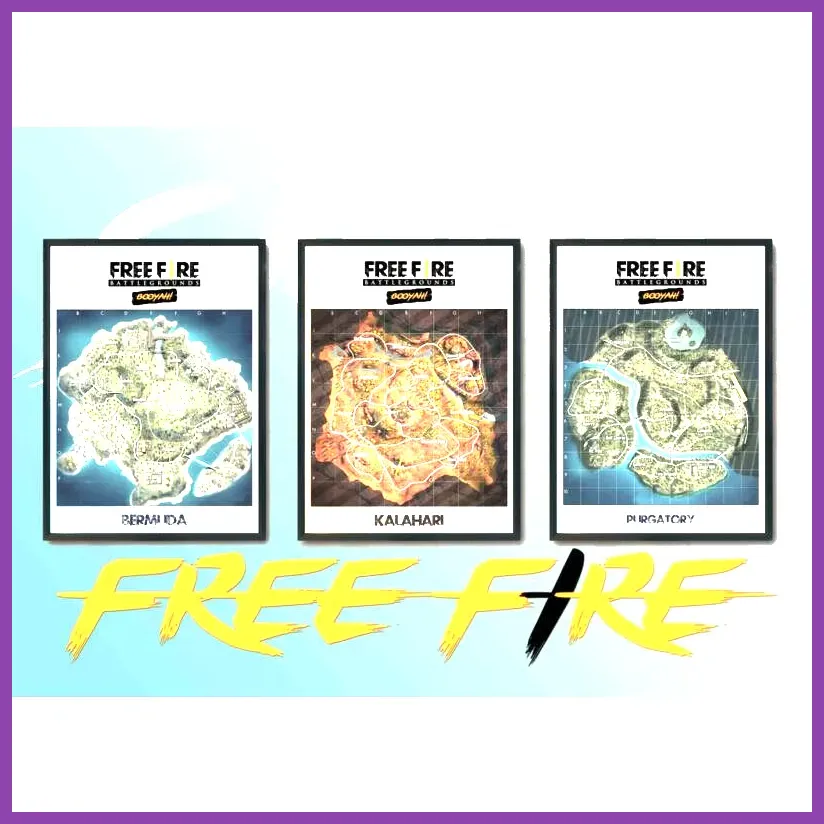
To purge these files, launch the game and tap the calendar or download icon located at the top right of the main lobby screen. This opens the comprehensive Resource Management tab. Here, you will see a detailed breakdown of categories including Maps, Skins/Costumes, Voice Packs, and Event Resources. Tap the trash can icon or the delete toggle next to secondary maps you rarely play—such as Purgatory or Nexterra—if you strictly queue for Bermuda. Furthermore, uninstalling the high-resolution costume expansion packs can immediately drop the game's total footprint from over 5GB down to a lean 2GB. For players transitioning between titles or looking for alternative competitive experiences, managing device space efficiently is just as crucial as learning how to get legendary brawlers and unlocks in Brawl Stars or optimizing your device for League of Legends: Wild Rift.
Clearing Application Cache and Residual System Files
Beyond removing downloadable content packs inside the game, your Android or iOS device accumulates significant temporary data, thumbnail caches, and error logs while playing Free Fire. Over months of climbing the ranked ladder from Bronze to Grandmaster, match replay caches, temporary matchmaking data, and patch debris pile up inside your system directories.
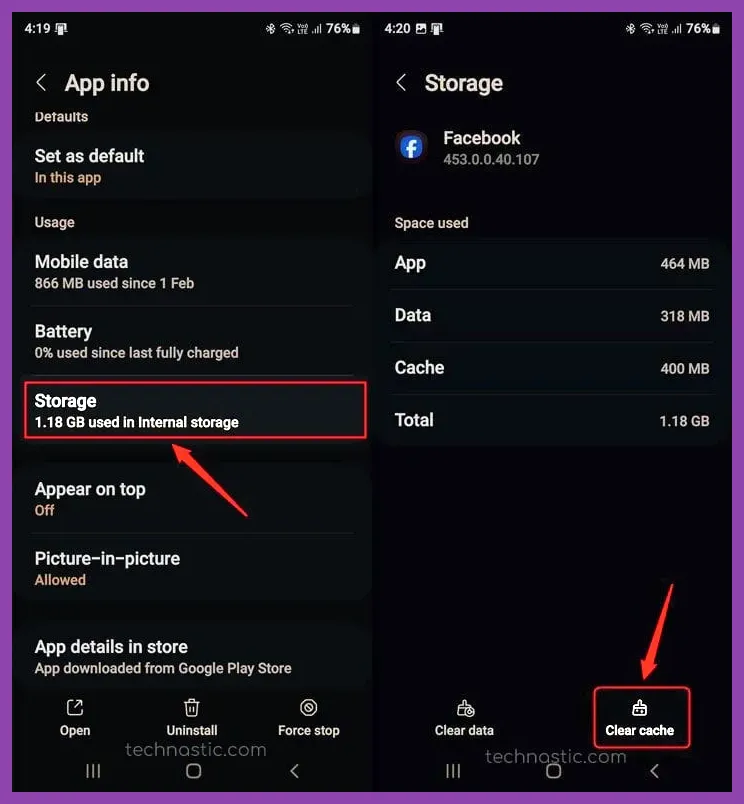
To tackle this at the operating system level, exit the game and navigate to your device's native Settings menu, proceed to Apps or Application Manager, and select Free Fire or Free Fire MAX. Tap on Storage & Cache. First, select Clear Cache—this deletes temporary junk files without deleting your account login credentials or custom HUD layout settings. Avoid tapping Clear Storage or Clear Data unless you have your Garena account safely bound to a Google, Facebook, or VK ID, as doing so will wipe your local settings and require you to re-download essential game files from scratch. Keeping your system storage optimized is a vital practice reminiscent of clearing system-level memory when learning how to level up fast in Metaphor: ReFantazio or managing resource bottlenecks when discovering Frostpunk 2 how to farm heathens and financial reserves fast.
Switching Between Free Fire and Free Fire MAX for Storage Efficiency
A major culprit behind bloated storage usage is running the incorrect client version for your hardware specifications. Garena offers two distinct versions of the battle royale experience: the standard Free Fire client and Free Fire MAX. While Free Fire MAX delivers enhanced visual effects, improved audio spatialization, and ultra-high-resolution textures for weapon crates and vehicle skins, it carries a vastly heavier base storage requirement and demands more RAM.
If your mobile device is struggling with low storage space warnings, uninstalling Free Fire MAX and switching to the lightweight standard Free Fire client can instantly save you upwards of 2GB to 3GB of permanent storage space right out of the gate. The standard client supports cross-play with MAX users seamlessly, meaning you will experience identical matchmaking queues, identical map pools featuring Factory and Clock Tower, and the exact same gunplay mechanics with weapons like the MP40, SCAR, and AWM. For official patch notes, system requirements, and client updates, always consult the Garena Free Fire Official Website.
Optimizing Graphic Settings to Prevent Dynamic Asset Caching
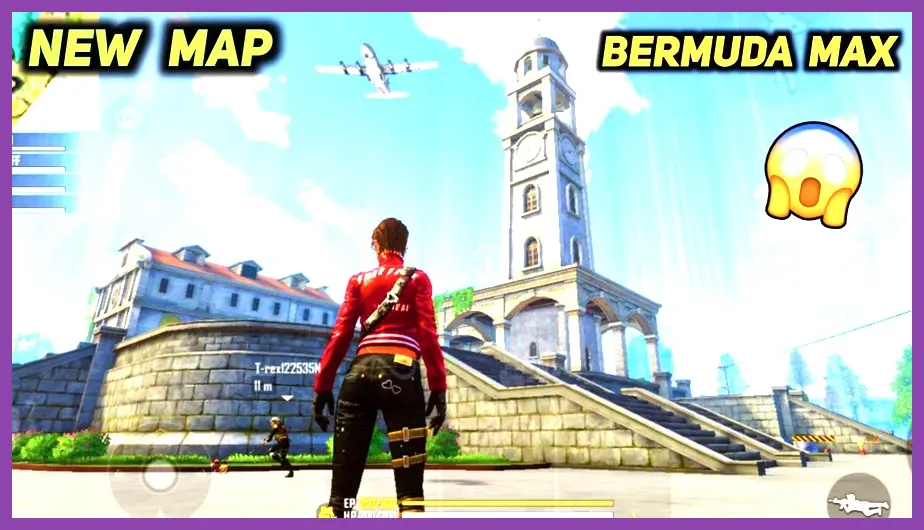
Even after pruning your download center and clearing system caches, Free Fire can dynamically download and cache low-priority textures during active matches if your graphic settings are misconfigured. When high-definition shadows and high frame rate modes are forced on weaker hardware, the client frequently caches temporary texture atlases to prevent stuttering during gunfights.
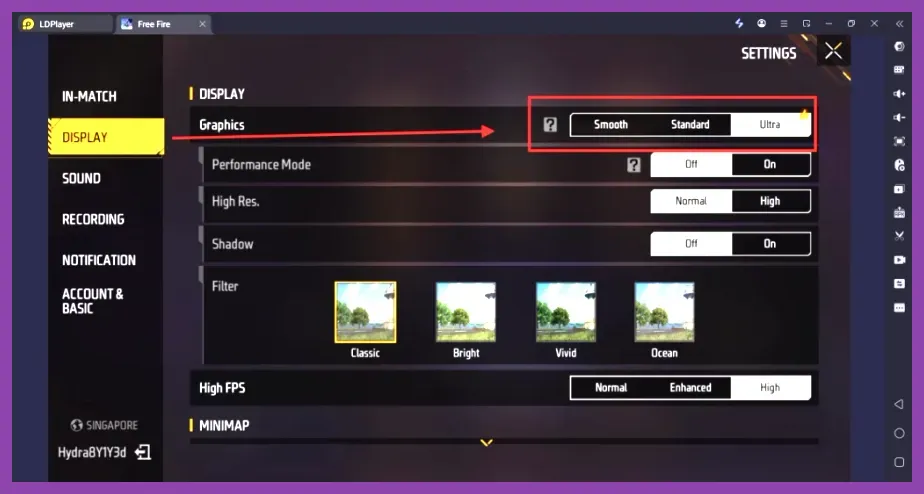
To stop this background bloat, open your in-game Settings menu and adjust the Display tab to the following optimized profile:
- Graphics: Smooth or Standard (Avoid Ultra or Max to prevent high-res texture caching).
- High FPS: Normal (Enabling High FPS forces the client to preload additional frame buffers and animation data).
- Shadow: Off (Disables dynamic shadow texture generation, saving processing overhead and cache size).
- Map: Classic (Reduces post-processing filter overhead).
By enforcing these graphics presets, you not only stabilize your frame rates during chaotic squad rushes in Peak or Pochinoku, but you also prevent the game from silently downloading temporary high-res assets that gradually choke your remaining internal storage. This disciplined approach to resource management mirrors the tactical efficiency needed when executing builds in complex role-playing titles or learning how to respec skill points in Lords of the Fallen.
Maintaining Free Space and Managing External SD Cards
To ensure your storage size reduction efforts remain permanent, you must maintain a healthy buffer of free space on your mobile device's internal storage—ideally keeping at least 15% of your total capacity empty. When a smartphone's internal storage is filled to the absolute brim, the operating system struggles to create swap files and virtual memory paging spaces, causing Free Fire to write excessive temporary log files and crash frequently during hot drops.
If your Android device supports expandable storage via a microSD card, be aware that forcing modern applications like Free Fire to run from external SD cards via forced adoptable storage can introduce severe stuttering, long loading screen times, and corrupted asset packs due to slower read/write speeds compared to internal UFS or NVMe storage chips. Instead, keep the game installed strictly on your fast internal storage while offloading static media files, photos, and offline video content to your external SD card. For further community insights on hardware maintenance and mobile performance optimization, check out the comprehensive discussions on the Garena Free Fire Reddit Community. By combining regular Download Center purges, careful cache management, and sensible graphics configurations, you can keep your Free Fire installation lean, responsive, and ready for your next Booyah!