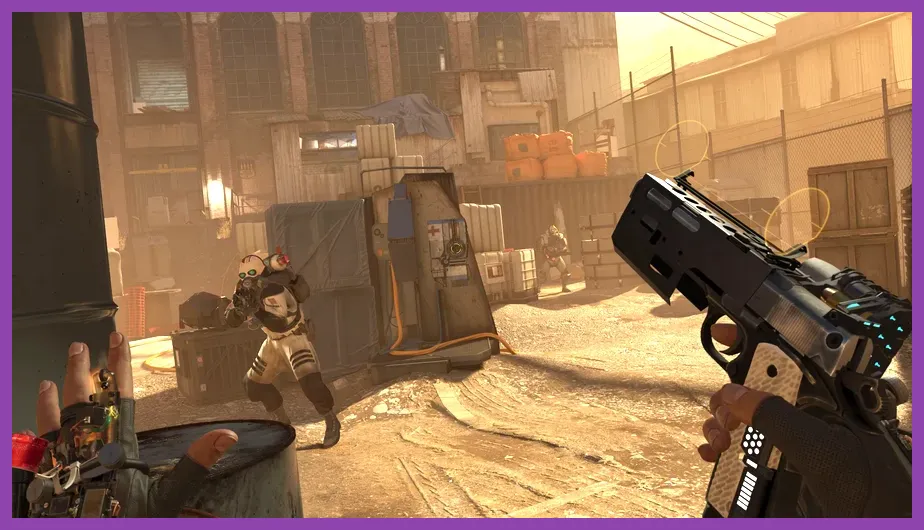
To immediately fix lag and low FPS in Half-Life: Alyx, disable SteamVR's dynamic resolution scaling, lock your headset's refresh rate to 90Hz in the official Steam store page, and set the in-game Texture Quality to High while dropping Shadows to Low. Running VR titles requires maintaining consistent frame times below 11.1 milliseconds to prevent debilitating motion sickness and stuttering in the Source 2 engine.
Understanding Source 2 Engine Performance Bottlenecks
Half-Life: Alyx relies on Valve's advanced Source 2 engine, which handles complex physics, dynamic lighting, and real-time volumetric fog. When exploring dense environments like the Quarantine Zone or fighting Combine soldiers in Sector B, your CPU and GPU must coordinate instantaneously. Unlike traditional flat-screen titles, VR rendering requires your PC to draw each scene twice—once for each eye—at exceptionally high refresh rates.
Low FPS manifests as stuttering, judder, and reprojection artifacts where motion vectors smear across your lenses. To combat this, you should check out our monster hunter wilds best system requirements pc settings guide to understand how modern engine optimization principles apply to heavy rendering loads. Hardware bottlenecks usually originate from mismatched VRAM allocation, background Windows processes hogging thread priority, or improper OpenXR runtime assignments.
Configuring SteamVR Settings for Maximum Frame Stability
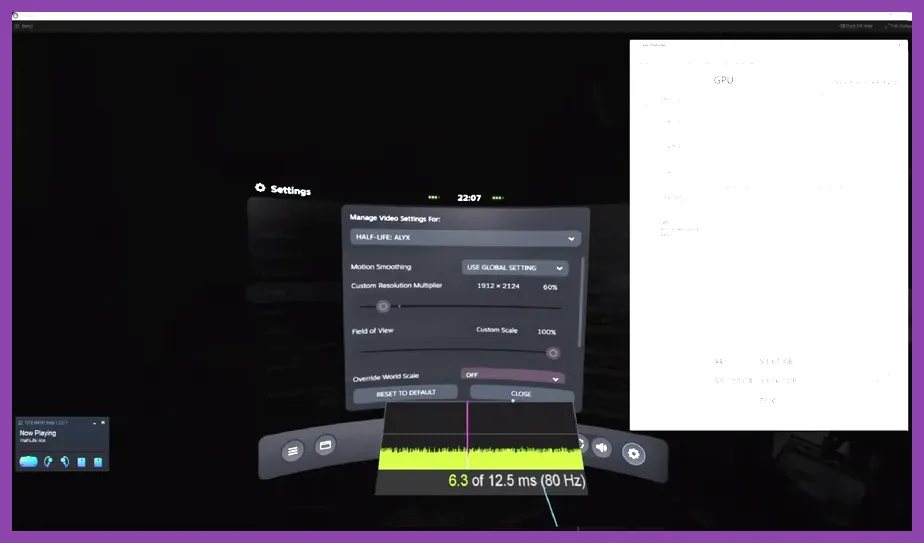
Before touching the in-game menus, your SteamVR dashboard requires careful calibration. Automatic resolution scaling often overestimates your graphics card's capability, pushing render resolutions beyond 3000x3000 pixels per eye on mid-tier GPUs like the RTX 3060 or RX 6700 XT.
- Open SteamVR Settings and navigate to the Video tab.
- Change Resolution Per-App from Custom/Auto to a fixed percentage, targeting roughly 100% native panel resolution for your specific headset (Valve Index, Meta Quest 2/3 via Link, or HTC Vive).
- Disable Advanced Supersampling Filter if you are struggling with blurry visuals versus performance tradeoffs.
- Ensure your OpenXR runtime is set correctly; SteamVR should be the active OpenXR runtime unless you are exclusively using Oculus Link software with a Meta headset.
Similar to tweaking hardware profiles for handhelds, as outlined in our lenovo legion go best graphics settings for performance breakdown, managing power states and thermal limits prevents down-clocking during intense gunfights with Combine Heavy units.
Optimal In-Game Graphics Settings Profile
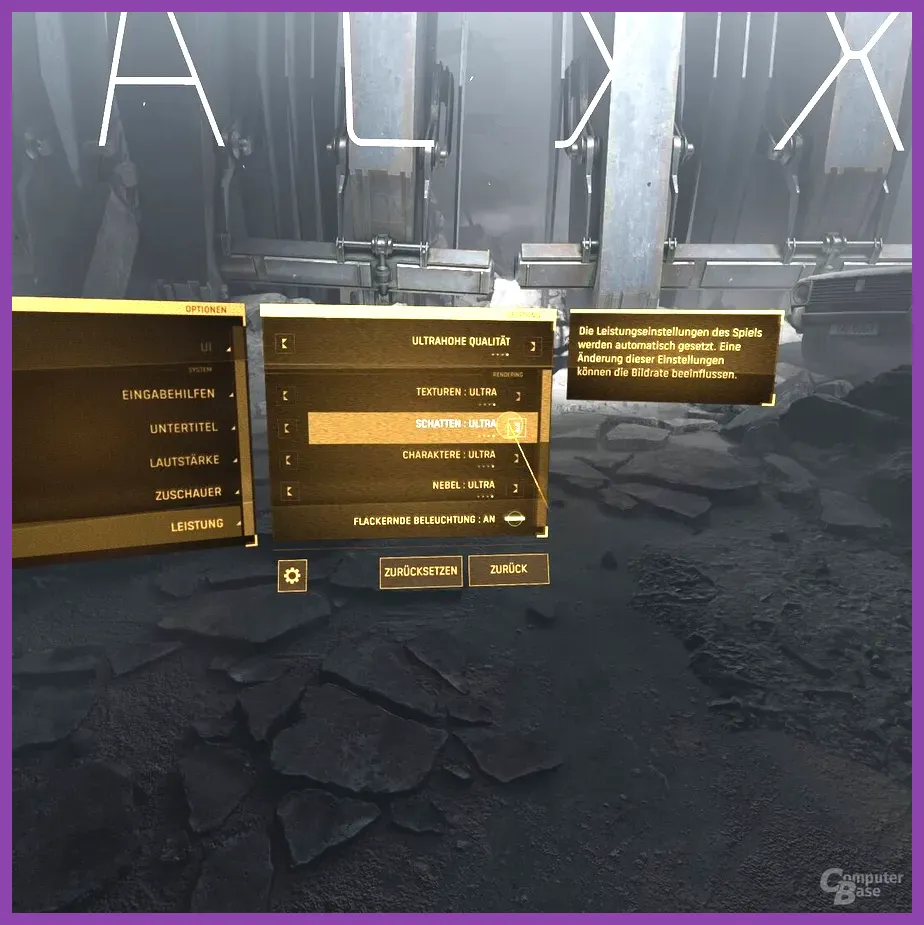
Launching Half-Life: Alyx reveals a dedicated VR video settings menu with granular controls. Do not rely on the auto-detect feature, as it frequently prioritizes visual fidelity over the rock-solid frame pacing required for a comfortable VR experience. Apply this optimized profile:
- Display Mode: Windowed (keeps focus minimized on the desktop monitor, freeing up GPU cycles).
- Texture Quality: High (assuming you have at least 8GB of VRAM; drop to Medium if you experience hitching when reloading weapons).
- Shadow Quality: Low or Medium (dynamic shadows cast by flashlight beams and overhead lights are massive performance drains).
- Model Quality: High (keeps Alyx's hands, Russell's multi-tool, and enemy models crisp without affecting pixel fill-rate severely).
- Effects Quality: Medium (reduces particle density during explosive barrel detonations and resin pickups).
- Fog Quality: Low (significantly boosts outdoor performance in city courtyards without ruining atmosphere).
- FidelityFX Super Resolution (FSR): Set to Quality mode if you are using an older GPU or running high-resolution headsets like the HP Reverb G2.
For additional insights into finding the sweet spot between visual fidelity and high framerates in demanding modern titles, consult our nine sols best graphics settings for high performance analysis.
Advanced Tweaks: Launch Options and Config Files
If adjusting basic settings fails to eradicate micro-stutters, you can force specific DirectX or Vulkan parameters through Steam launch options. Right-click Half-Life: Alyx in your Steam Library, select Properties, and input specific commands into the General tab.
Adding -vulkan forces the game to utilize the Vulkan API, which often yields superior frame times on AMD graphics cards compared to default DirectX paths. Furthermore, editing your config text files can disable asynchronous reprojection interference:
- Navigate to your Steam installation directory:
steamapps/common/Half-Life Alyx/game/hlvr/cfg. - Create or modify an
autoexec.cfgfile using Notepad. - Add the line
r_dynamic 0to disable dynamic lighting calculations on minor environmental props, though be aware this removes certain atmospheric shadows. - Add
vr_fidelity_level_auto 0to lock your performance tier and prevent the engine from dynamically degrading resolution mid-combat.
Maintaining clean system maintenance is just as important as software configuration. Check out our tips on systemic optimization strategies found in lethal company best beginner tips and tricks to ensure background applications aren't stealing crucial CPU cycles.
Hardware, Cable, and Driver Troubleshooting
Even with perfect software optimization, physical hardware bottlenecks will cause persistent lag. If you are using a wired headset like the Valve Index, verify that your DisplayPort cable is plugged directly into your dedicated GPU rather than your motherboard's integrated graphics port. For Meta Quest users connecting via Link cable or Air Link, run a USB cable test through the Oculus desktop app to confirm your connection speed exceeds 1.5 Gbps.
Graphics drivers are another frequent culprit behind VR stuttering. Clean install the latest drivers from NVIDIA or AMD using Display Driver Uninstaller (DDU) in Safe Mode if you notice sudden frame drops after a Windows update. Additionally, disable hardware-accelerated GPU scheduling (HGS) in Windows graphics settings, as it frequently causes audio desync and tracking stutter in SteamVR environments. By systematically applying these resolution caps, graphics presets, and hardware checks, you will achieve the buttery-smooth 90 FPS experience necessary to fully immerse yourself in Valve's masterpiece.