To fix crashing on PC when playing Clash of Clans via official emulators or the Google Play Games Beta, you must adjust your hardware acceleration settings, clear corrupted cache files, and allocate sufficient CPU cores and RAM to your runtime environment. Whether you are experiencing sudden freezes during Clan War attacks or random CTDs (Crashes to Desktop) upon launching the application, applying these targeted troubleshooting steps will restore game stability.
Update or Reinstall Your Android Runtime or Emulator
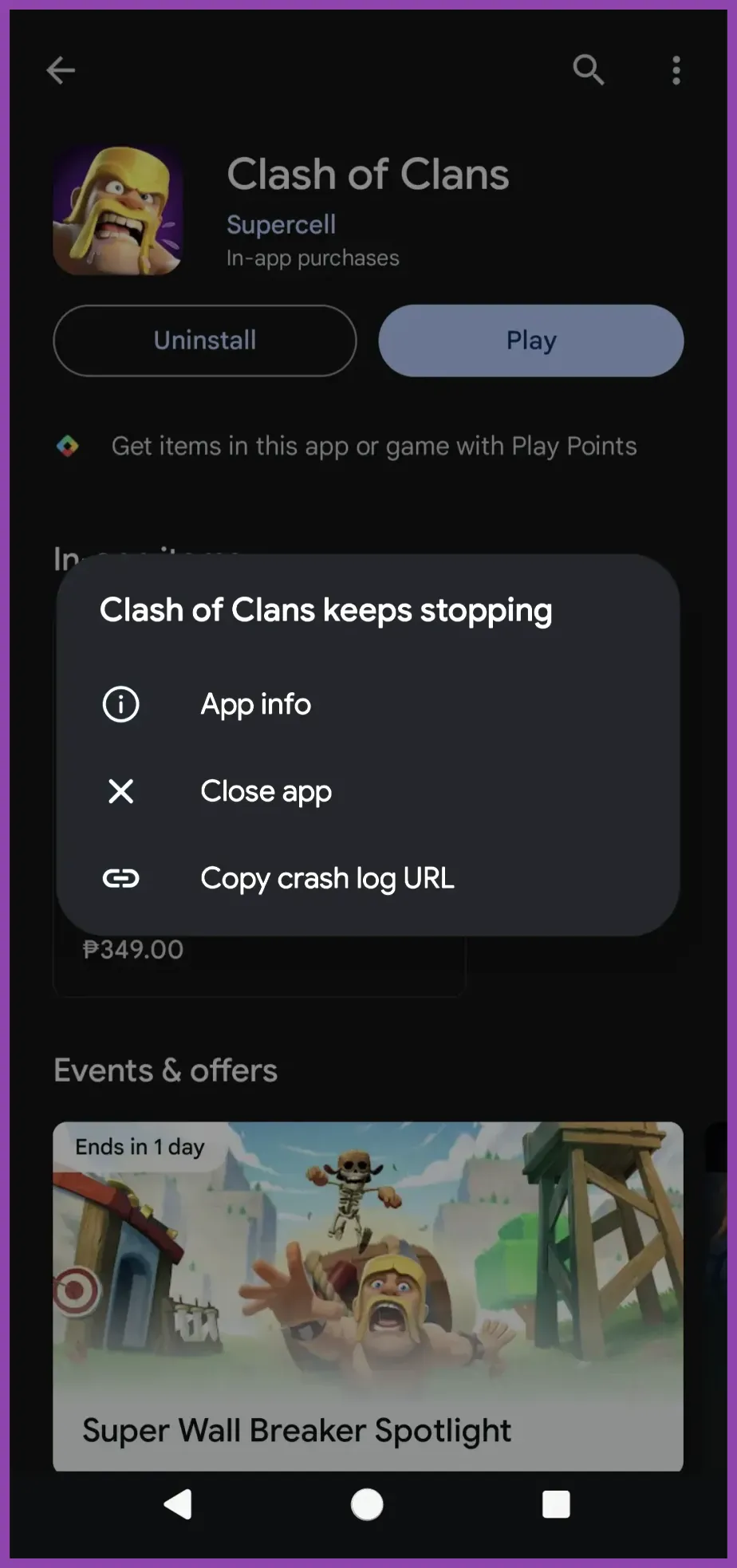
Clash of Clans is fundamentally a mobile title, meaning your PC relies on compatibility layers like the Google Play Games Beta or third-party hypervisors like BlueStacks to run. Outdated emulator builds frequently conflict with modern Windows 11 kernel updates, resulting in immediate fatal errors. Check out our guide on state of survival best emulator settings for pc to understand how virtualization layers handle resource management.
First, verify that your virtualization technology (Intel VT-x or AMD-V) is enabled in your BIOS. If your emulator still crashes during loading screens, perform a clean reinstallation. Completely uninstall the software, navigate to your AppData or temporary folders, and delete lingering cache directories before installing the latest stable build of your chosen platform.
Configure Hardware Acceleration and Graphics Settings
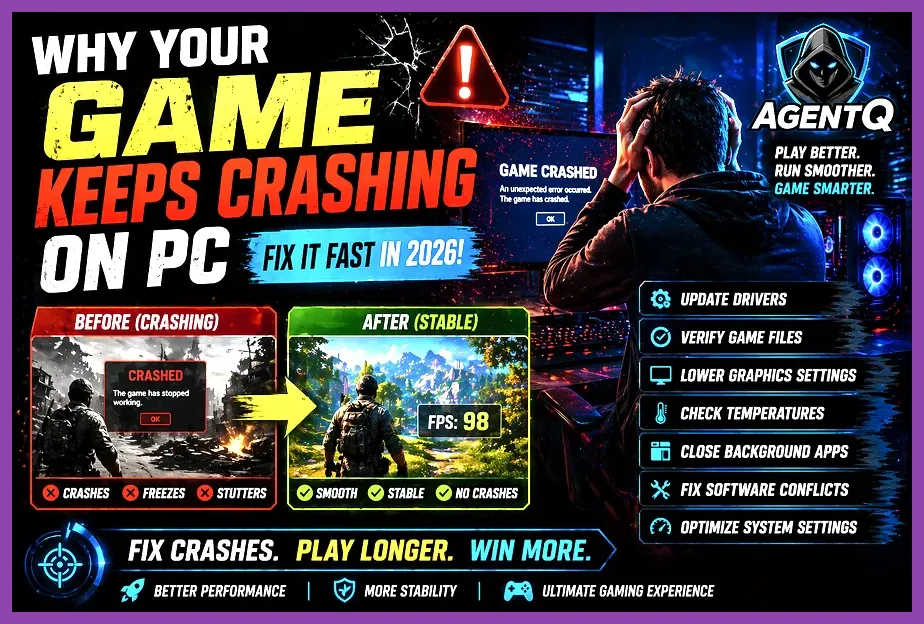
Incorrect rendering pipelines can overwhelm your dedicated graphics card when processing high-density base layouts filled with animated defenses like the Inferno Tower, Eagle Artillery, and Monolith. Modern PC gaming requires precise graphical alignment. For a benchmark on system optimization, reference stardew-valley-16-best-settings-for-max-fps to see how lowering unnecessary processing overhead stabilizes frame delivery.
- Open your PC emulator or Google Play Games settings menu.
- Switch the graphics rendering engine from DirectX to OpenGL or Vulkan depending on your GPU manufacturer (Vulkan is generally recommended for NVIDIA RTX and AMD Radeon cards).
- Disable software rendering and enforce dedicated GPU usage through your Windows graphics settings.
- Toggle off vertical sync (V-Sync) if you experience input delay or micro-stutters that trigger timeout crashes.
Allocate Proper CPU and RAM Resources
Running Clash of Clans alongside heavy background tasks like Discord overlays, Chrome browser tabs, or recording software can starve the game of memory, causing out-of-memory crashes. You must manually configure resource caps within your platform settings. For players managing complex setups across multiple titles, checking street-fighter-6-system-requirements-minimum-and-recommended provides good insight into baseline hardware expectations.
Access your emulator's Engine settings tab and adjust the CPU allocation to at least 4 cores (if your processor has 6 or more cores available). Set the RAM allocation to a minimum of 4096MB (4GB). Avoid allocating your maximum physical RAM, as Windows requires headroom to prevent system-wide instability. If you encounter hardware bottlenecks, reviewing stardew-valley-16-system-requirements-minimum-and-recommended can help you evaluate your PC's overall capability.
Clear App Cache and Verify Game Files
Corrupted local game files often trigger crashes the moment Supercell ID tries to sync your village data. Clearing the local application cache forces the game to fetch clean assets from the official Supercell Clash of Clans Portal. Navigate to your emulator's Android Settings menu, select Apps, locate Clash of Clans, and tap Clear Cache and Clear Data. Note that you will need to log back into your Supercell ID after doing this, so ensure your email and verification codes are accessible before proceeding.
Furthermore, ensure your Windows graphics card drivers are fully up to date. Download the latest GeForce Game Ready Driver via the NVIDIA App or Adrenalin software for AMD. Outdated display drivers are the primary culprit behind DirectX and Vulkan crash dumps during intense base editing or multiplayer raids.
Disable Overlays and Background Interference
Third-party software hooks often conflict with mobile emulation layers on PC. Overlays generated by Discord, RivaTuner Statistics Server (RTSS), MSI Afterburner, and GeForce Experience frequently inject code into running processes, causing Clash of Clans to crash unexpectedly. Temporarily disable all active gaming overlays while troubleshooting your game client.
Additionally, check your Windows Defender or third-party antivirus software (such as Malwarebytes or Bitdefender). Sometimes, aggressive real-time scanning misidentifies emulator memory write operations as malicious behavior, quarantining vital files and crashing the game. Add an explicit exclusion folder for your emulator directory within your antivirus settings to ensure uninterrupted gameplay sessions.