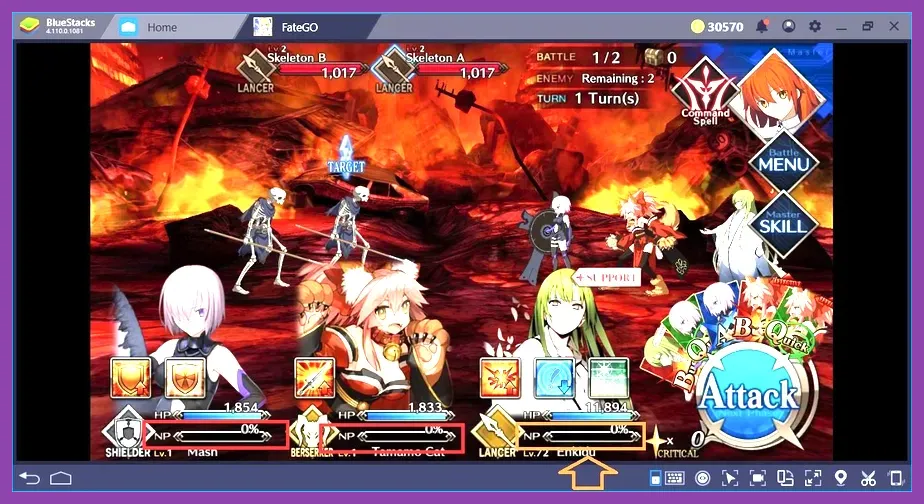
Fate/Grand Order does not feature native controller support out of the box, requiring players to rely on third-party mapping software, Android emulators like BlueStacks, or specialized touch-emulation hardware to play using a gamepad like an Xbox Wireless Controller, DualSense, or Razer Kishi. Because Type-Moon and Aniplex designed the game entirely around a touch-driven command card system, configuring physical inputs requires bridging the gap between hardware buttons and screen coordinates. For players looking to optimize their daily farming routines during massive events like Chaldea Boys Collection or Nerofest, setting up a reliable controller configuration transforms the repetitive grinding loop into a much more ergonomic experience.
Understanding FGO's Touch-Only Limitations
The core gameplay loop of Fate/Grand Order revolves around selecting Command Cards (Buster, Arts, Quick), activating Servant skills (such as Artoria Pendragon's charismatic buffs or Merlin's Hero Creation), and deploying Noble Phantasms. Because the application checks for touch input coordinates rather than generic gamepad API calls, standard plug-and-play controller setups fail instantly on both vanilla iOS and Android applications. If you are diving into heavy farming sessions similar to managing resource loops in Roblox crafting or hunting currency like in Remnant 2, adapting your setup is essential to prevent hand fatigue during multi-hour node runs.
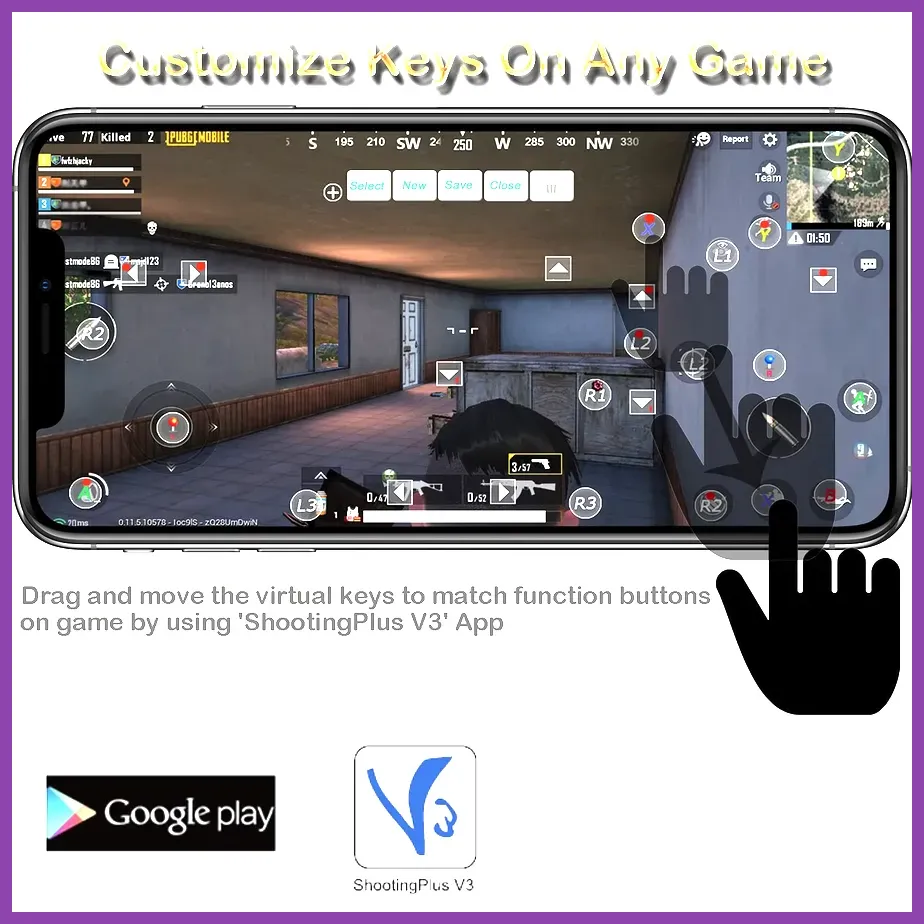
To successfully map a controller, you must use overlay apps that translate D-pad presses and thumbstick movements into precise tap gestures on specific screen regions. This is especially useful when executing precise turn rotations against challenging boss mechanics, such as stripping away invulnerability buffs or managing break bars on Cernunnos or Goetia.
Setting Up Controller Support via BlueStacks on PC
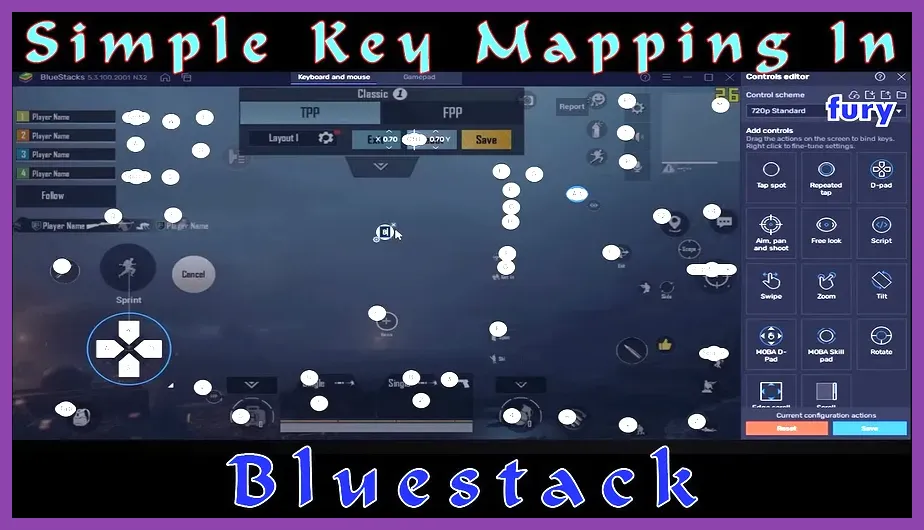
For PC players who prefer running FGO through an emulator, BlueStacks App Player offers the most robust built-in keymapping engine. Download the latest version of the emulator, install the Google Play Store version of Fate/Grand Order, and launch the Game Controls editor from the sidebar panel.
- Open the Advanced Editor within BlueStacks.
- Drag the Tap Spot tool over the exact screen coordinates where your Command Cards appear (positions 1, 2, and 3 in the lower combat interface).
- Assign specific face buttons—such as A, X, and Y on your Xbox controller—to those tap spots.
- Map the three Servant skill icons on the left side of the combat UI to your shoulder buttons (LB, RB) and triggers (LT, RT).
- Bind your Master Skills menu toggle to the Back or Select button for quick access during emergency heals or mystic code target shifts.
Once your layout is saved, you can smoothly navigate menus, select your support Servant (like a max-investment Castoria or Koyanskaya of Light), and execute three-turn farming sweeps entirely through physical button presses. For those who appreciate optimizing hardware configurations, this mirrors the deep setup work required for hardware tweaks detailed in our PS5 Pro endgame build guide.
Configuring Gamepads on Android Devices
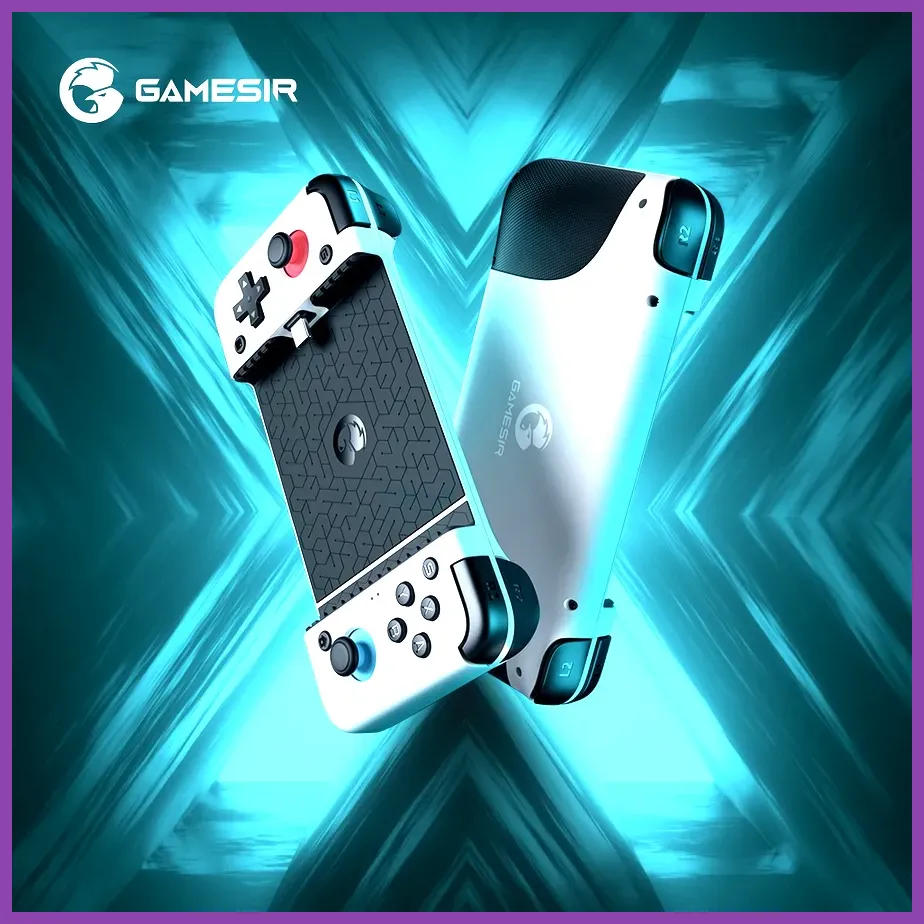
Mobile users playing natively on Android phones or tablets using devices like the Backbone One, GameSir X2, or Razer Kishi face a different challenge, as Android does not natively route touch inputs through external gamepads without auxiliary software. You will need to utilize companion apps provided by your controller manufacturer or third-party mapping utilities like Mantis Gamepad Pro or Octopus.
Step-by-Step Android Mapping Process
First, install your preferred mapping utility from the Google Play Store and grant it necessary USB debugging or Shizuku permissions. Next, launch Fate/Grand Order in windowed or floating mode alongside your mapper overlay. Create a custom profile specifically named "FGO Farming".
- Set the left analog stick to control cursor movement across the main Chaldea Gate menu screens.
- Map the D-pad to cycle through individual Servant target parameters during complex multi-enemy mob waves.
- Assign macro sequences if your mapping tool supports them, allowing a single button press to execute multi-step inputs like activating skill one, targeting a specific ally, and confirming the action.
Be cautious when using third-party overlays, as excessively rapid macro execution can occasionally trigger security flags if automated scripts behave unnaturally. Always keep your inputs human-paced during high-stakes raids or lotto farming events.
Optimizing Layouts for Three-Turn Farming Rotations
Efficiency is the cornerstone of FGO endgame progression, particularly during box-lottery events where players clear hundreds of nodes consecutively. Your controller layout should reflect the muscle memory required for standard looping teams—such as Arts looping with Oberon, Tamamo no Mae, and the aforementioned Altria Caster.
Designate your primary attack confirmation button to the A or Cross button, ensuring you can rapidly skip dialogue cutscenes, accept friend point rewards, and restart bond farming nodes without touching the screen. If you enjoy min-maxing gameplay mechanics much like optimizing builds in Nine Sols or planning tactical gear setups found in our Phasmophobia investigative loadout guide, fine-tuning these button delays will shave precious seconds off every single farming run.
Furthermore, ensure your deadzones on analog sticks are adjusted properly within your mapping software. FGO menus require precise cursor placement when selecting ascension materials, Grail Front movement tiles, or Event Shop exchange items. High deadzones will cause your cursor to overshoot small touch targets like the 'Exchange All' button.
Troubleshooting Common Controller Input Issues
Even with proper mapping software, players frequently encounter input registration failures or drifting cursor issues. If your controller inputs fail to register during a battle phase, check whether your overlay app has lost overlay permission in your system settings. Android aggressive battery management frequently terminates background mapping services during prolonged gaming sessions.
- Unresponsive Buttons: Recalibrate your touch coordinate markers in the mapping editor, as game updates or UI scaling changes can shift button hitboxes slightly.
- Bluetooth Latency: If using a wireless Bluetooth controller, switch to a wired USB-C connection to eliminate input lag during critical card selection phases.
- Emulator Crashes: When running via BlueStacks or LDPlayer, ensure hardware virtualization (VT) is enabled in your PC BIOS to maintain stable framerates and prevent input packet drops.
By establishing a clean, customized controller profile, you can enjoy Fate/Grand Order entirely hands-free from the traditional glass screen constraints. Whether you are tackling hard challenge quests featuring break-bar bosses like Cernunnos or just mindless ember farming, a well-configured gamepad brings a fresh level of comfort to Chaldea's endless battles.