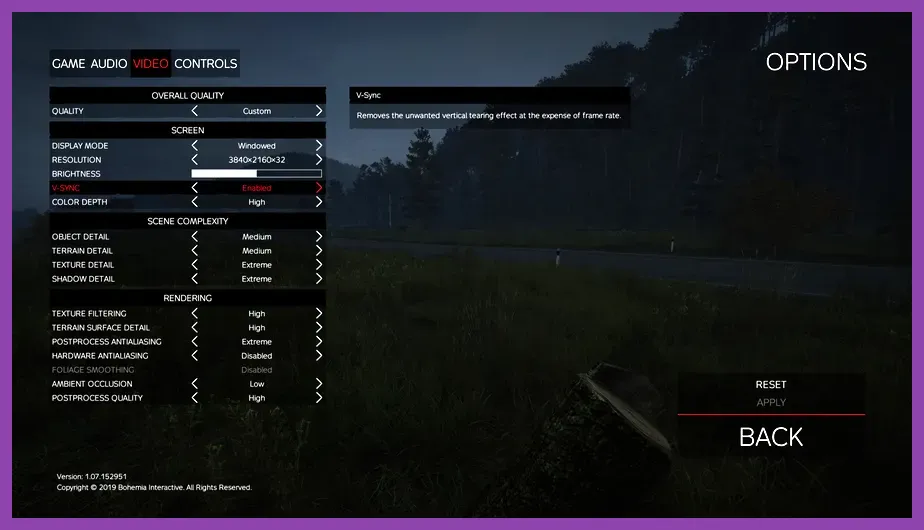
To achieve the highest FPS and cleanest player visibility in DayZ, you must set Object Quality to Low, Terrain to Low, Shadow Quality to Low, Texture Quality to High, and Texture Filtering to Extreme, while completely disabling Ambient Occlusion, Motion Blur, and Hardware Anti-Aliasing. Operating on Bohemia Interactive's Enfusion Engine, DayZ relies heavily on single-thread CPU speed and system RAM latency. Applying this optimal profile eliminates micro-stutters in dense cities like Chernogorsk and Severograd, strips away unnecessary visual clutter like motion blur, and prevents distant player models from disappearing during long-range sniper engagements.
1. The Ultimate DayZ Competitive Graphics Settings Profile
DayZ balances server-side simulation with demanding client-side rendering. Leaving graphics settings on automatic or preset presets places an uneven burden on your graphics card and processor, leading to sudden frame drops when entering large towns or military bases. The settings profile below isolates heavy performance drains while maintaining crystal-clear image sharpness so you can spot enemy players across fields and inside unlit structures.
Display Settings Breakdown
- Display Mode: Fullscreen (Enforces raw GPU priority over Desktop Window Manager, reducing input latency by up to 15ms compared to Windowed Borderless).
- Resolution: Native Monitor Resolution (1920x1080, 2560x1440, etc.). Never use non-native resolutions as downscaling causes severe pixel blur.
- V-Sync: Disabled. Vertical sync introduces input lag and locks your frame rate to fixed refresh increments. Enable G-Sync or FreeSync via your graphics driver instead.
- Render Resolution: 100%. Anything below 100% smudges distant foliage and makes targets over 300 meters away impossible to identify clearly.
- Brightness & Gamma: 100% (Adjust to preference based on nighttime server rules, though keeping Gamma around 1.1–1.2 improves visibility in shadowy interiors).
Quality Settings Breakdown
- Object Quality: Low. This is the single most critical setting for frame rate stability in cities. Setting this higher forces your CPU to draw thousands of unnecessary geometry meshes (furniture, small clutter, detailed window frames). Setting it to Low drastically improves FPS in towns while keeping player character LODs (Level of Detail) visible at maximum distances.
- Terrain Quality: Low. Lowering terrain quality flattens ground mesh complexity at medium distances. Crucially, in DayZ, grass rendering cuts off at fixed distances regardless of settings; setting Terrain to Low prevents terrain bumps from obscuring prone enemies beyond grass-render distance.
- Texture Quality: High or Extreme. If your GPU has 4GB or more of VRAM, keep this on High or Extreme. High-resolution textures are stored directly in your video memory and have zero impact on your frame rate while keeping weapons, uniforms, and scope reticles crisp.
- Texture Filtering: Extreme (16x Anisotropic). Modern graphics hardware handles 16x anisotropic filtering with less than a 1% FPS penalty. Leaving this at Extreme ensures ground surfaces, roads, and walls remain sharp when viewed at oblique angles.
- Shadow Quality: Low. High and Extreme shadows render intricate dynamic shadow maps for every leaf, branch, and fence post, causing massive FPS drops. Low retains basic character and building shadows necessary for tactical awareness without overloading your GPU.
2. Advanced Post-Processing Settings for Maximum Player Visibility
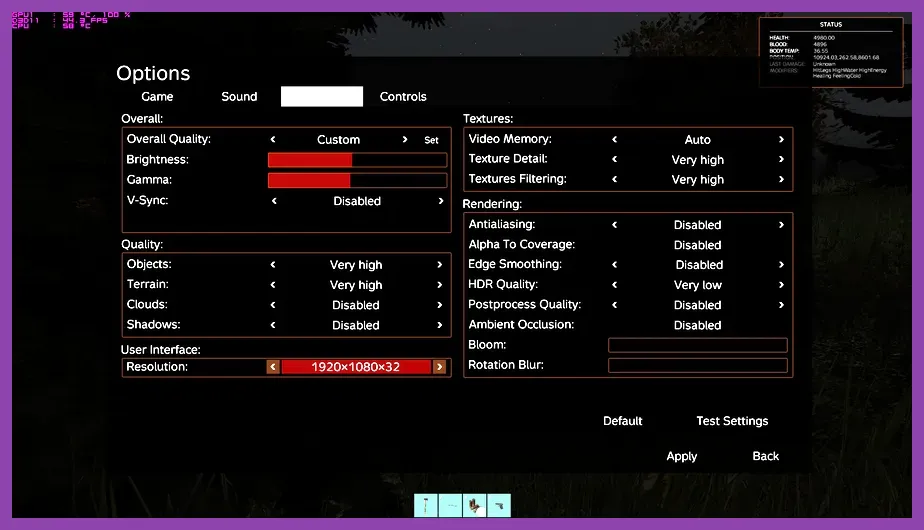
While standard graphics settings dictate raw frame rendering, post-processing settings directly govern visual clarity. Disabling cinematic effects gives you a direct competitive edge, eliminating visual noise that can obscure enemy movements or blind you during bright daytime firefights.
If you encounter technical performance drops or engine crashes across other modern hardware-heavy titles, exploring guides like how to fix Overwatch 2 crashing on PC or troubleshooting stutter issues seen in Diablo 4 performance guides can help diagnose broader hardware bottlenecks.
Post-Processing Customization
- Post-Process Quality: Disabled or Low. Disabling post-processing turns off color grading, lens distortion, and screen-space blurs. This results in a cleaner image and frees up significant processing power.
- Bloom: Off / Low. High bloom causes sunlight reflecting off water, sand, or white buildings to blind your screen. Turn it off to ensure consistent target acquisition near bright light sources.
- Rotational Blur (Motion Blur): Off. Dynamic camera blur obscures targets when sweeping your mouse during fast 180-degree turnarounds. Turn this completely off.
- Depth of Field (DoF): Off. DoF blurs the background when aiming down sights (ADS) or looking through binoculars. Disabling it allows you to maintain full peripheral vision while aiming through scopes.
- Lens Flare: Off. Lens flares serve only cinematic purposes and create distracting light streaks across your view when facing the sun.
- Ambient Occlusion (AO): Disabled. Screen-Space Ambient Occlusion (SSAO) adds contact shadows in corners and under foliage. Disabling AO increases overall scene brightness in dark rooms and barns, making camped players instantly visible while reclaiming 10% to 15% of your total frame rate.
- Hardware Anti-Aliasing (MSAA): Disabled. MSAA is extremely costly in the Enfusion engine. Running 4x or 8x MSAA can cut frame rates in half without providing significant visual benefits over native resolution.
- Edge Anti-Aliasing: FXAA Low or Disabled. Temporal and spatial AA solutions in DayZ introduce noticeable blur to fine details, such as distant fence lines or moving heads through windows. Disabling it or keeping FXAA on Low preserves razor-sharp pixel edges for target tracking.
3. DayZ.cfg and Config File Tweaks for Unlocked Performance
Modifying your DayZ configuration files allows you to override default engine limits, fine-tune custom render resolutions, and adjust simulation parameters that aren't exposed in the standard in-game menu. You can review official engine documentation via the Bohemia Interactive Support Portal or consult the community-maintained DayZ Wiki for official engine changelogs.
Step-by-Step Configuration Tweaking
Navigate to your Windows user documents folder located at: C:\\Users\\[YourUsername]\\Documents\\DayZ. Before editing, create a backup copy of DayZ.cfg and your [PlayerName].DayZProfile file.
- Open
DayZ.cfgusing Notepad or Notepad++. - Locate the resolution entries and verify they match your hardware specs:
Render_W = 1920; Render_H = 1080; Language = "English"; - Locate
vsync = 1;and change it tovsync = 0;to enforce complete removal of frame rate caps. - Save the file and set its attributes to Read-Only by right-clicking
DayZ.cfg, selecting Properties, checking "Read-only", and clicking Apply.
Optimizing View Distances in DayZProfile
Open your [PlayerName].DayZProfile file in the same directory. Search for the following parameters and edit their numeric values to balance sniper visibility against urban performance:
viewDistance = 2200;— Controls overall terrain draw distance in meters. Setting this between 1600 and 2200 guarantees you can see distant mountains and landmarks without wasting performance rendering terrain 3+ kilometers away.preferredObjectViewDistance = 1375;— Controls how far away buildings, vehicles, and player models render. DayZ servers cap player visibility between 1000m and 1100m. Setting this parameter to 1375 ensures players render at maximum range without loading excessive city assets.
4. Steam Launch Options and Command Line Parameters
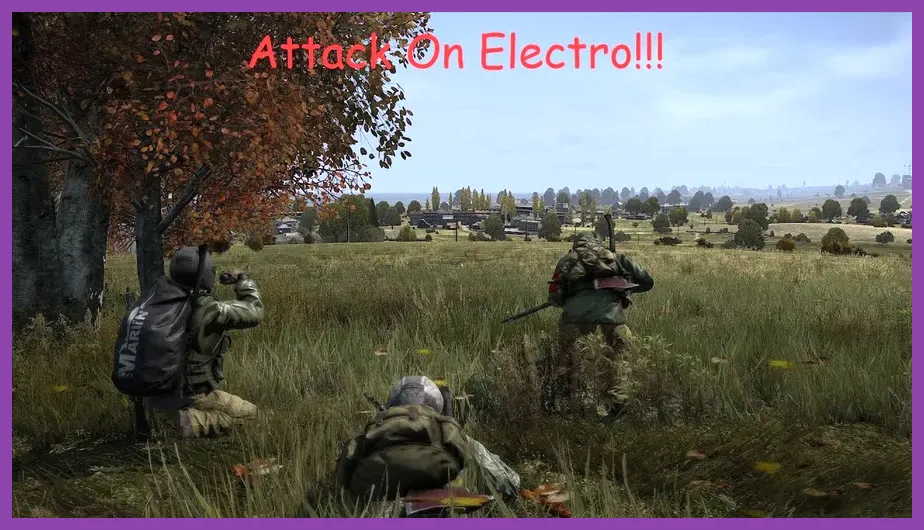
Passing optimized startup commands through Steam ensures DayZ efficiently allocates system memory and processor threads upon launch. Similar engine tuning strategies apply across demanding online titles detailed in our Cities Skylines 2 tips guide and open-world survival benchmarks in our Enshrouded gear guide.
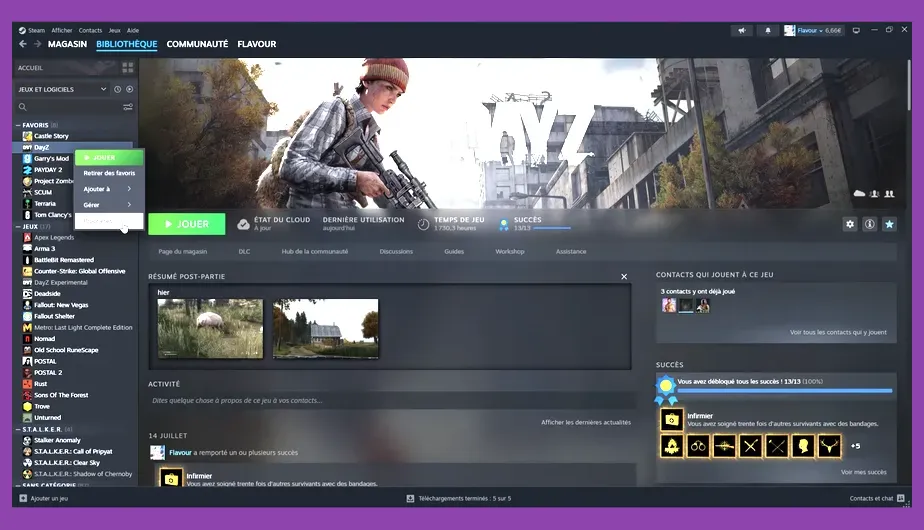
To set your launch options, open your Steam Library, right-click DayZ on Steam, choose Properties, navigate to the General tab, and paste the following string into the Launch Options text field:
-cpuCount=4 -maxMem=16384 -noBenchmark -world=empty -high
Command Parameter Breakdown
-cpuCount=[Number of Physical Cores]: Forces DayZ to utilize all physical CPU cores. Replace4with your CPU's physical core count (e.g., 6, 8, or 12). Do not count hyperthreaded logical threads.-maxMem=[RAM in MB]: Caps maximum system memory allocation. If you have 16GB of RAM, set this to16384. For 32GB of RAM, set this to24576(allocating 24GB, leaving 8GB for background system processes).-high: Assigns high CPU priority to the DayZ process in Windows Task Manager automatically.-world=empty: Loads a blank scene in the main menu screen instead of rendering the 3D animated Chernarus background. This reduces main menu load times by up to 70%.-noSplash: Bypasses intro developer logos upon launching the game client.
5. NVIDIA & AMD Control Panel Optimizations for DayZ
Configuring driver-level overrides ensures your GPU delivers maximum power output while preventing latency spikes caused by pre-rendered frame buffering. Applying these settings prevents frame rate drops when zooming into high-magnification optics like the Hunting Scope or PSO-1.
NVIDIA Control Panel Setup
- Right-click your desktop and open NVIDIA Control Panel.
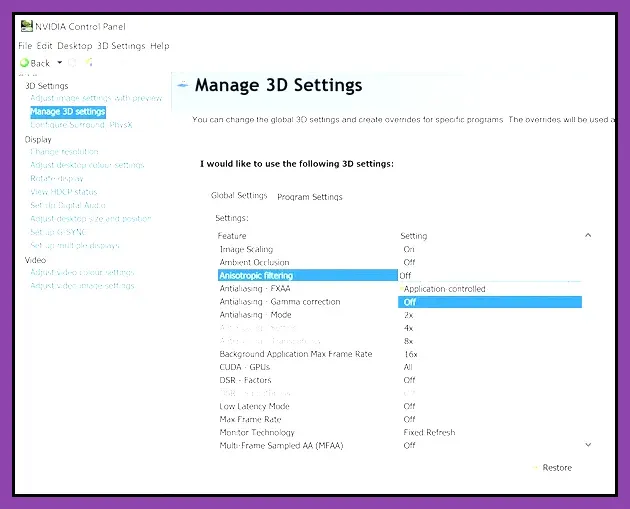
- Navigate to Manage 3D Settings > Program Settings, and select DayZ (dayz_x64.exe) from the drop-down list.
- Modify the following key properties:
- Low Latency Mode: On (or Ultra if your GPU usage consistently reaches 99%).
- Power Management Mode: Prefer Maximum Performance (prevents the GPU from down-clocking during quiet wilderness traversal).
- Texture Filtering - Quality: High Performance.
- Texture Filtering - Anisotropic Sample Optimization: On.
- Threaded Optimization: On (forces multi-threading across modern multi-core processors).
- Max Frame Rate: Match your monitor's refresh rate minus 3 FPS (e.g., 141 FPS for a 144Hz panel) if using G-Sync.
AMD Radeon Software Setup
- Open AMD Software: Adrenalin Edition.
- Select the Gaming tab and choose DayZ.
- Set the main profile to eSports.
- Enable Radeon Anti-Lag to minimize input delay during rapid mouse movements.
- Disable Radeon Boost (dynamic resolution scaling introduces unwanted pixelation during quick camera movements).
- Set Texture Filtering Quality to Performance.
- Enable Radeon Image Sharpening (RIS) and set the slider between 20% and 30% to sharpen distant edges without introducing halo artifacts.
6. Windows System Tweaks, Hardware Acceleration, and RAM Optimization
DayZ’s Enfusion Engine relies heavily on sub-millisecond RAM access speeds and fast single-core clock rates. Ensuring your system environment is optimized at the OS level prevents secondary software processes from stealing memory cycles from your game.
If you enjoy cooperative survival dynamics and portable PC gaming setups, be sure to check our roundup of the best co-op games verified for Steam Deck or learn operational strategies in competitive environments like our Dead by Daylight leveling guide.
Windows OS Optimization Steps
- Enable Hardware-Accelerated GPU Scheduling (HAGS): In Windows 10/11, search for "Graphics Settings" in the Start Menu and turn HAGS ON. Restart your PC. HAGS offloads video memory management directly to the GPU's dedicated scheduler, raising minimum 1% low frame rates in heavily populated DayZ servers.
- Activate XMP / EXPO Memory Profiles: Ensure your System RAM is running at its advertised rated clock speeds (e.g., DDR4-3600 or DDR5-6000) inside your motherboard BIOS. Running DayZ on default JEDEC speeds (2133MHz/4800MHz) causes frequent micro-stutters when traveling across dense forests.
- Enable Windows Game Mode: Ensure Windows Game Mode is turned ON under Settings > Gaming > Game Mode. This prevents background Windows Update services and telemetry tasks from seizing CPU thread priority while DayZ is active.
- Disable Background Overlays: Turn off overlays in Discord, GeForce Experience, and Steam (if unnecessary). Discord's hardware acceleration overlay can reduce DayZ's average frame rate by 5–10 FPS on mid-range systems.
- Clean Temporary Shader Caches: Periodically clear your DirectX shader cache via Windows Disk Cleanup. A bloated or corrupted shader cache can lead to sudden hitching whenever new textures load into memory during long travel sessions across Chernarus or Livonia.