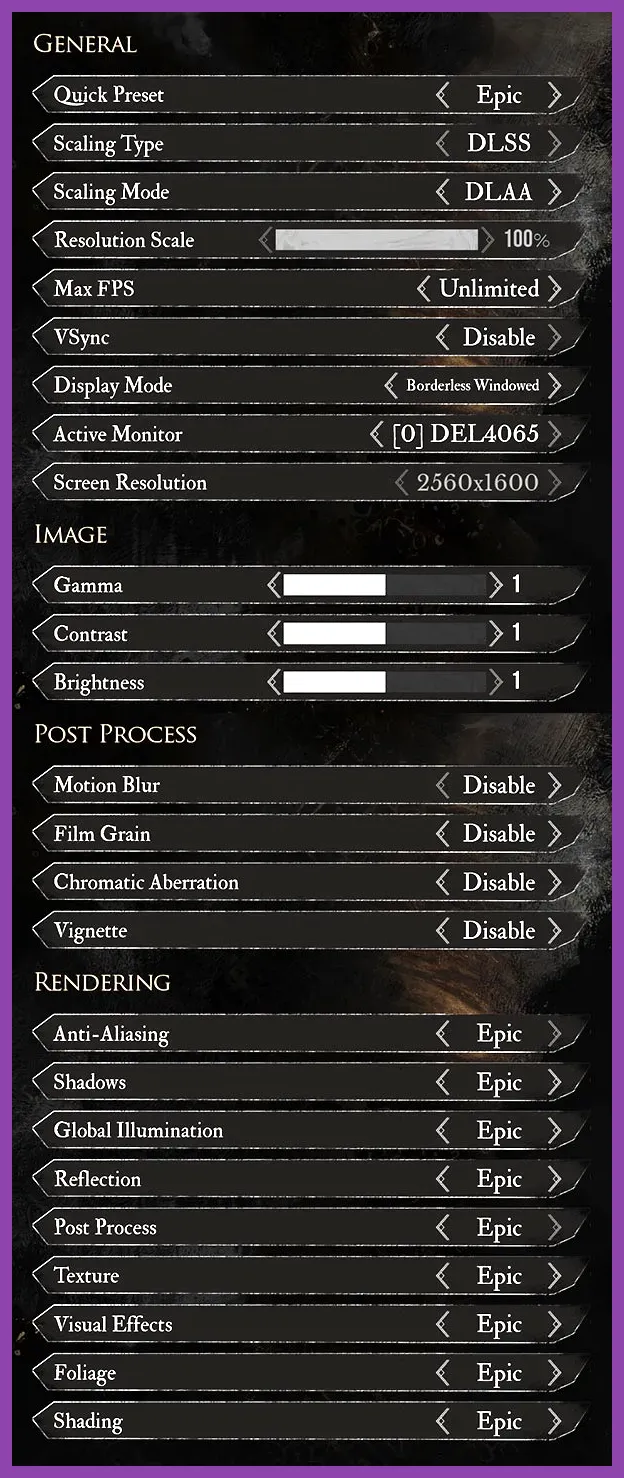
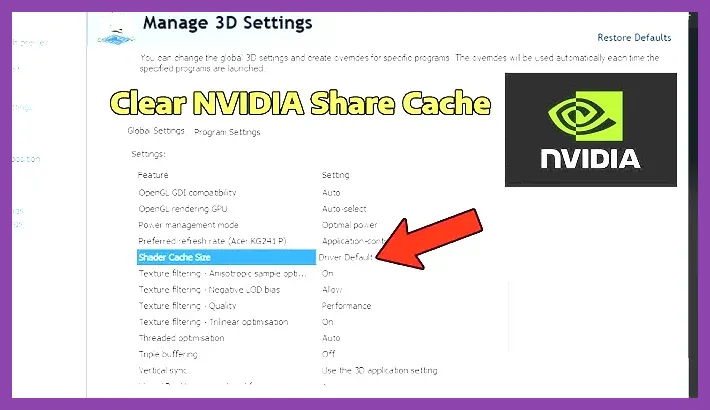
To immediately fix lag, micro-stuttering, and low FPS in Clair Obscur: Expedition 33, set Global Illumination to Medium, turn Volumetric Fog down to Low, configure DLSS or FSR Upscaling to Quality, and set your NVIDIA Shader Cache Size to 10GB in the control panel. Because Sandfall Interactive’s reactive turn-based RPG relies heavily on precise timing windows for parrying and dodging, frame drops directly ruin gameplay flow. Applying these optimized settings along with custom Unreal Engine 5 configuration file tweaks resolves baseline stuttering and delivers a rock-solid 60 FPS to 144 FPS experience across mid-range and high-end rigs.
1. Best Graphics Settings Profile for Performance and Visuals
Clair Obscur: Expedition 33 is built on Unreal Engine 5, taking full advantage of advanced geometry rendering and complex light transport algorithms. However, these demanding graphics systems can cripple performance on modern GPUs if left on default cinematic presets. Adjusting key render settings allows you to regain 40% to 60% of your lost framerate without sacrificing core visual quality.
Access the in-game Video/Graphics menu and apply the following optimized preset profile:
- Display Mode: Exclusive Fullscreen (Prevents Windows Desktop Window Manager input delay).
- Resolution: Native Display Resolution (e.g., 1920x1080, 2560x1440, or 3840x2160).
- V-Sync: Off in-game (Use NVIDIA G-Sync or AMD FreeSync at driver level).
- Field of View (FOV): 90 (Increasing above 100 increases rendered draw distance geometry, impacting CPU load).
- Global Illumination: Medium (High and Ultra utilize hardware ray tracing via UE5 Lumen, causing severe framerate dips during exploration).
- Shadow Quality: Medium (Drastically decreases shadow map cascade rendering overhead on GPU VRAM).
- Reflections: Medium (Disables heavy screen-space ray tracing while maintaining sharp specular surfaces).
- Volumetric Fog & Lighting: Low or Medium (One of the highest performance consumers in dense forested or magical environments).
- Post-Processing: Medium (Reduces bloom intensity, depth-of-field overhead, and motion blur clutter).
- Texture Quality: High (Set to Match GPU VRAM: High for 8GB, Ultra for 12GB+).
- Anti-Aliasing: High (Or managed automatically when using DLSS/FSR).
- Effects Quality: Medium (Prevents major FPS drops during multi-target magic spells and dynamic combat animations).
- Foliage & Geometry Detail: Medium (Optimizes Nanite mesh detail streaming across larger biome spaces).
By balancing shadow rendering and volumetric lighting, your GPU retains thermal headroom while holding consistent frame pacing. If you experienced similar performance issues in other modern releases, check out our guide on Path of Exile 2 best graphics settings for performance to tune your card for complex particle loads.
2. Fine-Tuning Upscaling: DLSS 3, FSR 3.1, and Frame Generation
Temporal upscaling is essential for driving high frame rates in Expedition 33 at resolutions above 1080p. However, improper configuration can induce noticeable visual artifacts or severe input lag—a killer for real-time parry mechanics.
NVIDIA DLSS Setup (RTX 20, 30, and 40 Series)
If you own an NVIDIA GeForce RTX card, navigate to the Display tab in the settings menu:
- Upscaler: NVIDIA DLSS
- DLSS Mode: Quality (at 1440p) or Balanced (at 4K). Avoid "Performance" at 1080p, as it renders from a very low internal resolution (540p), producing temporal blur on UI elements.
- DLSS Frame Generation: On (Exclusive to RTX 40 Series GPUs). Note: Frame Generation MUST be paired with NVIDIA Reflex Low Latency set to On + Boost to counter frame interpolation queue latency.
- DLSS Sharpness: 0.35 to 0.45
AMD FSR & Intel XeSS Setup
For AMD Radeon (RX 6000/7000 series) and Intel Arc users, leverage FSR 3.1 or Intel XeSS:
- Upscaler: AMD FSR 3.1 or Intel XeSS (XeSS offers superior edge stability on non-RTX hardware).
- FSR Quality Mode: Quality (1440p/4K).
- FSR Frame Generation: Enable only if your baseline framerate without Frame Gen is consistently above 60 FPS. If your baseline is below 45 FPS, Frame Gen introduces heavy input latency that impairs active defense reactions.
Much like maintaining smooth combat responsiveness in Path of Exile 2 lag optimization strategies, controlling upscaler latencies ensures your defensive keystrokes register instantly when an enemy swing telegraphs.
3. Advanced Engine.ini Tweaks for UE5 Stutter Removal
Unreal Engine 5 games frequently suffer from shader compilation stutter and texture streaming hitches caused by default engine pool allocations. Editing the game’s local configuration file (`Engine.ini`) directly forces the engine to pre-allocate VRAM and disable unnecessary background debug logging.
How to Edit the Config File
- Press
Win + Rto open the Run dialogue box. - Type
%LOCALAPPDATA%\Expedition33\Saved\Config\WindowsNoEditor\(orWindows\depending on game version) and press Enter. - Locate the file named
Engine.ini, right-click it, and select Open with Notepad. - Scroll to the bottom of the document, skip a line, and paste the following optimized configuration blocks:
[/Script/Engine.RendererSettings]
r.CreateFXStalls=0
r.DynamicRes.OperationMode=0
r.Streaming.PoolSize=4096
r.Streaming.LimitPoolSizeToVRAM=1
r.DefaultFeature.AntiAliasing=2
r.DepthOfFieldQuality=0
r.Tonemapper.Quality=1

[SystemSettings]
r.MipMapLODBias=-0.5
r.TextureStreaming=1
r.AsyncCompute=1
s.AsyncLoadingThreadEnabled=1
Config Parameter Breakdown:
r.Streaming.PoolSize=4096: Sets the dynamic texture pool allocation to 4GB (4096MB). If your GPU has 8GB VRAM, set this value to4096. If your GPU has 12GB+ VRAM, set it to6144.r.AsyncCompute=1: Enables asynchronous compute queues, allowing your GPU to compute lighting and physics concurrently across idle graphics pipelines.s.AsyncLoadingThreadEnabled=1: Forces multi-threaded asset streaming during rapid scene transitions and map zone changes, mitigating drop-in micro-freezes.
Save the file (Ctrl + S), close Notepad, right-click Engine.ini, choose Properties, check Read-Only, and hit Apply. This prevents the game from overwriting your performance tweaks upon boot.
4. Control Panel Configurations for NVIDIA and AMD GPUs
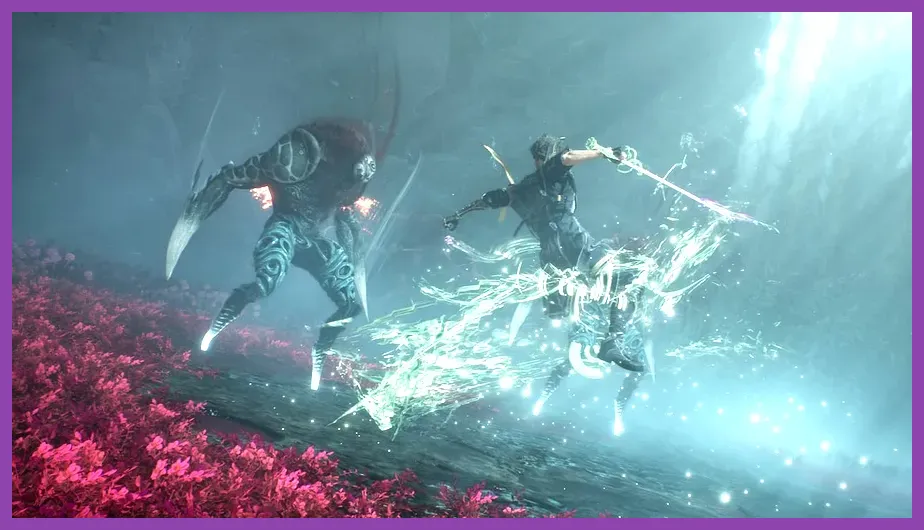
Extensive performance overhead often originates at the graphics driver level. Tuning driver settings ensures your system allocates adequate cache for shaders while optimizing GPU power states.
NVIDIA Control Panel Settings
- Right-click your desktop and select NVIDIA Control Panel.
- Select Manage 3D Settings under the 3D Settings node.
- Click the Program Settings tab and add
Expedition33.exefrom your installation path. - Modify the following parameters:
- Shader Cache Size: Set to 10GB (Default is Driver Default/1GB, which causes repeated shader compilation hitches when visiting new regions).
- Power Management Mode: Prefer Maximum Performance.
- Low Latency Mode: Ultra (Reduces render queue delay to minimum levels).
- Max Frame Rate: Set 3 FPS below your display refresh rate if using G-Sync (e.g., 141 FPS on a 144Hz monitor).
- Texture Filtering - Quality: High Performance.
- Click Apply at the bottom right.
AMD Radeon Software Settings
- Open AMD Software: Adrenalin Edition.
- Navigate to Gaming > Games and select Clair Obscur: Expedition 33.
- Enable Radeon Anti-Lag to lower input lag during active timing sequences.
- Enable Radeon Boost if you require dynamic resolution drops during high-speed camera rotations.
- Set Wait for Vertical Refresh to Always Off.
- Under Advanced, set Texture Filtering Quality to Performance.
For more detailed step-by-step diagnostic workflows regarding driver crashes or system freezes, consult our guide on how to fix crashing and stability issues on PC.
5. Windows System Optimizations & Hardware Adjustments
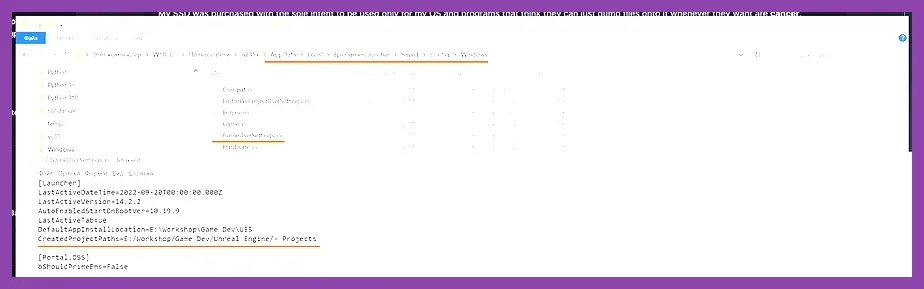
Background operating system services can take CPU cores away from rendering threads. Optimizing Windows ensures full system resources are allocated directly to Expedition 33.
Enable Hardware-Accelerated GPU Scheduling (HAGS)
HAGS transfers memory management duties from the CPU to a dedicated scheduler on the GPU, lowering frame overhead in modern graphics APIs like DirectX 12.
- Press the
Windows Key, type Graphics Settings, and open the system menu. - Toggle Hardware-Accelerated GPU Scheduling to On.
- Restart your PC for changes to take effect.
Disable Fullscreen Optimizations & Enable High Priority
- Navigate to the game directory via Steam: Right-click Clair Obscur: Expedition 33 in your library > Manage > Browse local files.
- Right-click the primary executable file
Expedition33.exeand open Properties. - Select the Compatibility tab.
- Check Disable fullscreen optimizations.
- Click Change high DPI settings, check Override high DPI scaling behavior, set it to Application, and click OK.
Clear DirectX Shader Cache
Corrupted or outdated shader cache files build up over game updates and driver patches, leading to sudden low FPS drops in open environments.
- Type Disk Cleanup in your Windows search bar and open it.
- Select your primary OS C: drive.
- Uncheck everything except DirectX Shader Cache.
- Click OK and confirm Delete Files. Windows will purge old compiled shaders. The game will rebuild fresh cache files cleanly upon the next launch.
6. Eliminating Audio Delay and Input Lag in Reaction Combat
Unlike standard turn-based RPGs, Clair Obscur: Expedition 33 incorporates active dodge and parry mechanics reminiscent of action titles. High input latency or out-of-sync audio cues destroy execution timing during critical boss encounters.
If you find that your parries fail despite pressing buttons on visual cues, apply these latency remedies:
- Match Audio Sample Rates: Open your Windows Sound Control Panel (
mmsys.cpl), select your active playback device, go to Properties > Advanced, and set the Default Format to 24-bit, 48000 Hz (Studio Quality). Mis-matched spatial audio algorithms cause micro-desyncs in trigger cues. - Disable Wireless Controller Audio Passthrough: If using a DualSense or Xbox Controller via Bluetooth, connect via a high-speed USB-C wired connection to reduce polling rate jitter from 15ms down to 1ms.
- Cap Framerates Consistently: Uncapped framerates that fluctuate wildy between 40 FPS and 80 FPS introduce variable input delay. Use RTSS (RivaTuner Statistics Server) or your GPU driver panel to lock the framerate at a baseline value your rig can sustain 99% of the time (e.g., flat 60 FPS or flat 120 FPS).
Mastering these high-framerate timing windows is just as crucial as building high-damage team composition synergies. For strategic combat inspiration, check out our guide on team synergy and tactical combat strategies.
For official game updates, patch notes, and dev announcements regarding upcoming performance hotfixes, keep an eye on the official Clair Obscur Expedition 33 Steam Store Page and the official Sandfall Interactive Website. Make sure your system stays updated with the latest NVIDIA Drivers or AMD Software Drivers to access game-ready profile optimizations released specifically for new patch branches.
Once your hardware runs smoothly with stable frame pacing and zero micro-stutters, you can fully focus on optimizing your party builds and unlocking every achievement on your journey. Check out our completionist walkthrough on how to unlock all achievements to hone your trophy-hunting skills across modern RPG releases.