Update GPU Drivers and Windows Power Settings
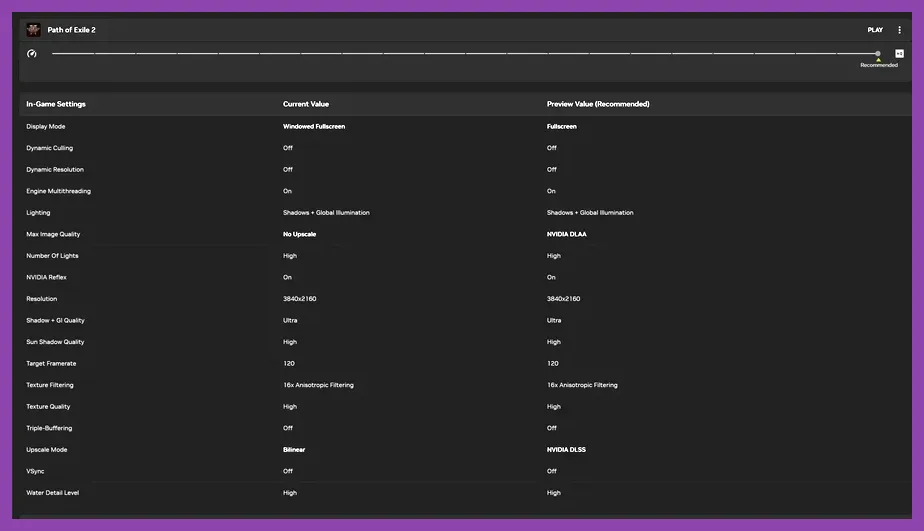
The fastest way to fix lag and low FPS in Path of Exile 2 is to ensure your graphics drivers are current and your PC is set to prioritize performance. Download the latest GeForce Experience or AMD Adrenalin update directly from the manufacturer’s site—NVIDIA version 551.23 or AMD 24.30.1 as of June 2024. After installing, open the NVIDIA Control Panel → Manage 3D Settings → Path of Exile 2.exe and set Power management mode to Prefer maximum performance, Low latency mode to Ultra, and Texture filtering - Quality to High performance. For AMD users, go to Radeon Settings → Graphics → Path of Exile 2 and enable Anti‑Lag plus set Texture Filtering Quality to Performance. Finally, switch Windows Power plan to High Performance (Control Panel → Hardware and Sound → Power Options) and disable USB selective suspend to prevent throttling during long sessions.
Optimize In‑Game Graphics Settings for Maximum FPS

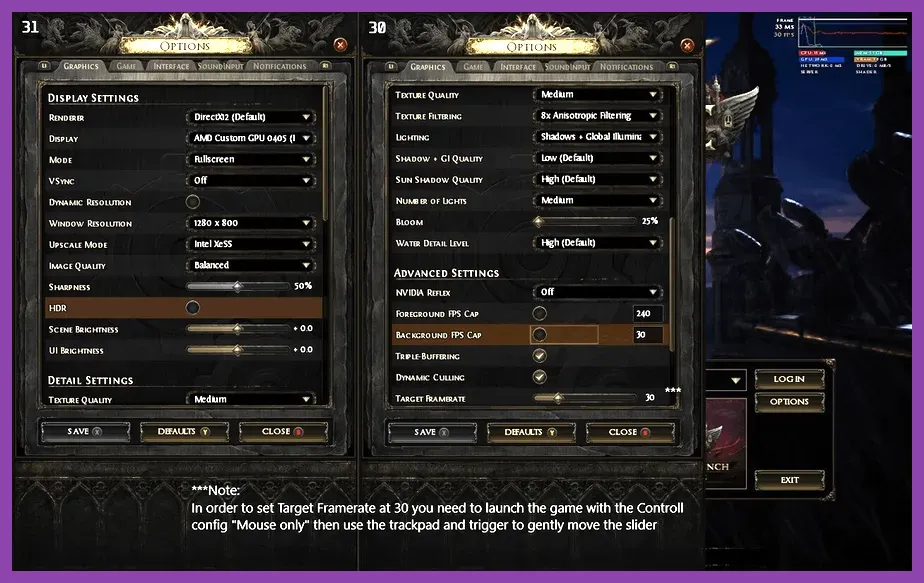
Path of Exile 2 offers a detailed graphics menu where a few tweaks yield massive gains. Set Resolution to your native display (e.g., 1920x1080) but lower Render Scale to 90% if you still dip below 60 FPS. Texture Quality can stay High—modern GPUs handle it well—while Shadow Quality should be Medium; High shadows add noticeable cost with little visual return. Turn Ambient Occlusion off, as it adds a heavy post‑process load. Set Reflection Quality to Low and Tessellation to Off. For anti‑aliasing, choose TAA (Temporal AA) at Low or disable it entirely if you prefer sharper edges and higher FPS. V‑Sync must be Off; instead, enable NVIDIA Reflex Low Latency Mode (or AMD Anti‑Lag) to reduce input lag without sacrificing frame pacing. Apply these settings, then restart the game to let the engine rebuild shaders.
Manage Skill Effect Overload and Particle Density
Certain skill gems generate massive particle counts that cause FPS drops, especially in crowded maps like The Lunar Temple or The Mausoleum. Blade Vortex creates a swirling blade trail that can exceed 200 particles per cast; Ice Nova releases a burst of frost shaders; Storm Brand chains lightning across multiple enemies, each hit spawning a spark effect. To mitigate this, either replace these with less intensive skills for clearing—Lightning Strike, Cleave, or Ground Slam—or lower the Effects Quality slider to Medium in the graphics menu. Additionally, enable the Advanced → Particle Limit option and cap it at 150 000. If you prefer to keep your favorite build, use a Support gem like Less Duration to reduce the time particles stay on screen, which directly cuts the particle budget during intense fights.
Reduce Background Processes and Activate Windows Game Mode

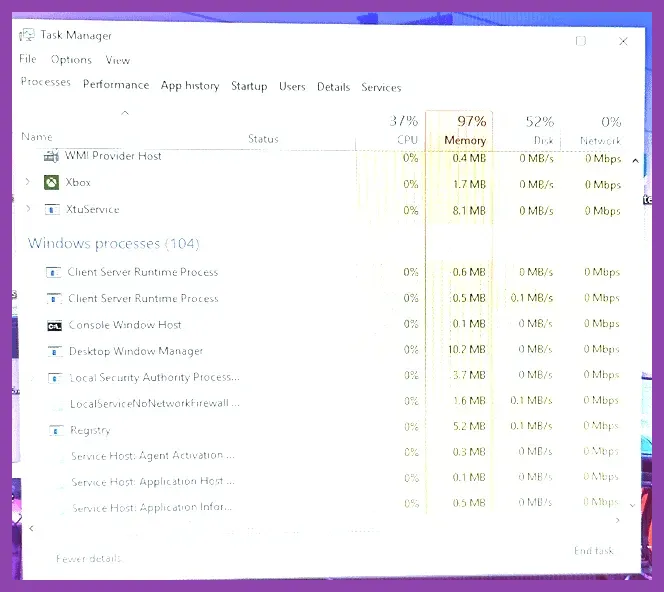
Background applications such as Chrome, Discord, or streaming software can steal CPU cycles and cause micro‑stutters in Path of Exile 2. Open Task Manager (Ctrl+Shift+Esc), go to the Processes tab, and sort by CPU. End tasks for any non‑essential apps using over 5 % CPU while you play. Keep only essential services like your antivirus (set to gaming mode if available) and mouse/keyboard drivers. Then activate Windows Game Mode: Settings → Gaming → Game Mode → On. This prioritizes CPU and GPU resources to the foreground game and prevents Windows Update from downloading patches mid‑session. For streamers, consider using OBS’s NVENC encoder with a low preset to offload encoding to the GPU, keeping the CPU free for game logic.
Use Launch Options and Config Tweaks for Stability
Steam launch options let you bypass certain graphical APIs that may cause instability on specific hardware. Right‑click Path of Exile 2 in your library → Properties → General → Launch Options and add: -dx11 -nosound -novid. The -dx11 flag forces DirectX 11 (more stable on older GPUs than Vulkan), -nosound disables audio processing (useful if you experience crackling or audio‑related stutters), and -novid skips the intro logo movie, shaving a few seconds off launch time. If you still encounter crashes, add -safe to launch with minimal settings, then gradually re‑enable options to identify the culprit. Additionally, navigate to the game’s installation folder (default: C:\Program Files (x86)\Steam\steamapps\common\Path of Exile 2) and open the production_config.ini file. Set MaxFps=0 to unlock the frame rate, and adjust ThreadCount=0 to let the engine auto‑detect optimal thread usage (usually matches your CPU’s logical cores). Save the file and launch the game via Steam to apply changes.
Monitor Performance and Diagnose Bottlenecks
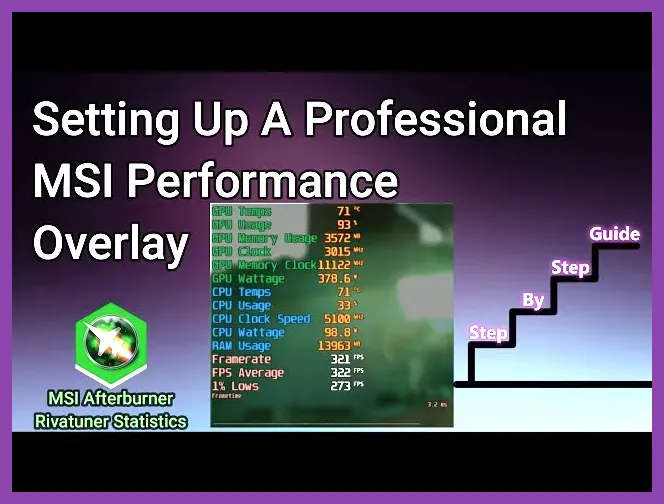
To verify that your fixes are working, run an overlay tool such as MSI Afterburner with RivaTuner Statistics Server (RTSS). Enable frametime, FPS, GPU usage, and temperature readouts. Aim for a stable 60 FPS with frametime spikes below 16.6 ms; consistent spikes above 20 ms indicate CPU bottlenecks, while GPU usage below 70 % suggests the game is CPU‑limited. In Path of Exile 2, heavy CPU usage often stems from physics calculations on large numbers of enemies—noticeable in endgame maps like The Atlas. If you see GPU usage maxed out while FPS drops, lower Shadow Quality or turn off Ambient Occlusion further. If CPU usage stays high, consider reducing the number of active skill gems or switching to a build with fewer area‑of‑effect effects. Regularly check for driver updates and keep Windows up to date (but defer feature updates during gaming sessions) to maintain optimal performance.
By following these steps—updating drivers, tuning graphics settings, managing skill particles, cleaning background processes, applying launch options, and monitoring results—you’ll eliminate lag and low FPS in Path of Exile 2 and enjoy smooth, responsive gameplay even in the most chaotic endgame encounters. For more performance tips on other ARPGs, see our guide on optimizing Elden Ring settings for max FPS, and check out our Black Myth WuKong crash fix guide for similar troubleshooting methods.