
Game Science’s journey through Chinese mythology in Black Myth: Wukong stands as one of the most visually breathtaking action RPGs released in recent years. Built on the cutting-edge Unreal Engine 5 framework, the title pushes consumer hardware to its absolute limits. However, this high level of visual fidelity comes with significant technical friction. Thousands of players on PC have reported frequent desktop crashes, complete system freezes, launch failures, and cryptic out-of-video-memory errors despite having top-tier hardware.
If your journey through the mythical lands is constantly interrupted by sudden system crashes, you are not alone. Engine strain, shader compilation bottlenecks, driver conflicts, and hardware instabilities—particularly on modern high-end processors—all contribute to these stability issues. This comprehensive guide outlines every verified step to eliminate crashes in Black Myth: Wukong, allowing you to return to combat without hardware interruptions. For deeper insights into combat mechanics once your system is running smoothly, check out our Black Myth Wukong starting build guide or learn how to farm gold fast in Black Myth Wukong.
1. Address Intel 13th and 14th Gen Processor Instability
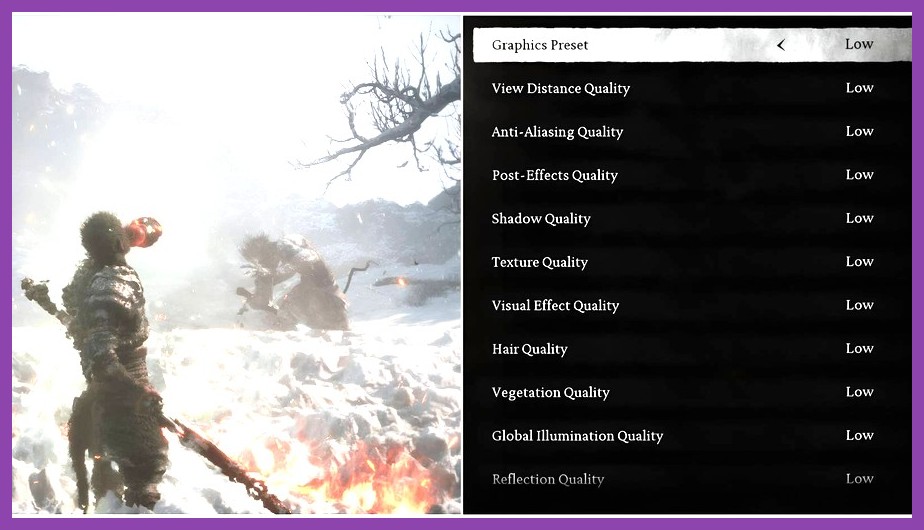
One of the most widely documented causes of crashes in Black Myth: Wukong affects players running Intel 13th and 14th Generation desktop CPUs (specifically the i9-13900K, i7-13700K, i9-14900K, and i7-14700K). During the game's initial startup sequence—specifically while "Building Shaders"—the processor experiences massive transient power spikes. This often leads to a misleading error message claiming your system has ran out of video memory, followed by an immediate crash to desktop.
This error is primarily caused by factory-boosted CPU power limits pushing the silicon beyond stable voltage thresholds during heavy Unreal Engine 5 workload passes. To resolve this issue, you must adjust your processor's power draw and clock multiplier using official Intel utility tools or motherboard BIOS settings.
Applying the Intel XTU Downclock Fix
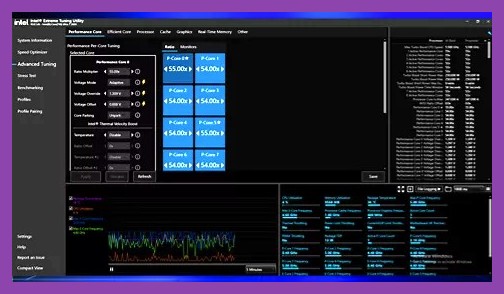
- Download and install the official Intel Extreme Tuning Utility (XTU) software.
- Launch the application and select the Advanced Tuning tab on the left-hand navigation panel.
- Locate the Performance Core Ratio (P-Core Ratio) setting.
- Lower the P-Core Ratio multiplier by 2x to 3x across all cores. For example, if your default ratio is set to 55x, lower it to 52x or 53x.
- Click Apply and launch the game to allow shader compilation to complete cleanly.
If you prefer a permanent solution without running background software, enter your system's motherboard BIOS during startup and apply the standard Intel Baseline Profile or update to the latest BIOS version containing microcode updates (0x125 or newer) provided by your motherboard manufacturer.
2. Force DirectX 11 Mode and Adjust Launch Arguments
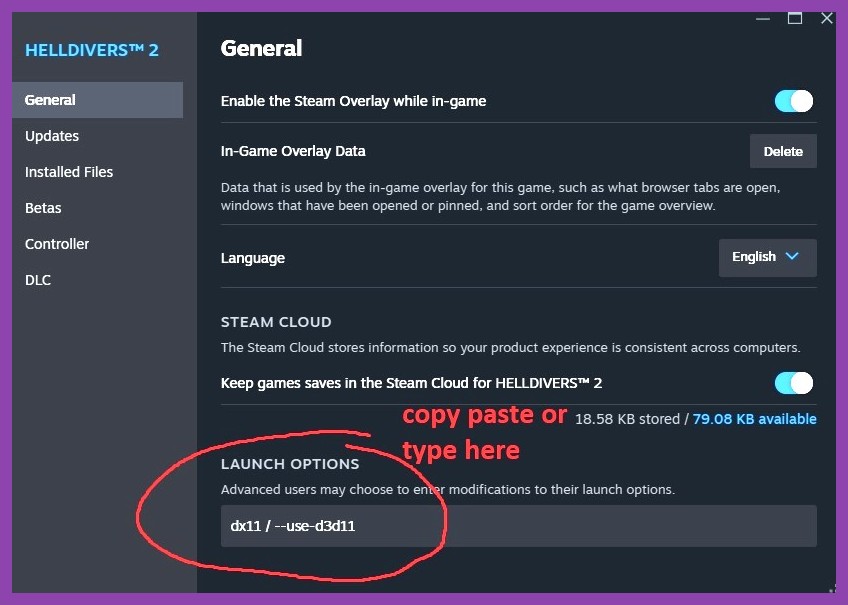
By default, Black Myth: Wukong runs under the DirectX 12 API to deliver modern rendering features like Virtualized Geometry (Nanite) and Dynamic Lighting (Lumen). However, DirectX 12 implementation can be unstable on certain GPU architecture configurations, legacy Windows installations, or setups with conflicting background overlays.
Forcing the game executable to initialize using the legacy DirectX 11 pipeline bypasses several low-level driver calls that frequently trigger instant desktop crashes. You can configure this command directly within your gaming client.
Configuring Launch Options in Steam and Epic Games Store
If you play through Steam, navigate to your library and complete the following steps:
- Right-click on Black Myth: Wukong in your games library and select Properties.
- Under the General tab, scroll down to the Launch Options input field.
- Type
-dx11or-d3d11into the text box. - Close the properties window and boot the title.
If forcing DirectX 11 causes visual artifacting or frame drops on your specific hardware, you can instead test the launch parameter -d3d12 alongside -dx12 to reset modern API calls, or clear the text box entirely. Exploring our PC Games section offers additional performance guides for similar demanding titles.
3. Clear Shader Cache and Rebuild Unreal Engine 5 Assets
Corrupted or incomplete shader files are another major contributor to mid-game crashes, particularly when transitioning between distinct zones like Chapter environments or after applying a patch. When shader compilation fails or freezes mid-process, the game will continually attempt to read corrupted cache files every time dynamic particle effects load during combat.
Manually purging your graphics driver shader cache forces the engine to recalculate all visual assets cleanly on the next boot, eliminating underlying corruption errors.
Clearing NVIDIA and AMD Shader Caches
To perform a complete shader reset for NVIDIA users:
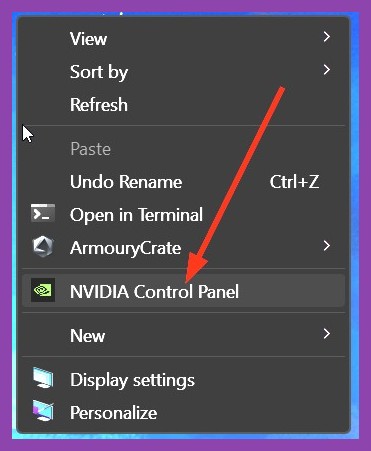
- Open the NVIDIA Control Panel from your Windows system tray.
- Navigate to Manage 3D Settings under the 3D Settings section.
- Scroll down to Shader Cache Size and change the setting to Disabled.
- Click Apply, then restart your computer.
- After rebooting, open Windows File Explorer and navigate to
%LOCALAPPDATA%\NVIDIA\DXCacheand delete all contents within the folder. - Re-open NVIDIA Control Panel, change Shader Cache Size to 10GB or Unlimited, and click Apply.
For AMD Radeon users, open the AMD Software application, navigate to the Gaming tab, select Graphics, scroll down to Advanced, and select the Reset Shader Cache option. Once cleared, launch the game and allow the initial shader build bar to reach 100% without alt-tabbing away from the window.
4. Optimize In-Game Display, Frame Generation, and Ray Tracing
Running aggressive graphical features like Full Ray Tracing (Path Tracing) alongside hardware frame generation can easily exceed your graphics card's available VRAM, leading to sudden driver timeouts. This is particularly prevalent during intensive encounters, such as the combat sequences detailed in our guide on strategies to defeat the final boss in Black Myth Wukong.
Adjusting specific high-impact graphics toggles allows you to preserve impressive visuals while securing absolute system stability.
Recommended Stability Settings
| Setting Option | Recommended Value for Stability | Impact on System Resources |
|---|---|---|
| Full Ray Tracing | Off (or Low) | Extremely High VRAM & GPU Usage |
| Frame Generation | Off (If experiencing crashes) | High System RAM & Latency Overhead |
| Super Resolution Type | DLSS / FSR / XeSS (Quality Mode) | Moderate GPU Load Reduction |
| Shadow Quality | Medium | High VRAM & CPU Cycle Usage |
| Global Illumination | Medium or High | High Unreal Engine 5 Lumen Overhead |
| Visual Effects | Medium | Reduces Explosive VRAM Spikes |
Disabling Frame Generation (DLSS 3 or FSR 3) is critical if your game crashes during fast-camera pans or dodge rolls. While frame generation boosts smooth motion output, its memory overhead frequently destabilizes mid-tier graphics cards with 8GB or 10GB of VRAM. If you enjoy optimizing your hardware setup across various releases, feel free to browse our Guides library for comprehensive PC performance walkthroughs.
5. Perform a Clean GPU Driver Installation (DDU Method)
Updating graphics drivers via standard express installation methods often leaves behind residual registry files and outdated DLL files from previous driver versions. These leftover files can conflict directly with Black Myth: Wukong's rendering engine. Performing a clean installation using Display Driver Uninstaller (DDU) ensures that your GPU operates on a fresh software foundation.
Step-by-Step Clean Driver Removal
- Download the latest official GPU drivers directly from NVIDIA Driver Support or AMD Driver Support.
- Download the latest version of Display Driver Uninstaller (DDU) from Wagnardsoft.
- Disconnect your PC from the internet to prevent Windows Update from automatically installing basic display drivers.
- Boot your computer into Windows Safe Mode.
- Launch DDU, select your device type (GPU) and vendor (NVIDIA/AMD/Intel), then click Clean and Restart.
- Once Windows reboots normally, run the installer file you downloaded in Step 1 and select Fresh Installation.
Updating your display drivers specifically to versions released after the launch of Black Myth: Wukong guarantees that game-ready optimizations and critical stability hotfixes are active on your system.
6. Increase Virtual Memory (Pagefile Size) and System RAM Allocation
Unreal Engine 5 requires substantial virtual memory space to stream high-resolution textures dynamically. If your computer features 16GB of physical RAM or if your primary Windows drive has low available capacity, your system may run out of addressable memory allocation, resulting in an abrupt crash to desktop without an error prompt.
Manually expanding the size of your Windows Virtual Memory (Paging File) creates a safety buffer that prevents memory exhaustion during heavy combat sequences.
How to Manually Configure the Windows Pagefile
- Press the Windows Key + R, type
sysdm.cpl, and press Enter. - Navigate to the Advanced tab and click on Settings under the Performance section.
- In the Performance Options window, click the Advanced tab, then click the Change button under Virtual Memory.
- Uncheck Automatically manage paging file size for all drives.
- Select your fastest installed system drive (preferably an NVMe SSD).
- Select Custom size and set the values based on your physical RAM:
- Initial size (MB): Set to 1.5 times your physical RAM (e.g., 24576 MB for 16GB RAM).
- Maximum size (MB): Set to 3 times your physical RAM (e.g., 49152 MB for 16GB RAM).
- Click Set, press OK, and restart your computer to apply the virtual memory adjustments.
7. Disable System Overclocks, XMP/EXPO, and Background Overlays
Even if your system overclocks pass stress tests in standard desktop benchmarks, Black Myth: Wukong places unique demands on system stability. Unstable RAM timings or aggressive GPU core clock overclocks often result in execution errors that cause the game to close unexpectedly.
To verify if hardware overclocking is causing your technical issues, apply the following adjustments:
- RAM Profiles: Enter your BIOS setup and temporarily disable XMP (eXtreme Memory Profile) or AMD EXPO, setting your system RAM to standard baseline frequencies (e.g., 4800MHz for DDR5 or 2133MHz for DDR4).
- GPU Overclocks: If using software like MSI Afterburner or EVGA Precision X1, reset core clock and memory clock offsets back to
+0. - Disable Background Overlays: Turn off high-overhead background applications, including Discord Overlay, GeForce Experience In-Game Overlay, RivaTuner Statistics Server (RTSS), and Steam Overlay.
Disabling overlay software eliminates third-party hook conflicts that frequently break Unreal Engine rendering threads. If you're interested in alternative titles optimized for portable hardware, take a look at our roundup of top cheap games for Steam Deck running flawlessly.
Final Checklist for Long-Term Stability
Restoring stability to Black Myth: Wukong requires balancing system memory, updating graphics pipelines, and managing high CPU power states. By resolving Intel processor voltage spikes, switching launch APIs, rebuilding shader caches, and disabling VRAM-heavy settings like Ray Tracing, you can permanently eliminate performance crashes on PC.
Always remember to verify your installation files through Steam or the Epic Games Launcher after experiencing a crash to repair any corrupted binaries. For more build suggestions and combat breakdowns once your system is fully optimized, check out our guide on the Black Myth Wukong best class for solo players or browse our comprehensive Black Myth Wukong best weapons tier list to gear up for battle.