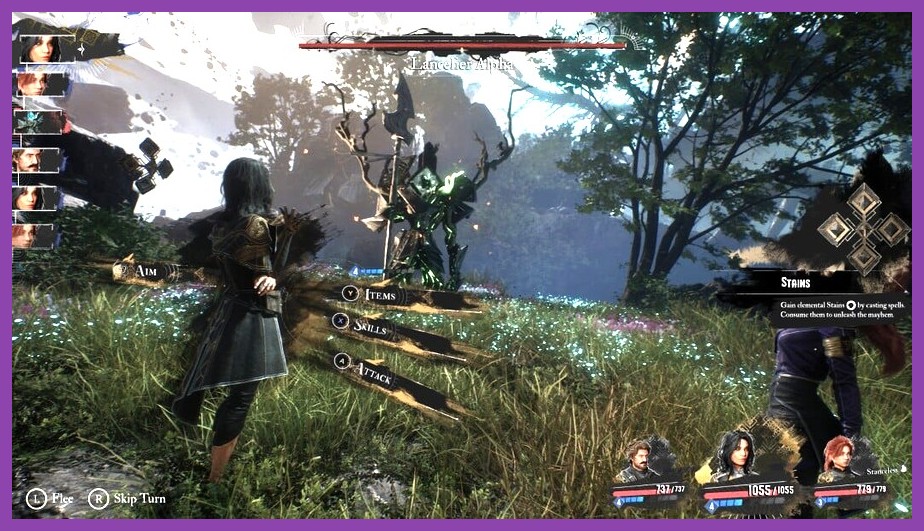
We have all experienced that heartbreaking moment: you boot up a stunning, highly anticipated RPG, marvel at the breathtaking opening cinematic, and then watch in horror as your frame rate plummets off a cliff the instant full control is handed over. Clair Obscur: Expedition 33, developed by Sandfall Interactive, is easily one of the most visually jaw-dropping titles powered by Unreal Engine 5. However, with cutting-edge visual fidelity comes an immense strain on graphics hardware. If your rig is crying for mercy while trying to render the game's dark fantasy French Belle Époque aesthetic, you have come to the right place. In this definitive guide, we are breaking down the Clair Obscur Expedition 33 best settings for max FPS so you can conquer the Paintress without burning out your GPU.
Achieving fluid framerates isn't just about making the game look decent; in a title where reactive parries, dodges, and quick-time combat mechanics dictate survival, low input lag and rock-solid frame pacing are vital. Whether you are running a budget-friendly rig or trying to squeeze 144 FPS out of a high-end setup at 4K resolution, our optimized settings guide will help you strike the perfect balance between crisp image quality and high performance.
Why Is Clair Obscur: Expedition 33 Melting Our GPUs?
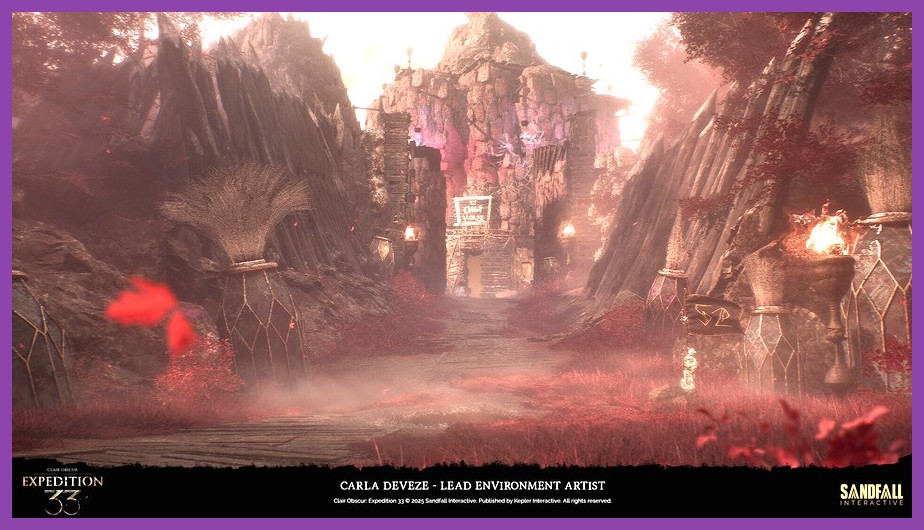
To fix performance bottlenecks, we first need to understand what makes Clair Obscur: Expedition 33 so demanding on PC hardware. Built from the ground up on Unreal Engine 5, the game relies heavily on state-of-the-art rendering technologies like Lumen for dynamic global illumination and reflections, along with Nanite for high-density virtualized geometry. While these features produce photorealistic environments and incredibly intricate character models, they place heavy demands on your graphics card's compute units and VRAM buffer.
Unreal Engine 5 games are notoriously susceptible to shader compilation micro-stutters and sudden FPS dips in open, asset-heavy environments. When dozens of particle effects ignite during intense turn-based combat sequences, unoptimized settings can cause your frame rate to fluctuate wildly. Just as we discovered while optimizing performance in our Path of Exile 2 performance guide, identifying which visual options consume disproportionate processing power is the primary key to regaining fluid gameplay.
Furthermore, because timing-based combat mechanics demand instant reactions, erratic frame delivery can cause missing crucial block windows. If you have spent time learning how to master the perfect parry in Resident Evil 4 Remake, you already know how crippling input lag can be. Eliminating performance hitches in Expedition 33 is directly tied to your combat efficiency when facing off against formidable foes across the ruined continent.
What Are the Real System Requirements for Expedition 33?
Before we start tweaking individual options inside the settings menu, let's look at the baseline system specifications required to run the game comfortably. Official hardware targets give us a foundation, but real-world testing tells a deeper story about VRAM usage and CPU bottlenecks.
| Hardware Component | Minimum Specification (1080p / 30 FPS Low) | Recommended Specification (1080p / 60 FPS High) | Ultra 4K Target (4K / 60+ FPS Max) |
|---|---|---|---|
| OS | Windows 10 64-bit | Windows 11 64-bit | Windows 11 64-bit |
| Processor (CPU) | Intel Core i5-8400 / AMD Ryzen 5 2600 | Intel Core i7-10700K / AMD Ryzen 7 5700X | Intel Core i7-14700K / AMD Ryzen 7 7800X3D |
| Memory (RAM) | 16 GB RAM | 16 GB RAM (Dual Channel) | 32 GB RAM (High Speed) |
| Graphics (GPU) | NVIDIA GTX 1060 (6GB) / AMD RX 580 (8GB) | NVIDIA RTX 3070 (8GB) / AMD RX 6800 (16GB) | NVIDIA RTX 4080 (16GB) / AMD RX 7900 XTX (24GB) |
| DirectX | Version 12 | Version 12 | Version 12 |
| Storage | 100 GB available space (SSD Required) | 100 GB available space (NVMe SSD) | 100 GB available space (Gen4 NVMe SSD) |
Notice that an Solid State Drive (SSD) is strictly required. Installing Clair Obscur: Expedition 33 on a mechanical hard drive will result in atrocious asset streaming hitches, missing textures, and severe audio desynchronization. If your desktop is suffering from system-wide slowdowns or memory exhaustion, taking a moment to review our RAM upgrade guide for gaming PCs will help ensure your system isn't bottlenecked before you even launch the title.
Which In-Game Graphics Settings Impact Performance the Most?
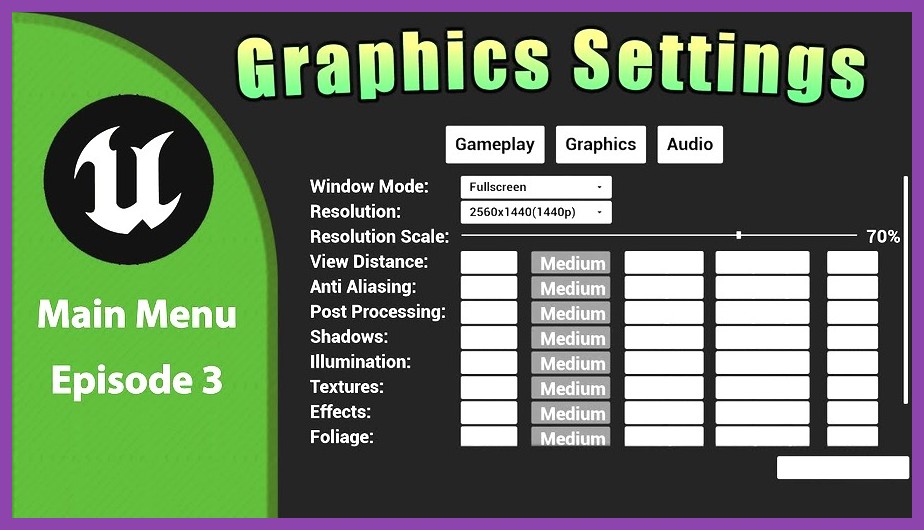
Inside the display and graphics menus of Clair Obscur: Expedition 33, you will find a dense wall of sliders and toggles. Not all graphical settings are created equal: some consume massive amounts of GPU compute power for subtle visual improvements, while others drastically improve image clarity at almost zero performance cost. Below is our complete breakdown of every critical setting and its impact on your framerate.
1. Resolution & Display Mode
Always set your Display Mode to Exclusive Fullscreen (or Fullscreen Windowed if multi-monitoring). Running in standard windowed mode introduces additional Windows Desktop Window Manager (DWM) latency. Set your display resolution to your monitor’s native output (e.g., 1920x1080, 2560x1440, or 3840x2160) and rely on modern spatial/AI upscalers rather than lowering your native render resolution directly.
2. Global Illumination (Lumen / Ray Tracing)
Performance Impact: Extremely High (Up to 30% FPS hit)
Global Illumination controls how light bounces dynamically across surfaces. In Unreal Engine 5, setting this to Ultra engages full software or hardware ray-traced bounces. Dropping Global Illumination from Ultra to Medium delivers an instant 20% to 25% boost in average frame rate while preserving ambient warmth across shadows.
3. Reflections
Performance Impact: High (10-15% FPS hit)
High reflection settings calculate complex specular highlights on water puddles, wet cobblestones, and polished armor plating. Lowering Reflections from Ultra down to Medium replaces ray-traced reflection probes with screen-space reflections (SSR), reclaiming crucial frame rates during rainy atmospheric scenes.
4. Shadow Quality
Performance Impact: High (12-18% FPS hit)
Shadows in UE5 use Virtual Shadow Maps (VSM) to generate ultra-sharp contact shadows. While visual quality on Ultra is pristine, it places a massive burden on your GPU's rasterizers. Setting Shadow Quality to Medium soft-blurs shadow edges slightly while recovering substantial processing overhead.
5. Volumetric Fog & Clouds
Performance Impact: Moderate to High (8-14% FPS hit)
Expedition 33 features heavy atmospheric mist, dynamic smoke, and moody overcast skies. Volumetric processing forces your card to calculate light scattering through density grids. Turning Volumetric Fog from Ultra down to Medium retains environmental moodiness without choking performance in dense fog zones.
6. Texture Quality
Performance Impact: Low (VRAM Dependent)
Texture quality primarily relies on how much Dedicated Video RAM (VRAM) your card possesses. If your GPU has 8GB of VRAM or more, you can comfortably leave this set to High or Ultra without losing frame rate. If you are gaming on older 4GB or 6GB cards, lower this to Medium to eliminate VRAM swapping stutters.
7. Post-Processing & Effects Quality
Performance Impact: Moderate (5-8% FPS hit)
Effects quality governs bloom intensity, motion blur depth, depth of field, and particle density during spell casting. Keeping Post-Processing at Medium maintains clean visual effects without overwhelming your graphics pipeline during chaotic tactical engagements.
How Should You Configure Upscaling and Frame Generation?
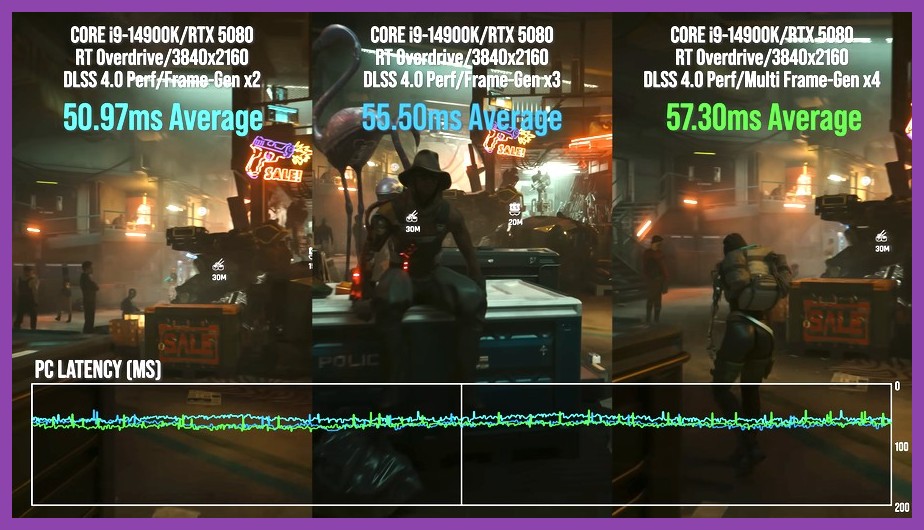
If you want to achieve high refresh rate performance (120+ FPS) without compromising native clarity, upscaling technologies are your best friends. Sandfall Interactive has implemented support for NVIDIA DLSS, AMD FSR, and Intel XeSS directly into the game engine.
- NVIDIA DLSS (Deep Learning Super Sampling): If you own an NVIDIA RTX GPU, enable DLSS. Set DLSS Super Resolution to Quality for 1440p or 4K, or Balanced for 1080p. RTX 40-series users should definitely turn on DLSS Frame Generation, which inserts AI-generated frames to boost FPS by up to 70%.
- AMD FSR (FidelityFX Super Resolution): AMD Radeon users should enable FSR 3. Set the mode to Quality. If available, toggle on FSR Frame Generation to smooth out baseline frame rates, provided your base unassisted FPS is already hovering around 50-60 FPS.
- Intel XeSS: Intel Arc owners and players running older GTX cards lacking DLSS support should opt for XeSS set to Quality mode, which offers superior temporal anti-aliasing compared to standard spatial scaling.
- NVIDIA Reflex Low Latency: Always switch this setting to On + Boost. Frame generation adds minor input latency; NVIDIA Reflex counteracts this delay by optimizing CPU-to-GPU render queues, ensuring responsive parry inputs during battle.
For official details on hardware compatibility and deep-learning technology, you can explore the official NVIDIA DLSS Technology Overview and read up on Unreal Engine 5 rendering features via the Unreal Engine Documentation.
What Are the Best FPS Presets for Low, Mid, and High-End PCs?
Rather than making you experiment blindly for hours, we have put together three pre-calibrated graphics profiles optimized for different hardware tier levels. Choose the preset below that best matches your setup for immediate gains in frame rate.
1. Max FPS Preset (Low-End GPUs / Handhelds like Steam Deck)
Designed for older graphics cards (GTX 1060, GTX 1660 Super, RX 580) or handheld devices where reaching a stable 45-60 FPS is the primary goal:
- Display Mode: Fullscreen
- Upscaling: FSR / XeSS - Balanced
- Anti-Aliasing: Low / Medium
- Global Illumination: Low
- Reflections: Low
- Shadow Quality: Low
- Texture Quality: Medium (High if 8GB VRAM)
- Volumetric Fog: Low
- Post-Processing: Low
- Motion Blur: Off
- Depth of Field: Off
2. Competitive Balanced Preset (Mid-Range GPUs — Best Overall)
Optimized for mid-tier graphics hardware (RTX 3060, RTX 4060, RX 6700 XT, RX 7600). Delivers an exceptional balance of stunning visuals and butter-smooth 80+ FPS performance:
- Display Mode: Exclusive Fullscreen
- Upscaling: DLSS / FSR - Quality
- Frame Generation: On (if supported)
- NVIDIA Reflex: On + Boost
- Global Illumination: Medium
- Reflections: Medium
- Shadow Quality: Medium
- Texture Quality: High
- Volumetric Fog: Medium
- Post-Processing: Medium
- Ambient Occlusion: High
- Motion Blur: Off
3. Visual Fidelity 4K Preset (High-End GPUs)
Tailored for high-end rigs (RTX 4080, RTX 4090, RX 7900 XTX) looking for maximum visual realism at 4K resolution while maintaining 100+ FPS:
- Display Mode: Exclusive Fullscreen
- Upscaling: DLSS Quality / DLAA
- Frame Generation: Enabled
- NVIDIA Reflex: On + Boost
- Global Illumination: High / Ultra
- Reflections: High
- Shadow Quality: High
- Texture Quality: Ultra
- Volumetric Fog: High
- Post-Processing: High
- View Distance: High
Once your frame rate is locked in and your visual presentation is crisp, you will be in prime position to take down early challenges. Be sure to check out our companion guide on how to master early bosses in Clair Obscur Expedition 33 for tactical combat strategies.
How Can Windows and Driver Tweaks Give You Free FPS?
Optimizing in-game graphics menus is only half the battle. Your operating system and GPU drivers can hold back performance if left on default settings. Here is how to configure your PC for maximum frame output:
1. Enable Hardware-Accelerated GPU Scheduling (HAGS)
Windows 10 and 11 include a feature that allows your graphics card to manage its own memory allocation directly, reducing CPU overhead:
- Press the Windows Key + I to open Settings.
- Navigate to System > Display > Graphics.
- Click Change default graphics settings.
- Toggle Hardware-accelerated GPU scheduling to On.
- Restart your PC.
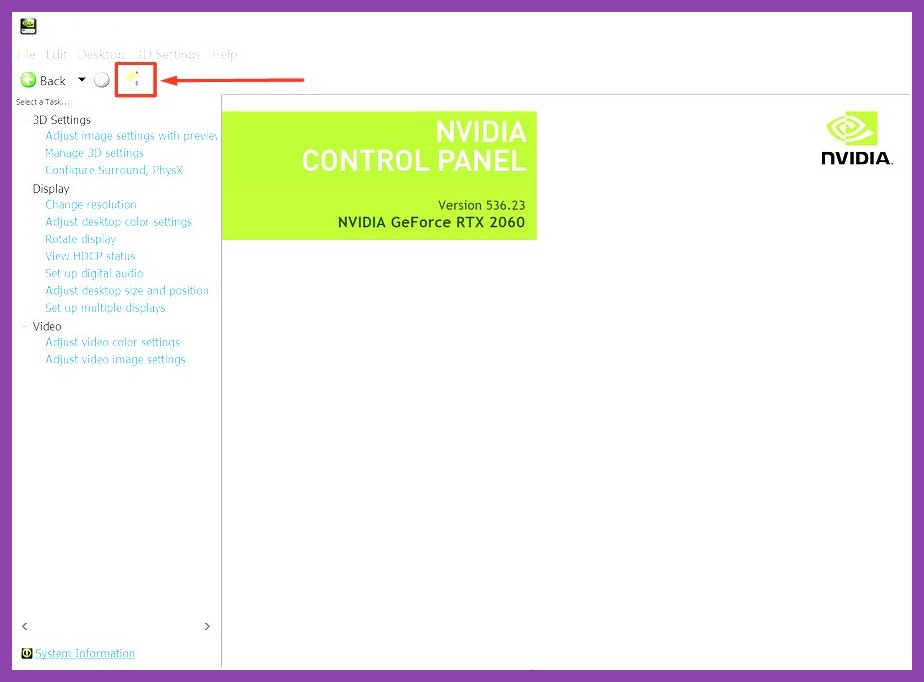
2. Configure GPU Driver Control Panels
Whether you use NVIDIA Control Panel or AMD Software: Adrenalin Edition, apply these driver-level tweaks:
- Power Management Mode: Set to Prefer Maximum Performance.
- Texture Filtering - Quality: Set to High Performance.
- Max Frame Rate: Match your monitor’s refresh rate minus 3 FPS (e.g., set to 141 FPS on a 144Hz screen) when using G-Sync or FreeSync to eliminate screen tearing.
- Shader Cache Size: Set to 10 GB or Unlimited. Expanding the shader cache prevents Windows from deleting pre-compiled shaders, curbing hitching in Unreal Engine 5 games.
3. Turn On Windows Game Mode
Ensure Game Mode is enabled in Windows settings. This prevents background processes like Windows Update or antivirus scans from stealing processor threads while you are playing. If you love optimizing game performance across your library, explore our comprehensive collection of PC gaming guides for more system tuning tips.
How Do You Fix Shader Stutters and Frame Pacing?
Few things ruin an immersive gaming session faster than micro-stuttering every time you turn the camera or enter a new environment. UE5 titles often compile shaders dynamically during gameplay, causing transient drops in framerate. Here is how to eliminate them:
1. Edit the Engine.ini File (Advanced UE5 Tweaks)
You can force Unreal Engine 5 to pre-stream textures and optimize memory allocation by tweaking the game's `Engine.ini` configuration file:
- Press Windows Key + R, type
%LOCALAPPDATA%\\Expedition33\\Saved\\Config\\Windows\\and hit Enter. - Open
Engine.iniusing Notepad. - Scroll to the very bottom of the document and paste the following lines:
[SystemSettings]
r.CreateFramePacingThread=1
r.Streaming.PoolSize=4096
r.Streaming.LimitPoolSizeToVRAM=1
s.AsyncLoadingThreadEnabled=1
Note: Set r.Streaming.PoolSize to half of your total GPU VRAM in megabytes (e.g., 4096 for an 8GB card, 6144 for a 12GB card). Save the file and mark it as "Read-Only" in file properties.
2. Cap Frame Rates with RivaTuner Statistics Server (RTSS)
In-game frame limiters can sometimes produce uneven frame pacing. Downloading RTSS (RivaTuner) and setting a flat frame rate cap creates smooth frame delivery times, eliminating micro-jitter during exploration and combat.
Final Thoughts on Optimizing Expedition 33
Sandfall Interactive has crafted an extraordinary fantasy experience with Clair Obscur: Expedition 33, but getting the best performance requires dialing in your settings carefully. By dropping lighting-heavy options like Global Illumination, Reflections, and Shadows down to Medium, while leveraging AI upscalers like DLSS or FSR, you can enjoy crisp visual quality alongside responsive high-framerate combat.
Keep your graphics drivers updated via the official Steam Store Page or developer updates on the official Expedition 33 website. For more hardware breakdowns, gameplay guides, and optimization walkthroughs, browse through our extended guides index and jump back into the fight with maximum FPS!