If your PC packs an Intel Core i5-6600K and an aging 4GB GTX 960, you can technically boot Call of Duty: Modern Warfare II on Steam. But let's cut straight to the chase: you won't enjoy playing it. Between severe frametime hitching during chaotic gunfights, sluggish asset streaming across Ground War maps like Guijarro, and aggressive dynamic resolution drops that turn distant enemies into muddy smudges, Activision's official minimum requirements paint an unrealistically rosy picture. While the IW 9.0 engine scales remarkably well across modern architectures, competitive 6v6 multiplayer and massive Warzone lobbies demand far more horsepower than the publisher's spec sheet admits. If your goal is a locked 60 FPS at 1080p without visual sludge—or a blazing, tear-free 144 FPS for high-refresh-rate ranked matches—you need real-world hardware telemetry, not marketing bullet points.
Official Requirements vs. Reality: Why Minimum Specs Are a Trap
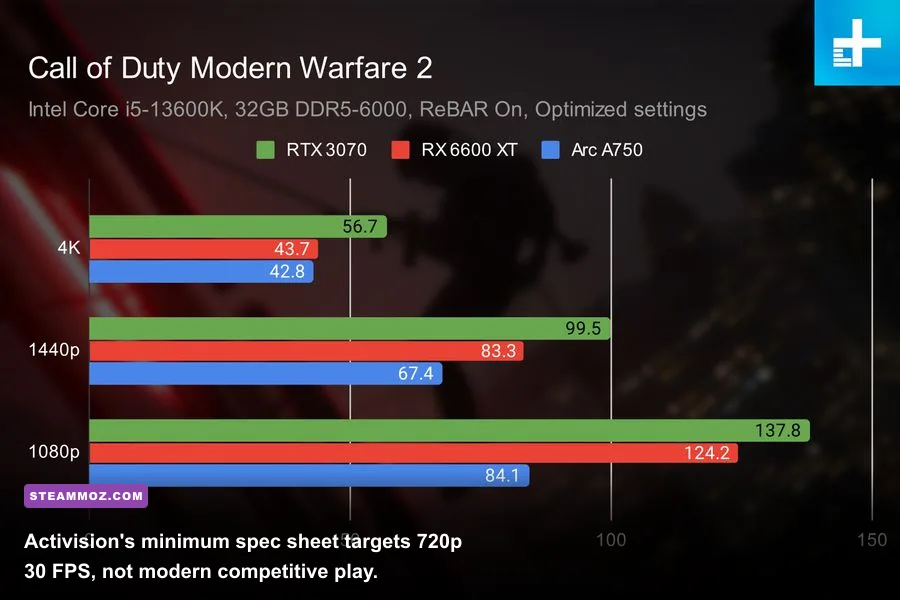
Activision designed their official minimum spec sheet to answer one question: Will the executable launch without immediately crashing to desktop? It does not guarantee a competitive experience. Running the game on a dual-core or quad-core processor without hyperthreading like the Core i3-6100 means your CPU will sit pinned at 100% utilization while shader compilation chokes every single match transition. Worse, running on an ancient 2GB or 4GB video card forces the game's dynamic resolution scaling down below 500p internal render resolution just to maintain 30 frames per second.
Evaluating hardware capability requires looking beyond generic manufacturer labels, whether you are examining legacy PC hardware spec sheets or weighing modern combat fighters in our Fatal Fury City of the Wolves specs breakdown. The reality of modern competitive PC gaming is that system architecture, memory bandwidth, and drive speeds matter just as much as your core silicon clock speed.
| Hardware Component | Activision Minimum Spec | Activision Recommended Spec | The Real Competitive Target |
|---|---|---|---|
| Operating System | Windows 10 64-bit (Latest Update) | Windows 10/11 64-bit | Windows 10/11 64-bit (Debloated, Game Mode ON) |
| Processor (CPU) | Intel Core i3-6100 / AMD Ryzen 3 1200 | Intel Core i5-6600K / AMD Ryzen 5 1400 | AMD Ryzen 5 5600 / Intel Core i5-12400F (or better) |
| Graphics Card (GPU) | NVIDIA GTX 960 / AMD RX 470 (2GB VRAM) | NVIDIA GTX 1060 / AMD RX 580 (4GB+ VRAM) | NVIDIA RTX 3060 (12GB) / AMD Radeon RX 6700 XT (12GB) |
| System Memory (RAM) | 8 GB | 12 GB | 16 GB to 32 GB Dual-Channel DDR4/DDR5 (3200MHz+) |
| Storage Drive | 125 GB HDD Space | 125 GB SSD Space | PCIe NVMe Gen 3/4 SSD (High Random Read Speeds) |
| Target Performance | 720p @ 30 FPS (Lowest Quality) | 1080p @ 60 FPS (Medium Settings) | 1080p/1440p @ 120-165+ FPS (Optimized Competitive) |
Single-channel 8GB system memory is an immediate death sentence in Modern Warfare II. The game's executable, Ricochet anti-cheat kernel drivers, background Steam runtime services, and Windows system processes routinely consume 11 to 13 GB of system RAM during an active match on Mercado Las Almas or Crown Raceway. If you have only 8GB installed, Windows compensates by aggressively paging memory to your storage drive. If that storage drive happens to be a traditional mechanical hard disk drive (HDD), you will experience catastrophic 500-millisecond lockups every time an enemy throws a smoke grenade or calls in a VTOL jet. Installing the title on a swift NVMe solid-state drive is mandatory for fluid asset delivery, as highlighted in the official Call of Duty PC performance overview.
Real Hardware Benchmarks: 1080p, 1440p, and 4K Performance Breakdown
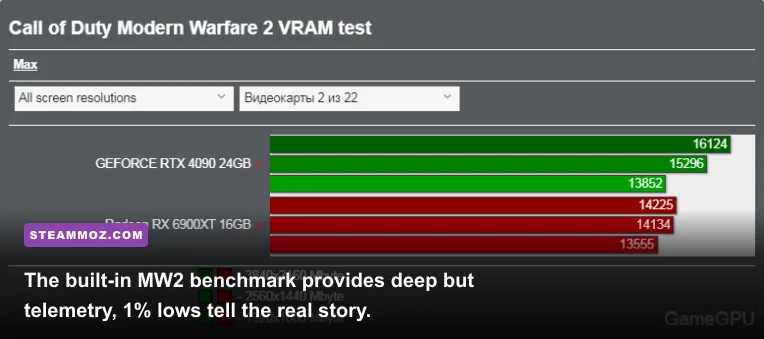
To determine how modern consumer hardware actually handles the IW 9.0 engine, we tested multiple GPU and CPU configurations across both the built-in benchmark utility and live 64-player Ground War sessions. The internal benchmark runs a scripted camera pass through an explosive, water-heavy campaign-style environment; however, real multiplayer matches with dozens of active player models, ragdoll physics, dynamic smoke particles, and bullet penetrations tax systems up to 20% harder.
Frametime consistency represents the critical differentiator between a smooth gaming session and a frustrating mess. An average of 90 FPS feels terrible if your 1% low framerate repeatedly craters to 35 FPS whenever firefights break out. Diagnosing micro-stutters across varied game engines follows principles similar to those covered in our guide on rescuing FPS and fixing crashes in Elex: stable frametimes trump raw, peak vanity FPS numbers every single time.
| GPU Model | Resolution & Preset | Average FPS (6v6 Maps) | Average FPS (Warzone / Ground War) | 1% Low FPS | Playability Verdict |
|---|---|---|---|---|---|
| NVIDIA GTX 1650 (4GB) | 1080p Low / FSR Balanced | 54 FPS | 38 FPS | 28 FPS | Struggles heavily; visual smear makes target acquisition hard |
| AMD Radeon RX 6600 (8GB) | 1080p Competitive / Native CAS | 112 FPS | 84 FPS | 71 FPS | Excellent 1080p sweet spot; buttery smooth on 144Hz panels |
| NVIDIA RTX 3060 (12GB) | 1080p Competitive / Native CAS | 118 FPS | 88 FPS | 76 FPS | Flawless 1080p delivery; generous VRAM eliminates paging hitching |
| NVIDIA RTX 4060 (8GB) | 1440p Balanced / DLSS Quality | 105 FPS | 78 FPS | 62 FPS | Solid 1440p performance; watch VRAM target allocation limits |
| AMD Radeon RX 6700 XT (12GB) | 1440p Competitive / Native CAS | 134 FPS | 102 FPS | 88 FPS | The undisputed mid-range king for raw rasterized Call of Duty frames |
| NVIDIA RTX 4070 (12GB) | 1440p Ultra / Native DLAA | 158 FPS | 126 FPS | 110 FPS | Tournament-grade throughput; ideal pairing for 165Hz-240Hz monitors |
| NVIDIA RTX 4080 (16GB) | 4K Competitive / DLSS Quality | 138 FPS | 112 FPS | 94 FPS | Pristine 4K high-refresh competitive presentation without breaking sweat |
Notice the stark divergence between standard 6v6 Multiplayer (such as Farm 18 or Breenbergh Hotel) and large-scale modes. In traditional 6v6 arenas, maps utilize tight sightlines and pre-calculated visibility culling, keeping GPU rasterization pipelines running uninhibited. But the second you queue into Ground War or Warzone, the game must compute expansive geometric draw distances, volumetric atmospheric haze, and network telemetry for dozens of concurrent participants. That expanded simulation burden easily slices 25% to 35% off your baseline framerate.
The Hidden VRAM Bottleneck: Why 8GB Cards Are Sweating
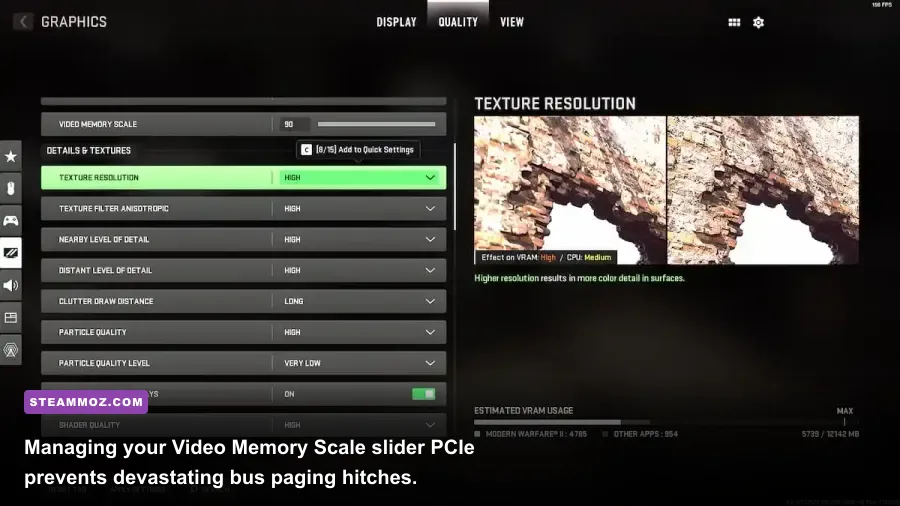
One of the most persistent technical headaches for PC players on the Modern Warfare II Steam client revolves around Video RAM management. If you own an 8GB graphics card—such as an RTX 2070 Super, RTX 3070, or RTX 4060 Ti—you might assume 8GB is more than adequate for high-definition gaming. In MW2, however, an uncalibrated memory slider can cripple your frame pacing.
By default, Modern Warfare II sets its Video Memory Scale setting to 0.90 (or 90%). On an 8GB card, this instructs the game engine that it is permitted to consume up to 7.2 GB of VRAM exclusively for its own buffers. But Windows 10/11 desktop composition, running web browsers, Discord overlays, and hardware acceleration also stake claims to local video memory. When the total VRAM demand hits 100% of physical capacity, your system encounters a catastrophic hardware bottleneck: the GPU offloads excess texture data across the PCIe bus into system RAM. This causes sudden, violent framerate drops where your game plummets from 120 FPS down to 15 FPS for two to four seconds before recovering.
To eliminate this instability, manually dial your Video Memory Scale back to 70% or 80%. Giving your operating system a 1.5GB to 2.0GB buffer prevents GPU memory spillover entirely. Additionally, turn off On-Demand Texture Streaming. This feature streams high-resolution texture packs continuously from Activision's cloud servers directly to your SSD cache while you play. If your local internet bandwidth fluctuates or the server encounters latency spikes, your game will micro-stutter as it tries to write uncompressed MIP-maps in the middle of a sprint. Isolating pipeline stalls mirrors the steps we use in our EscapeVR crashing and low FPS guide to eliminate erratic background asset caching.
The single most misunderstood setting in the entire graphics menu is Spot Cache. Many budget-conscious players turn Spot Cache down to "Low" under the false assumption that lower settings always yield higher frames. In Modern Warfare II, setting Spot Cache to Low forces the game engine to calculate dynamic muzzle flash shadows and point-light ambient interactions on the fly, which causes severe hitching whenever explosions occur. Setting Spot Cache to High or Ultra tells the engine to reserve a static slice of your system RAM to store pre-calculated lighting values, drastically smoothing out your 1% low frametimes during intense close-quarters gunfights.
Pro-Tuned Competitive Graphics Settings for Maximum FPS and Clarity
Achieving maximum competitive advantage requires tuning your graphics pipeline to deliver clean visual clarity while shedding wasteful post-processing effects. Much like configuring tactical loadouts and fine-tuning engine parameters in our Far Cry 6 settings optimization guide, your goal in MW2 is spotting ghillie-suit operators across long sightlines while keeping your input latency as low as physically possible.
| Graphic Setting | Competitive Recommendation | Performance Impact vs Ultra | Visual Clarity & Tactical Impact |
|---|---|---|---|
| Display Mode | Exclusive Fullscreen | ~3-5% Latency Reduction | Bypasses Windows Desktop Window Manager compositor for lowest input lag |
| Upscaling / Sharpening | FidelityFX CAS (Strength: 65-75) | Baseline (Native Render) | Razor-sharp target outlines without DLSS/FSR ghosting or temporal blur |
| Texture Resolution | Normal (or Low on 4GB cards) | Negligible on GPU compute | Prevents muddy operator skins while conserving critical VRAM space |
| Particle Quality Level | Low | +8% to +12% in firefights | Eliminates massive framerate dips inside thermite, smoke, and airstrike blasts |
| Bullet Impacts & Sprays | On | < 1% FPS Impact | Crucial for reading enemy wallbang trajectories and tracing bullet origin |
| Shader Quality | Low | +6% to +9% FPS Gain | Flattens unnecessary lighting sheen, making enemy silhouettes stand out |
| Shadow Map Resolution | Normal | +5% FPS Gain | Maintains readable player shadows without heavy GPU raster penalty |
| Screen Space Reflections | Off | +7% to +10% FPS Gain | Removes distracting floor reflections in wet maps like Santa Seña |
| Depth of Field | Off | +2% FPS Gain | Stops weapon ADS transitions from blurring your peripheral vision |
| Motion Blur (World & Weapon) | Off | +3% FPS Gain | Essential; eliminates visual smear when performing rapid 180-degree snaps |
| NVIDIA Reflex Low Latency | On + Boost | Zero FPS change | Keeps GPU clocks maxed out in CPU-bound scenarios to slash input delay |
While temporal upscalers like NVIDIA DLSS and AMD FSR 2.1 boost average frames on lower-tier hardware, they introduce noticeable motion blur and temporal ghosting along thin iron sights and chain-link fences. In high-stakes Search and Destroy rounds, that fractional blur can cost you an elimination. If your graphics card can hit your monitor's native refresh rate, select FidelityFX CAS at native 100% render resolution with sharpening dialed to 70%. This sharpens distant enemy silhouettes and makes target identification instantaneous. Be sure your graphics drivers are up to date via the official NVIDIA Driver Download hub or AMD's driver portal before locking in your settings.
Unlocking the CPU: The RendererWorkerCount Secret Config Fix
If you have installed the game on an SSD, adjusted your graphics settings to competitive minimums, and still suffer from erratic micro-stutters during matches, you are likely hitting an IW 9.0 engine architectural flaw. The Call of Duty engine attempts to automatically determine how many CPU threads to dedicate to rendering workloads during its initial hardware scan. Unfortunately, it frequently assigns an incorrect value—especially on hybrid Intel 12th, 13th, and 14th Gen processors with Performance and Efficient cores, as well as multi-die AMD Ryzen chips.
When the engine over-allocates worker threads to AMD Simultaneous Multithreading (SMT) virtual cores or Intel E-cores, cache thrashing occurs, producing jagged frametime spikes that no GPU upgrade can solve. You can resolve this issue manually inside the game's core configuration file:
- Completely exit Modern Warfare II and the Steam desktop client.
- Open Windows File Explorer and navigate to your user directory:
C:\\Users\\<YourUsername>\\Documents\\Call of Duty\\players. - Locate the file named
options.3.cod22.cstand open it using a plain text editor like Notepad. - Press
Ctrl + Fand search for the phrase:RendererWorkerCount. - Locate the value string, which typically looks like:
RendererWorkerCount:0.0 = "X"(where X is a number).
Tuning this number correctly requires matching it specifically to your CPU's physical architecture:
- For AMD Ryzen Processors (e.g., Ryzen 5 5600X, Ryzen 7 7800X3D): Set the value strictly to your number of physical cores, NOT your logical thread count. A 6-core 5600X should be set to
"6"; an 8-core 7800X3D should be set to"8". Never set it to 12 or 16, as assigning worker threads to virtual SMT cores bottlenecks the engine's render pipeline. - For Intel Core Processors with P-Cores & E-Cores (e.g., i5-13600K, i7-14700K): Set the value strictly to your number of Performance Cores (P-cores). An i5-13600K possesses 6 P-cores; set the value to
"6". An i7-14700K features 8 P-cores; set the value to"8". This prevents the Windows thread scheduler from dumping demanding render worker threads onto lower-clocked Efficient cores.
Save the file, right-click options.3.cod22.cst, choose Properties, and check Read-only so future updates won't overwrite your manual tweak. Fine-tuning low-level engine parameters like this mirrors the deep system calibration required to rescue framerates in Filament Marmalade Edition or resolving structural crashes in Everspace 2: Wrath of the Ancients.
Once your hardware specs, VRAM limits, competitive graphic toggles, and CPU worker counts are aligned, Modern Warfare II transforms from a stuttering, unpredictable headache into one of the snappiest, most responsive shooters on PC. Take twenty minutes to dial in these settings today, and let your raw mechanical aim decide the outcome of your gunfights—not an unoptimized hardware bottleneck.