
To achieve a smooth 60 FPS in modern AAA titles on the ASUS ROG Ally X, configure your AMD Radeon Software to a 900p or 720p native resolution paired with AMD FidelityFX Super Resolution (FSR) set to Performance mode, alongside a 25W manual wattage profile in Armoury Crate SE. The upgraded 24GB LPDDR5X memory and larger 80Wh battery on the official ASUS ROG Ally X product page allow you to push hardware limits further than the original model without sacrificing thermal stability.
Armoury Crate SE and Manual Power Profiles
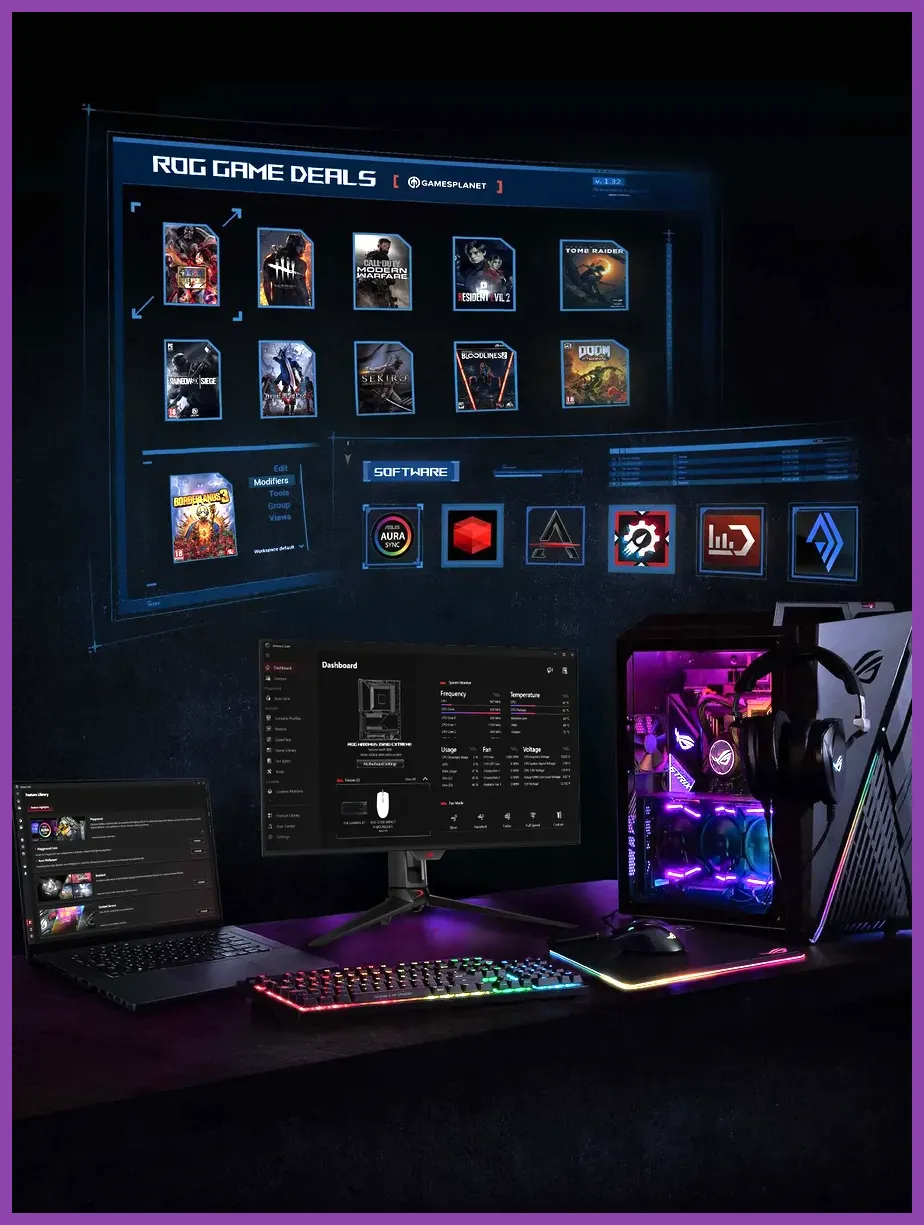
Getting the absolute best performance out of your device starts before you even launch a game. The pre-installed Armoury Crate SE software is your primary control panel for managing system TDP, fan curves, and operating modes. Out of the box, the 30W Turbo mode when plugged in offers incredible peak performance, but for portable gaming sessions on battery, you need a finely tuned manual profile.
Navigate to Armoury Crate SE, select Operating Mode, and create a Custom Profile. Set your Sustained Power Target (SPL) to 25W and your Fast Power Target (SPPT) to 30W. This mirrors the thermal sweet spot of the AMD Ryzen Z1 Extreme processor, delivering nearly identical performance to the plugged-in Turbo mode while preserving your battery life. For lighter indie titles or older games found on platforms like Steam, scale your manual profile down to a silent 15W or 12W mode to maximize playtime.
Fan curves also play a critical role in preventing thermal throttling. Keep the default fan profile for casual use, but ramp up the curve once temperatures exceed 75 degrees Celsius. Because the ROG Ally X features an improved thermal layout with redesigned fans and dust filters, aggressive cooling keeps your chip running at peak boost clocks for much longer periods.
In-Game Graphics Settings Master Profile
Finding the right balance between visual fidelity and framerate on a 7-inch 1080p 120Hz display requires abandoning ultra presets. On a screen this size, high or ultra settings offer negligible visual differences compared to medium settings, yet they exact a severe toll on your frame rate and battery drain. Use the following baseline profile for almost all demanding modern releases:
- Resolution: 1280x800 or 1600x900 (Use Integer Scaling when possible)
- Texture Quality: High (Provided VRAM allocation is set to 8GB)
- Shadow Quality: Low or Medium
- Volumetric Clouds / Fog: Low
- Ambient Occlusion: Off or SSAO
- Anti-Aliasing: TAA or Native Upscaling (FSR/XeSS)
Setting your display resolution to 900p (1600x900) serves as the ultimate compromise for the ROG Ally X. It looks remarkably sharp on the 1080p panel while reducing the rendering load by nearly 30 percent compared to native 1080p. If you are comparing optimization strategies across various hardware configurations, check out our guide on unlocking secret content and performance balancing on handhelds, or review the Street Fighter 6 system requirements to see how desktop scaling translates to mobile silicon.
Leveraging AMD Radeon Super Resolution and FSR

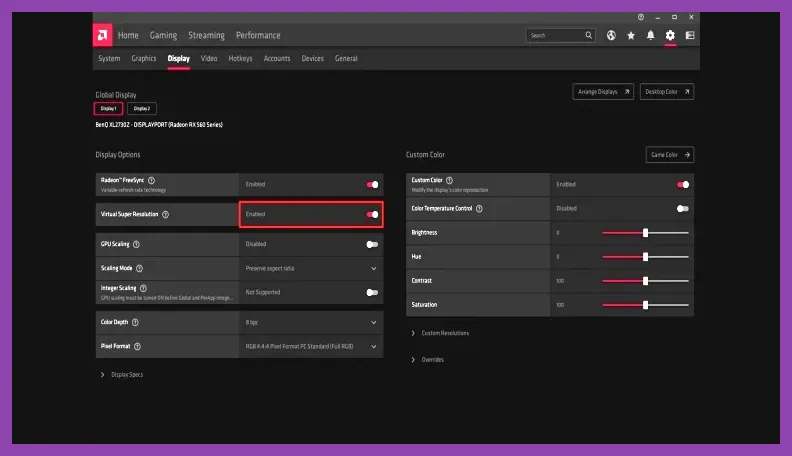
Upscaling is non-negotiable for high-end gaming on handhelds. The ROG Ally X supports both in-game AMD FidelityFX Super Resolution (FSR) and driver-level AMD Radeon Super Resolution (RSR). Whenever a game natively supports FSR 2 or FSR 3, always enable it within the in-game menu and set the mode to Balanced or Performance. This renders the game internally at a lower resolution before intelligently upscaling it, preserving UI crispness while doubling your frame rates.
If a game lacks native FSR support, you can enable RSR through the AMD Software: Adrenalin Edition overlay. Drop your in-game display resolution to 720p or 900p in fullscreen mode, turn on RSR globally, and let the hardware handle the rest. This feature is particularly useful for titles that traditionally demand heavy optimization, mirroring the resourcefulness required when checking Stardew Valley 1.6 system requirements or managing heavy resource loads in survival games.
Frame generation technologies, such as AMD Fluid Motion Frames (AFMF), can also be toggled on via the AMD overlay for games running at a stable 40+ base FPS. While it introduces a minor input latency penalty, the smoothness it adds to single-player cinematic adventures makes it an invaluable toggle for your quick settings menu.
Memory Allocation and VRAM Management

One of the single most impactful upgrades of the ROG Ally X over its predecessor is the inclusion of 24GB of LPDDR5X RAM. On the original model, sharing system memory with VRAM often led to bottlenecks when running modern titles that demand immense texture pooling. With 24GB at your disposal, you can comfortably allocate more VRAM without starving the operating system.
To configure this, open the Armoury Crate SE app, go to Settings, and look for Operating Mode / GPU Memory Allocation. By default, it may be set to 4GB. For modern AAA blockbusters, manually bump this value up to 8GB. This ensures that high-resolution texture packs load cleanly into memory without causing stuttering, hitching, or texture pop-in during fast-paced traversal sequences.
If you enjoy exploring sprawling open worlds or complex RPGs, proper memory management prevents memory leak crashes during prolonged play sessions. For further reading on managing complex game environments, check out our insights on character optimization builds or review strategy guides like The First Descendant weapon tier list to see how hardware efficiency impacts high-tier combat execution.
OS Optimization and Background Process Cleanup
Windows 11 is a powerful operating system, but its background processes can consume precious CPU cycles and RAM that your ROG Ally X desperately needs for gaming. Streamlining your operating system environment ensures every ounce of silicon power goes directly toward rendering your game.
Start by disabling unnecessary startup applications via the Windows Task Manager. Remove background memory hogs like OneDrive, third-party chat clients, and redundant game launchers that do not need to run continuously. Additionally, turn off hardware-accelerated GPU scheduling (HGS) if you notice micro-stutters in older DirectX 11 titles, though keeping it enabled is generally recommended for modern DirectX 12 games utilizing frame generation.
Keep your graphics drivers completely up to date by regularly checking the AMD Software: Adrenalin Edition app or visiting the official AMD support portal. AMD frequently releases driver updates tailored specifically to the Ryzen Z1 Extreme processor, bringing critical game-ready optimizations and bug fixes for newly launched titles. Combining these software hygiene practices with proper TDP tuning and optimized in-game settings will ensure your ASUS ROG Ally X remains the ultimate portable gaming powerhouse.