Understanding the Hardware Demands of Black Myth Wukong
Black Myth Wukong is not just another action RPG; it is a visual showcase that pushes modern PC hardware to its absolute limits. Built using Unreal Engine 5, the game features Nanite virtualized geometry, Lumen global illumination, and highly complex foliage that requires significant computational power. Before diving into the software settings, you must understand how your hardware interacts with these demanding systems. The game is heavily GPU-bound at higher resolutions, but it can also suffer from CPU bottlenecks, especially in dense areas with many enemies or complex physics simulations. If you are playing on an older mid-range graphics card, achieving a stable 60 frames per second (FPS) at 1080p will require a strategic balance between visual fidelity and performance. Conversely, if you are utilizing a high-end RTX 40-series card or an AMD RX 7000 series GPU, you can leverage advanced upscaling technologies to push your frame rates well past 120 FPS, provided you configure the settings correctly. Understanding whether your system is limited by the graphics card’s VRAM, the CPU’s single-core clock speed, or system memory bandwidth is the first step toward unlocking the smooth, responsive gameplay that an action-heavy title like Wukong demands. The developers at Game Science have provided a robust settings menu, but the default configurations often prioritize visual showcase over competitive responsiveness, meaning manual tuning is essential for competitive or high-refresh-rate monitor setups. By analyzing the specific hardware bottlenecks, you can target the right settings to shave off unnecessary rendering loads without sacrificing the stunning aesthetic that makes this journey to the West so immersive. For low-end hardware, such as the GTX 1060 or RX 580, you should target 30 to 60 FPS at 720p or 1080p with low settings, focusing heavily on resolution scaling and disabling complex shadows. Mid-range users with RTX 3060 or RX 6700 XT cards can comfortably hit 60 to 100 FPS at 1080p or 1440p by utilizing medium to high settings paired with DLSS or FSR. High-end enthusiasts with RTX 4070 or better can push 120+ FPS at 1440p or even 4K by leveraging DLSS Quality and optimizing driver settings, ensuring that the combat feels incredibly fluid and responsive. Furthermore, the implementation of Lumen software ray tracing allows for dynamic global illumination without dedicated hardware ray tracing cores, but it still demands significant GPU compute power. If you are running a card without dedicated RT cores, you might find that enabling software ray tracing for reflections or global illumination severely tanks your frame rate, necessitating a switch to hardware rasterization or screen-space approximations. CPU-wise, the game utilizes physics simulations for enemy interactions, environmental destruction, and cloth physics on character armor. These simulations are processed on the CPU, meaning that a weak or thermal-throttled processor will cause stuttering and frame drops even if your GPU is highly capable. Therefore, ensuring your CPU has high single-core clock speeds and adequate cooling is paramount for maintaining a consistent frame time, especially during intense boss fights where multiple physics effects occur simultaneously. Action RPG fans who enjoy optimizing their experience will also appreciate our guide on Elden Ring rune farming.
The Ultimate In-Game Graphics Settings Breakdown
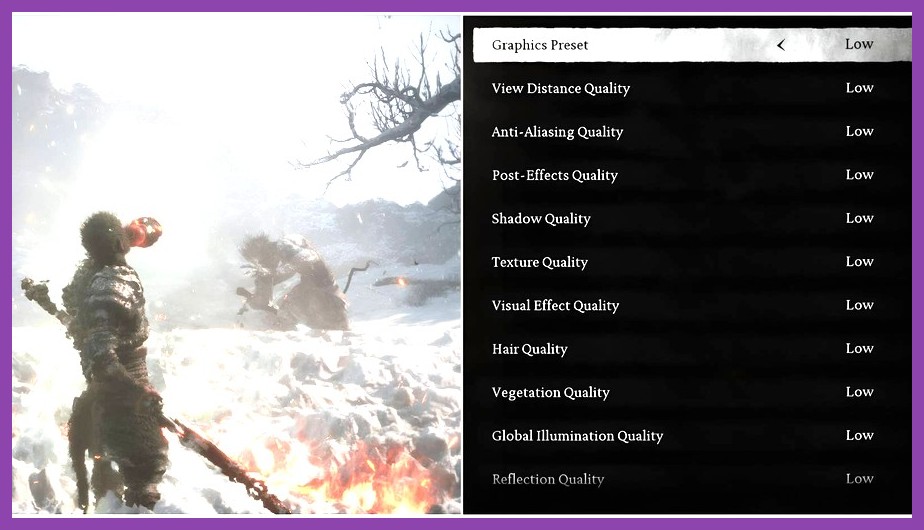
Once you boot up Black Myth Wukong and navigate to the options menu, you will be greeted by a comprehensive array of graphics settings. To maximize your FPS, you must prioritize which settings to lower, which to keep high, and which to disable entirely. The most impactful setting is the Render Resolution. Lowering this from 100% to 85% or even 75% can yield a massive performance boost with minimal visual degradation, especially on smaller monitors. Next, look at the Texture Quality. Setting this to High or Medium is usually sufficient, as VRAM is abundant on most modern GPUs, but going from High to Low can free up critical memory if you are struggling with stuttering. Shadow Quality is another major FPS killer; setting this to Medium or Low can boost your frame rate by 10 to 15 percent in shadow-heavy areas, with almost no noticeable difference in gameplay. Anti-Aliasing, particularly Temporal Super Resolution (TSR) or TAA, is crucial for smoothing out jagged edges, but it comes at a high performance cost. If you are aiming for maximum frames, consider using NVIDIA DLSS or AMD FSR instead, which are far more efficient. Ambient Occlusion, while visually pleasing, should be set to Low or disabled, as it forces the GPU to calculate complex shadow interactions in real-time. Finally, disable motion blur and depth of field, as these post-processing effects offer zero benefit to gameplay and only serve to reduce input responsiveness and overall frame rates. By systematically adjusting these parameters, you can sculpt a visual profile that remains stunningly beautiful while running incredibly smooth. Let’s break down the individual settings in more detail. Render Resolution is the pixel count your GPU actually renders before being displayed; lowering it reduces the workload quadratically, making it the single most effective slider for low-end PCs. Texture Quality controls the resolution of surface details like wood, metal, and fabric. While high textures look sharper, they consume VRAM. If your card has less than 8GB of VRAM, setting textures to Medium prevents texture streaming stutters. Shadow Quality determines the resolution and distance of shadow rendering. High shadows require the CPU to submit more draw calls and the GPU to render more depth maps, so lowering this to Medium or Low is highly recommended for CPU-bound scenarios. Reflections, especially screen-space reflections, can be incredibly demanding as they require multiple rendering passes; setting them to Low or Medium frees up significant fill rate. Foliage and grass density also impact performance heavily because they utilize geometry shaders; reducing foliage shadow and density can prevent frame drops in dense forests. Post-processing effects like Bloom, Chromatic Aberration, and Motion Blur are purely aesthetic and should be turned off entirely to maximize responsiveness and frame pacing stability. View Distance is another critical setting; high view distance forces the GPU to render more distant objects, increasing the vertex shader workload and draw call overhead. For CPU-bound systems, reducing view distance to Medium can significantly improve frame consistency in open-world areas. Anti-Aliasing settings like TAA and FXAA smooth out pixelated edges but introduce blurriness; TAA is particularly expensive because it samples multiple frames, so using DLSS or FSR as your primary upscaler is the modern solution. Finally, consider the “Geometry Detail” and “Particle Quality” settings. High geometry detail increases the polygon count of characters and environments, which stresses the vertex processing units, while high particle quality increases the number of simulated visual effects during magic attacks, which can cause temporary frame drops. Balancing these settings based on your specific hardware tier is key to achieving a stable, high-frame-rate experience.
Visual Quality vs. Performance: The Sweet Spot
Finding the perfect balance between visual fidelity and performance is an art form. While the goal is maximum FPS, you do not want to turn the game into a blurry, low-poly shadow of its former glory. The sweet spot for most modern mid-range GPUs is to set the Texture Quality to High, Shadow Quality to Medium, and Reflections to Low, while utilizing DLSS Quality or FSR Balanced. This combination retains the rich detail of the ancient Chinese aesthetic while ensuring that the combat remains fluid. The human eye is highly sensitive to motion blur and frame drops, but relatively tolerant of lower shadow resolution or reduced ambient occlusion in static scenes. Therefore, prioritize settings that affect dynamic elements—like motion blur, frame generation, and particle effects—over static ambient details. By focusing your settings budget on the areas that impact gameplay responsiveness, you can achieve a visually stunning experience that feels incredibly smooth. For more general PC gaming optimization, visit our PC Games section.
Leveraging NVIDIA DLSS and AMD FSR for Maximum Performance
One of the most powerful tools in your arsenal for boosting FPS in Black Myth Wukong is upscaling technology. If you have a compatible NVIDIA or AMD graphics card, you should absolutely be utilizing these AI-driven or spatial upscaling algorithms. NVIDIA’s DLSS (Deep Learning Super Sampling) is currently the gold standard, offering superior image reconstruction and massive performance gains with minimal visual loss. In the game’s settings, navigate to the Upscaling section and select DLSS. You can choose between Quality, Balanced, and Performance modes. For high-refresh-rate gaming, the Performance mode can nearly double your frame rate, though it may introduce slight blurriness in fast-moving scenes. AMD users should opt for FSR (FidelityFX Super Resolution), which has improved significantly in recent iterations and provides a solid alternative. The key to using these technologies effectively is to run them in conjunction with a native resolution that your GPU can handle comfortably. For instance, if your target is 120 FPS, rendering at 1080p with DLSS Quality might be perfect, whereas rendering at 4K with DLSS Performance could yield similar results with different visual trade-offs. Always pair upscaling with NVIDIA Reflex or AMD Anti-Latency if available, as this reduces system latency, ensuring that the high frame rate you achieve actually translates to a responsive, competitive gaming experience. Remember, the goal is not just raw polygon counts, but a fluid, responsive combat system where every dodge and strike feels instantaneous. If you have an RTX 40-series card, you can also enable DLSS Frame Generation, which inserts interpolated frames to boost FPS further. While frame generation introduces a small amount of input latency, in a single-player action game like Black Myth Wukong, the visual smoothness often outweighs the minor delay, especially when paired with Reflex. For FSR users, FSR 3.0 also offers frame generation, but it is currently implemented via driver-level or game-specific patches, so ensure your version of the game supports it. When configuring upscaling, always adjust the sharpening slider to around 0.5 to 0.7 to prevent the image from looking too blurry or overly artificial, balancing clarity with performance. Furthermore, understanding the underlying technology of DLSS is beneficial. DLSS 3.5 introduces Ray Reconstruction, which uses AI to replace traditional denoisers in ray-traced effects, resulting in cleaner, sharper images at a fraction of the performance cost. If you have enabled ray tracing for reflections or shadows, combining it with DLSS 3.5 can yield stunning visual results while maintaining high frame rates. However, if you are on an older RTX 20-series card, stick to DLSS 2.0 or 3.0, as the AI model is optimized for the Tensor Cores on those architectures. For AMD users, FSR 2.0 and 3.0 rely on temporal upscaling algorithms that analyze motion vectors to reconstruct image detail. While not as visually superior as DLSS, FSR has closed the gap and is a viable option for achieving 100+ FPS on mid-range AMD GPUs. Always test the different upscaling presets in a visually dense area of the game, such as the initial forest or a temple interior, to evaluate the trade-offs between sharpness, ghosting, and overall frame rate. For official driver optimizations, check out the NVIDIA DLSS page.
Advanced Driver and System-Level Optimizations
In-game settings are only half the battle. To truly squeeze every last frame out of your system, you must look at the driver and operating system level. Start by ensuring your graphics drivers are fully updated. Both NVIDIA and AMD frequently release game-ready drivers that contain specific optimizations for titles like Black Myth Wukong, which can unlock significant performance gains. Within the NVIDIA Control Panel or AMD Software, navigate to the “Manage 3D settings” section. For NVIDIA users, enable “Texture filtering - Quality” to High Performance, and turn on “Vertical sync” to “Fast” if you are experiencing screen tearing but want to avoid input lag. For AMD users, the “Radeon Enhanced Sync” is a great alternative. Additionally, disable any unnecessary background applications, as Black Myth Wukong is a memory hog and background tasks can cause stutters. Head to Windows Power Options and select the “High Performance” plan to prevent the CPU from throttling during intense combat sequences. If you are using a laptop, ensure it is plugged in and set to maximum performance mode. Overclocking your GPU and CPU can also provide a marginal but noticeable boost, but proceed with caution and stability testing to avoid crashes. By cleaning up the system environment, you ensure that the hardware is dedicated entirely to rendering the beautiful, chaotic world of Wukong. Let’s dive deeper into Windows-level tweaks. Enable Windows Game Mode, which optimizes background resource allocation for gaming, though some users report mixed results, so it is worth testing with it on and off. Ensure that Hardware Acceleration (GPU scheduling) is enabled in Windows Display Settings, as this can reduce rendering latency by offloading scheduling tasks to the GPU. Check your BIOS settings to ensure that XMP/EXPO profiles are enabled for your RAM, as Black Myth Wukong is highly sensitive to memory bandwidth; insufficient RAM speeds can cause micro-stutters. Ensure your PCIe slots are running at Gen 4 or Gen 5 speeds, especially if you are using an NVMe SSD and a modern motherboard, to avoid any bottlenecking. Thermal management is also crucial; high GPU temperatures (above 85°C) can trigger automatic downclocking, so ensure your cooling fans are clean and your case has adequate airflow. Finally, consider using an SSD, preferably an NVMe drive, to install the game. Black Myth Wukong features massive open areas with streaming assets; an HDD will cause severe texture pop-in and open-world stuttering, whereas an SSD ensures seamless transitions and smooth asset loading. To further optimize the system, disable startup applications through the Task Manager. Applications like Discord, RGB control software, and cloud storage services (OneDrive, Google Drive) consume RAM and CPU cycles in the background, which can directly impact the game’s 1% low FPS. In the NVIDIA Control Panel, also set “Power management mode” to “Prefer maximum performance” to prevent the GPU from downclocking during gameplay. For AMD users, the “Radeon Chill” feature can be disabled to ensure the GPU runs at maximum clock speeds. Additionally, consider disabling Windows Defender real-time scanning for the game’s installation folder to prevent file access delays, though this should be done with caution and re-enabled after gaming sessions. If you are experiencing micro-stutters, try disabling the Windows Game Bar, as it is known to introduce overlay-related performance issues in many Unreal Engine titles. Players on portable hardware can look at our list of best Steam Deck games.
Benchmarking, Troubleshooting, and Unlocking FPS Limits
After applying all your optimizations, it is time to test the results and troubleshoot any remaining issues. Black Myth Wukong includes an in-game benchmark tool, which is invaluable for measuring the impact of your changes. Run the benchmark with your optimized settings and pay close attention to the average FPS, the 1% low, and the 0.1% low. If you are still experiencing stuttering or frame drops, it is likely a VRAM or CPU issue. Check your system monitor (like MSI Afterburner) during gameplay to see if your GPU or CPU is hitting 100% utilization. If your GPU is constantly at 99-100%, you need to lower graphics settings further or increase upscaling. If your CPU is bottlenecking, lowering the population density or shadow distance in-game can help. Some players report that the game has a locked frame rate cap; if you are unable to go past 60 or 120 FPS in the settings, check the game files or community forums for any config files that allow you to bypass this limit. Finally, do not forget to save your optimized profile and share it with fellow players. Achieving maximum FPS in Black Myth Wukong is a continuous process of tweaking, testing, and adapting to your specific hardware configuration, but the reward is a buttery-smooth experience that makes the challenging combat feel incredibly fair and satisfying. To unlock FPS caps, navigate to the game’s configuration files, typically located in C:\Users\[YourUsername]\AppData\Local\Game\Saved\Config\WindowsNoEditor. Look for the GameUserSettings.ini file. You can manually edit the FrameRateLimit variable to your desired value (e.g., 144.000000 for a 144Hz monitor). Be sure to set the file to read-only to prevent the game from overwriting your changes upon launch. Additionally, using tools like RTSS (RivaTuner Statistics Server) to cap your FPS to your monitor’s refresh rate can reduce VRAM contention and eliminate screen tearing without introducing the input lag associated with traditional VSync. If you are experiencing specific crashes, verifying the integrity of game files through Steam or reinstalling the visual C++ redistributables often resolves missing dependency issues. Community forums and subreddits are excellent resources for hardware-specific tweaks and custom config files that can push performance even further on older hardware. When benchmarking, try to run the benchmark multiple times to get an average, as the first run might load assets from the HDD/SSD, skewing the results. Pay attention to the specific sections of the benchmark; some areas are GPU-heavy, while others test CPU physics. If you notice consistent frame drops in specific boss fights, try lowering the “Particle Quality” or “Foliage Shadow” settings, as these are often the culprits during high-action sequences. For players using high-refresh-rate monitors (240Hz or 360Hz), achieving stable frame rates requires a balance of DLSS Performance mode and lowered shadows, but the resulting fluidity in combat is unparalleled, making the optimization process highly rewarding.
Dealing with Micro-Stuttering and Frame Pacing Issues
Even with high average FPS, some players experience micro-stuttering, where the frame time fluctuates rapidly, causing the game to feel choppy despite a high frame rate. This is often caused by VRAM limitations, CPU draw call bottlenecks, or memory bandwidth issues. To combat this, ensure your GPU driver’s “Vertical sync” is set to “Fast” or “Enhanced Sync” to smooth out frame delivery. In the game settings, disabling VSync and capping the FPS using RTSS to 3 FPS below your monitor’s refresh rate can also stabilize frame pacing. If you are on a 60Hz monitor, capping the FPS to 57 or 58 can prevent tearing without introducing the lag of traditional VSync. Additionally, enabling “Low Latency Mode” in the NVIDIA Control Panel or “Anti-Lag” in AMD Software can reduce the queue of commands sent to the GPU, smoothing out frame delivery. If micro-stuttering persists, try lowering the “View Distance” or “Foliage Density” settings, as these are common culprits for CPU-induced frame time spikes in open-world environments. For more deep-dive RPG systems, see our Path of Exile 2 starting build guide. The official game page on Black Myth Wukong on Steam also contains valuable system requirements and community discussions.