If you want the best Prebuilt Pc PC performance, start with a sensible high-FPS profile rather than blindly selecting Ultra. Set textures to High, shadows and volumetrics to Medium, ray tracing off, motion blur off, and enable DLSS, FSR, or XeSS on Quality at 1440p. That combination usually delivers a much smoother image and a far better frame rate on mainstream prebuilts than maxed-out presets.
The exact ceiling depends on your GPU, CPU, cooling, and monitor. An RTX 4060 prebuilt has a very different target from an RTX 4070 Super tower, but the tuning logic stays consistent: protect frame times first, preserve textures second, and spend performance only on effects you can actually see while playing.
Before changing anything, check your hardware in Windows Task Manager or a utility such as GPU-Z. Compare it with the official PC gaming ecosystem and each game's published requirements, not the vague label printed on the retailer listing. Steamoz's guide to Far Cry 6 settings for maximum FPS is also a useful real-world reference for a demanding open-world title.
Start With the Right FPS Target for Your Hardware

Don't chase a number your display cannot show. A 60Hz monitor needs a stable 60 FPS, while a 144Hz panel benefits from a locked 100-144 FPS range. Competitive players should prioritize consistent delivery at 1080p; cinematic single-player games can accept 60-90 FPS if that lets you keep better lighting and textures.
Recommended targets by prebuilt class
| Prebuilt Class | Best Resolution | Realistic Target | Recommended Use |
|---|---|---|---|
| RTX 4060 / RX 7600, six-core CPU | 1080p | 90-144 FPS | Competitive shooters and high settings |
| RTX 4060 Ti / RX 7700 XT | 1080p or 1440p | 80-144 FPS | High settings with upscaling |
| RTX 4070 / RX 7800 XT | 1440p | 90-165 FPS | Modern games at High |
| RTX 4070 Super or faster | 1440p or 4K | 80-144 FPS | High settings, selective ray tracing |
For a 144Hz monitor, a 100 FPS lock with clean frame pacing feels better than a counter jumping between 75 and 150. Use the in-game limiter first. If it produces uneven pacing, try NVIDIA Control Panel or AMD Adrenalin. Cap three frames below refresh rate—141 FPS on a 144Hz display—to leave room for synchronization overhead.

🎮 FORM
Looking to experience this game? Grab your digital key directly on our store for $14.99.
View on Steammoz Store →Use This Graphics Profile Before Tweaking Individual Sliders
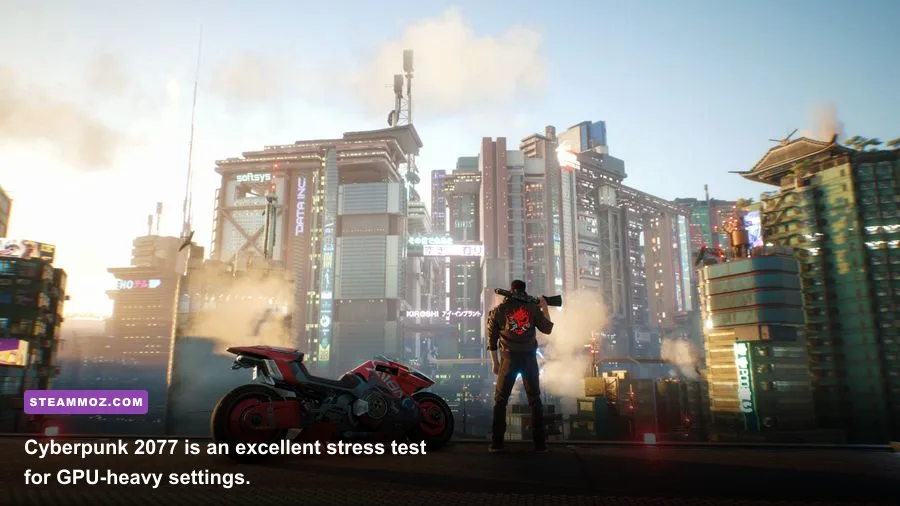
Apply this baseline in games such as Cyberpunk 2077, Starfield, Hogwarts Legacy, and Call of Duty: Black Ops 6, then adjust based on your GPU usage. Keep textures high if your graphics card has at least 8GB of VRAM. Dropping textures to Low rarely fixes a CPU bottleneck and makes surfaces look muddy.
| Setting | Recommended Value | FPS Impact | Visual Note |
|---|---|---|---|
| Resolution | Native 1080p or 1440p | Very High | Use dynamic resolution only when necessary |
| Upscaling | DLSS/FSR/XeSS Quality | High positive | Quality mode keeps edges much cleaner |
| Textures | High | Low to medium | Mostly limited by VRAM, not raw GPU speed |
| Shadows | Medium | Medium to high | Small shadows often disappear during motion |
| Ambient occlusion | SSAO or Medium | Low to medium | Preserves depth without expensive contact effects |
| Volumetric fog/clouds | Medium or Low | High | One of the easiest wins in open-world games |
| Reflections | High without ray tracing | Medium | Screen-space reflections are usually sufficient |
| Ray tracing | Off or Low | Very high | Enable only with strong GPU and upscaling |
| Motion blur | Off | Minimal | Sharper camera movement and clearer targets |
| Depth of field | Optional | Low | Disable for competitive visibility |
| Hair or strand effects | Off or Medium | Medium | Often expensive for a barely noticeable upgrade |
Textures are the exception to the usual “turn it down” advice. A prebuilt with 12GB of VRAM, such as an RTX 4070 system, can generally use Ultra textures at 1440p. An 8GB card may still run them, but watch for hitching when entering new areas. VRAM saturation causes asset swapping and stutter, not simply a lower average FPS.
DLSS, FSR, and XeSS choices
Use DLSS Quality on GeForce RTX cards, FSR 2 or FSR 3 Quality on Radeon cards, and XeSS Quality when Intel's upscaler produces cleaner detail in a particular game. Balanced mode is a good fallback at 4K, but at 1080p it can soften text and thin geometry. Turn on frame generation only when your base rate is already around 55-60 FPS; generating frames from a 35 FPS base can make controls feel delayed even if the counter reads 70.
Which Settings Actually Control GPU and CPU Bottlenecks?
Watch utilization while standing in a busy area. If the GPU sits at 95-99 percent, lower resolution, volumetrics, reflections, or ray tracing. If the GPU is at 60-80 percent while one or more CPU cores are loaded, lowering graphics quality won't solve the problem. Crowds, simulation distance, traffic density, foliage, and physics are the usual CPU-heavy settings.
Cyberpunk 2077 demonstrates the split clearly. Path tracing can overwhelm even a powerful RTX card, while crowd density and traffic affect the CPU in dense parts of Night City. On an RTX 4060, use High textures, Medium volumetric fog, Medium screen-space reflections, and DLSS Quality. On an RTX 4070 Super, you can add RT Reflections and RT Lighting at Low or Medium, but path tracing still demands DLSS and frame generation.
In Warzone, visibility matters more than cinematic detail. Set shader quality low or normal, particle quality low, bullet impacts on, depth of field off, and weapon motion blur off. Keep texture resolution normal if your VRAM allows it. Foliage and environmental detail can be lowered because they rarely improve target recognition, while a stable 120 FPS helps tracking far more than Ultra shadows.
For Baldur's Gate 3, the late-game Lower City can become CPU-limited. Lower crowd quality and animation distance before reducing textures. In Starfield, dynamic resolution and upscaling are often more valuable than dropping every preset to Medium. If a game is known for shader stutter, let the shader compilation finish after a driver update before judging performance.
The practical order for lowering settings
- Disable ray tracing and path tracing.
- Set volumetrics, shadows, and reflections to Medium.
- Switch upscaling from Native to Quality, then Balanced.
- Reduce crowd, foliage, simulation, and view-distance settings if the CPU is limiting.
- Lower textures only when VRAM usage approaches the card's limit.
This order protects image quality because it cuts expensive calculations rather than destroying surface detail. For more troubleshooting ideas, see Steamoz's PC fixes for crashes and FPS drops and the low-FPS troubleshooting guide.
Build Three Profiles Instead of Reusing One Preset
A single Ultra or Low preset can't fit every game. Save three profiles in your graphics menu: Competitive, Balanced, and Visual. This takes five minutes and prevents the familiar ritual of changing twelve sliders every time you launch a different title.
| Profile | Resolution and Upscaling | Core Settings | Best For |
|---|---|---|---|
| S-Tier Competitive | 1080p, Native or Quality | Low shadows, low effects, blur off, 120 FPS cap | Warzone, Valorant, Apex Legends |
| A-Tier Balanced | 1440p, DLSS/FSR Quality | High textures, Medium shadows, RT off | Most modern AAA games |
| B-Tier Visual | 1440p/4K, Quality or Balanced | High shadows, high reflections, selective RT | Story-driven games and screenshots |
The Competitive profile should also disable chromatic aberration, film grain, lens distortion, and heavy depth of field. Those effects consume little performance in most titles, but removing them improves clarity. The Balanced profile is the best default for an RTX 4060 Ti or RTX 4070 prebuilt because it keeps textures attractive without forcing the GPU to render effects you'll barely notice.
For games with built-in benchmarks, run the same scene three times and record the one-percent low FPS. An average of 100 FPS with 1% lows at 42 feels worse than 85 FPS with 1% lows at 68. Cap the game slightly below the lowest repeatable point rather than the highest peak. Steamoz's Filament settings guide shows why small profile changes can matter more than chasing an impressive average.
Keep Your Prebuilt Cool, Updated, and Consistent
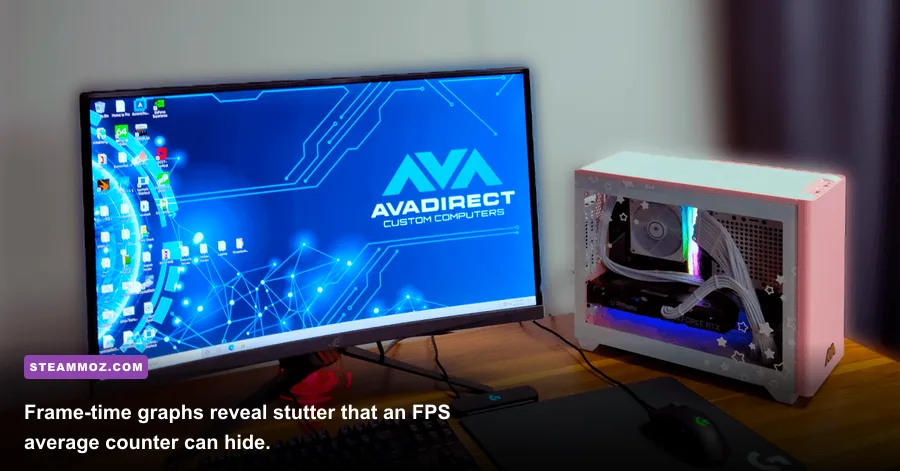
Graphics settings can't rescue a prebuilt that is thermal throttling. Monitor GPU temperature, CPU temperature, clock speed, and frame time with MSI Afterburner or the Xbox Game Bar performance widget. A GPU around 65-80°C is normal under load. A CPU briefly reaching the 90s can be acceptable, but sustained thermal limits often create clock drops and ugly stutter.
Clean dust filters, confirm that front fans pull air in and rear or top fans exhaust it, and make sure the graphics card isn't pressed against a solid panel. Many budget prebuilts ship with one intake fan and a restrictive front panel. Adding a quality 120mm or 140mm intake fan can improve temperatures more safely than an aggressive overclock.
Update the NVIDIA, AMD, or Intel graphics driver when a game specifically recommends it, but don't assume every new driver improves every title. After installation, allow shader caches to rebuild. Keep Windows Game Mode enabled, close browser tabs using hardware acceleration, and disable unnecessary overlays from Discord, GeForce Experience, Steam, or third-party launchers if frame times remain erratic.
Finally, verify your monitor is actually running at its advertised refresh rate in Windows Advanced Display settings. Turn on FreeSync or G-SYNC Compatible mode, then use a frame cap below refresh. That last step often makes a 90 FPS game feel dramatically smoother because it eliminates tearing and reduces the spikes that turn a powerful prebuilt into a stuttery mess.
If your system still crashes under load, compare temperatures and power behavior with Steamoz's FPS-first crash fix checklist. For older hardware, the Far Cry 2 PC specs guide is a useful reminder that resolution, drivers, and compatibility settings can matter as much as raw component age.
The winning setup is simple: choose a realistic FPS target, preserve texture quality, cut ray tracing and volumetrics first, use Quality upscaling, and tune around one-percent lows. Do that and even a modest prebuilt gaming PC can feel responsive, quiet, and remarkably close to its best possible performance.