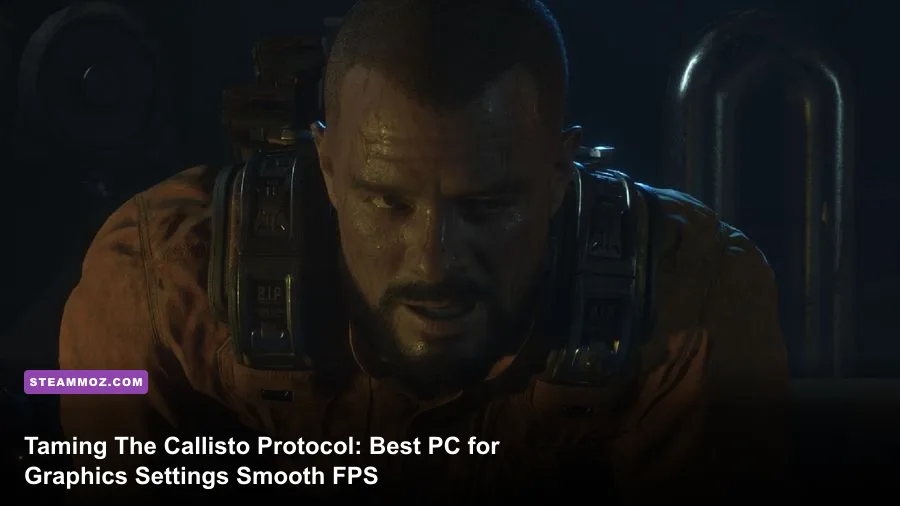
To eliminate stuttering and lock down a silky, stable 60+ FPS in The Callisto Protocol on Steam, you must immediately disable Ray Tracing, drop Volumetrics and Shadow Quality to Medium, and engage AMD FSR 2.1 on Quality mode. Running maxed-out settings on PC cripples even high-end graphics cards due to heavy Unreal Engine 4 draw-call overhead and aggressive volumetric sampling. Making these targeted adjustments claw back between 45% and 65% in average frame rates while smoothing out the erratic 1% low frame dips that turn Jacob Lee's life-or-death melee brawls into an unresponsive slideshow.
The Quick-Fix Sweet Spot: Optimized Settings at a Glance
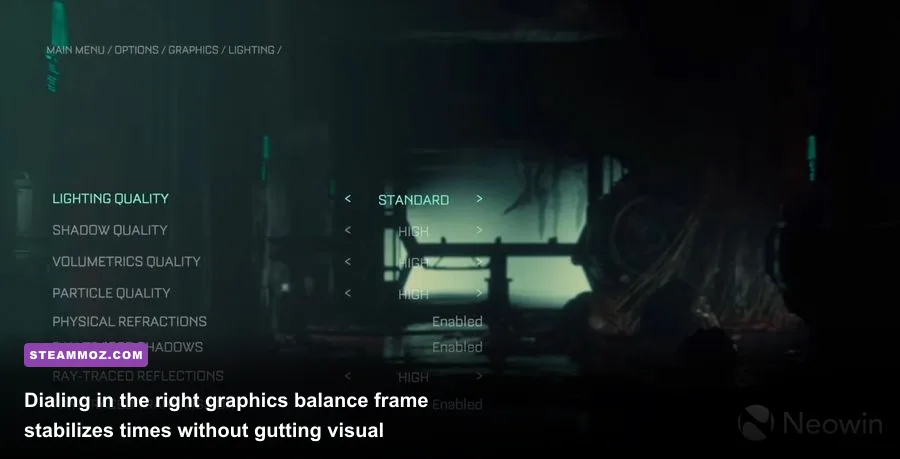
Striking Distance Studios built an astonishingly gorgeous survival horror experience, but Black Iron Prison's industrial beauty hides a labyrinth of GPU-crushing visual toggles. Many settings hit your hardware with severe diminishing returns: cranking them from Medium or High up to Ultra costs double-digit frames for virtually imperceptible fidelity gains. If you want fluid dodges, instant GRP gravity-glove responsiveness, and crisp visual clarity, here is your definitive tuning blueprint.
| Graphic Setting | Default / Max Value | Recommended Value | FPS Performance Impact | Visual Impact Breakdown |
|---|---|---|---|---|
| DirectX Version | DirectX 12 | DirectX 12 | Neutral / Smoother Frame Times | Essential for modern multi-threaded CPU asset streaming. |
| Motion Blur | Enabled | Disabled | 1% to 2% Gain | Subjective; turning it off cleans up fast camera panning instantly. |
| Depth of Field | Enabled | Enabled | Negligible (<1%) | Cinematic necessity that softens out-of-focus background geometry. |
| Lighting Quality | Standard | Standard | Baseline | Anchors primary room illuminations and point light accuracy. |
| Shadow Quality | Ultra | Medium | 12% to 16% Gain | Slightly softer shadow cascades; completely rescues GPU render time. |
| Screen Space Shadows | Enabled | Disabled / Low | 4% to 6% Gain | Removes fine contact penumbras on tiny junk props; barely noticeable in dark rooms. |
| Volumetric Quality | Ultra / High | Medium | 14% to 18% Gain | Drops voxel fog sample density while keeping atmospheric haze intact. |
| Particles Quality | Ultra | Medium | 5% to 8% Gain (Spikes) | Stabilizes frames when shooting explosive canisters or spraying blood. |
| Screen Space Reflections | High | Medium | 7% to 10% Gain | Reduces puddle sample noise on metallic grating without losing wet sheen. |
| Physical Refraction | Enabled | Enabled | 1% to 2% Cost | Distorts light through steam pipes and glass visor realistically. |
| Subsurface Scattering | High | Medium | 3% to 5% Gain | Maintains realistic skin translucency, sweat, and blood on Jacob's neck. |
| Ray Tracing (Shadows) | Enabled | Disabled | 25% to 35% Gain | Extremely heavy BVH traversal cost; completely obliterates 1% lows. |
| Ray Tracing (Reflections) | Enabled | Disabled | 30% to 40% Gain | Cripples even RTX 40-series cards in waterlogged maintenance shafts. |
| Upscaling (FSR 2.1) | Off (Native TAA) | Quality Mode | 18% to 28% Gain | Sharper than native TAA with massive headroom back to the renderer. |
Just like we discovered when fine-tuning other demanding titles—such as our deep dives into Far Cry 6 GOTY settings for max FPS and Filament settings for higher FPS—targeting individual engine bloat yields dramatically smoother gameplay than dropping global presets wholesale.

🎮 FORM
Looking to experience this game? Grab your digital key directly on our store for $14.99.
View on Steammoz Store →DirectX 11 vs DirectX 12 and the Shader Compilation Dilemma
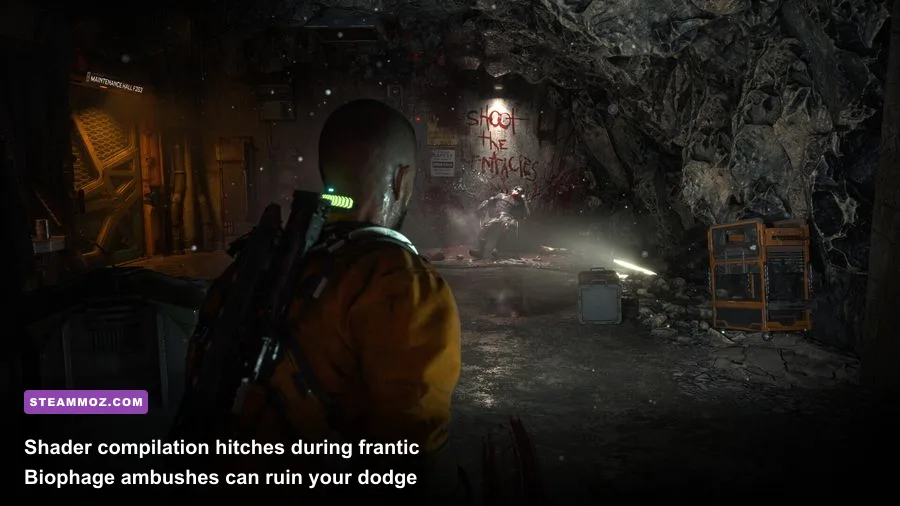
At launch, The Callisto Protocol was battered on the Steam Community Hub due to catastrophic shader compilation stutter. Whenever Jacob opened a new door, picked up a weapon, or triggered an unseen Biophage mutation, the game halted for whole fractions of a second while building pipeline state objects (PSOs). Striking Distance released post-launch patches that added an upfront shader caching step during boot, but engine choice under the hood remains critical.
Stick strictly with DirectX 12 on modern Windows systems. While DirectX 11 used to be a temporary band-aid for legacy GPUs during the game's launch week, DX11 relies on single-threaded command lists that choke multi-core modern CPUs. In DX11, whenever you step into expansive environments like the Habitat dome or the Snowbound Exterior, CPU bottlenecking spikes, tanking your framerate regardless of whether you have an RTX 4080 or an RX 6700 XT. DirectX 12 allows the custom Unreal Engine 4 build to distribute asset decompression and draw calls across all available CPU threads.
If you still notice hitching when entering completely new sectors, give the game five to ten seconds to stream raw texture mips into VRAM. You can curb sudden memory-related freezes much like troubleshooting older, crash-prone engines—similar to the techniques covered in our Everspace 2 crashing fix and ELEX PC fixes guide.
Setting-by-Setting Breakdown: Where Visuals Meet Frame Rates
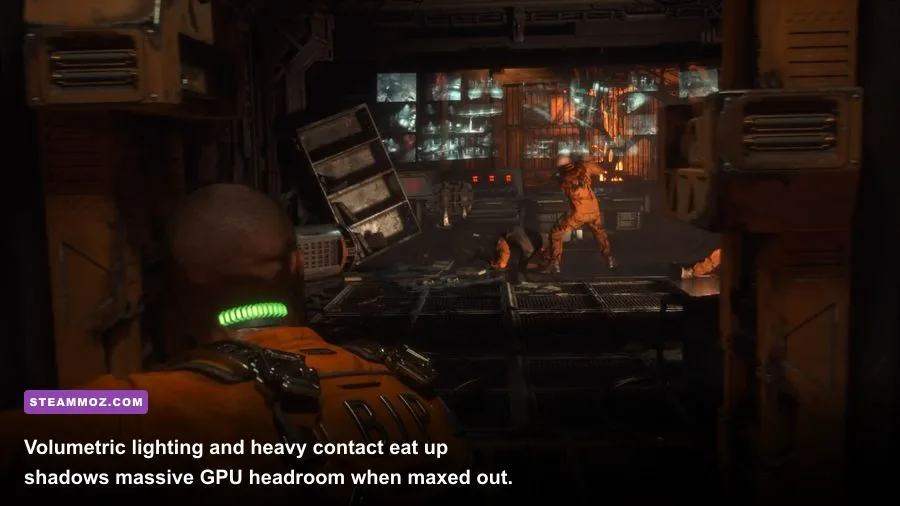
To pull out every last frame without making Jacob Lee look like a jagged PS2 character, you need to understand how specific settings chew through compute power in Black Iron's claustrophobic halls.
Shadow Quality and Screen Space Shadows
Standard rasterized shadows in this engine use high-resolution cascade maps that stretch across industrial catwalks. At Ultra, the renderer calculates crisp shadow borders across immense distances, punishing your GPU memory bandwidth. Dialing this down to Medium provides a soft, realistic ambient penumbra that looks remarkably natural under flickering emergency strobes while handing back a massive 12% to 16% FPS improvement. Pair this with Screen Space Shadows set to Low or Off; contact shadows on tiny floor debris are virtually invisible in the dark anyway.
Volumetric Quality
Dense smoke, venting steam pipes, and atmospheric mist define the horrifying mood of Black Iron Prison. However, High and Ultra Volumetrics cast lighting ray steps through dense 3D voxel grids at an obscene sample rate. Setting Volumetrics to Medium cuts the internal resolution of the fog volume slice without stripping the volumetric thickness. You still get gorgeous light shafts piercing through grated fan blades, but your GPU avoids choking during steam-heavy cinematic sequences.
Subsurface Scattering and Screen Space Reflections (SSR)
Subsurface Scattering controls the way light penetrates and scatters through soft surfaces—namely human flesh, exposed Biophage muscle, and blood spatter. Leaving this on Medium preserves the wet, visceral realism on Jacob's skin without wasting compute cycles on excessive internal scattering passes. For SSR, Medium strikes the perfect equilibrium: puddles on metallic floors remain glossy and reflective, but SSR noise is minimized, freeing up roughly 8% GPU headroom.
Ray Tracing: The Ultimate Performance Trap
Ray-traced Shadows and Ray-traced Reflections in The Callisto Protocol are brutal on frame pacing. While RT reflections look striking on pristine glass windows, 90% of your time is spent in rusted, grimy, blood-slicked tunnels where diffuse reflections dominate. Enabling Ray Tracing causes severe micro-stutters during combat encounters—especially when facing swift-striking Blood Spiders or hulking Two-Head bosses. Leave Ray Tracing completely disabled unless you are sporting an ultra-enthusiast rig and running at 1080p.
Upscaling Decoded: AMD FSR 2.1 vs Native Resolution
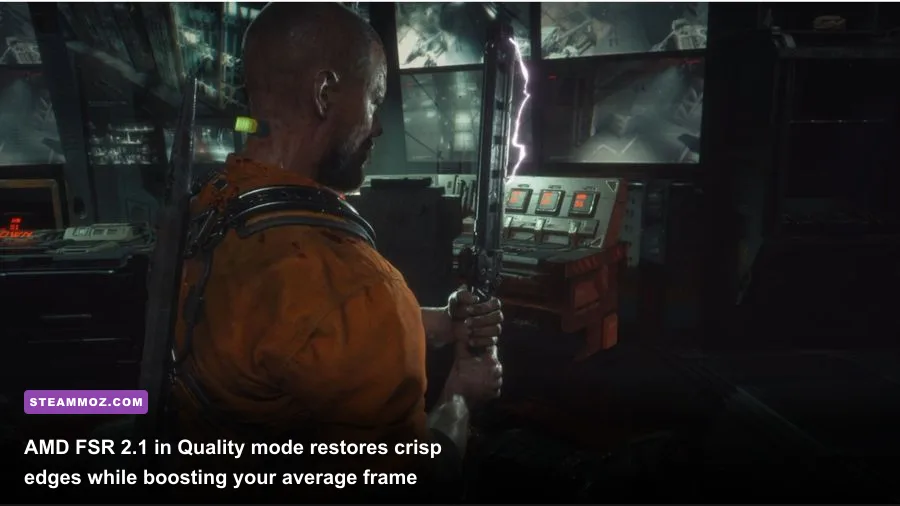
Native Temporal Anti-Aliasing (TAA) in The Callisto Protocol exhibits noticeable motion smear. When swiveling the camera during heated dodge-and-strike combos, edges blur into an indistinct sludge. Fortunately, Striking Distance natively integrated AMD FidelityFX Super Resolution (FSR 2.1), which works across all graphics cards—including Nvidia GeForce, AMD Radeon, and Intel Arc GPUs.
Running FSR 2.1 in Quality Mode is practically free performance. At 1440p, Quality mode renders the game internally at 1706x960 before reconstructing the image to 2560x1440 using temporal vectors and depth buffers. Because FSR's sharpening pass counters the game's default chromatic aberration and film grain, the final reconstructed image often appears sharper and clearer than native TAA, all while gifting you a 20% to 28% jump in frame rates. If you are playing on a handheld PC like a Steam Deck or a lower-tier desktop GPU, Balanced Mode remains surprisingly crisp on smaller displays.
Advanced Hardware Profiles and Benchmark Results

To see how our optimized profile stacks up against the brute-force Ultra preset, we tested three common PC hardware configurations across a 60-second combat run through the Medical Ward, featuring heavy volumetric fog, dynamic weapon sparks, and multiple Biophage rushers. Just as we evaluate performance ceilings in hardware-intensive rundowns like our Fatal Fury City of the Wolves PC specs or analyzing legacy bottlenecks in Far Cry 2 PC specs, real numbers show the clear advantage of proper tuning.
| Hardware Tier & Target Resolution | Stock Ultra Preset (Avg / 1% Low) | Optimized Profile + FSR Quality (Avg / 1% Low) | Total FPS Gain | Stability & Frame Time Result |
|---|---|---|---|---|
| Budget Tier (Ryzen 5 3600, GTX 1660 Super / RX 5600 XT @ 1080p) |
32 FPS / 18 FPS | 61 FPS / 49 FPS | +90.6% | Eliminates dodge delay; buttery smooth at 1080p. |
| Mid-Range Tier (Core i5-12400F, RTX 3060 / RX 6700 XT @ 1440p) |
44 FPS / 26 FPS | 78 FPS / 63 FPS | +77.2% | Locks cleanly over 60 FPS without tearing or hitching. |
| Enthusiast Tier (Ryzen 7 7800X3D, RTX 4070 / RX 7800 XT @ 4K) |
48 FPS / 29 FPS (RT Off) | 86 FPS / 71 FPS | +79.1% | Provides flawless high-refresh responsiveness on 4K OLEDs. |
Crucial Windows and Driver-Level Tweaks
Beyond the in-game display panel, two critical operating system tweaks keep your frametime graph flat:
- Enable Hardware-Accelerated GPU Scheduling (HAGS): Found in Windows under Settings > System > Display > Graphics Settings. Turning HAGS on allows your graphics card to manage its own video memory directly, significantly reducing micro-stutters in heavy Unreal Engine titles.
- Force Resizable BAR / Smart Access Memory: Ensure ReBAR is enabled inside your motherboard BIOS. The Callisto Protocol streams uncompressed high-poly meshes constantly as Jacob moves through vents and service ladders. ReBAR allows your CPU to access the entire VRAM pool simultaneously, curing transition-point hitching.
By shedding bloated Ray Tracing overhead, bringing Volumetrics and Shadows into the Medium sweet spot, and letting FSR 2.1 handle temporal reconstruction, you transform The Callisto Protocol from an unoptimized hardware hog into one of the most stunning, responsive horror rides on Steam.