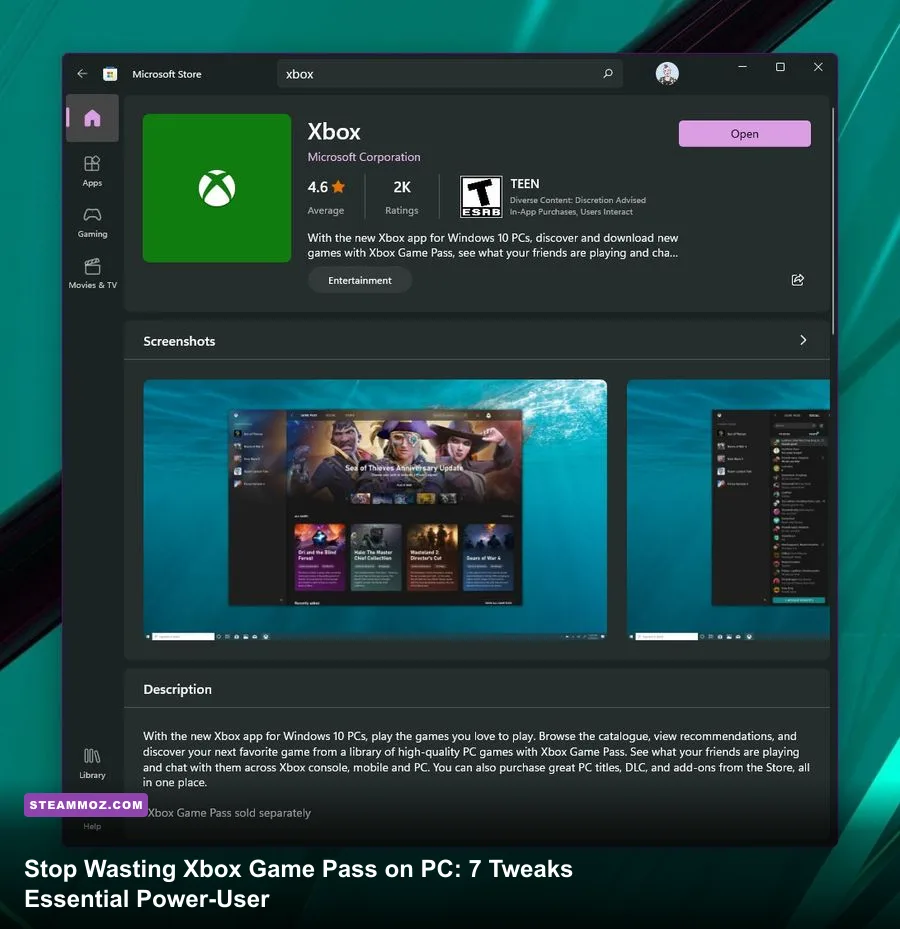
Getting the absolute most out of Xbox Game Pass on PC requires taking aggressive control of an app notorious for encrypted file structures, background resource hogs, and bizarre download errors. Microsoft's subscription offers one of the best value propositions in gaming history, but running it out-of-the-box leaves performance, modding capabilities, and critical storage space on the table. By unlocking open installation directories, configuring Windows 11 graphics pipelines, syncing multi-launcher perks, and cleaning invisible ghost files, you can transform Game Pass from a finicky console wrapper into a high-performance PC powerhouse.
Unlock File Access: Move Away From WindowsApps
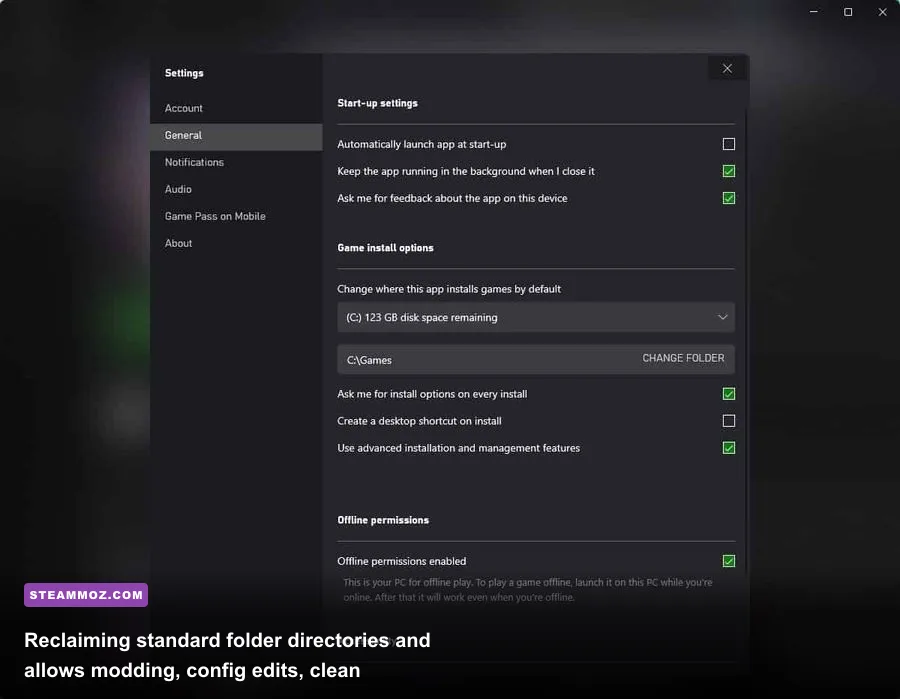
For years, Game Pass titles on Windows were locked tight inside encrypted WindowsApps directories, making custom configuration edits, Reshade injection, and community modding virtually impossible. Microsoft quietly rolled out an Advanced Installation Management update, but millions of users are still trapped under the legacy restricted system. To check your status, launch the Xbox app, click your profile icon in the top-left corner, navigate to Settings > Install Options, and inspect where your software is installed.
If your default folder path points to hidden system partitions, change it immediately to a standard root directory, such as C:\XboxGames or a dedicated secondary SSD. This single adjustment exposes the actual executable and asset directories. You can drop custom loose files into titles like Starfield, edit configuration files for unstable engines, and implement community fixes just like you would on a standard Steam release. If you find yourself wrestling with stubborn startup crashes across broad libraries, check out our guide on PC fixes that stop crashes and rescue your FPS to resolve low-level configuration roadblocks.
Be aware that moving your installation directory does not automatically migrate older installations. You will need to click on each existing game in your sidebar, select Manage > Files > Change Drive, or initiate a verification and move process. This eliminates the dreaded 0x80070005 permission error code when swapping configuration files and grants full administrator ownership over your installation assets.
Fine-Tune Windows 11: DirectStorage, Auto HDR, and Latency
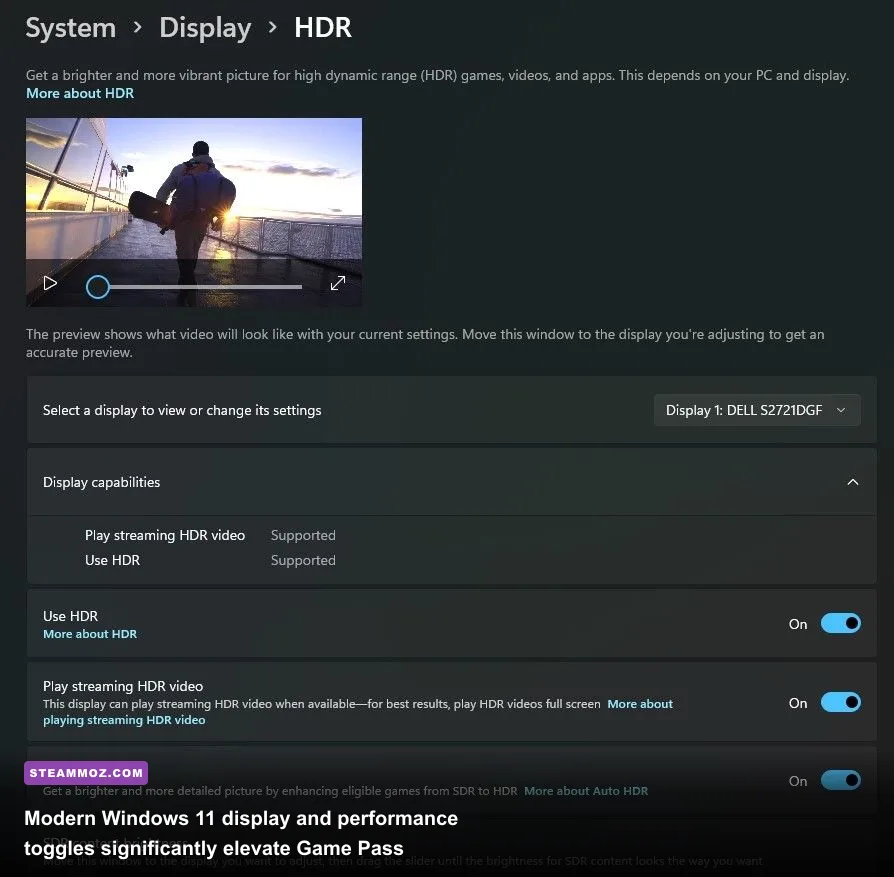
Game Pass operates as a first-party showcase for Microsoft's core gaming APIs, making proper Windows 11 system calibration vital for peak frame delivery. Features like DirectStorage on PC bypass the CPU to decompress raw game assets straight into VRAM, vastly slashing load times in supported titles. If you are exploring massive open worlds like Yara in Ubisoft's catalog, applying targeted system configurations similar to our Far Cry 6 GOTY settings for max FPS makes a huge difference in clearing up frametime spikes.
Windows Game Mode and Xbox Game Bar also demand a calculated approach. While Game Mode prioritizes GPU and CPU thread scheduling for active game tasks, the Game Bar overlay introduces frame pacing hitching on mid-range systems if background recording runs constantly. Toggle off the Game Bar capture features completely unless you actively use background clipping.
| Windows / App Setting | Optimal Configuration | Performance Impact | Operational Benefit |
|---|---|---|---|
| Default Install Path | Custom (e.g., C:\XboxGames) | Zero FPS change | Enables modding, INI tweaks, and ReShade integration |
| Game Bar Background Recording | Disabled / Off | +3% to +7% 1% Low FPS | Eliminates continuous NVENC/AMF video encoding overhead |
| Hardware-Accelerated GPU Scheduling (HAGS) | Enabled | Reduced input latency | Required for DLSS 3 Frame Generation in supported Game Pass titles |
| Auto HDR (Windows 11) | Enabled (Calibrated) | <1% GPU Overhead | Injects 10-bit luminance mapping into legacy SDR Game Pass titles |
| Delivery Optimization P2P | Local Network Only | Network Stability | Prevents PC from uploading game files to internet strangers |
Auto HDR remains one of the most underrated features for Game Pass subscribers playing through older backlog entries. If you have an HDR400 True Black OLED or mini-LED display, running the Windows HDR Calibration tool from the Microsoft Store aligns luminance cutoffs before you launch your games. Titles without native HDR receive intelligent tone mapping that dramatically enriches color depth without the heavy performance penalties of visual reshade injectors.
Launcher Synergy: Stacking EA Play, Riot, and Ubisoft Benefits
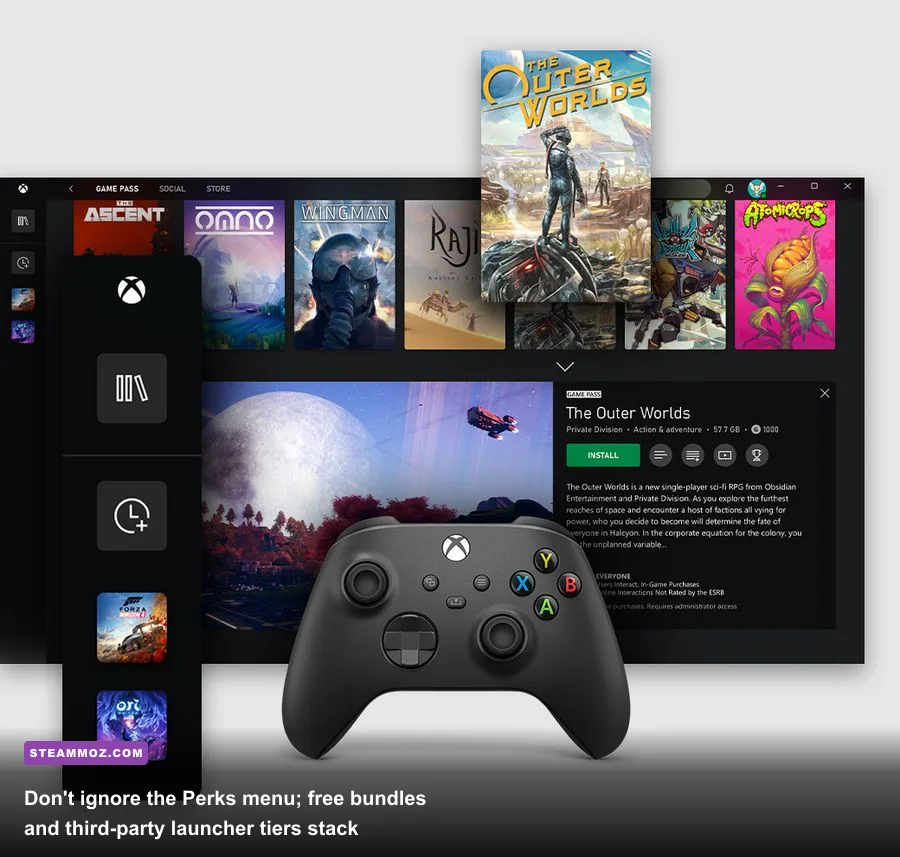
A standard PC Game Pass subscription quietly bundles multiple external launcher ecosystems, but many players fail to link them correctly, missing out on hundreds of dollars in combined software value. Your membership includes standard EA Play integration via the EA app, full champion/agent unlocks in Riot Games titles, and access to Ubisoft Connect integration for premier franchises.
To hook up EA Play cleanly, download the standalone EA app, log in, and choose the Sign in with Xbox option. This binds your identities at the account level. Once linked, never download EA games through the Xbox app; initiate the install directly inside the EA client. This avoids dual-launcher handshake failures where both clients battle over background update tasks and crash mid-session. If you are diving into expansive action titles or tuning weapon-heavy builds, consult our gear breakdowns like the Far Cry 6 best beginner build to get an early mechanical edge.
Make a habit of checking the Perks tab on the Xbox home screen every two weeks. PC players frequently receive free monthly subscriptions to Discord Nitro, Crunchyroll, and exclusive currency drops for online multiplayer games. These reward keys are not applied automatically; you must manually click, claim, and redeem the code via your browser before their respective expiration dates slip away.
Cloud Gaming on PC: Browser vs. App vs. Clarity Boost
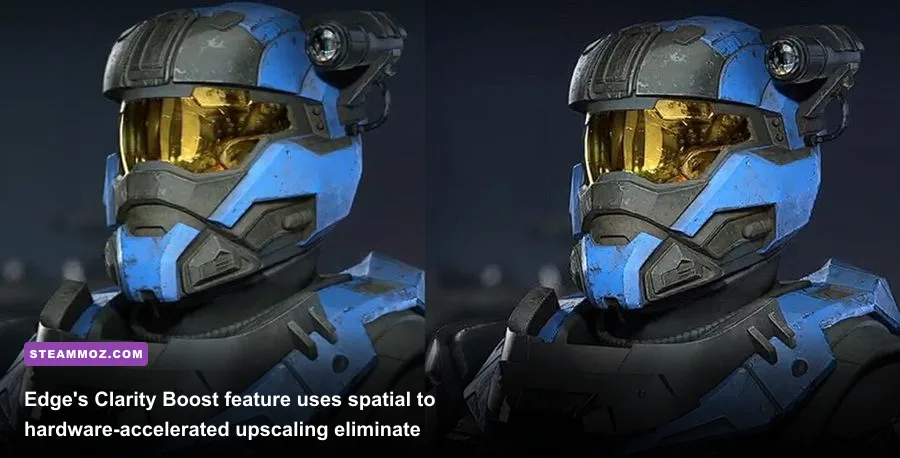
If you subscribe to Game Pass Ultimate, cloud streaming offers an instantaneous way to sample 100GB titles without waiting for downloads. However, running cloud games through the native Windows Xbox app is frequently the worst way to experience them due to fixed decoding limitations. Instead, stream via Xbox Cloud Gaming in Microsoft Edge.
Microsoft built a proprietary feature called Clarity Boost directly into the Edge browser. It activates custom spatial upscaling and sharpening shaders during WebRTC video decode, eliminating the muddy compression artifacts common in cloud video feeds. To turn it on, launch a stream in Edge, hit the three-dot menu icon in the upper-left corner of the stream window, and toggle Clarity Boost to On.
| Platform / Method | Visual Clarity | Input Latency | Best Use Case |
|---|---|---|---|
| Native PC Game Pass Install | Flawless (Native Res) | Hardware Dependent (Lowest) | Competitive shooters, graphical showcases, twitch-reflex games |
| xCloud via Microsoft Edge (Clarity Boost) | High (Upscaled Stream) | Moderate (Network Dependent) | Turn-based RPGs, strategy titles, trying games before 100GB installs |
| xCloud via Windows Xbox App | Average (Direct 1080p stream) | Moderate to High | Low-spec hardware without browser hardware acceleration support |
For responsive cloud streaming, an Ethernet connection is mandatory. If you must use Wi-Fi, ensure your PC binds exclusively to a 5GHz or 6GHz network band. 2.4GHz bands lack the raw bandwidth and channel isolation needed to maintain low frame jitter, resulting in micro-stutters and sudden input disconnects mid-combat.
Storage Hygiene: Purging Ghost Files and Managing Expirations
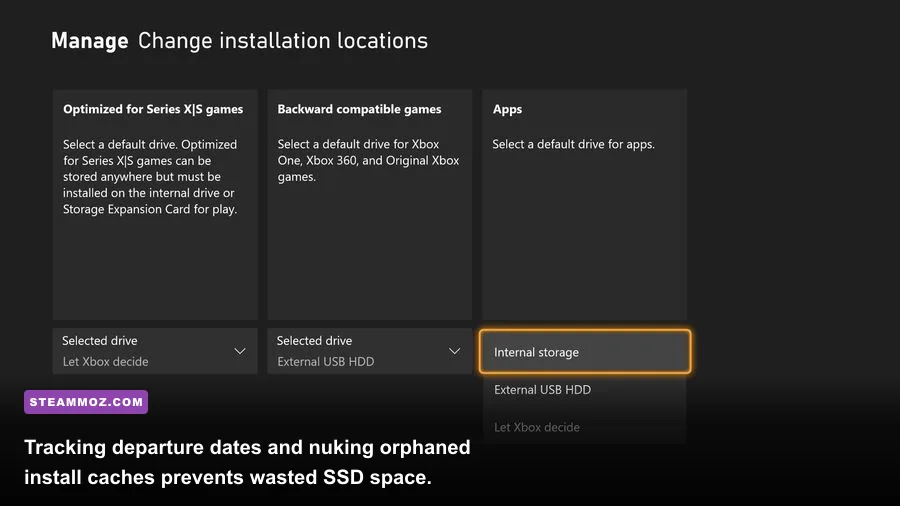
The biggest technical headache with Game Pass on PC involves orphaned disk storage. When an install fails mid-download, or when a game is uninstalled via Windows Add/Remove Programs instead of the Xbox app, Windows frequently locks the files inside an invisible, undeletable system folder called MSIXVC. Over several months, these ghost files can consume hundreds of gigabytes of prime NVMe SSD space.
To reclaim lost storage without wiping your drive, follow these administrative maintenance steps:
- Open the Windows Settings app and navigate to System > Storage > Temporary files. Check Delivery Optimization Files and hit delete; this clears staged update packages.
- Run
wsreset.exevia the Windows Run dialog (Win + R). This completely flushes the underlying Microsoft Store download cache without altering your personal save files. - If a game throws persistent corruption errors during patch installations, check our guide on how to address sudden crashing and stutter loops to ensure core Windows runtime packages are healthy.
- If a Game Pass game crashes immediately upon launch with a graphics pipeline error, optimize your resolution scaling using tips from our settings breakdown for higher FPS.
- For massive space-combat epics and intense rendering pipelines, you can resolve severe engine bottlenecks by reading our Everspace 2 stability and crash fixes.
Finally, keep an eye on the Leaving Soon section of the Game Pass library. Games depart the service on the 15th and the final day of every calendar month. Your cloud saves remain permanently tied to your Xbox profile even after a title leaves, meaning if you pick up the game down the road on a deep sale or it returns to the service, you can pick up precisely where you left off. Game Pass members also receive a flat 20% discount on any base game purchases and 10% off associated DLC packs before the title leaves the rotation, giving you an easy exit ramp if you want to keep playing forever.