
Squeezing top-tier FPS without turning your favorite game into a blurry mess of pixel soup boils down to reigning in three notorious visual culprits: Volumetric Fog, Screen Space Reflections (SSR), and Shadow Cascades. Blindly selecting the "Ultra" preset is the easiest way to chop your frame rate in half for visual upgrades your eyes won't even register in the middle of a firefight. By lowering these three specific hogs from Ultra to Medium or High, you claw back 25% to 40% of your rendering headroom while keeping 90% of the visual fidelity intact. Combine those tuned graphics with modern temporal upscaling and bulletproof frame pacing, and your gaming PC will stay firmly locked in the triple digits.
The Heavy Hitters: Settings That Tank FPS for Diminishing Returns
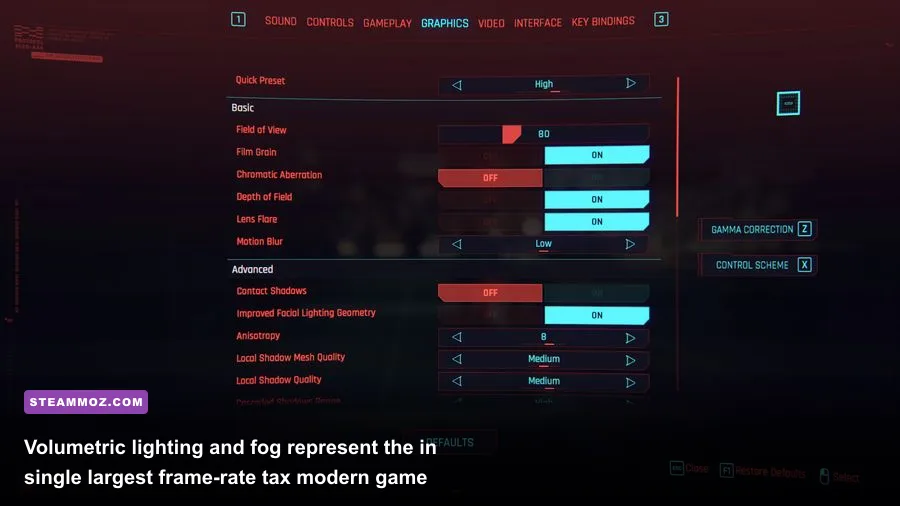
Modern graphics engines love physically based rendering, but computing accurate light transport across thousands of volumetric voxels brings even a flagship GPU to its knees. If you want fluid gameplay, you must audit the settings that cost the most compute time per frame. We've tracked this across dozens of benchmarks, similar to our deep dives into optimizing demanding titles like Far Cry 6, and the results remain consistent across Unreal Engine 5, Decima, and REDengine.
Volumetric Fog and Clouds: In games like Cyberpunk 2077, Starfield, or Red Dead Redemption 2, volumetric effects calculate how light scatters through moisture particles. On Ultra, the engine marches hundreds of light samples through a 3D grid. Dropping Volumetrics from Ultra to Medium retains dynamic ambient lighting and light shafts, but it increases your baseline framerate by 12% to 18% instantly.
Screen Space Reflections (SSR): SSR traces ray reflections across rendered screen data to generate mirror sheens on puddles and metallic floors. At maximum presets, SSR samples at full render resolution with complex roughness blur algorithms, introducing heavy post-processing noise and micro-stutters. Dialing SSR down to Medium or Low cuts that shader load drastically while keeping reflective surfaces convincing.
Shadow Map Resolution and Cascades: Ultra shadows create crisp, razor-sharp outlines directly at the foot of your character, transitioning smoothly over vast distances. However, rendering dynamic 4K shadow depth maps chokes rasterization pipelines. High or Medium shadows introduce softer edges that actually look more natural to the human eye while saving 8% to 15% in GPU rendering latency.
| Graphics Setting | Recommended Tuning | FPS Gain Over Ultra | Visual Impact |
|---|---|---|---|
| Volumetric Fog / Lighting | Medium | +14% to +20% | Virtually imperceptible in motion; slightly less dense fog edges. |
| Screen Space Reflections | Medium / Off (if using RT) | +10% to +16% | Slightly grainier reflections on wet surfaces; negligible during action. |
| Shadow Quality / Cascades | High or Medium | +8% to +14% | Softer shadow edges; realistic ambient drop-off without hard pixel edges. |
| Ambient Occlusion (SSAO) | High (Never Ultra) | +5% to +8% | Maintains contact shadows in crevices without multi-bounce computational hit. |
| Post-Processing / Depth of Field | Low / Off | +3% to +6% | Cleans up the screen image; eliminates artificial blur when aiming down sights. |
🎮 FORM
Looking to experience this game? Grab your digital key directly on our store for $14.99.
View on Steammoz Store →The "Free Visuals" Club: Settings You Should Always Crank Up
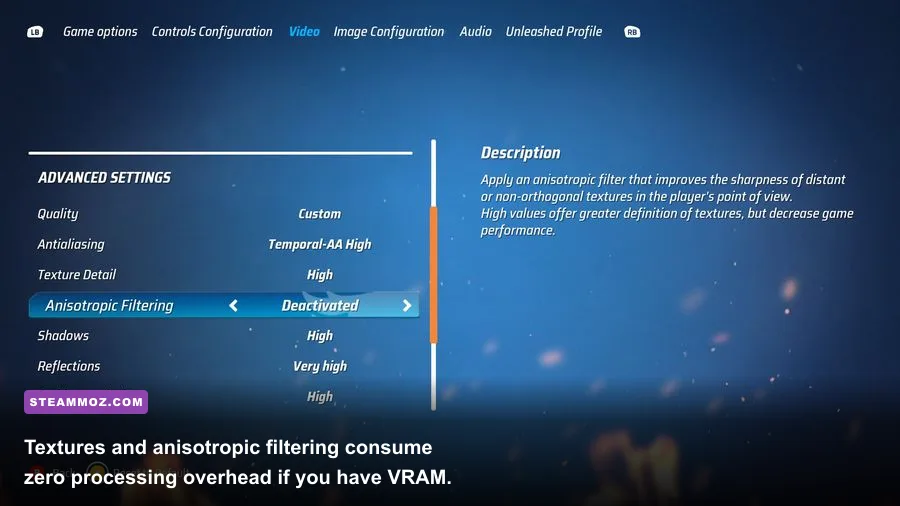
Not every setting taxes your graphics card's shader cores. A massive misconception in PC gaming optimization is that lowering every single slider across the board yields higher frame rates. In reality, several crucial settings rely exclusively on dedicated memory bandwidth or static data pipelines, meaning lowering them hurts image quality without delivering a single extra frame.
Texture Quality: Textures live inside your graphics card's Video RAM (VRAM). As long as your card's onboard pool is large enough—such as 8GB for 1080p, 12GB for 1440p, or 16GB for 4K—running textures on Ultra costs zero processing time. The memory controller pulls these textures into cache without loading your graphics processing compute units. You only need to drop Texture Quality if your dedicated VRAM allocation spills over into system RAM, which triggers violent frame drops. When dealing with memory bloat, ironing out sudden FPS drops almost always starts with matching texture budgets to your card's physical capacity.
Anisotropic Filtering (16x): Anisotropic filtering sharpens textures viewed at extreme oblique angles, such as cobblestone streets stretching out into the horizon. Back in the early 2000s, this required notable computation. On modern hardware architecture, 16x Anisotropic Filtering has a performance penalty of less than 0.5%, according to extensive testing catalogs on the PCGamingWiki database. Leaving this set to 16x keeps textures sharp at distance with zero noticeable frame cost.
Mesh Quality and Level of Detail (LOD): Mesh Quality dictates the polygonal complexity of distant buildings and characters. While setting this to Ultra can bog down weak CPUs, dropping it all the way to Low causes jarring object "pop-in" that shatters visual immersion. The sweet spot for almost every modern game is High. It maintains structural geometry across your field of view while saving your CPU from excessive draw-call overhead.
Upscaling, Dynamic Resolution, and Frame Generation Demystified
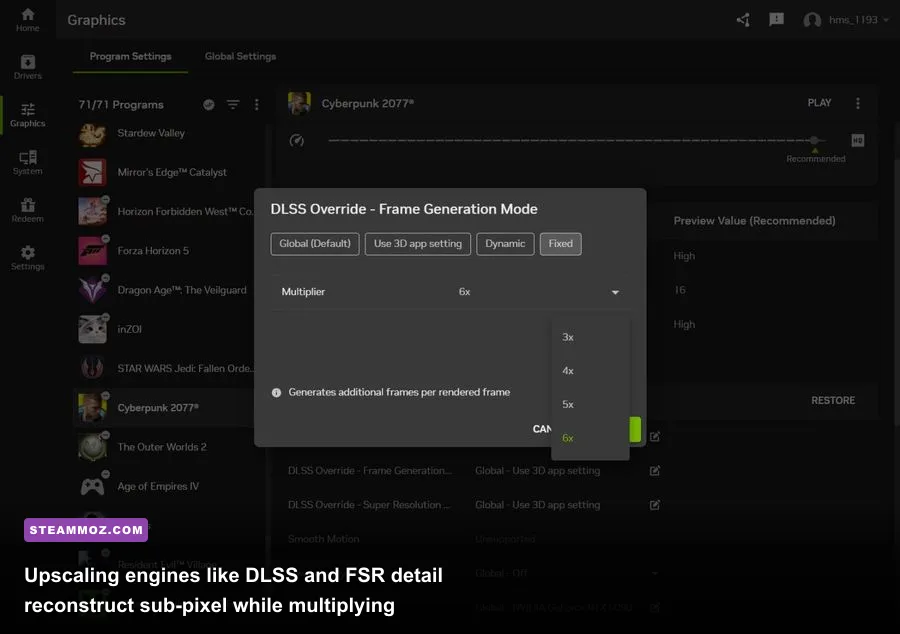
The era of raw, unassisted native rendering is winding down. With modern temporal reconstruction suites like NVIDIA DLSS, AMD FidelityFX Super Resolution (FSR), and Intel XeSS, running your display at native resolution without upscaling is essentially giving away free performance. These reconstruction engines render the game internally at a lower base resolution and use temporal vectors, motion data, and machine-learning models to reconstruct a sharp output frame.
In fact, as documented in NVIDIA DLSS architectural whitepapers, DLSS running in "Quality" mode at 1440p renders internally at 1080p, yet frequently produces superior edge stability and anti-aliasing compared to native rendering crippled by blurry TAA (Temporal Anti-Aliasing). If you run on Team Red or an older GTX card, AMD FidelityFX documentation confirms FSR 3.1 provides broad cross-vendor temporal reconstruction that recovers substantial rendering budgets.
| Upscaling Technology | Ideal Resolution Mode | Internal Render Scaling | Expected FPS Boost | Image Clarity Verdict |
|---|---|---|---|---|
| NVIDIA DLSS (Super Resolution) | Quality (1440p / 4K) | 66.7% of native resolution | +30% to +50% | Superb; often cleaner than native TAA implementations. |
| AMD FSR 3.1 | Quality (1440p / 4K) | 66.7% of native resolution | +28% to +45% | Very sharp; minor temporal shimmering on ultra-fine foliage. |
| Intel XeSS (DP4a / XMX) | Ultra Quality / Quality | 77% / 66.7% scale | +25% to +40% | Excellent stability; outperforms basic FSR on non-RTX hardware. |
| Frame Generation (DLSS 3 / FSR 3) | Combined with Reflex / Anti-Lag | Interpolated Frame Insertion | +60% to +90% (Visual) | Fluid motion; requires 60 FPS base rate to avoid input lag. |
A vital word of caution regarding Frame Generation: it is not a magic cure for a struggling system. Frame generation inserts an artificial, interpolated frame between two traditionally rendered frames. Because it does not process user input on generated frames, it does nothing to fix poor base latency. If your game already stutters at 35 FPS, turning on Frame Generation will make your mouse input feel heavy and unresponsive. Use upscaling to achieve a clean, responsive base of at least 60 FPS first before enabling frame generation to hit high refresh rates.
Fixing Frame Pacing, Stutter, and 1% Lows
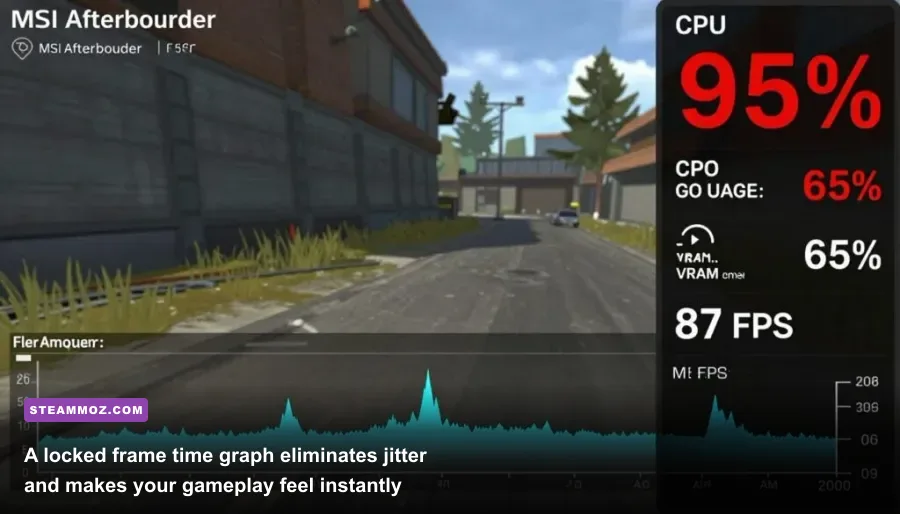
A counter showing 120 FPS means nothing if your frame time graph looks like an erratic seismic tremor. Inconsistent frame delivery—where one frame takes 8 milliseconds to render and the next takes 32 milliseconds—feels like agonizing micro-stutter, completely destroying the sensation of smooth gameplay. Perfect frame pacing transforms choppy performance into fluid motion, an approach essential whether you are resolving low frame rates and stutter or stabilizing choppy framerates in intense combat simulators.
To establish rock-solid frame pacing on variable refresh rate displays (G-Sync or FreeSync):
- Cap Framerates Below Max Refresh: Variable refresh rate modules disengage the instant your FPS exceeds your monitor's native refresh rate, instantly reintroducing screen tearing and erratic input latency. Set a system-wide frame rate limiter (using RTSS or driver control panels) to exactly 3 to 4 FPS below your panel's maximum (e.g., cap at 141 FPS on a 144Hz screen, or 161 FPS on a 165Hz monitor).
- Driver-Level V-Sync Enabled: Turn V-Sync Off inside in-game settings menus, but force V-Sync On globally inside the NVIDIA Control Panel or AMD Software: Adrenalin Edition. When paired with an under-refresh cap, this forces the display pipeline into a zero-tear, zero-buffer-penalty mode with minimal input latency.
- Low Latency Modes: Enable NVIDIA Reflex (set to "On" or "On + Boost") or AMD Anti-Lag. These technologies dynamically synchronize the CPU draw-call submission rate with GPU workload processing, clearing internal queue buffers so your clicks translate to on-screen action instantly.
Windows and Driver Tweaks That Actually Deliver Extra Frames

Your operating system often works against your graphics card if left on factory default settings. Bloated background services, misplaced scheduler routines, and aggressive power-saving modes strip away noticeable performance before a game even launches. If you enjoy dialing in graphics settings for fluid playback, configuring your operating system correctly is the bedrock of clean execution.
Start by heading into Windows Settings > System > Display > Graphics and turning on Hardware-Accelerated GPU Scheduling (HAGS). HAGS offloads high-frequency scheduling tasks directly to a dedicated scheduling processor on the GPU, shaving 1 to 2 milliseconds of CPU overhead off every frame while unlocking DLSS 3 Frame Generation compatibility. Next, ensure Game Mode is toggled On; modern Windows builds use Game Mode to prioritize CPU thread affinity for foreground gaming applications while parking background tasks on low-priority cores.
Inside your GPU driver control panel, adjust the Power Management Mode to "Prefer Maximum Performance" or "Optimal Power" depending on your card architecture. Steer clear of aggressive Windows power plans like "Power Saver," which throttle CPU clock frequencies during transient loading spikes. According to the ongoing telemetry compiled by the Steam Hardware Survey, the overwhelming majority of gaming rigs are running mid-tier multi-core processors that benefit massively from keeping baseline clocks locked above idle thresholds. Before buying expensive hardware upgrades, evaluating system specifications alongside these free software tweaks ensures you aren't leaving hardware capability trapped on the table.