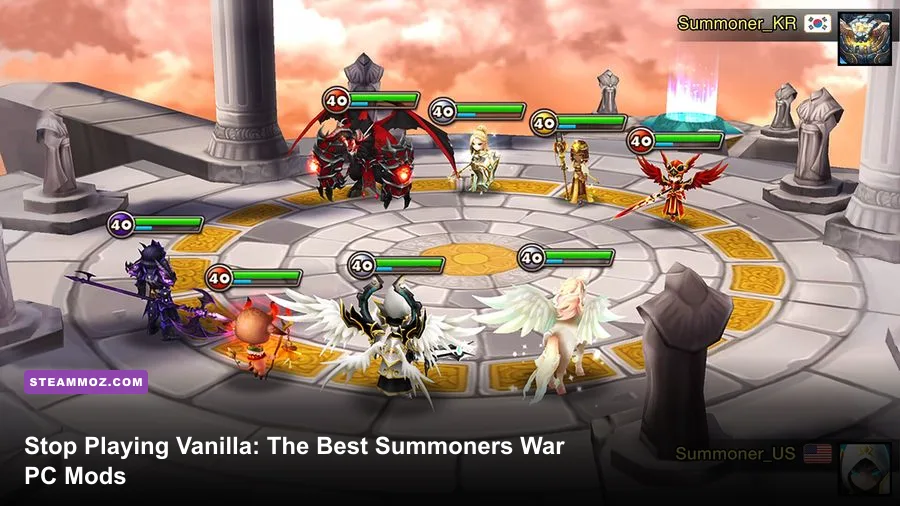
Transforming your experience in Summoners War on PC doesn't mean downloading risky memory hacks that get your Hive account banned in twenty seconds. The absolute best PC mods and companion tools—specifically Summoners War Exporter (SWEX), Summoners War Optimizer (SWOP), custom Reshade post-processing injection, and dedicated Steam Input keybind wrappers—overhaul the game by unlocking surgical rune math, fixing washed-out mobile textures, and turning clunky mouse-clicking into rapid-fire keyboard controls. If you want to compete in World Arena (RTA) or speed-clear Giants Abyss Hard in under 35 seconds, vanilla play is holding you back.
The Real State of Summoners War PC Modding (And Safety Rules)
Before touching a single file, you need to understand how Com2uS polices its ecosystem. Unlike single-player sandboxes where you drop modified `.dll` files into an installation folder, Summoners War on Steam relies on server-side authority backed by XIGNCODE3 anti-cheat. Any direct client-side code modification, speedhack, or memory-injected `.apk`/`.exe` cheat will trigger an instant, irreversible permanent ban. Real PC veterans don't tamper with client binaries; we modify our workflow through safe network-packet interceptors and harmless post-processing layers.
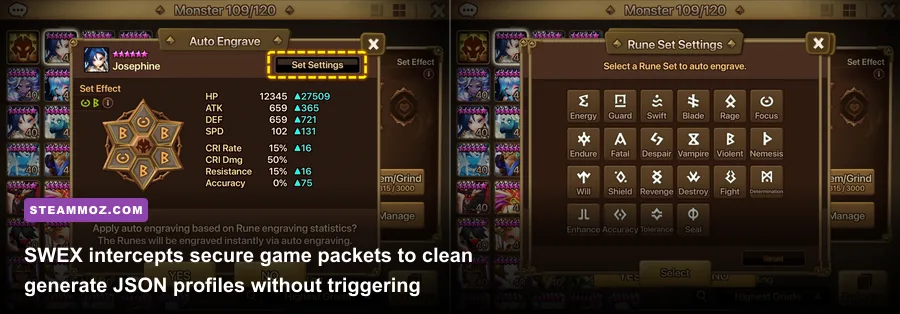
Community-built utilities sit in an authorized gray-to-white zone. Tools like SWEX do not alter combat numbers, give infinite Crystals, or touch game assets. Instead, they act as passive network proxies that listen for your profile data while you log into the game server, spitting out a comprehensive `.json` file containing every monster, rune, and artifact in your inventory. From there, external desktop software calculates mathematical builds that would take you a hundred years to figure out manually.
Just like setting up your machine for demanding titles—similar to sorting out PC fixes that stop crashes and rescue your FPS—getting your companion tools configured cleanly eliminates stutter and keeps your third-party software running smoothly alongside the native Steam client. Once you have this ecosystem established, the game transforms from a tedious mobile grind into a deep, analytical PC tactical RPG.

🎮 FORM
Looking to experience this game? Grab your digital key directly on our store for $14.99.
View on Steammoz Store →1. Summoners War Exporter (SWEX): The Indispensable Engine
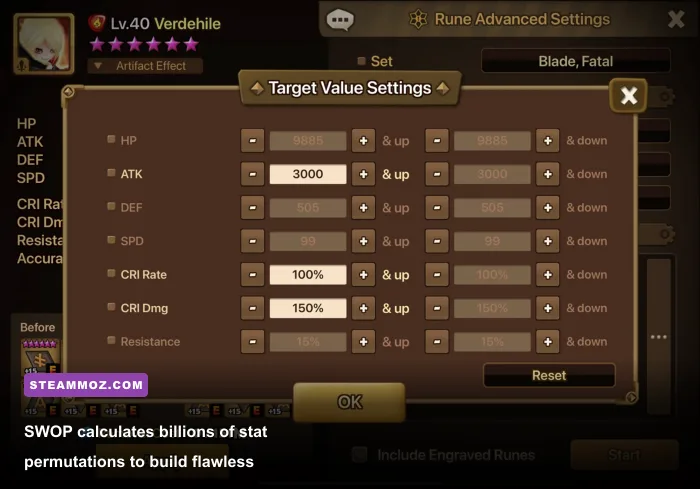
If you only install one community tool for PC, make it the Summoners War Exporter (SWEX). Created by developer Xzandro, SWEX is the backbone of the entire competitive community. It operates as a local proxy server on your PC that safely catches game packets during login, unpacking your monster box, artifact rolls, and rune inventory into an exhaustive data sheet.
Setting up SWEX on PC is straightforward, but it requires generating a local HTTPS certificate to read encrypted traffic:
- Install the Root Certificate: Launch SWEX as Administrator, head to the Proxy tab, and click "Install CA Certificate." This allows your local Windows network stack to decrypt the incoming payload sent by the Com2uS game servers.
- Configure Your Network Adapter: Set your Windows LAN or Wi-Fi proxy settings to `127.0.0.1` targeting the specific port indicated in SWEX (typically port `8080`).
- Trigger the Data Pull: Boot the game through Steam. The moment you tap past the "Touch to Start" title screen, SWEX captures your full game state and automatically saves `[YourSummonerName]-[ID].json` into your designated folder.
- Revert Proxy Settings: Disconnect the proxy once the export ding sounds, or use the automated auto-toggle plugin so your ordinary PC web traffic doesn't bottleneck.
Beyond extracting raw JSON files, SWEX houses an incredible plugin suite. Community plugins like the Full Monster Profile export your monster builds directly into guild-shareable spreadsheets, while the Speed Tuner Plugin reads your exact combat base speeds, totem levels, and Swift rune roll bonuses. It calculates turn-order sync down to single combat ticks, ensuring your buffer like Galleon moves precisely before your heavy-hitting nukers like Lushen or Savannah.
2. Summoners War Optimizer (SWOP): Perfecting Rune Synergy
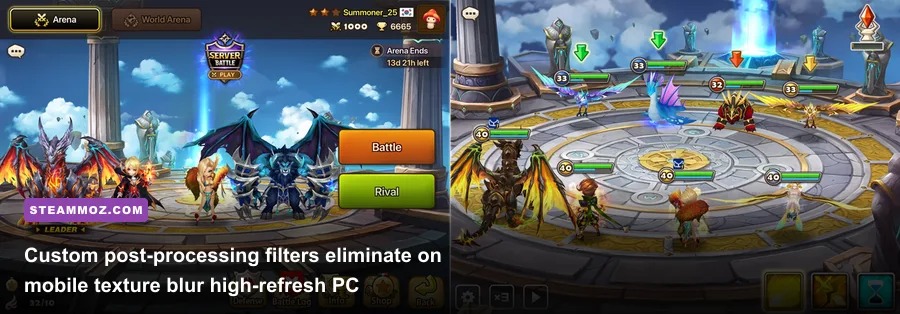
Once SWEX extracts your account's `.json` file, you immediately feed that data into Summoners War Optimizer (SWOP). The built-in rune management UI in Summoners War is notoriously clunky. It limits how effectively you can preview stat shifts, completely obscures break-even stat thresholds, and makes testing complex combinations like Violent/Will or Despair/Nemesis a headache.
SWOP replaces that headache with raw computational power. You select a monster—say, your newly summoned Theomars or an RTA staple like Oliver—and dictate your desired end-game targets: minimum 240 Speed, 100% Critical Rate, 160% Critical Damage, and 25,000 HP. Within seconds, SWOP tests millions of rune configurations across your active storage box and unequipped inventory, finding combinations you would never spot with the naked eye.
Much like fine-tuning character loadouts in other tactical PC games—such as finding the best beginner builds or optimizing resource rotations in fast leveling and gold farming guides—SWOP takes the guesswork out of resource investment. It factors in Grindstones, Enchant Gems, and even Artifact lines (like Added Damage by % of SPD or Critical Damage on Skill 3) to rank builds by pure Effective HP (EHP) and raw Damage Output.
| Monster / Target Role | Optimal Set Synergy | Key Stat Threshold Targets | SWOP Optimization Focus |
|---|---|---|---|
| Lushen (Giants Abyss Hard / Arena) | Fatal / Blade or Rage / Blade | +1,800 ATK, 100% CR, 220%+ CD, Tuned Speed (+45) | Maximize S3 (Amputation Magic) damage per card without wasting surplus SPD |
| Tiana (Arena Stripper) | Swift / Will | +210+ Base SPD, 30,000+ HP, Max RES | Prioritize absolute raw SPD substats to guarantee first turn strip |
| Savannah (RTA / Guild Siege) | Violent / Will | +140 SPD, +1,200 ATK, 85% CR, 150% CD, 50%+ ACC | Balance Effective HP with ATK scaling to guarantee AoE defense break and pushback |
| Veromos (Abyss Dragon / ToA Hard) | Violent / Nemesis | +130 SPD, 32,000+ HP, 1,400+ DEF, 60% ACC | Maximize Turn Cycling and EHP to tank repeated Dragon strikes safely |
By locking down your fastest sets and filtering by rune efficiency percentages (measuring how closely your secondary rolls reached maximum roll caps), you stop wasting millions of Mana Stones upgrading mediocre six-star hero runes that lack coherent sub-stat synergy.
3. Reshade for Summoners War: Crisp 4K Visuals and Vibrant Color
While the Steam port of Summoners War is decently stable, it suffers from a glaring flaw common to mobile PC ports: muddy, low-pass texture filtering and a muted dynamic range. The assets were built for compact 6-inch OLED displays, meaning that blowing them up to a 27-inch 1440p or 32-inch 4K monitor leaves the Sky Island, character armor, and particle explosions looking blurry and washed-out.
Enter Reshade. By hooking cleanly into the game's DirectX/Vulkan runtime, you can introduce modern post-processing shaders without modifying the game files or triggering anti-cheat alarms. The difference is night and day. Applying an intelligent contrast-adaptive sharpening filter instantly brings out the intricate armor etchings on your Archangels and clean cell-shaded outlines on your Ifrits.
If you've spent time tweaking settings like settings for max FPS or experimenting with options for higher FPS in other PC titles, you know that post-processing can sometimes hit your hardware hard. Thankfully, Summoners War is lightweight, meaning even high-grade shaders cost almost zero perceptible framerate on modern GPUs.
| Shader / Profile Module | Recommended Config Value | Hardware Impact | Visual Improvement |
|---|---|---|---|
| AMD FidelityFX CAS | Sharpness: 0.65 / Clamping: 0.10 | Negligible (< 1% FPS) | Strips away mobile upscaling blur; makes 3D models razor sharp |
| qUINT Lightroom / Tonemap | Saturation: +0.08 / Defog: 0.04 | None | Fixes the milky gray wash; restores rich elemental blues, reds, and golds |
| SMAA (Anti-Aliasing) | Ultra Preset / Edge Detection: Color | Very Low (1-2 FPS) | Smooths out stair-stepped polygon edges during fast combat animations |
| Vibrance | Vibrance: 0.15 | Zero | Accentuates particle effects during ultimate skill animations |
To keep your setup bulletproof, stick strictly to generic injector wrappers and disable any depth-buffer access features inside Reshade. Depth buffers aren't needed for simple sharpening and color correction anyway, and disabling network access within Reshade ensures Com2uS's anti-cheat won't misidentify the tool as an overlay exploit.
4. Custom PC Keybind Wrappers: Fixing the Mobile-First Interface
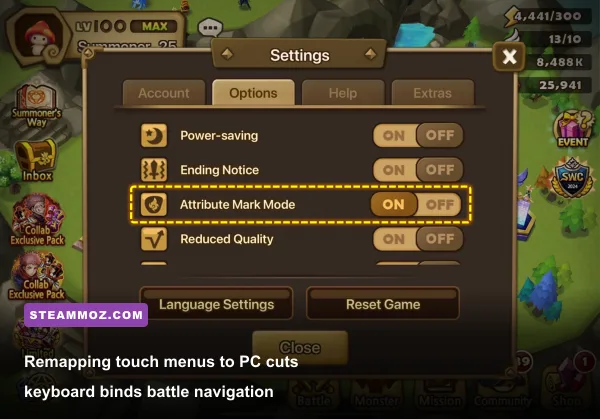
The native PC client still relies primarily on mouse clicks to simulate touch controls. Having to drag your cursor across an ultrawide monitor just to hit "Replay Dungeon," cycle your auto-battle box, or manually pick targets during a high-stakes Guild Siege match is sluggish and uncomfortable. This is where custom input wrappers make a massive difference.
Using Steam's built-in Controller/Keyboard Configurator or lightweight background hotkey mappers, you can bind coordinates on your display to physical keys on your mechanical keyboard. Instead of dragging and clicking, your hand stays comfortably positioned across the home row:
- Number Keys (1, 2, 3): Instantly trigger Skill 1, Skill 2, or Skill 3 during manual combat encounters.
- Spacebar: Bound to the screen coordinate for the central "Start / Replay Battle" button, letting you fire off auto-runs without looking at the screen.
- Tab Key: Toggles the 10x / 30x Repeat Battle summary window, letting you inspect dropped runes and sell flat-stat trash immediately.
- Escape: Instantly opens the Pause/Quit menu if an Abyss Dungeon run goes south and you need to reset before a wipe registers.
A word of caution: make sure your keybind wrappers map strictly on a 1:1 input ratio. One physical keypress must equal exactly one virtual click or action. Setting up multi-click macros that chain actions together or automate dungeon restarts while you're away from the keyboard crosses the line into macro botting, which Com2uS actively scans for and bans. Keep your bindings strictly manual, using them as ergonomic QoL improvements rather than automated bots.
5. Guild War and Siege Tracking Mods: SWGT Integration
For players fighting in high-tier Siege tournaments (Guardian 1 through Guardian 3), individual monster builds are only half the battle. You also need tactical intelligence. That's where Summoners War Guild Tools (SWGT) comes in. Designed as a dedicated companion ecosystem, SWGT hooks into your SWEX proxy setup via a specialized plugin.
When you scout enemy Siege towers or defense bases, the SWGT plugin parses the defense comps (such as the infamous Clara, Savanna, Yen defenses or Carcano, Eshir, Vigor lines) and matches them against a crowd-sourced global counter-database. Rather than guessing whether your secondary bruiser team can survive an enemy Galleon-boosted damage spike, SWGT surfaces win rates, proven counter-comps, and rune-speed requirements directly inside a companion browser overlay on your second monitor.
If you enjoy tackling high-difficulty challenges and uncovering every strategic advantage—much like hunting down secret locations and hidden rewards or troubleshooting stability like fixing crashes and boosting performance—integrating SWGT gives your guild an immense competitive edge. It logs every single battle result, tracks member attack efficiency, and flags which defenses are holding up against the meta.
The Ultimate Summoners War PC Setup Checklist
Ready to assemble your ultimate PC gaming command center? Here is how to orchestrate everything in harmony without risking your account:
- Fresh Clean Client: Verify your game files through Steam to ensure your base directory is completely stock and uncorrupted.
- Install SWEX on an SSD: Place Summoners War Exporter on your primary drive, run as Admin, install the root CA cert, and test the JSON extraction once to make sure your firewall isn't blocking port 8080.
- Link with SWOP Desktop: Download the dedicated Windows desktop app for SWOP (which runs significantly faster than the browser web version), load your extracted JSON, and lock in your monster builds.
- Apply Reshade CAS Sharpening: Hook Reshade into the executable, load AMD CAS and subtle vibrance filters, and lock your frame-rate limit to match your monitor's native refresh rate (144Hz or 165Hz).
- Map Ergonomic Keybinds: Set up your 1:1 single-input hotkeys via Steam Input for lightning-fast combat commands and instant replay clicks.
By shifting the heavy computational lifting to SWOP, modernizing the graphics with Reshade, and handling battles with sharp keyboard shortcuts, you strip away every bit of mobile friction. You're left with a gorgeous, high-precision turn-based strategy powerhouse right on your PC desk. Stop squinting at tiny smartphone screens and dragging through manual rune inventories—upgrade your rig with these essential tools and dominate your daily runs.