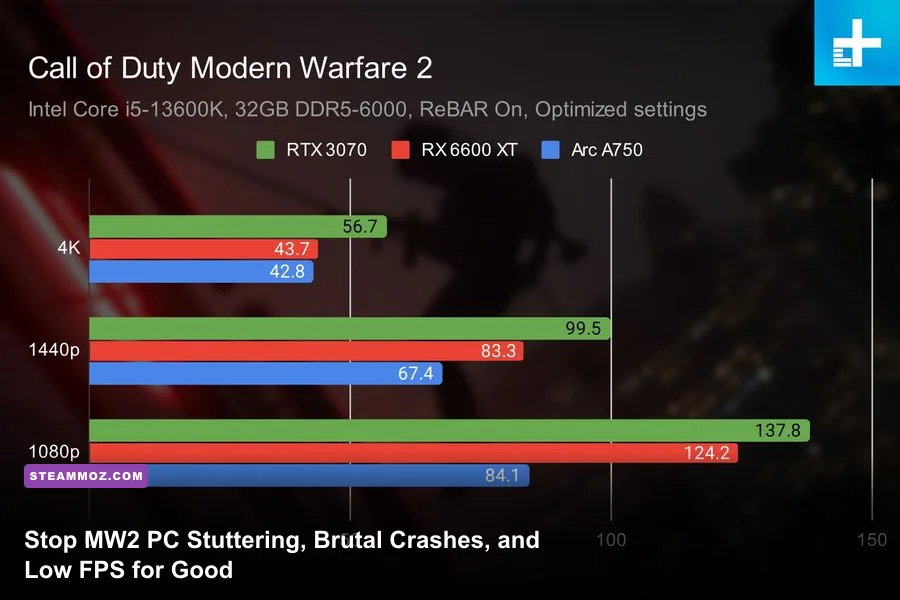
Fixing Modern Warfare 2's erratic stuttering, sudden frame drops, and infuriating desktop crashes boils down to addressing three core engine bottlenecks: an overly aggressive VRAM allocation limit, corrupt shader cache pipelines, and misconfigured CPU thread scheduling in the game's configuration files. If your framerate plummets the second a thermite explodes or your match collapses into a DirectX Error 6068 (0x887A0005) crash, your graphics card isn't broken—the IW 9.0 engine is mismanaging your hardware resources. By resetting your shader pipelines, calibrating the RendererWorkerCount to match your CPU's physical architecture, capping your VRAM target to 0.70, and disabling bandwidth-heavy on-demand streaming, you can lock in buttery-smooth frametimes and secure stable, high-refresh gunplay across multiplayer and Warzone.
Flush and Rebuild Your Shader Cache to Kill Micro-Stutters
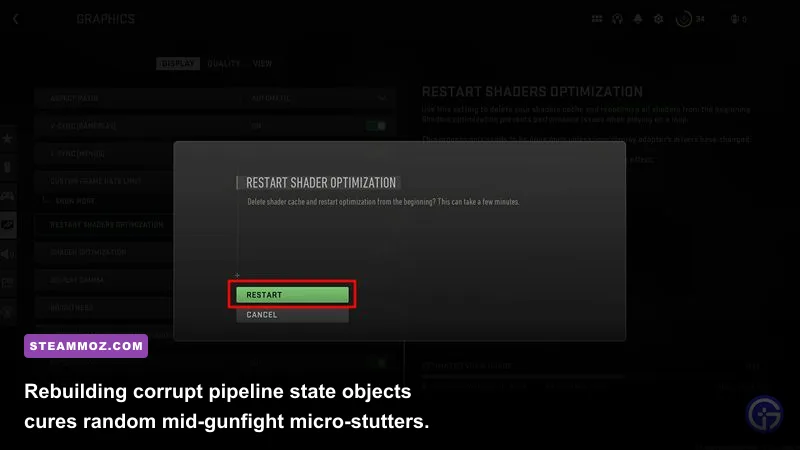
Shader compilation stutters are the primary reason Modern Warfare 2 hitches when you round corners, enter a fresh building, or swap to high-magnification sniper optics. The game relies heavily on dynamic DirectX 12 Pipeline State Objects (PSOs). Whenever a graphics driver updates, Windows installs a security patch, or the developers push a weekly playlist update, your previously compiled shader cache can corrupt or invalidate. When this happens, the engine tries to compile complex visual shaders mid-gunfight, leading to jarring 100ms frametime spikes that get you eliminated before your weapon even raises.
To fix this, you must force a clean, uninterrupted shader re-index. Launch Modern Warfare 2, head into Settings > Graphics > Display, scroll to the bottom, and click Restart Shader Optimization. Exit the game immediately. Before launching it again, navigate to your system's temporary directory to wipe corrupt remnants manually:
- Press
Windows Key + R, type%localappdata%, and press Enter. - Locate the Activision folder, open it, and delete the cached contents inside the shader directories.
- If you are playing on Battle.net, wipe the cache files inside
C:\\ProgramData\\Battle.net\\Agent\\data\\cache. - Launch the game, sit on the main lobby screen, and do not queue for a match until the on-screen shader progress bar reaches 100%.
Next, tackle On-Demand Texture Streaming. Located under the Quality tab, this feature continually downloads uncompressed high-resolution textures from Activision's servers directly to your local drive while you play. If your network hiccups or your storage drive faces an I/O bottleneck, your game will hitch violently. Set On-Demand Texture Streaming to Off or set its allocated download limits to a strict minimum. Similar storage and cache thrashing issues frequently disrupt other modern titles, as detailed in our guide to fixing PC crashes and low FPS, making local asset control mandatory for competitive stability.
Fine-Tune the options.3.cod22.cst Configuration File

The automated hardware detection in Modern Warfare 2 is notoriously bad at setting CPU thread affinity. Instead of allocating your CPU's actual physical performance cores, the engine often guesses blindly, assigning too few threads or flooding your virtual hyperthreads. This causes massive CPU frame queues where your graphics card sits idle waiting for instructions from the processor, resulting in erratic 1% and 0.1% low framerate drops.
You can override this behavior manually by editing the game's master text configuration file. Close the game completely, open File Explorer, and navigate to:
Documents\\Call of Duty\\players\\options.3.cod22.cst
Open this file with Notepad or any basic text editor. Press Ctrl + F and search for RendererWorkerCount. By default, the engine may assign this to an arbitrary number that doesn't match your silicon. The golden rule for Call of Duty's IW 9.0 engine is to set this value equal to your CPU's physical performance cores, ignoring logical hyperthreads or low-power efficiency cores.
For example, if you are running an AMD Ryzen 5 5600X (6 physical cores, 12 threads), set RendererWorkerCount:0.0 = "6". If you are on an Intel Core i7-13700K (8 Performance cores, 8 Efficient cores), setting this to 16 causes severe hitching because the engine offloads high-priority rendering tasks onto slow E-cores. Instead, set it strictly to 8 or 7 to keep all draw calls pinned to the hyper-fast P-cores.
While you have the configuration file open, look for VideoMemoryScale. Modern Warfare 2 defaults this parameter anywhere from 0.85 to 0.90. This tells the game it is allowed to occupy up to 90% of your graphics card's dedicated VRAM. However, Windows Desktop Window Manager (DWM), background browser tabs, and recording tools like OBS also need VRAM. When total memory usage exceeds 100%, Windows violently pages data into system RAM, resulting in an immediate framerate tank or an unhandled exception crash. Change this setting to 0.70 or 0.75, save the file, and close it.
| Processor Type | Physical Cores / Threads | Default Engine Value | Optimal RendererWorkerCount | Performance Impact |
|---|---|---|---|---|
| AMD Ryzen 5 (5600X, 7600X) | 6 Cores / 12 Threads | 4 or 8 | 6 | Eliminates core queuing, +15% 1% Lows |
| AMD Ryzen 7 (5800X3D, 7800X3D) | 8 Cores / 16 Threads | 6 or 12 | 7 or 8 | Peak 3D V-Cache frame pacing |
| Intel Core i5 (12400F, 13400F) | 6 P-Cores (+ E-Cores) | 4 or 10 | 6 | Prevents E-Core thread spilling |
| Intel Core i7 / i9 (13700K, 14900K) | 8 P-Cores (+ E-Cores) | 14 or 16 | 7 or 8 | Stops hybrid thread scheduling stalls |
| Legacy 4-Core CPUs (i7-7700K, etc.) | 4 Cores / 8 Threads | 2 or 4 | 4 | Maximizes limited compute throughput |
Correct thread scheduling stabilizes your render pipeline much like the hardware adjustments covered in our Elex PC performance rescue guide, ensuring your hardware handles heavy physics calculations and alpha particle effects without dropping crucial frames.
The Definitive MW2 Graphics Settings for Maximum FPS and Clarity
Dialing in your visual settings isn't just about cranking everything to minimum; competitive Call of Duty requires striking a deliberate balance between clear enemy visibility, rapid target acquisition, and ultra-high framerates. Certain settings, such as Spot Cache, actually improve performance when raised, because they cache dynamic lighting maps into memory rather than recalculating them on the fly during an intense gunfight.
First, navigate to your Display settings. Ensure your Display Mode is set strictly to Exclusive Fullscreen. Running Borderless Fullscreen forces your video signal through the Windows compositing layer, which introduces mandatory desktop input latency and interrupts your GPU's raw hardware priority. Disable V-Sync completely both in-game and in your driver control panel unless you rely on a G-Sync or FreeSync display with a framerate cap set three frames below your monitor's maximum refresh rate.
For sharpening and scaling, avoid blurry upscaling technologies if your system can hold native resolution. Turn off DLSS and AMD FSR 2.1 unless you are strictly GPU-bound at 4K resolution; both algorithms introduce temporal smearing around iron sights and optic reticles during fast mouse flicks. Instead, select FidelityFX CAS (Contrast Adaptive Sharpening) and set the sharpness slider between 70% and 85%. This runs the game at full native resolution, applies a razor-sharp sharpening pass to edge geometry, and helps you identify enemy head-glitches across vast sightlines with zero performance cost.
| Graphics Setting | Recommended Value | Performance Gain | Competitive & Visual Impact |
|---|---|---|---|
| Display Mode | Fullscreen Exclusive | High (Input Lag) | Lowest latency, bypasses Windows DWM |
| Upscaling / Sharpening | FidelityFX CAS (75-85%) | Neutral | Maximum target clarity without ghosting |
| Texture Resolution | Normal | Moderate VRAM | High textures waste VRAM; Low blurs reticles |
| Texture Filter Anisotropic | High | < 1% FPS | Zero FPS cost on modern GPUs; sharp ground angles |
| Particle Quality Level | Low | 6% - 10% FPS | Prevents drops inside smoke, thermites, and explosions |
| Bullet Impacts & Sprays | On | < 1% FPS | Crucial for reading enemy wallbang locations |
| Shader Quality | Low | 4% - 7% FPS | Flattens lighting, makes player models pop |
| Tessellation | Off | 2% - 4% FPS | Removes unnecessary geometric deformation |
| On-Demand Texture Streaming | Off | High (Stutter) | Stops sudden broadband-related asset hitches |
| Shadow Map Resolution | Very Low | 8% - 14% FPS | Massive FPS boost with zero impact on gameplay |
| Spot Shadow Quality | Low | 3% - 5% FPS | Optimizes indoor dynamic flashlight passes |
| Spot Cache | High / Ultra | Stabilizes Frametimes | Prevents micro-stutters when muzzle flash fires |
| Particle Lighting | Low | 3% - 5% FPS | Cuts compute overhead during heavy killstreaks |
| Ambient Occlusion | Off | 5% - 8% FPS | Removes dark corner shadows; improves visibility |
| Screen Space Reflections | Off | 4% - 6% FPS | Eliminates muddy floor reflections that distract |
| Nvidia Reflex Low Latency | On + Boost | Input Lag Boost | Keeps GPU clocks pinned to cut render queue latency |
Fine-tuning these specific parameters mirrors the optimization strategies we recommend in our Far Cry 6 max FPS settings breakdown and our tactical walkthrough for Filament Marmalade Edition frame optimization, stripping away heavy post-processing bloat to prioritize clear visual feedback and fluid framerates.
Eliminate Desktop Crashes, DirectX Error 6068, and 0xC0000005
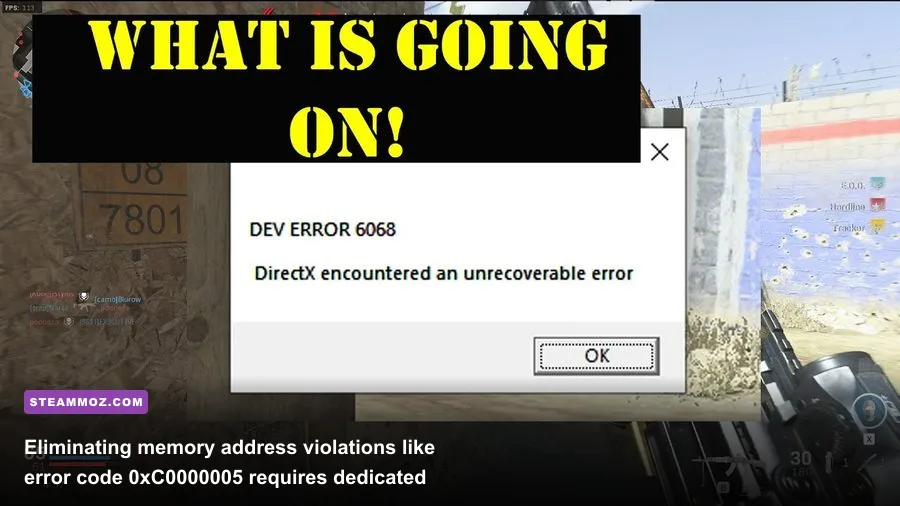
Few things ruin an evening of gaming faster than the infamous DirectX Error 6068 or the unhandled memory access violation 0xC0000005. These errors typically indicate that the graphics driver crashed due to an engine request timeout (TDR), or that the game attempted to write into a restricted memory address space. Resolving these stability issues requires addressing software hooks, system pagefiles, and GPU driver hygiene.
First, purge your graphics driver completely using Display Driver Uninstaller (DDU). Overwriting graphics drivers via routine auto-updaters leaves behind stale dynamic link libraries (.dll files) that clash with the Call of Duty engine. Boot Windows into Safe Mode, run DDU to cleanly wipe your display drivers, restart your system, and download the latest WHQL release directly from the official Nvidia driver portal or AMD support site.
Second, audit your background overlays. Ricochet Anti-Cheat operates at the kernel level and aggressively scans for untrusted code injections. Third-party software that injects custom hooks over the game window can trigger false security flags or direct memory crashes. Shut down or disable overlays for:
- Discord: Open Discord Settings > Game Overlay > toggle Enable In-Game Overlay to Off. Also disable Hardware Acceleration in Discord Advanced settings.
- GeForce Experience / Nvidia App: Turn off the in-game overlay toggle unless you specifically rely on ShadowPlay for clip recording.
- RivaTuner Statistics Server (RTSS) / MSI Afterburner: If you use RTSS to track system temperatures, set its Application Detection Level to None or add an exclusion profile for
cod.exe. Aggressive hooking engines will trigger immediate 0xC0000005 crashes.
Third, adjust your Windows Virtual Memory (Pagefile). Modern Warfare 2 is extremely memory-hungry. If your system runs 16GB of physical RAM and your Windows pagefile is either disabled or managed across a slow secondary hard drive, the system will instantly crash the moment physical RAM saturates. Press Windows Key + S, search for View advanced system settings, click Settings under Performance, open the Advanced tab, and click Change under Virtual Memory. Set a custom size on your fastest NVMe solid-state drive with an Initial Size of 16384 MB and a Maximum Size of 16384 MB. This fixed allocation provides a stable virtual memory floor and stops crash-to-desktop errors instantly.
These aggressive stability steps follow the same troubleshooting framework used when evaluating modern engine crashes in our Everspace 2 crashing fix overview, as well as matching baseline architectural demands like those analyzed in the Fatal Fury City of the Wolves PC specs breakdown.
Network Stutter and Packet Burst: Fixing In-Game Lag Spikes
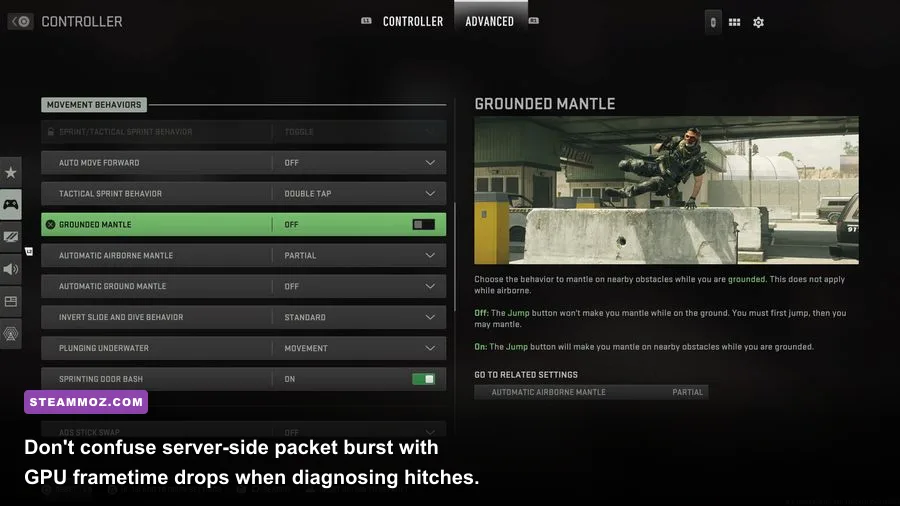
Not every stutter you experience in Modern Warfare 2 stems from your graphics card or processor. If your game periodically hitches for a split second while three small orange or red squares flash on the middle-left edge of your display, you are experiencing Packet Burst. Packet burst occurs when the game client and Activision's dedicated servers fail to synchronize game state updates, resulting in an immediate network hitch that feels identical to a hardware framerate drop.
To diagnose this accurately, enable your in-game diagnostic readouts. Head into Settings > Interface > Telemetry, set it to Custom, and turn on FPS Counter, Server Latency, Packet Loss, and GPU Temperature. If your framerate remains steady at 140 FPS while the latency counter spikes from 35ms to 180ms alongside packet burst indicators, the issue is your data pipeline, not your rendering hardware.
To solve persistent packet burst on PC:
- Ditch Wi-Fi for Gigabit Ethernet: Modern Warfare 2 uses aggressive UDP network packets that do not tolerate the packet reordering and packet loss common to 5GHz wireless bands. A wired Cat6 Ethernet connection provides rock-solid consistency.
- Disable IPv6 on Your Network Adapter: Many internet service providers rely on unstable DS-Lite translation tunnels for IPv6 traffic, causing packet fragmentation in Call of Duty. Open Windows Network Connections, right-click your active Ethernet adapter, select Properties, uncheck Internet Protocol Version 6 (TCP/IPv6), and click OK.
- Flush DNS and Reset Winsock: Open Command Prompt as Administrator and run the following commands sequentially to clear bad network routing caches:
Restart your PC after running these commands to finalize the clean routing state.ipconfig /flushdns netsh winsock reset netsh int ip reset - Audit Game File Integrity: Corrupted map geometry files can cause client-server desynchronization that manifests as packet loss. Verify your game files directly through the Modern Warfare II Steam page library client or via the gear icon on the Battle.net launcher.
- Check Server Health: Verify if game servers are experiencing localized routing disruptions by visiting the official Activision Support network status dashboard before making radical router changes.
By pairing a clean network pipeline with a calibrated RendererWorkerCount, balanced VRAM limits, and competitive graphics settings, you completely remove the erratic hitches that hold your gameplay back. Modern Warfare 2 is a demanding engine, but once its configuration files and render pipelines are properly tuned to respect your hardware's limits, it delivers the razor-sharp frametimes and responsive gunplay you need to dominate every lobby.