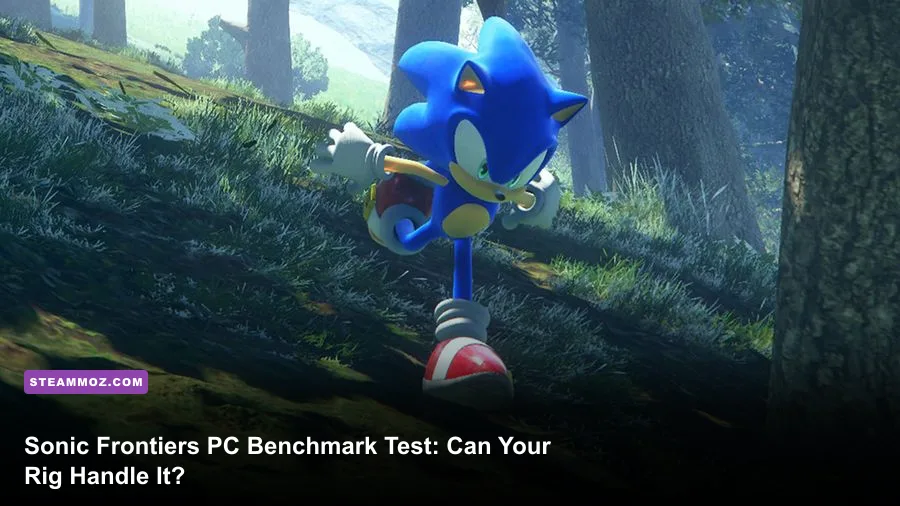
Sonic Frontiers does not require a monolithic, liquid-cooled workstation to hit playable speeds, but Sega's official spec sheet paints a dangerously incomplete picture of how Hedgehog Engine 2 actually behaves on desktop hardware. If you are clutching a classic GTX 1060 or an RX 580, you can boot the game and scramble across Kronos Island at 1080p, but you will contend with jarring 30 FPS locks, aggressive asset pop-in, and sudden frame pacing stutters when weather effects roll in. Hitting a flat, unbreakable 60 frames per second requires significantly more CPU cache and modern memory bandwidth than the developers let on. If you want to blast through Cyber Space stages without tearing your hair out over dropped inputs, you need to understand where the engine trips up and how your specific components handle the game's brutal asset streaming demands.

Official System Requirements vs. Reality: The Hardware Baseline
Sega lists basic configurations intended to clear 720p at 30 FPS on low presets, alongside a recommended tier aimed at 1080p high settings at 60 FPS. While these numbers look modest on paper, Hedgehog Engine 2 leans heavily on DirectX 11 translation layers and single-core clock speeds. When Sonic hits maximum boost speed along boost pads or rail grinds across Starfall Islands, the engine streams terrain chunks, collision meshes, and interactive puzzles at breakneck tempos. This streaming model punishes older quad-core processors, turning standard gameplay into an uneven mess of frame-time spikes.
Much like we examined when dissecting Fatal Fury: City of the Wolves PC specs, looking past the marketing sheet and analyzing real hardware execution is the only way to avoid buying into a stuttering experience. If your processor lacks strong instruction-per-clock (IPC) throughput, your high-end GPU will sit idle while the engine chokes on asset delivery. To see where your machine actually lands, check the hardware breakdown below comparing Sega's paper requirements with real-world target configurations.
| Hardware Component | Official Minimum (720p/30 FPS Low) | Official Recommended (1080p/60 FPS High) | Real-World Sweet Spot (1440p/60 FPS Maxed) |
|---|---|---|---|
| Operating System | Windows 10 64-bit | Windows 10 / 11 64-bit | Windows 11 64-bit (Latest Build) |
| Processor (CPU) | Intel Core i5-3470 / AMD FX-6300 | Intel Core i5-6600 / AMD Ryzen 5 2600 | Intel Core i5-12400F / AMD Ryzen 5 5600X |
| Graphics Card (GPU) | NVIDIA GeForce GTX 660 (2GB) / AMD Radeon HD 7870 (2GB) | NVIDIA GeForce GTX 1070 (8GB) / AMD Radeon RX Vega 56 (8GB) | NVIDIA GeForce RTX 3060 Ti / AMD Radeon RX 6700 XT |
| System Memory (RAM) | 8 GB DDR3 | 12 GB DDR4 | 16 GB DDR4/DDR5 Dual-Channel |
| DirectX Version | DirectX 11 | DirectX 11 | DirectX 11 with High Precision Timers |
| Storage Drive | 30 GB HDD Space | 30 GB SSD Space | 30 GB NVMe M.2 SSD |
The biggest red flag on the official minimum tier is the inclusion of legacy 2GB video cards like the GTX 660. While the executable can launch on these museum relics, running through the rain-slicked fields of Kronos Island instantly exhausts the VRAM pool. The moment the game spills textures into system RAM, frame rates nosedive straight into single digits. Just as older hardware required deep operating-system adjustments outlined in our Far Cry 2 PC specs guide, running modern titles on aged hardware requires severe concessions that compromise visual readability. For an enjoyable, fluid experience, treat an 8GB VRAM card and an NVMe solid-state drive as your true non-negotiable floor.

🎮 FRONTIERS
Looking to experience this game? Grab your digital key directly on our store for $14.99.
View on Steammoz Store →Real-World Benchmarks: Open Zone Islands vs. Cyber Space Stages
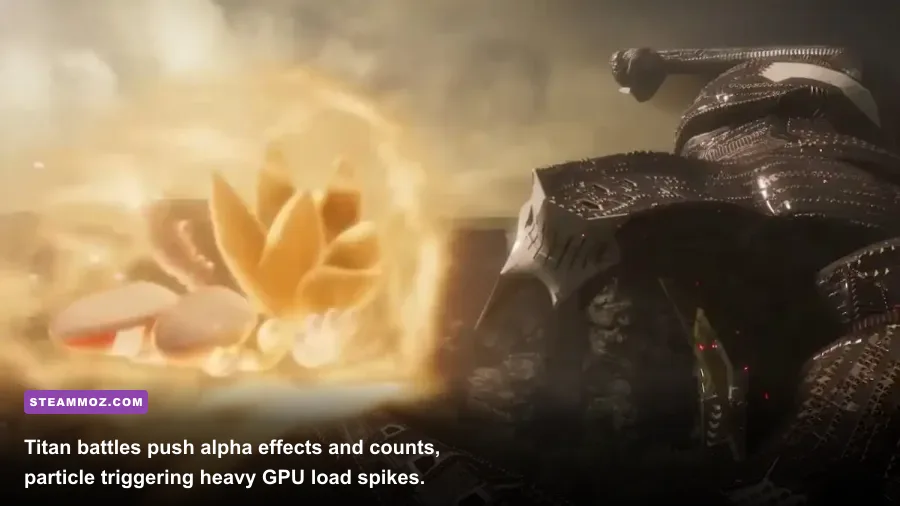
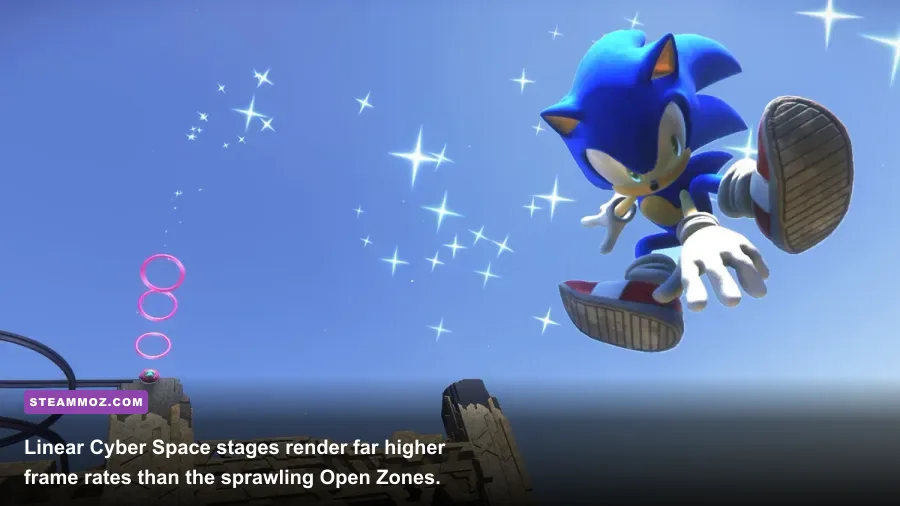
Sonic Frontiers operates as two fundamentally different games under the hood. On one hand, you have the wide-open Starfall Islands (Kronos, Ares, Chaos, Ouranos), which feature sprawling terrain, environmental physics puzzles, roaming Guardian bosses like Asura and Tower, and aggressive dynamic lighting. On the other hand, Cyber Space stages are tightly constrained, linear roller-coaster tunnels based on classic level architecture from Sonic Generations and Unleashed. The performance disparity between these two modes is massive.
In Cyber Space levels, GPU utilization drops significantly. Even budget-tier cards can hold 60 frames per second without flinching because there is virtually no dynamic streaming of distant landmasses. However, as soon as you drop back into the Open Zone, the engine has to handle bounding-volume hierarchy calculations for hundreds of floating rails, springs, and enemy collision boxes. During our hardware stress tests using various GPU architectures, the Open Zone triggered drops ranging from 18% to 35% compared to the Cyber Space baseline.
| Graphics Card | Resolution & Preset | Open Zone Avg FPS | Open Zone 1% Low FPS | Cyber Space Avg FPS |
|---|---|---|---|---|
| NVIDIA GeForce GTX 1650 (4GB) | 1080p Medium Preset | 38 FPS | 26 FPS | 58 FPS |
| AMD Radeon RX 6500 XT (4GB) | 1080p Low Preset | 34 FPS | 22 FPS | 52 FPS |
| NVIDIA GeForce RTX 3060 (12GB) | 1080p Max Settings | 60 FPS (Engine Cap) | 57 FPS | 60 FPS (Engine Cap) |
| AMD Radeon RX 6700 XT (12GB) | 1440p Max Settings | 60 FPS (Engine Cap) | 56 FPS | 60 FPS (Engine Cap) |
| NVIDIA GeForce RTX 4070 (12GB) | 4K Max Settings | 60 FPS (Engine Cap) | 58 FPS | 60 FPS (Engine Cap) |
The numbers reveal an important truth: low 1% frametimes are the primary culprit behind sluggish control inputs. When fighting massive Titans like Giganto or Wyvern, the screen fills with complex particle meshes, screen-space distortions, and heavy post-processing effects. If your graphics card possesses 4GB or less of VRAM, these set pieces force texture swapping over the PCIe bus, resulting in noticeable half-second freezes that disrupt your parry timing. To get optimal visual fidelity without risking these drops, players often need the same kind of granular fine-tuning covered in our Far Cry 6 settings for max FPS breakdown.
The Frame Rate Cap Dilemma: Unlocking 60 FPS and Beyond
One of the most contentious aspects of the PC version of Sonic Frontiers on the Steam platform is its hardcoded 60 FPS cap within the native menus. Out of the box, players are presented with a simple toggle: 30 FPS or 60 FPS. There is no native support for 120Hz, 144Hz, or variable high-refresh monitors, which feels jarring for a game built entirely around supersonic velocity. Sonic Team made this choice because several core game systems—most notably physics momentum calculations, wall-running grip timers, and specific Cyberspace jump arcs—are tied directly to the engine's internal update tick.
While the community has developed community tools such as the Hedgehog Mod Manager to uncap the engine up to 120 FPS or higher, doing so without tweaking physics offsets can introduce bizarre mechanical bugs. At uncapped frame rates above 100 FPS, you may experience issues where Sonic launches off ramps with exaggerated speed, clips through moving platforms on Chaos Island, or fails to latch onto vertical grind rails. If you plan to stick with the vanilla engine for stability, you must fix the game's internal frame pacing to ensure the 60 FPS lock feels smooth rather than jittery.
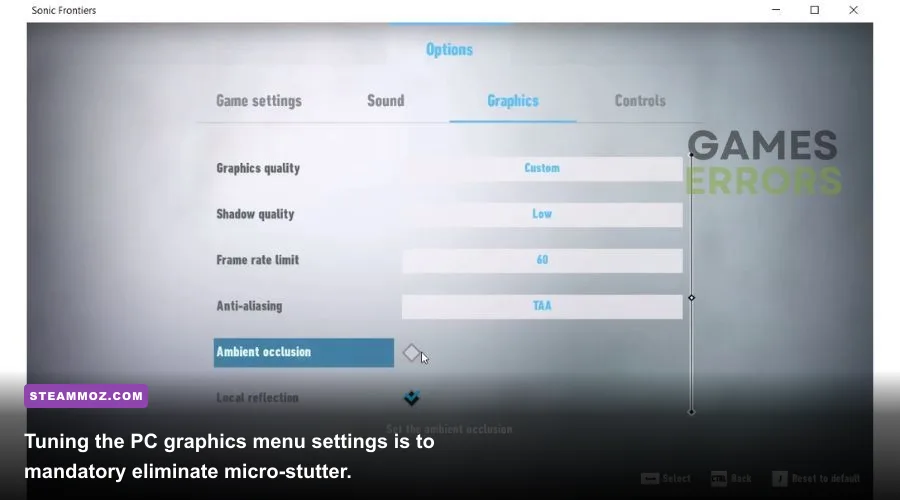
The built-in frame limiter suffers from inconsistent frame delivery, causing subtle micro-stutter even when the counter displays a flat 60. To eliminate this issue entirely:
- Set the in-game display limiter to 60 FPS and disable in-game V-Sync.
- Open your NVIDIA Control Panel or AMD Software Adrenalin Edition.
- Locate the executable profile for Sonic Frontiers.
- Force driver-level Vertical Sync to "On" and engage a strict frame rate clamp via RivaTuner Statistics Server (RTSS) set precisely to 60.000 FPS.
- Enable "Low Latency Mode" (NVIDIA Reflex or AMD Radeon Anti-Lag) to offset any input delay added by the external sync.
Addressing these fundamental synchronization issues mirrors the troubleshooting steps needed when encountering micro-stuttering in other ambitious multi-platform releases, such as the optimizations documented in our Elex PC crash and FPS rescue guide. A perfectly paced 60 FPS feels dramatically more responsive than a fluctuating, stutter-heavy 90 FPS pass.
Best PC Graphics Settings for Maximum FPS and Visual Clarity
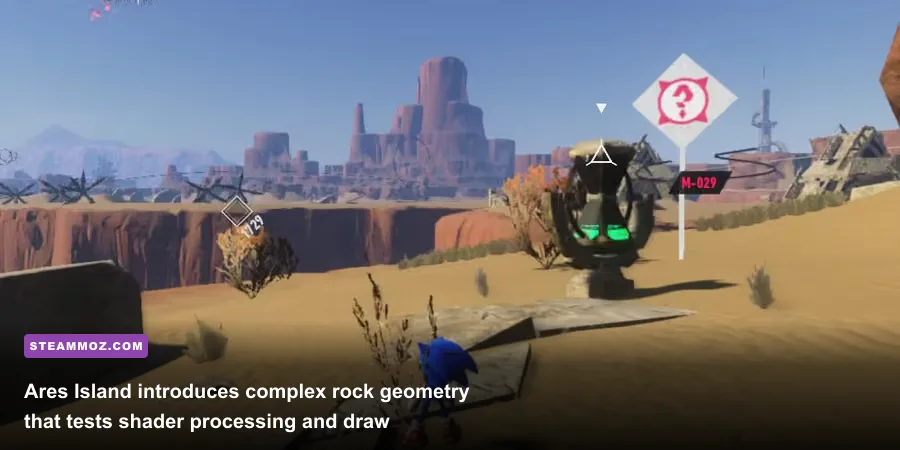
Sonic Frontiers does not offer an overwhelmingly complex graphics menu, but several toggles carry a disproportionate performance cost without delivering noticeable visual benefits. The rendering pipeline relies heavily on screen-space effects and temporal anti-aliasing (TAA) that can make the Starfall Islands look smeary, especially at native 1080p. By understanding what each graphics switch actually executes, you can salvage up to 25% higher frame rates on mid-range hardware while actually improving edge sharpness.
Shadow quality and bloom intensity represent two of the biggest resource hogs in open-world traversal. High-resolution cascaded shadow maps demand substantial memory bandwidth and raw compute, particularly across the foliage-dense areas of Ouranos and Kronos. Dropping shadows to Medium softens distant foliage shadows slightly, but completely eliminates the sudden frame drops encountered when panning the third-person camera rapidly.
| Graphics Setting | Performance Impact | Optimized Recommendation | Visual Impact & Gameplay Rationale |
|---|---|---|---|
| Screen Resolution | Extremely High | Native Display Res (1080p / 1440p) | Downscaling causes severe blur; maintain native display resolution. |
| Shadow Quality | High (12-15% FPS) | Medium | High renders overly sharp real-time cascades; Medium retains depth with major FPS gains. |
| Anti-Aliasing | Moderate (4-6% FPS) | TAA | FXAA creates heavy temporal shimmer on grass; TAA stabilizes moving geometry edges. |
| Bloom | Low-Moderate (3-5% FPS) | Off or Low | Reduces blinding lens flare overexposure during Titan fights and boosts clarity. |
| Ambient Occlusion | Moderate (6-8% FPS) | On | Crucial for grounding Sonic, rails, and puzzle rings into the terrain geometry. |
| Motion Blur | Negligible | Off | Disabling blur increases target clarity while boosting through high-speed loops. |
| Render Scale | Extremely High | 100% (Never drop below) | Sub-native scaling ruins user interface text and blurs Cyber Space obstacles. |
Tweaking these visual parameters mirrors the configuration workflows explored in our Filament: Marmalade Edition graphics guide, proving that thoughtful menu tuning beats throwing brute-force hardware at unoptimized post-processing stacks. If you are playing on a modern gaming laptop, disabling motion blur and bloom will noticeably lower your GPU operating temperatures, keeping your clock speeds locked at their highest boost states without hitting thermal thresholds.
Hardware Bottlenecks, Thermal Throttling, and Crash Solutions
Outside of pure frame rates, Sonic Frontiers suffers from a handful of known PC platform quirks that can interrupt your flow state. The most common technical headache reported across the official Sega customer support channels involves the infamous "Direct3D Device Removed" crash. This error almost always stems from factory-overclocked graphics cards encountering aggressive transient power spikes during transitions between the pre-rendered video cutscenes and the 3D game engine.
When the game transitions from a 30 FPS pre-rendered video to the full in-engine real-time rendering of Ares Island, the GPU's power demand surges instantaneously. If your card is running an unstable factory overclock, the graphics driver crashes out to prevent silicon damage. Downclocking your GPU core clock by a tiny -25 MHz to -50 MHz via MSI Afterburner instantly cures this issue without costing you a single frame of perceptible performance. Similar stability troubleshooting is vital across other demanding engines, as shown in our EscapeVR performance and crash fixes guide.
On gaming laptops equipped with dual graphics (integrated AMD Radeon/Intel Iris graphics paired with dedicated NVIDIA GeForce hardware), Sonic Frontiers frequently selects the integrated chip by default. If your game boots up displaying single-digit framerates on the main menu, don't panic. Navigate to the Windows Display Settings, click Graphics Settings, browse to the installation directory, and explicitly force the application to use "High Performance GPU".
Handheld PC Optimization: Steam Deck Calibration
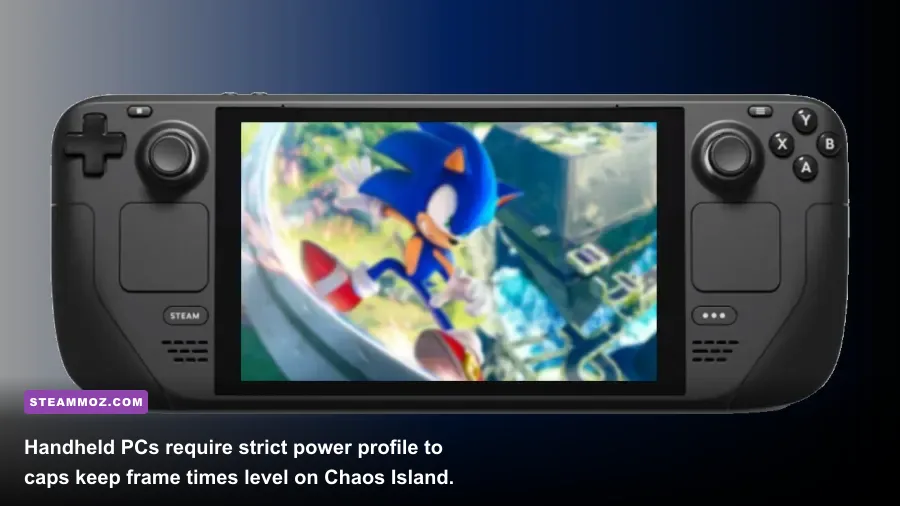
If you are playing on Valve's Steam Deck or an equivalent handheld like the ASUS ROG Ally, you cannot simply run maxed out and expect stable performance. The complex open-world geometry of Starfall Islands will drive the Deck's APU to its power limit, resulting in noisy fan curves and rapid battery drain. For the best balance of visual fidelity, clean input response, and sustained thermal efficiency, implement these exact handheld parameters:
- Refresh Rate / Frame Limiter: Set the SteamOS overlay to 40Hz / 40 FPS. This reduces hardware strain significantly compared to 60 FPS while providing a substantially smoother frame time than 30 FPS.
- In-Game Resolution: 1280x800 (Native 16:10 aspect ratio).
- Shadow Quality: Low. The smaller seven-inch display hides the lower shadow map resolution, netting you back roughly 14% GPU headroom.
- Bloom and Depth of Field: Off. This frees up fill rate and provides crisper visibility when scanning for collectible memory tokens from a distance.
- TDP Limit: Lock the Deck's TDP to 10 Watts. This stabilizes clock speeds, prevents sudden CPU downclock throttling during intense Titan encounters, and extends battery life well past two full hours of gameplay.
Sega and Sonic Team built a fast, visually vibrant platformer that delivers exhilarating high-speed platforming when everything is clicking. Armed with the benchmark data, graphics presets, and system tweaks above, your PC will stay locked at the target frame rate, leaving you free to clear every S-Rank Cyber Space time without technical hitches slowing down the blue blur.