To eliminate micro-stutters and unlock an immediate 25% to 40% frame rate boost in Resident Evil 4 on PC, set Volumetric Lighting to Mid, completely disable Hair Strands, lower Shadow Quality to High, and keep your total allocated VRAM roughly 0.5 GB below your GPU's physical limit. Capcom's RE Engine is a visual marvel, but its memory management in this remake is notoriously aggressive. Overloading your video memory causes brutal frame drops during the chaotic Village square battle and triggers fatal D3D driver crashes in the Castle. By dialing back a handful of resource-devouring visual effects that provide negligible returns, you can transform a chugging, hitchy nightmare into a locked, responsive survival horror showcase.
The Critical VRAM Trap and RE Engine Fundamentals
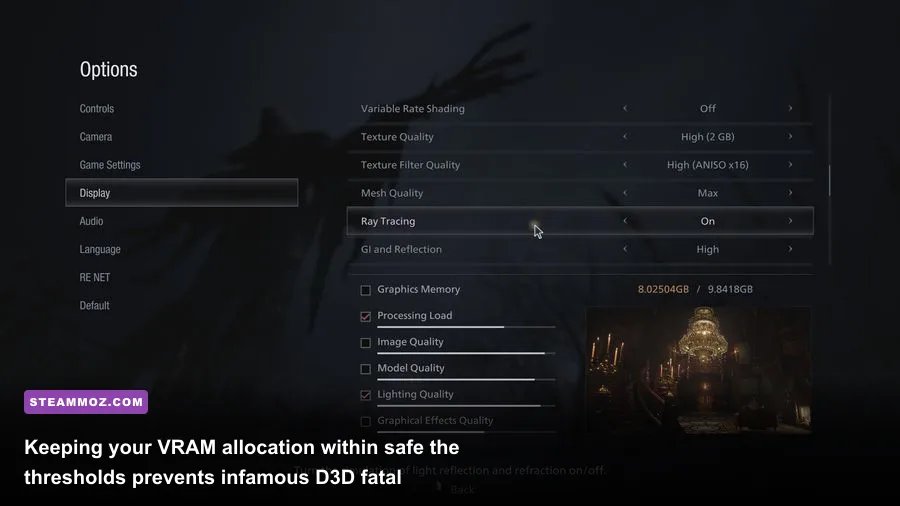
Before tweaking a single shadow or reflection, you must understand how the RE Engine handles video memory. In the graphics menu, the game provides a dynamic VRAM usage meter that changes color from white to yellow, orange, and red. If your configuration pushes this bar into the red—or even high into the orange—the engine will aggressively shuffle textures back and forth over the PCIe bus, producing sudden, jarring frame drops when turning the camera quickly or entering new rooms. In the worst cases, it straight-up crashes your display driver with an unceremonious "Fatal D3D Error." We tackled similar engine pipeline hitches when outlining Elex PC fixes that stop crashes and rescue FPS, and the golden rule holds true here: never let your settings monopolize 100% of your physical VRAM.
The biggest culprit in this memory trap is the Texture Quality setting. In Capcom's official RE Engine menu, options are labeled "High (1 GB)," "High (2 GB)," and all the way up to "High (8 GB)." These labels do not indicate your graphics card's hardware capacity; they specify the size of the texture streaming cache allocated within your VRAM. If you run an 8 GB card like an RTX 3070 or RX 6600 XT and select "High (8 GB)," the texture pool alone devours your entire card's memory, leaving zero room for render targets, geometry buffers, or shadow maps. For 8 GB cards, selecting High (2 GB) or High (3 GB) produces practically identical texture resolution during gameplay while preserving stability and preventing catastrophic frame pacing spikes.

🎮 FORM
Looking to experience this game? Grab your digital key directly on our store for $14.99.
View on Steammoz Store →Complete Resident Evil 4 PC Graphics Settings Breakdown
The graphics menu contains over thirty individual toggles, but only a half-dozen heavily dictate your frame rate. Understanding where your GPU cycles actually go allows you to extract maximum smoothness without degrading the grim, rain-slicked atmosphere of rural Spain. Just as we discovered while fine-tuning open environments in Far Cry 6 PC settings for max FPS, targeted adjustments yield far superior results compared to blindly slapping on a global preset.
Here is an exhaustive breakdown of every critical setting, detailing its exact impact on performance and the recommended value for an optimized balance of visual punch and fluid motion:
| Graphic Setting | Recommended Value | FPS Cost | Visual & Tactical Impact |
|---|---|---|---|
| Rendering Mode | Normal | Baseline | Interlaced introduces severe visual crawling and comb artifacts; keep Normal. |
| Texture Quality | High (2 GB) or High (3 GB) | Minimal (VRAM Dependent) | Dictates texture streaming pool. Crucial to prevent D3D crashes on 6GB/8GB GPUs. |
| Texture Filtering | High (ANISO x16) | < 1% | Negligible GPU load on modern cards. Keeps ground and wall textures razor-sharp at oblique angles. |
| Mesh Quality | High | 3% - 5% | Governs polygon density and geometric pop-in for distant Ganados and structures. |
| Shadow Quality | High | 8% - 12% (at Max) | "Max" shadows trigger an unnecessary performance tax. "High" preserves soft, realistic edges. |
| Shadow Cache | On | -5% (Improves FPS) | Bakes static shadows into VRAM, drastically reducing real-time CPU and GPU draw calls. |
| Contact Shadows | On | 1% - 2% | Renders subtle contact point shadows under boots and debris; immense depth for minimal cost. |
| Ambient Occlusion | FidelityFX CACAO | 4% - 6% | Adds realistic indirect contact shadowing around foliage. CACAO runs cleaner than heavy SSAO. |
| Volumetric Lighting | Mid | 10% - 16% | High creates heavy compute overhead in misty woods. Mid retains thick fog shafts at a fraction of the cost. |
| Particle Lighting Quality | Low or Mid | 2% - 4% | Stabilizes frame times when lighting dynamic particles from shotgun blasts, flash grenades, and torches. |
| Bloom | On | < 1% | Creates soft natural bleeding around lantern flames and open skyboxes. Personal preference. |
| Screen Space Reflections | On | 3% - 5% | Adds essential ground wetness and puddle reflections across Chapter 1 and the Lake without RT overhead. |
| Subsurface Scattering | Mid | 1% - 2% | Softens light passing through skin, making Leon, Ashley, and Luis look far more human in close-ups. |
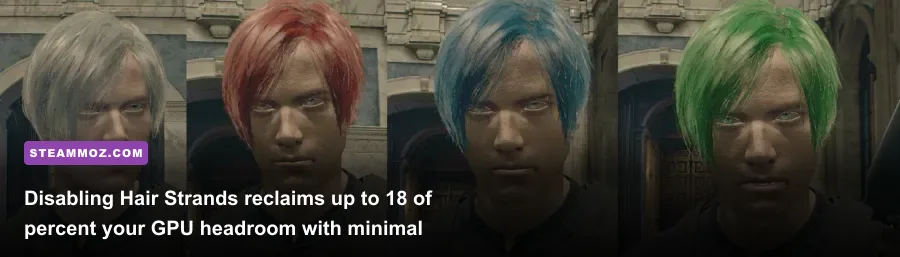
| Hair Strands | Off | 12% - 20% | The single biggest performance sink in the game. Renders individual strands; decimates frame rates in rain. |
| Ray Tracing | Off | 18% - 30% | Subtle reflection enhancements in RE4 do not justify the brutal hit to 1% low frame rates. |
The Heavy Hitters: Hair Strands and Volumetric Fog
If your frame rate dips hard whenever combat intensifies, Hair Strands is almost certainly the culprit. While it gives Leon's iconic curtains a bouncy, wind-reactive flair in cutscenes, the real-time compute pass crushes both AMD and Nvidia architectures during intensive combat sequences like the Cabin fight with Luis. Disabling it restores the standard poly-strip hair model, instantly giving you back 15% or more of your total GPU headroom without changing Leon's overall silhouette.
Meanwhile, Volumetric Lighting defines the moody atmosphere of Valdelobos, but the "High" preset uses an unnecessarily tight sample step count. Dropping this down to "Mid" retains the creepy volumetric mist rolling through the graveyard while clawing back an effortless 10% to 14% boost in baseline frame rates. To see a breakdown of similar performance issues when balancing hardware constraints, our analysis of Fatal Fury City of the Wolves PC specs highlights why heavy alpha passes and lighting calculations consistently bottleneck mid-tier cards.
Upscaling and Anti-Aliasing: DLSS Mods vs. FSR 2 vs. Native
Resident Evil 4 shipped with official support for AMD's FidelityFX Super Resolution (FSR 1 and FSR 2), but strangely omitted Nvidia DLSS at launch. How you configure your upscaler fundamentally dictates whether you get a pristine, stable image or a swimming, shimmering mess of artifacting foliage.
First and foremost: stay away from FSR 1.0. It is a crude spatial upscaler that sharpens low-resolution images, resulting in muddy edges and noticeable ringing around Leon's jacket. FSR 2.1 performs significantly better from an analytical standpoint, utilizing temporal data to reconstruct frames. However, RE Engine's FSR 2 implementation suffers from distinct disocclusion fizzle—you will notice a noisy, pixelated "halo" trailing behind Leon as he sprints through wet grass, alongside prominent crosshair shimmering. If you must use FSR 2 for performance on a GTX 1660 or RX 580, stick strictly to the Quality mode.
If you own an RTX-series GPU, the definitive method is installing a community DLSS replacement mod. By utilizing standard hooks detailed on community technical portals like PCGamingWiki's RE4 configuration database, you can replace the native FSR 2 pipeline with Nvidia's DLSS 3.7+ library. DLSS cleans up nearly all temporal shimmer on fences, eradicates fine hair noise, and delivers a dramatically sharper image at Quality mode than native 1080p with TAA, all while yielding a free 20% to 35% frame rate dividend.
For those running native resolution on capable hardware, pair TAA with the in-game Image Sharpening slider set between 50% and 65%. TAA alone introduces a slight temporal blur to Leon's jacket fabric and distant castle masonry, but dialling up the sharpening counteracts the softness without introducing garish halos.
Sweet-Spot Hardware Profiles for Low, Mid, and High-End Rigs

Because hardware performance varies wildly across PC builds, relying on a one-size-fits-all preset leaves performance on the table. When systems grapple with rendering demands, tuning your system profile is paramount—much like resolving stuttering in other graphically complex games, as seen in our Everspace 2 FPS and crashing guide. Below are tailored profiles designed to squeeze the best visual clarity and responsiveness out of specific hardware tiers.
| Hardware Tier & Example GPUs | Target Resolution & FPS | Key Setting Adjustments | Upscaling Configuration |
|---|---|---|---|
| Budget Tier (GTX 1660 Super, RTX 2060, RX 5600 XT, 6GB VRAM) |
1080p @ Locked 60 FPS | Textures: High (1 GB) Shadows: Mid Volumetrics: Mid Hair Strands: Off Mesh: Mid |
FSR 2 (Quality) or Native 1080p with Render Scale at 90% |
| Mid-Range Sweet Spot (RTX 3060, RTX 4060, RX 6700 XT, 8GB-12GB VRAM) |
1440p @ 80-100 FPS | Textures: High (2 GB or 3 GB) Shadows: High Volumetrics: Mid Hair Strands: Off Mesh: High |
DLSS Mod (Quality) or FSR 2 (Quality) |
| High-End Enthusiast (RTX 4070 Ti, RTX 4080, RX 7900 XT, 16GB+ VRAM) |
4K @ 100+ FPS | Textures: High (4 GB) Shadows: High Volumetrics: High Hair Strands: On (Optional) Ray Tracing: Off |
DLSS Mod (Quality / Balanced) or Native 4K + TAA |
Handling the Dreaded 6GB and 8GB VRAM Limits
Notice that for both Budget and Mid-Range setups, we deliberately avoid setting textures higher than "High (3 GB)." When running the game with 8 GB of physical VRAM, push Texture Quality only as high as the yellow safety zone. If you notice your framerate randomly tanking from a solid 60 down to 18 FPS after playing for forty-five minutes, you are witnessing memory leak pooling. Dropping the texture cache by one notch completely rectifies this without degrading the asset clarity on character models or weapons.
System-Level Tweaks and Engine Fixes for Frame Pacing
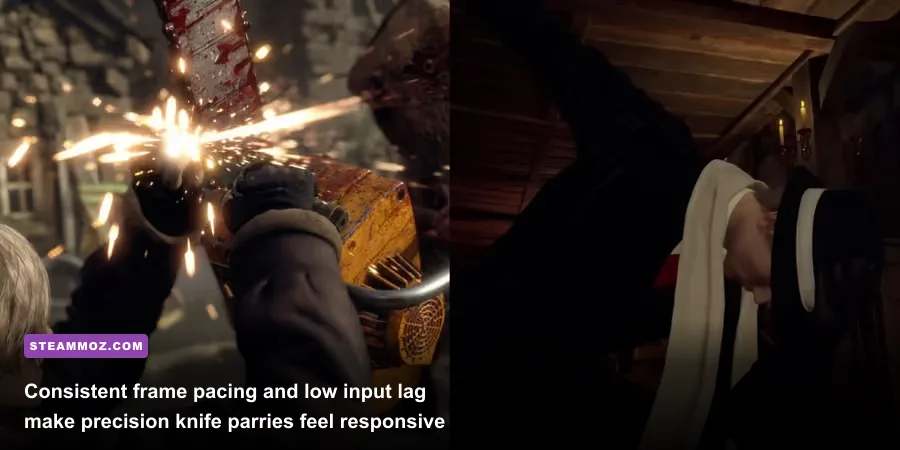
Hitting high average FPS is meaningless if your frametime graph looks like a seismic readout. In survival horror, split-second parries against Dr. Salvador's chainsaw require impeccable frame pacing. Micro-stutters during enemy lunges will throw off your timing, forcing you to burn through First Aid Sprays unnecessarily.
To ensure bulletproof frame pacing, implement these system-level adjustments outside of the game's menu:
- Cap Frames via External Tools: The in-game frame rate limiter in Resident Evil 4 introduces uneven frame delivery. Leave the in-game limiter set to Variable and cap your framerate using RivaTuner Statistics Server (RTSS) or the Nvidia Control Panel. If you run a 144Hz G-Sync or FreeSync monitor, lock your frame rate to 141 FPS (or 59 FPS on a 60Hz display). This eliminates tearing while keeping your frame times dead flat at a uniform line.
- Disable In-Game V-Sync: Capcom's internal V-Sync toggle incurs noticeable mouse smoothing and input latency. Disable it entirely in the menu, and enforce V-Sync globally through your GPU's control panel paired with your external frame cap.
- Shader Compilation Prep: The RE Engine compiles shaders when you first launch the game, but background streaming can still stutter when unfamiliar enemy models—such as the spider-like Plaga Araña—spawn in packs. If you swap your graphics drivers, always allow the main menu shader progress bar to hit 100% before clicking "Load Game."
- Turn Off Motion Blur and Depth of Field: Beyond freeing up roughly 2% of GPU time, disabling these two settings dramatically sharpens motion clarity when scanning rooms for hidden treasures, clockwork castellans, and bear traps.
Similar to the fine-tuning methods covered in our breakdowns of Filament Marmalade Edition settings for higher FPS and EscapeVR The Basement performance fixes, smoothing out frame pacing elevates the entire experience far more than raw, erratic peak numbers ever could.
By taming the RE Engine's memory footprint, stripping out the heavy tax of Hair Strands, and relying on calibrated external frame limiting, Resident Evil 4 PC runs like an absolute dream. You preserve every drop of Capcom's terrifying visual detail, retain razor-sharp parry responsiveness, and lock in the buttery-smooth performance required to survive the horrors of the Los Illuminados.