To fix common PC Building Simulator 2 issues, start by switching to exclusive fullscreen or borderless at your monitor's native resolution, cap the frame rate slightly below your refresh rate, disable overlays, verify the Steam installation, and reduce shadows and reflections before touching texture quality. That combination solves most crashing, stuttering, input-lag, and unstable-FPS problems without turning the workshop into a blurry mess. The game is usually CPU-limited while walking through a busy shop, but heavy case interiors, glass panels, RGB effects, and high-resolution reflections can push the GPU hard.
There is an important distinction here: PC Building Simulator 2 does not have competitive shooter latency, but it can still feel sluggish. Mouse delay usually comes from inconsistent frame delivery, V-Sync behavior, background overlays, or a controller and USB polling problem. A game that reports 90 FPS can feel worse than one locked at 60 if its frame times jump between 8 and 25 milliseconds. The fixes below target that underlying problem instead of chasing a meaningless average-FPS number.
Before changing anything, update Windows and your graphics driver, close browser tabs playing video, and launch the game once after a reboot. If you use an Nvidia GPU, AMD GPU, or Intel Arc card, let the driver finish shader compilation after an update before judging performance. For official patch notes and support information, check the PC Building Simulator 2 Steam page and the official Epic Games support page.
Start With a Clean, Stable Baseline
Do not begin by randomly dropping every setting to Low. That makes troubleshooting harder because you cannot tell whether a fix worked or whether the image simply became unpleasant. First, record your monitor resolution, refresh rate, average FPS, and worst stutter while loading a saved career workshop. Walk from the front door to the main workbench, rotate around a case with a tempered-glass side panel, and open a demanding job such as a 3DMark or 3DMark Time Spy task. Repeat the same route after every change.
Steam's file verification is the quickest repair for missing or damaged assets. Open the game's Properties, choose Installed Files, and select Verify integrity of game files. This is especially worthwhile after a failed update, a power cut, moving the installation between drives, or installing workshop-related content. Verification will not fix every crash, but it rules out corrupted packages before you start editing drivers or configuration files.
Use this five-minute repair order
- Restart the PC, then launch PC Building Simulator 2 with no browser, capture tool, or RGB utility running.
- Verify the installation through Steam or the Epic Games Launcher.
- Disable Steam Overlay, Discord Overlay, Xbox Game Bar, AMD recording, and Nvidia Instant Replay for one test session.
- Reset the game's graphics settings to a known profile rather than keeping a broken custom configuration.
- Test one repeatable workshop route and compare frame-time consistency, not only the FPS counter.
If the game crashes during startup, try launching it after disconnecting unnecessary USB devices, particularly old racing wheels, HOTAS controllers, virtual audio devices, and capture hardware. PC Building Simulator 2 is not demanding enough to justify exotic launch arguments. Avoid downloading random DLL files or forcing third-party “FPS booster” utilities; they frequently create more instability than they remove.
For broader Windows troubleshooting, our guide to PC crashes and FPS recovery covers driver cleanup and background-process checks that apply here too. If your issue is specific to a low-end machine, compare it with our PC requirements testing guide to make sure the problem is not thermal throttling or an aging laptop GPU.

🎮 PC Building Simulator 2
Looking to experience this game? Grab your digital key directly on our store for $24.99.
View on Steammoz Store →The Best Graphics Settings for Smooth Workshop Performance
The highest-impact settings are shadows, reflections, ambient occlusion, and post-processing. Texture quality is usually the safe setting to keep high because it mainly consumes VRAM. Dropping textures from Ultra to Low can make components and labels look muddy while barely changing the CPU-heavy moments that cause the worst hitching. Start with the profile below, then raise textures and anti-aliasing if your frame time remains stable.
| Setting | Recommended Value | FPS Impact | Visual Note |
|---|---|---|---|
| Resolution | Native 1080p or 1440p | High | Lower only when the GPU is consistently at 95-99% usage. |
| Resolution Scale | 100% | High | Use 90% before dropping texture quality; it preserves menus and geometry better. |
| Textures | High | Low to medium | Keep High with 6GB or more VRAM; use Medium on 4GB cards. |
| Shadows | Medium | High | The best first cut for busy shops and large case interiors. |
| Reflections | Low or Medium | High | Glass panels and glossy floors make this surprisingly expensive. |
| Ambient Occlusion | Medium | Medium | Low removes contact depth around cables, fans, and motherboard slots. |
| Anti-Aliasing | High or TAA | Medium | Lower only if GPU usage is pinned at maximum. |
| Post-Processing | Medium | Low to medium | Lowering it reduces bloom and blur without hurting component clarity. |
| Motion Blur | Off | Small | Improves visual clarity while turning quickly around a desk. |
| V-Sync | Off with a cap, or On for simple stability | Latency varies | Do not stack in-game V-Sync with a driver-level cap blindly. |
For a 60Hz display, cap the game at 58 or 59 FPS. For 120Hz, try 117 FPS; for 144Hz, try 141 FPS; and for 165Hz, try 162 FPS. A cap three frames below refresh gives the display pipeline breathing room and prevents the GPU from repeatedly slamming into the refresh ceiling. Nvidia users can apply the cap in Manage 3D Settings, AMD users can use Radeon Software, and RTSS remains useful when the driver limiter behaves inconsistently.
V-Sync is not automatically bad. If you have a fixed-refresh 60Hz monitor and care more about clean camera movement than minimal input delay, V-Sync can be the simplest solution. With FreeSync or G-Sync Compatible enabled, use the slightly-below-refresh cap and keep in-game V-Sync enabled only if your display technology requires it. If the mouse feels floaty, test the same scene with V-Sync off. That comparison tells you more than internet folklore.
Our higher-FPS settings guide explains the same resolution and frame-pacing principles in another demanding PC title. The key lesson carries over: stabilize frame delivery first, then spend performance on visual settings you actually notice.
Fix Stutter, Input Delay, and Controller Problems
Stutter in PC Building Simulator 2 usually has one of three causes: shader compilation, a CPU spike while the workshop updates, or an overlay interrupting the render thread. The first trip through a newly loaded area can be rougher because shaders and assets are being prepared. Let the game sit in the workshop for a minute, move through the same route twice, and judge the second pass. If the second pass is dramatically smoother, the issue is probably caching rather than a permanent hardware limit.
Turn off Steam Overlay first. In the game's Steam Properties, disable “Enable the Steam Overlay while in-game.” Then test Discord Overlay, Xbox Game Bar, MSI Afterburner OSD, GeForce Experience overlay, and Radeon Metrics separately. Multiple overlays compete to hook the same rendering path, and the result can be a cursor that feels delayed or a game that freezes when a notification appears.
Reduce latency without wrecking image quality
- Use a wired mouse or controller for one diagnostic session. Wireless devices can introduce brief dropouts that feel like game stutter.
- Set Windows display refresh rate to the monitor's real maximum instead of leaving it at 60Hz after a driver reinstall.
- Disable background recording and instant replay. Video encoding can steal CPU time during benchmark jobs.
- Use exclusive fullscreen if alt-tabbing is not part of your routine. Use borderless if you constantly switch between a parts list and the game.
- Try a stable FPS cap before enabling V-Sync. A locked 60 FPS with 16.7ms frame times beats an erratic 110 FPS.
Controller users should check Steam Input rather than assuming the game is ignoring the pad. Open the game's controller settings, test a standard gamepad layout, and disconnect other controllers. A steering wheel or virtual joystick left plugged in can alter focus or produce unwanted camera movement. For mouse users, avoid extreme polling rates during testing. A 4,000Hz or 8,000Hz mouse can increase CPU overhead in some games; 1,000Hz is the sensible baseline, and 500Hz is worth testing on an older processor.
| Symptom | Likely Cause | First Test | Best Fix |
|---|---|---|---|
| Camera feels delayed | V-Sync or unstable frame time | Disable V-Sync and cap FPS | Use a cap below refresh with FreeSync or G-Sync. |
| Brief freezes entering the workshop | Shader or asset compilation | Repeat the same route twice | Wait through the first pass and keep the game on an SSD. |
| Cursor jumps or drifts | Controller conflict or overlay | Disconnect extra USB devices | Reset Steam Input and disable overlays. |
| FPS drops near glass cases | Reflections and shadows | Lower reflections only | Use Medium shadows and Low reflections. |
| Stutter after alt-tab | Fullscreen optimization or overlay hook | Test borderless mode | Use one display mode consistently and remove overlays. |
Crashes, Black Screens, and Save-Related Errors
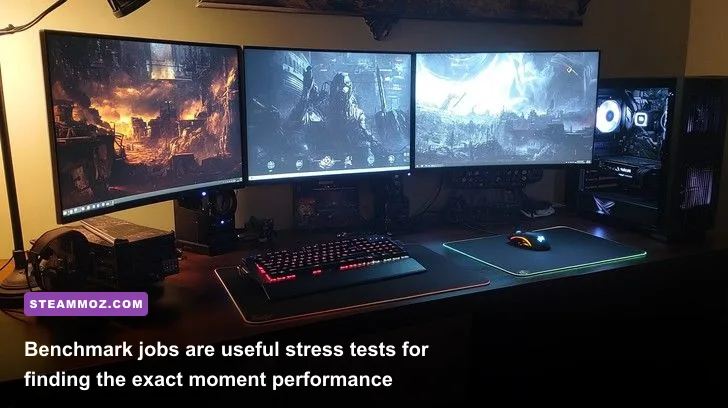
A crash at launch deserves a different treatment from a crash during a job. Launch crashes usually point to drivers, permissions, corrupted settings, or an overlay. In-game crashes are more likely to involve a particular asset, memory pressure, an unstable overclock, or a driver timeout. Remove GPU and CPU overclocks temporarily, including automatic motherboard profiles such as XMP or EXPO if the system is already unstable. PC Building Simulator 2 is a useful stability test because it can expose marginal RAM errors during loading even when lighter games appear fine.
For a black screen, press Alt+Enter once to switch display modes. If that fails, close the game and reset its local graphics configuration rather than repeatedly forcing a hard shutdown. Back up your save folder first. Save locations can vary by launcher and Windows profile, so use the game's Steam Cloud option and check the PC Building Simulator 2 community support discussions before deleting anything. Never remove all local files as a first step; a graphics reset is safer than sacrificing career progress.
Crash checklist by symptom
- Crashes before the main menu: verify files, disable overlays, update or clean-install the GPU driver, then test with a fresh Windows reboot.
- Crashes when loading a specific job: lower textures and resolution scale, disable overclocks, and test another save. If only one job fails, report its repeatable steps.
- Driver timeout or “not responding” message: check GPU temperature, remove undervolting, close recording software, and lower reflections and post-processing.
- Save fails to load after an update: disable cloud synchronization temporarily, copy local saves, verify files, and restore the newest backup only after preserving the original.
Keep at least 15 percent free space on the drive containing the game and Windows page file. A nearly full SSD can make asset streaming and shader-cache writes unreliable. Also check whether your antivirus is scanning the game directory in real time. Do not turn protection off permanently, but adding the official installation folder as an exclusion for a controlled test can identify a false positive. Re-enable protection immediately if it changes nothing.
Hardware temperatures matter more than many players expect. A GPU sitting at 83-88°C or a laptop CPU reaching its thermal limit may downclock mid-job, creating a stutter that looks like a graphics setting problem. Monitor clocks, temperatures, and usage with one tool only. If GPU usage is low while FPS collapses, the CPU, storage, background applications, or thermal throttling is the likely culprit.
Match Settings to Your Hardware
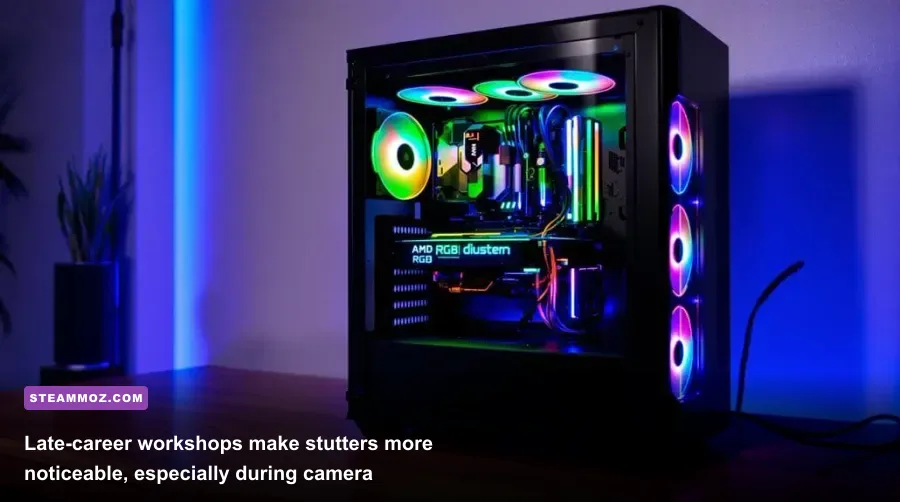
There is no magic preset that fits every PC, but the following profiles are a better starting point than blindly selecting Ultra. PC Building Simulator 2 benefits from an SSD, a modern four-to-six-core CPU, and enough RAM to keep Windows and the game from fighting over memory. The recommended profile assumes a desktop with 16GB of RAM and a recent mid-range GPU.
| Hardware Profile | Resolution | Starting Preset | Target Profile |
|---|---|---|---|
| Integrated graphics laptop | 720p-900p | Low | Textures Medium, shadows Low, reflections Off or Low, 30-45 FPS cap. |
| GTX 1650 / RX 570 class | 1080p | Medium | Textures High, shadows Medium, reflections Low, 60 FPS cap. |
| RTX 3060 / RX 6600 class | 1080p or 1440p | High | Textures High, shadows Medium-High, reflections Medium, 60-100 FPS cap. |
| RTX 4070 / RX 7800 XT class | 1440p | High or Ultra | Textures Ultra, shadows High, reflections Medium, cap below refresh. |
| High-end desktop | 1440p-4K | Ultra | Keep textures high, lower reflections first if frame times spike. |
At 1080p, the CPU often becomes the limit because the game is simulating a detailed interactive workshop rather than rendering a simple corridor. That is why lowering resolution may do almost nothing when you are already CPU-bound. Watch usage: if the GPU sits around 60 percent and one or two CPU threads are saturated, lower shadows and reflections only after reducing background applications and setting a sensible cap.
At 1440p and 4K, GPU load becomes more obvious. If the GPU is pinned near 100 percent, reduce resolution scale from 100 to 90 percent before dropping textures. This preserves the sharp component labels that make the simulator readable. If VRAM usage is near capacity and you see hitching when entering a job, reduce textures one step and close other GPU-heavy applications such as browsers with video or multiple-monitor wallpapers.
Storage also changes the experience. An SSD will not magically increase average FPS, but it can shorten loading and reduce streaming hitches when moving between the shop, office, and job areas. Keep the Windows page file set to system-managed unless you have a specific reason to change it. Disabling virtual memory is a common “optimization” that can turn a harmless memory spike into a crash.
A Reliable Test Routine for Every New Setting
The best PC Building Simulator 2 optimization method is repeatable testing. Make one change, load the same career save, walk the same route, and perform the same camera turns around a glass-sided case. Do not change resolution, shadows, V-Sync, and overlays at once. You might gain smoother motion but have no idea which setting deserves to stay changed.
Use this order when tuning
- Set native resolution, 100 percent scale, textures High, and everything else Medium.
- Choose a frame cap below your display refresh rate: 59 for 60Hz, 117 for 120Hz, or 141 for 144Hz.
- Disable overlays and recording software.
- Test a normal workshop route and a demanding 3DMark job.
- If GPU usage is high, lower reflections, then resolution scale. If GPU usage is low, fix CPU and background-process issues instead.
- Raise textures and anti-aliasing last, because they usually improve clarity more than shadows do.
Use the in-game FPS display or a frame-time graph if available. Average FPS can hide the exact problem: 60 FPS suggests a 16.7ms frame time, while a sudden 40ms spike is the hitch you feel when turning toward a crowded bench. A stable 45 FPS can feel more responsive than an uncapped 75 FPS that repeatedly dips to 20. That is the central rule for this simulator.
Finally, keep a written note of your working profile. Driver updates can reset shader caches, Windows updates can change display refresh rates, and launcher updates can re-enable overlays. If you still have trouble after following the checklist, collect your GPU and CPU models, RAM amount, resolution, graphics preset, crash timing, and whether the problem affects every save. That information is far more useful than saying the game is simply “laggy.”
PC Building Simulator 2 should feel calm and precise, not like it's fighting your mouse every time you inspect a motherboard. A stable frame cap, restrained reflections, clean background processes, and a verified installation solve the majority of problems. Once the frame times are consistent, you can safely push textures and resolution back up and spend your performance budget on the details that make building a machine satisfying.
For more game-specific troubleshooting, see our guides to crashing and low-FPS fixes, max-FPS graphics settings, and fixing crashes by stabilizing FPS first. The same disciplined approach works across PC gaming: measure the bottleneck, change one variable, and keep the settings that make the game feel better rather than merely look impressive in a screenshot.