Nothing ruins a high-stakes encounter or a fast-paced map run in Wraeclast faster than your screen freezing, turning pitch black, and dumping you straight back to your Windows desktop. If you have been grinding Grinding Gear Games' flagship action RPG and suffer from sudden crashes to desktop (CTD), GPU driver resets, or total PC lockups, you are definitely not the only exile suffering. Path of Exile 2 is a massive leap forward visually compared to its predecessor, featuring overhauled global illumination, complex particle systems, dynamic physics, and aggressive asset streaming. All that modern visual eye candy puts serious strain on your hardware and graphics API driver stacks.
Fortunately, the vast majority of PC crashes in PoE 2 stem from a few predictable bottlenecks: API renderer conflicts, corrupted shader caches, virtual memory (paging file) starvation, and sub-optimal in-game graphics settings. Whether you are battling your way through early campaign zones or tackling late-game bosses, this comprehensive guide provides every step-by-step fix to eliminate crashing on PC for good. Before diving into hardware fixes, make sure you check out our early boss combat guide and our PoE 2 gold farming guide to keep your character progressing while we get your system running rock-solid.
1. Switch Graphics Renderer: DirectX 12 vs Vulkan
The single most common cause of instant crashes in Path of Exile 2 is a conflict between your graphics card driver and the active rendering API. The game engine supports DirectX 12 and Vulkan, but depending on your GPU architecture (NVIDIA GeForce, AMD Radeon, or Intel Arc), one renderer will run significantly more stable than the other.
How to Switch API In-Game
If you can launch the game and navigate the main menu, open Options > Graphics. Locate the Renderer drop-down menu and switch your current selection. If you are currently running DirectX 12, switch to Vulkan, or vice versa. Click Apply and restart the game client completely for the changes to take proper effect in system memory.
How to Change Renderer Outside the Game (ConfigFile Fix)
If Path of Exile 2 crashes immediately upon launch or during the initial loading screen, you can force the rendering API through the client settings text file:
- Press
Windows Key + Rto open the Run dialog box. - Paste the following path and hit Enter:
%USERPROFILE%\Documents\My Games\Path of Exile 2 - Open the file named
production_Config.iniusing Notepad or standard text editor. - Locate the line starting with
renderer_type=. - Change the value to
renderer_type=Vulkan(orrenderer_type=DirectX12). - Save the file, close Notepad, and launch the game through Path of Exile 2 on Steam or the standalone launcher.
Which Renderer Should You Choose?
For modern NVIDIA RTX GPUs (30-series, 40-series), DirectX 12 generally offers better frame delivery, but Vulkan frequently prevents out-of-memory VRAM allocation crashes during hectic combat. For AMD Radeon users (RX 6000 and RX 7000 series), Vulkan typically provides smoother frame pacing and fewer driver timeouts. If you want to dive deeper into system optimization across your Steam library, read our dedicated Steam game performance optimization guide.
2. Clear the PoE 2 Shader Cache and Configuration Files
Corrupted shader files are a notorious culprit for random desktop crashes, freeze-frames during spell casting, and invisible texture bugs in Path of Exile 2. As the engine compiles shaders on the fly for thousands of spell effects, dynamic lighting cues, and monster abilities, stale shader files from previous game updates can cause immediate device loss crashes.
Deleting the Compiled Shader Caches
Clearing your shader cache forces the game and your GPU drivers to build fresh, uncorrupted shader binaries from scratch. Follow these steps to clear all PoE 2 cache directories:
- Completely shut down Path of Exile 2 and close the Steam or standalone client.
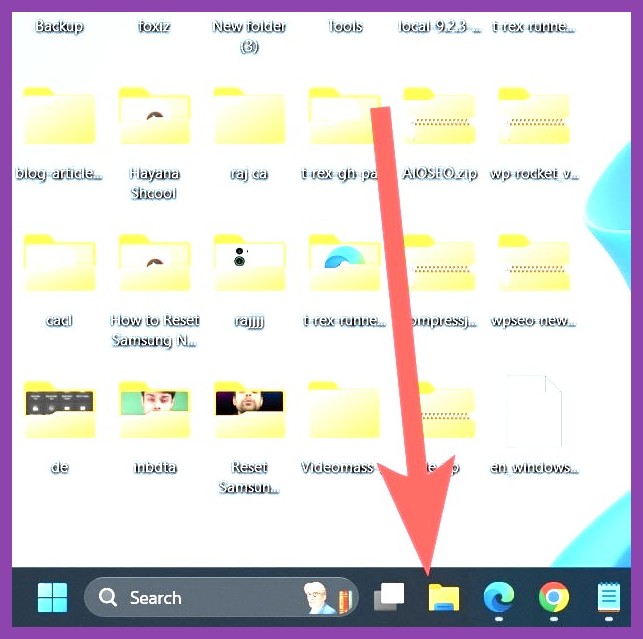
- Open Windows File Explorer and navigate to your main game user folder:
%USERPROFILE%\Documents\My Games\Path of Exile 2 - Locate and delete the following folders if present:
ShaderCacheD3D12,ShaderCacheVulkan, andMinimap. - Next, press
Windows Key + R, type%LOCALAPPDATA%\Path of Exile 2, and press Enter. - Delete any temporary cache folders found inside this directory.
- If you use an NVIDIA GPU, open your NVIDIA Control Panel, navigate to Manage 3D Settings, set Shader Cache Size to
10 GBorUnlimited, apply, and restart your PC.
Note: The first time you load into a town or area after deleting shader caches, you may experience minor micro-stutters while new shaders compile. This is completely normal and will smooth out within a few minutes of play.
3. Tweak In-Game Settings to Stop VRAM & RAM Memory Leaks
Path of Exile 2 streams huge amounts of texture data in real time. If your graphics card runs out of Video RAM (VRAM) or your PC runs out of system RAM, the game engine will crash without throwing a clear error code. Tuning key graphical parameters reduces memory overhead and stabilizes frame delivery.
Critical Graphical Settings to Adjust
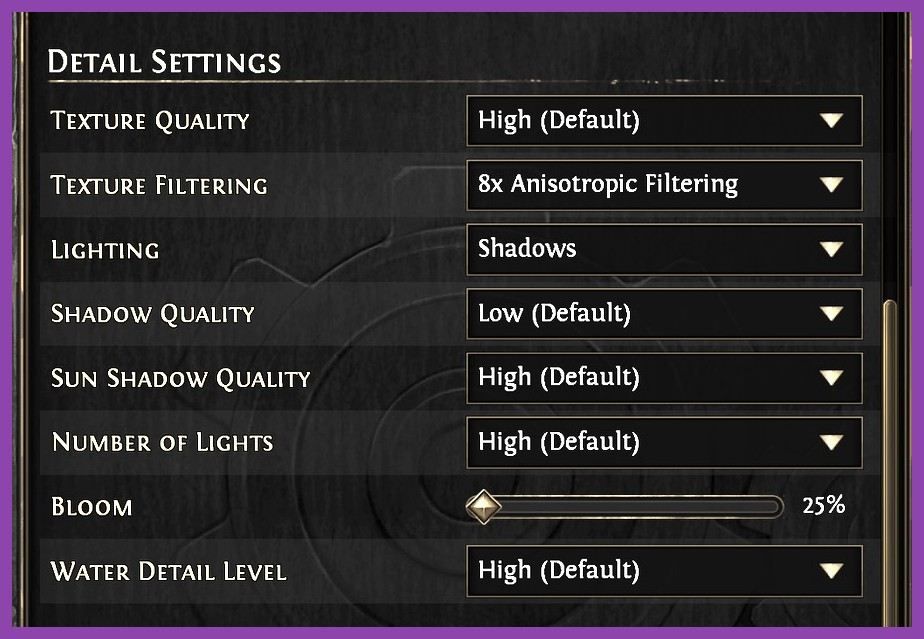
- Texture Quality: If your graphics card has 8 GB of VRAM or less, set Texture Quality to Medium. Setting textures to High on 8GB GPUs causes frequent VRAM allocation spills that instantly crash the display driver.
- Dynamic Resolution: Enable Dynamic Resolution and set your target FPS to 60 (or match your monitor refresh rate). This allows the engine to dynamically scale internal rendering resolution during intense spell animation stacks instead of overloading the GPU.
- Engine Multithreading: Keep this option ENABLED. Disabling multithreading reduces CPU performance drastically and creates severe bottleneck stutters.
- Foreground & Background FPS Limit: Set a reasonable Foreground FPS cap (e.g., 60, 120, or 144 FPS) matching your monitor. Uncapped frame rates cause your GPU to draw excessive power and heat up, triggering thermal throttling and driver resets.
- Shadow Quality & Global Illumination: Drop Shadow Quality to Medium and set Global Illumination to Low or Disabled. These settings account for massive processing spikes when dozens of light sources react with spell effects on screen.
- Water Detail & Volumetric Effects: Reduce Water Detail and Volumetrics to Medium. Complex liquid physics in swamp or coastal zones consume massive GPU resources.
If you are playing on older hardware or a portable device, check out our guide on games for low-end PCs for additional performance tips. You can also explore our broad Steamoz Guides section for more PC walkthroughs.
4. Verify Game File Integrity and Clean Graphics Drivers
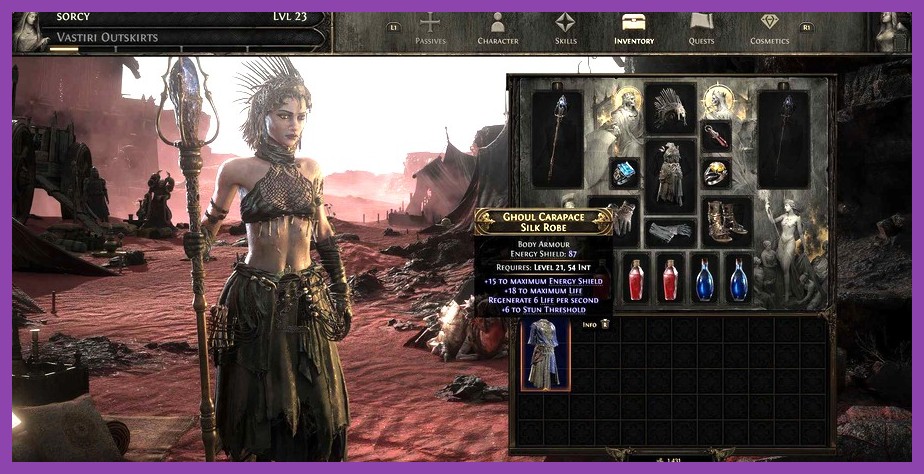
Corrupted game archives or broken graphics driver installations are behind a huge chunk of persistent crash reports. Updating your GPU drivers via a clean installation ensures that stale settings from old drivers don't interfere with modern rendering APIs.
Verifying Game Files on Steam
If an update patch interrupted or corrupted sound/texture packs, Path of Exile 2 will crash whenever the engine attempts to load those corrupted assets:
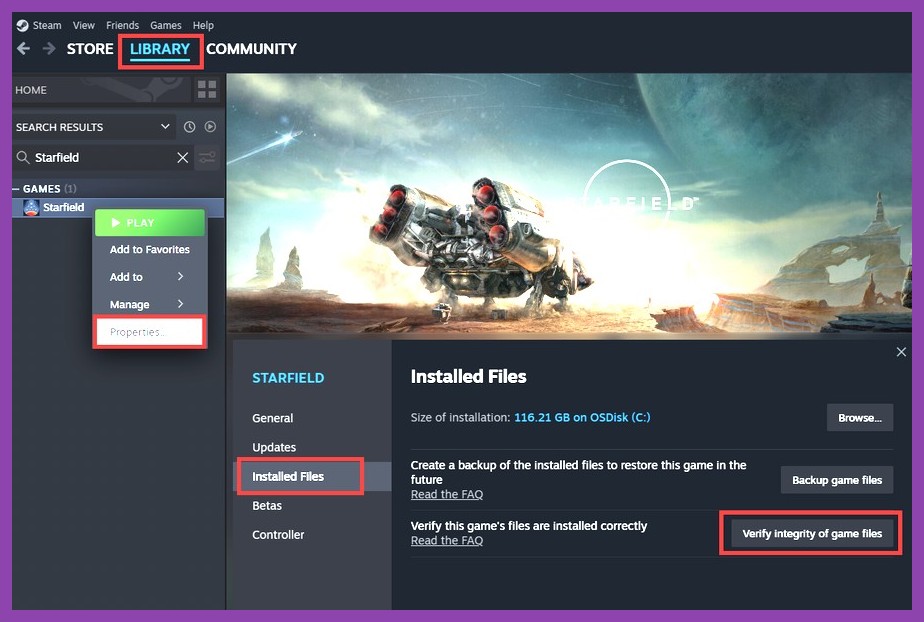
- Open your Steam Library.
- Right-click on Path of Exile 2 and select Properties.
- Click on the Installed Files tab on the left menu.
- Click Verify integrity of game files.
- Steam will scan your installation and automatically download any damaged or missing files.
Clean Driver Installation Using DDU
Updating GPU drivers directly over existing installations can leave behind corrupt registry keys. Performing a clean GPU driver reinstall resolves deep display driver crashes (e.g., nvlddmkm.sys or amdkmdag.sys TDR timeouts):
- Download the latest driver installer from the official NVIDIA Driver Download Center or AMD Driver Support Page.
- Download the official Display Driver Uninstaller (DDU) tool.
- Boot Windows into Safe Mode, run DDU, select your GPU brand, and click Clean and Restart.
- Once Windows reboots normally, install the fresh driver installer you downloaded earlier.
- During installation, select Custom / Express Clean Installation.
Disable Overlays and Monitoring Software
Third-party overlay programs inject code directly into the game's rendering chain, which often triggers fatal crashes in DX12 and Vulkan. Disable the following apps while playing Path of Exile 2:
- GeForce Experience / AMD Noise Suppression / In-Game Overlay
- Discord In-Game Overlay (User Settings > Game Overlay > Toggle Off)
- MSI Afterburner & RivaTuner Statistics Server (RTSS)
- Steam Overlay (Right-click PoE 2 in Steam > Properties > General > Disable Steam Overlay)
- Razer Cortex / Overwolf / PC Cleaning utilities
5. Windows System Tweaks: Pagefile, HAGS, and Overclocks
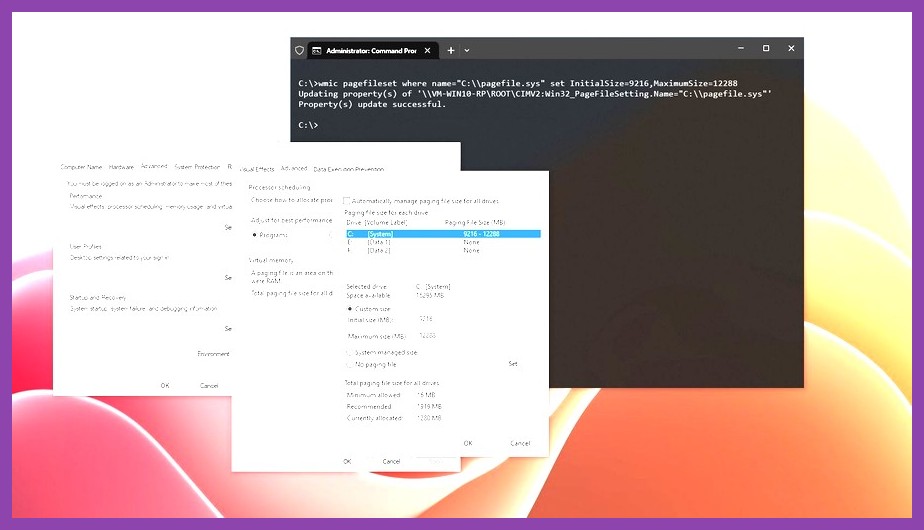
When software tweaks do not resolve crashes, the bottleneck usually lies in Windows-level memory management or hardware instability under heavy load.
Expand Windows Virtual Memory (Paging File)
Path of Exile 2 easily consumes 12 to 16 GB of system memory on higher settings. If your Windows Paging File is set too small or disabled, the operating system will forcefully terminate the game process the instant RAM hits capacity.
- Press
Windows Key + S, type View advanced system settings, and press Enter. - Under the Performance section, click Settings.
- Go to the Advanced tab and click Change under Virtual Memory.
- Uncheck "Automatically manage paging file size for all drives".
- Select your fastest SSD drive (where Windows or PoE 2 is installed).
- Select Custom size: Set Initial size to
16384MB (16 GB) and Maximum size to32768MB (32 GB). - Click Set, then OK, and restart your computer.
Toggle Hardware-Accelerated GPU Scheduling (HAGS)
Hardware-Accelerated GPU Scheduling is a Windows feature designed to reduce CPU overhead, but it is known to cause severe crashes in certain DX12 action RPG titles. To test disabling it:
- Open Windows Settings > System > Display > Graphics (or Graphics Settings).
- Look for Hardware-accelerated GPU scheduling.
- Toggle the setting to Off.
- Restart your PC and launch Path of Exile 2.
Revert Unstable Overclocks (GPU & RAM XMP/EXPO)
Path of Exile 2 utilizes heavy AVX workloads and continuous VRAM transfers that punish unstable system overclocks. If your graphics card or RAM profile is even slightly unstable, the game will crash during heavy spell combinations:
- Revert graphics card core clock and memory offsets back to factory default in MSI Afterburner.
- If you suffer persistent
EXCEPTION_ACCESS_VIOLATIONerror codes, enter your motherboard BIOS and temporarily disable XMP (Intel) or EXPO (AMD) memory profiles to test stability at stock DDR frequencies. - Check CPU thermal performance to ensure your processor is not thermal throttling under load.
6. Network Modes & Preventing Server Disconnect Crashes
Not all freezes in Path of Exile 2 are caused by local graphics hardware. Certain network stutters can cause the game client to lock up completely if the game client loses sync with the official servers hosted on official Path of Exile 2 website.
Switching Between Lockstep and Predictive Networking Modes
Path of Exile 2 offers two distinct networking modes in Options > Game > Networking Mode:
- Lockstep: The client stays completely synchronized with the server. If your internet connection experiences packet loss or a ping spike, your entire screen will freeze until the server responds. On unstable connections, this frame-freezing can trigger a client lockup or crash.
- Predictive: The client renders movement instantly without waiting for server confirmation. If packet loss occurs, your character may rubberband slightly, but your client will not freeze or crash during transient connection drops.
If you experience screen freezes whenever your ping fluctuates, switch Networking Mode from Lockstep to Predictive. Furthermore, avoid using background VPN services or aggressive firewall rules while playing online.
Troubleshooting Matrix: Rapid Fix Checklist
| Symptom | Likely Cause | Recommended Action |
|---|---|---|
| Instant crash on launch screen | Corrupted Shader Cache / API Conflict | Clear ShaderCache folders; force Vulkan in production_Config.ini |
| Crash after 15-30 minutes of play | VRAM Leak / Pagefile Exhaustion | Increase Windows Virtual Memory size; lower Texture Quality to Medium |
| Freeze frame during spell effects | Dynamic Shader Compilation Spike | Enable Dynamic Resolution; set Shader Cache Size to 10GB in GPU panel |
| Game closes to desktop without error | Background Overlay / GPU Overclock | Disable Discord/GeForce overlays; revert GPU factory clocks |
| Screen freezes then disconnects | Network Packet Loss / Lockstep Sync | Switch Networking Mode to Predictive in Game Options |
By working through these system tweaks step by step, you can eliminate stability bottlenecks and enjoy butter-smooth gameplay in Wraeclast. For more coverage on top action games, check out our comprehensive Steamoz RPG section, explore our guide to the best RPG games on Steam, or browse the latest updates in our PC Games category.